



How Gmail Backup Software Works

Aryson Gmail Backup Tool is a professional Gmail Email Backup Utility that helps users to take a backup of Gmail in the form of different file formats such as MBOX, PST, EML, MSG, PDF, HTML, EMLX, etc. Gmail Backup Software also permits users to transfer emails from Gmail to Yahoo, Hotmail, IMAP, Thunderbird, OperaMail, Office 365, Live Exchange, and other Gmail accounts.

You can follow the steps given below to create a backup of Gmail Emails on the local machine.

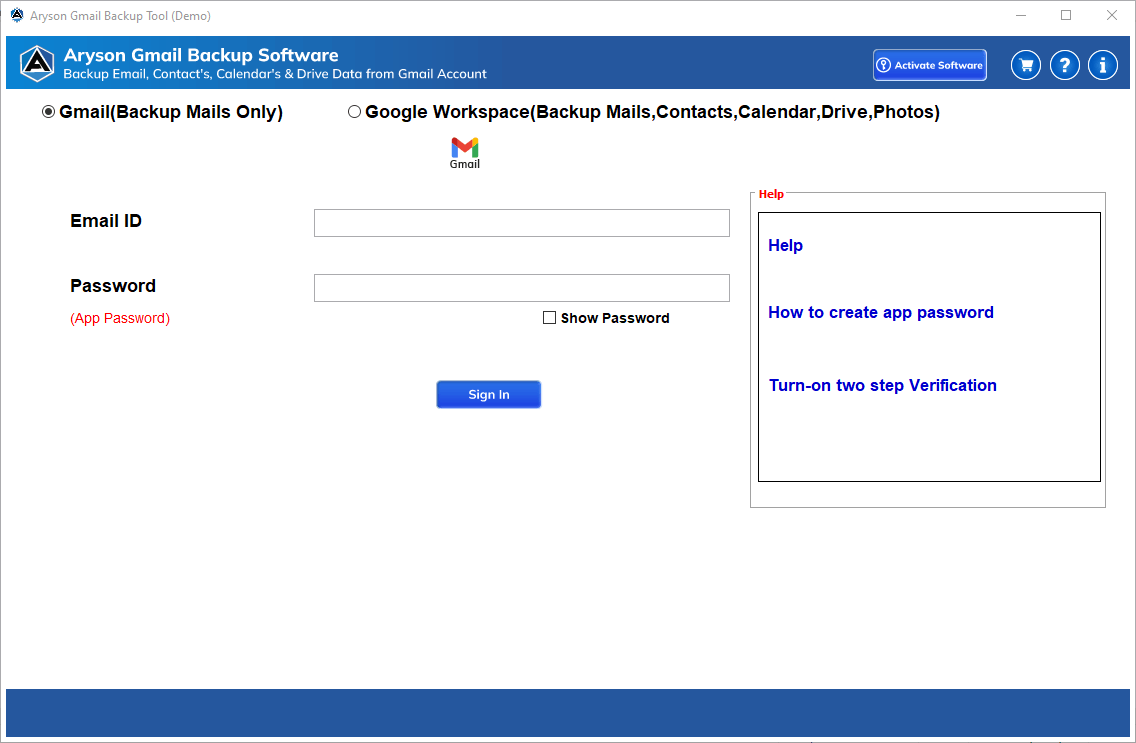
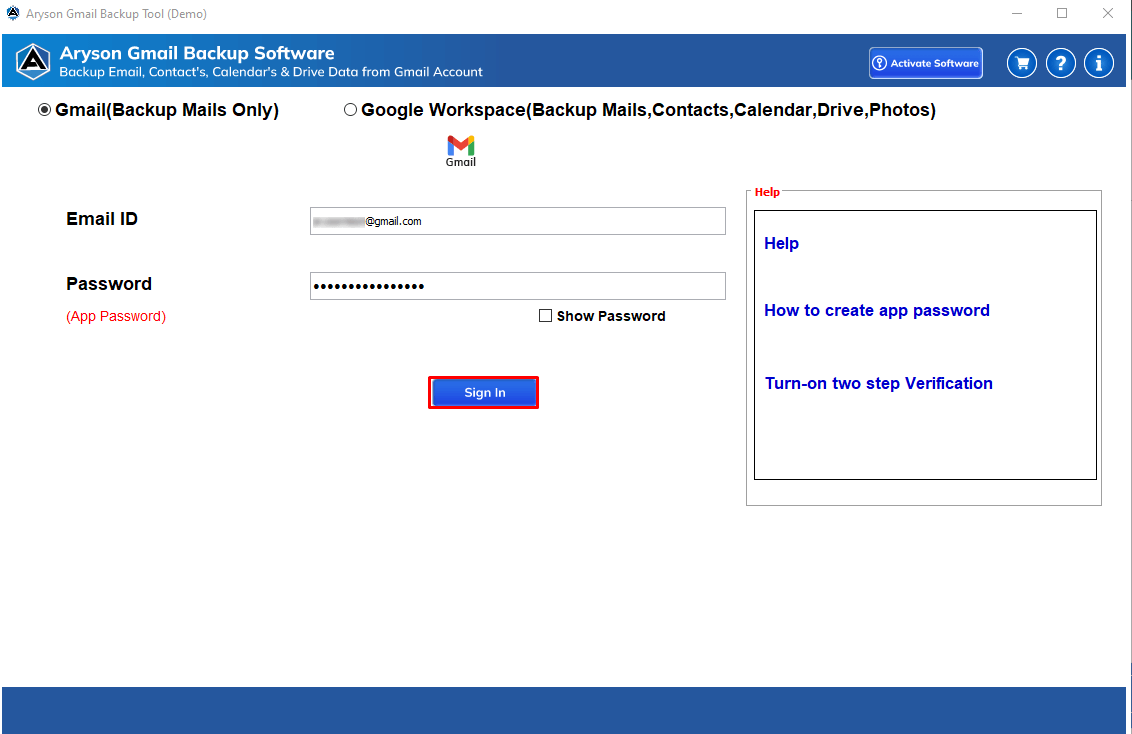
  • Download Gmail Backup Tool and Run then login to your personal Google account.
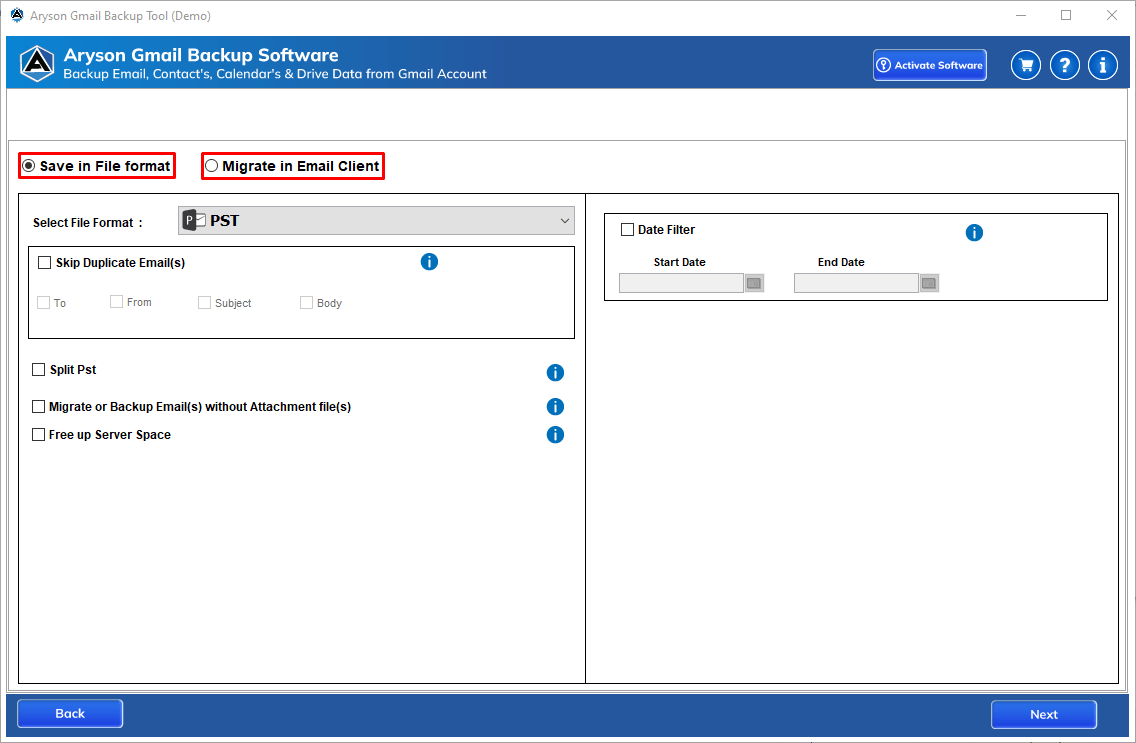
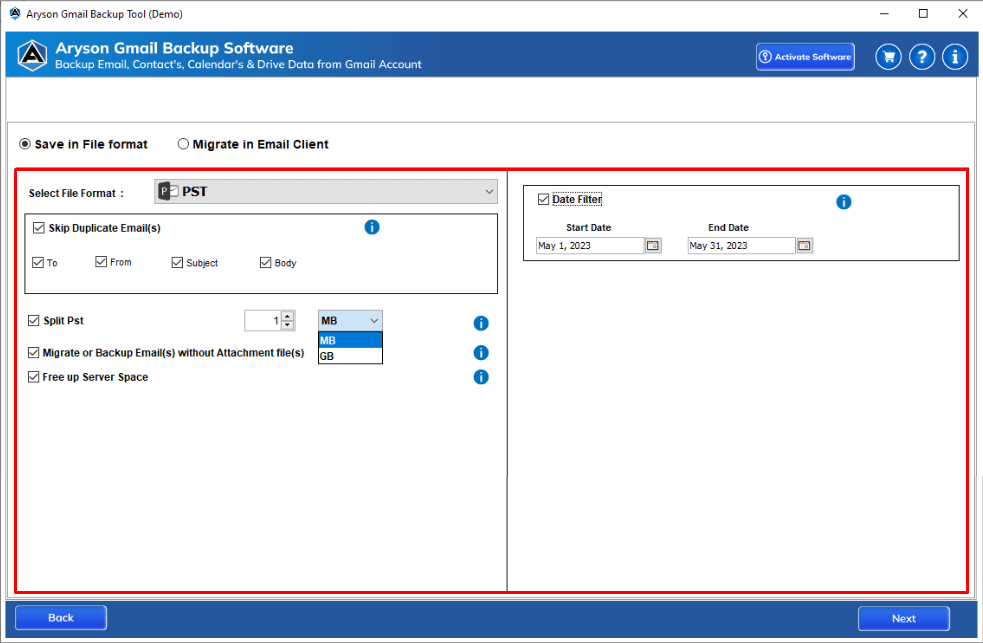
  • Select the Email Client and file format for saving the Backup of Gmail. Also, provide the destination path.
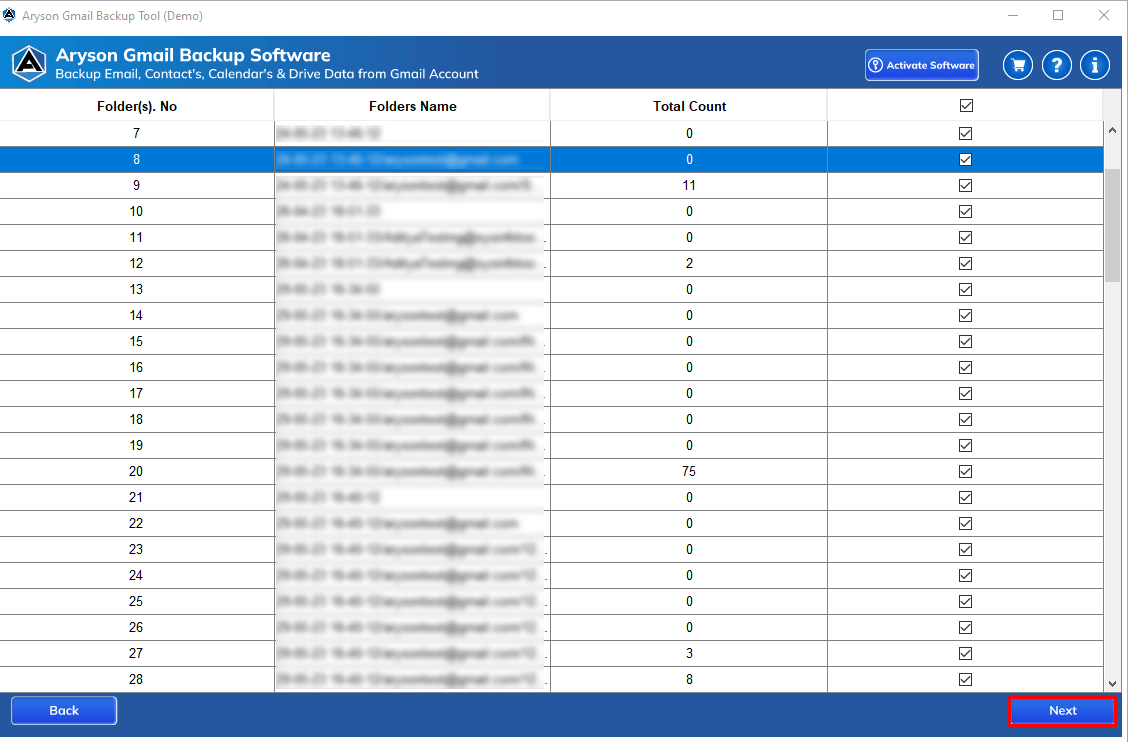
  • Select the mailbox folders from the Gmail Account and Click on the Export button.
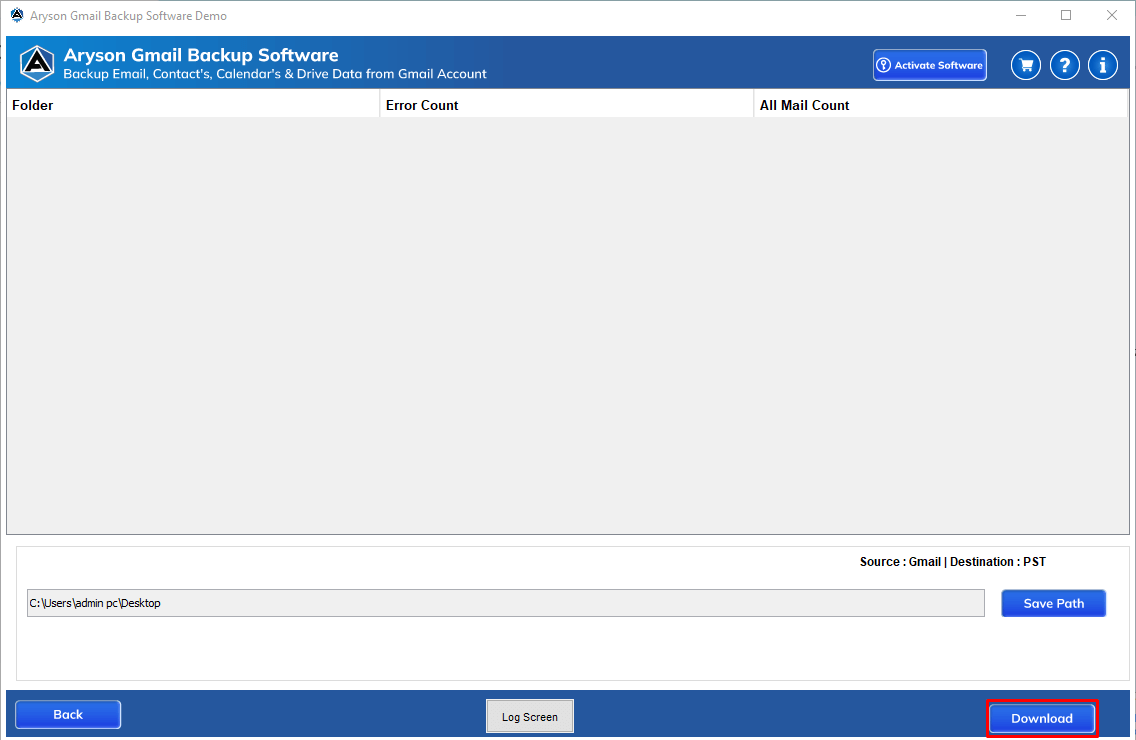
  • Now, Click on the Next button and wait until the completion of the Gmail Backup process.

Benefits of Gmail Email Backup Software:

  • Accurately save Gmail data on user-defined locations or the local machine.
  • It privileges users to download google contacts from the mailbox directory.
  • Exports email from Gmail as PST file format of the MS Outlook Email Client.
  • It has featured more than 10+ file formats for saving the mailbox items of Gmail.
  • Allows users to save Gmail mailbox data to PST, MSG, EML, TXT, PDF, JSON, and many other formats.
  • Enables users to directly transfer emails from Gmail to Yahoo, Outlook, Thunderbird, and other Gmail accounts.
  • It offers a Date Range Filter Feature that helps users to backup and export emails of Gmail according to date range.
  • The Free Demo version allows users to backup up to 50 emails of Gmail for free.
  • For this software use, the users have to need Gmail login credentials and App Password for Gmail.

How Gmail Backup Tool can be Useful?

The Problem
Gmail provides a limited space on the server to store emails and their attachments. When a user wants to create space in his Gmail Account then he has to delete emails and it deletes some important emails as well. So, before you delete any emails from your Gmail Account, make sure you have a backup of those emails.

The Solution
Aryson Gmail Backup Tool allows you to download and backup Gmail Emails to the local machine. You can save all the emails with attachments in the form of a PDF file with the help of this tool. It allows you to even export emails to other webmail like Yahoo, Hotmail, and Outlook so that it can create space in your Gmail account.

Aryson Gmail Migration Tool - Review & Ratings

Need for Google Mail Backup Tool

There are many situations when you will need a Gmail Backup Tool to resolve the issues. You can check those situations below:

Accidental deletion of Mailbox data

It is quite possible that a user accidentally or unintentionally deleted data or a part of the mailbox data to free up space. Even though the data first goes to the bin or junk after deletion and stays there for the next couple of days but what if the user realized that missing data after the permanent deletion? In such a case, a previous backup can help the user to invoke that file or email again to its form.

Google Takeout is Not Enough

Google Takeout is a simple utility which allows the users of Google Products, such as Gmail and Drive, to export their data to a downloadable archive file. However, a user cannot download or save the data stored in a shared folder or all the data in a single attempt if it is more than 50 GB. There is also one more limitation which is saving formats. There is a very limited range of saving formats available to download the archive file which can later trouble in migration.

The Device is Lost

Users tend to log into their email profile on multiple devices and they get used to keeping their profile logged in to multiple devices. Even though it's quite convenient to get all-time access to your mailbox but what if the device is lost? It can lead to a big data loss so the Gmail backup you took before will be the only way to get back your data.

Changing Your Preferred Client

Sometimes, people switch from Gmail to another email client and it is not possible for them to transfer thousands of emails to it. Therefore, the Aryson Gmail Backup tool allows you to migrate emails from Gmail to 10+ different email and webmail clients.

Exclusive Features of Gmail Email Backup Tool

Takes Gmail Back Up
Takes Gmail Back Up

With Aryson Gmail Backup Tool helps users enable to take a backup of their Gmail Account with their inbox, spam, junk, sent emails, etc. If a user is planning to take the backup of the Gmail mailbox then they can easily download or backup it. The software provides options to choose the date range options and take Gmail email backup according to the date at the local system.

Exports in Multiple Formats

The tool is known for its diversity in saving Gmail emails in various file formats. A user can download the Gmail email as a PST file, and they can also back up the Gmail account in more than 10+ formats, such as EML, MSG, MBOX, EMLX, PDF, HTML, TXT, and many more. Later on, these formats could be used on other applications according to users' needs.

Exports Gmail Email into MBOX

With the help of the Gmail Email Backup Tool users can download or backup all mailboxes from their Gmail Account as MBOX and save them to their local laptop or desktop. According to need users can use the taken MBOX of Gmail account in different situations like when opening Gmail with Thunderbird and access by other email clients which support the MBOX file.

Downloads the Google Drive Documents

The users of Gmail or Google always keep their important documents like PPTs in PPTX, Spreadsheets in XLSX, Drawings in JPEG, Photos, etc. in Google Drive for personal or business use. But sometimes users have to need to download all documents for any important purpose; therefore, the user has a tedious job to download all documents at a time. But with the help of the Aryson Gmail Mail Backup tool user can download all Google Drive documents at a time with ease.

Naming Convention Option

Gmail Backup Tool facilities the Naming Convention Option that allows users to take backup the data of Gmail by providing Date, Subject, To, and From as a naming base. It makes the handling of the resultant file easy and makes the user more convenient.

Stops and Resume Backup Process of Gmail

The software is included stop and resume facilities for the users, which help the users to resume or stop during the taking backup of Gmail email according to need.

Takes Free Backup of Gmail

With the help of the Aryson Gmail Backup Tool demo version, users can take up to 50 email items backup of Gmail with their attachments for free.

Widely Compatible
Widely Compatible

The software is compatible with all the major versions of Microsoft Windows. A user can successfully run or launch this software on Windows 10 and all of its previous versions without any trouble, but you do need to turn off the defender or firewall settings to operate this tool.

Backup Google Contacts

Google gives a unique way by which users can sync their mobile phones with a google account, and all their contacts get backed up on Gmail. If a user wants to archive all those contacts, then he/she can do it by selecting Contacts from the category section using this software.

Directly Exports Gmail Email to Other Email Clients

With Aryson Gmail Backup Software advanced feature helps users can export email from their Gmail account to other email clients like Outlook, Yahoo, Gmail, Thunderbird, Opera Mail, and many other email clients directly online.

Backup G-Drive Data
Backup G-Drive Data

G-Drive is one of the most prominent services of Google. It lets the users store the data online, or you could say on the cloud. The user is planning to download the data from the drive then he/she can easily download it using the software. It let the user download Google Docs, Spreadsheet, PPT, Sheets, Drawings, Photos, etc.

Exports Email into Any Email Client Using IMAP

The Gmail Email Backup tool lets users migrate to any email client using IMAP protocol. But all users should have known the IMAP Email address, Password, Hostname and port number. By providing these credentials, a user can directly export all the mailbox and data to the desired email clients without any issues. Still, the client should be IMAP enabled in the Gmail account.

Backups Gmail Email by Date Range Filter

To get relevant data from the email account by excluding unwanted emails, a user can apply filters. The software provides a Mail Filter feature to Archive Gmail emails by date range, which let the users give a specific date range and the rest of the work will get done by the software. The tool will then exclude those emails which don’t lie in that range.

Selective Approach for Backup

Gmail mailbox stores a variety of data, and it uses multiple folders to store these data items. If a user wants to download some specific data or a specific folder then he/she can opt or select that folder and can continue for Gmail archive procedure by excluding the rest of the unnecessary files and folders using this software.

Maintains Data Integrity

The Gmail Email Backup software maintains the data integrity during the entire process, Gmail email backup. It is possible due to the highly optimized and efficiently-designed algorithm of the tool, which makes sure that no data get altered or changed after the whole life cycle or Gmail email backup process.

Self-descriptive and Easy GUI

GUI or the user interface of the software is self-descriptive or intuitive in nature. It makes the user more comfortable handling the tool. The process becomes more easy and simple due to the interface, which means it is not required to be a technical-sounding person to download Gmail backup using this tool.

Software Prerequisites & Recommendations

Request For Software Customization

Note: Please provide a software customization request quotation if you need to add some extra special features to customize Aryson Software

Trial Limitations

Aryson Gmail Backup Tool Demo version backups only 50 Emails per Folder.

Download  

Size: 140MBVersion: 22.7

Required System Specification
  • Enough Hard disk storage to save the resultant file size
  • 1GB MB RAM (2 GB Recommended)
  • Pentium Class Processor, Intel, etc.
Supported Platforms
  • The software is compatible with the latest Windows 11, 10, 8, 8.1 (32-bit & 64-bit) and other below versions.
Software Prerequisites
    FAQ
    Comparison of Gmail Backup Demo and Full Version

    Compare all the features you can avail of in the demo and the Full version of the Gmail Email Backup Tool.

    Product Features Free Version Full Version
    Add Personal Gmail Account
    Download Gmail to PST, EML, MBOX, MSG, MHT, etc
    Export Gmail to Outlook, Gmail, Yahoo, Thunderbird, IMAP, etc.
    Preview of Google Account data
    Free Gmail Server Space
    Select items like Google Docs, Contacts, Calendar, Drive, etc
    Backup Gmail Emails 50 Emails per Folder Saves All Emails
    Save Gmail Calendar events 50 Emails per Folder Migrates All Emails
    Download Gmail Documents 50 Emails per Folder All Emails
    24*7 Tech Support & secure 100%
    100% secure Recovery
    Price Free $39
    Money Back Policy
    What Our Customers Are Saying About Us

    Aryson Gmail Backup Tool Verified Purchase Reviews

    review-rating
    Frequently Asked Questions

    Follow the Given Steps to Perform Gmail Email Backup:

    • Download & Install Aryson Backup Tool.
    • Lunch the software and enter credentials of Gmail then click on the Login button.
    • Now, it will extract all emails from the Gmail account.
    • Choose file format or email clients where to move or save email backup of Gmail.
    • Select the destination path for saving Gmail email backup.
    • Now, click on the Next button to successfully back up the Gmail email.

    Using the Aryson Gmail Email Backup Tool, you can save emails from Gmail to a computer or laptop successfully.

    Follow the Given Steps to Save Gmail Email to Computer:-

    • Download Gmail Email Backup Software, and Run.
    • Enter the Gmail Login ID & Password then Click on Login Button.
    • Now, choose the file format to save the backup of Gmail email.
    • Select the destination path where users want to save the backup email.
    • Click on the Next button to Save the Backup of Gmail.

    Yes, you can use this software to take an email backup of Gmail and save them into external hard drives or USBs successfully.

    Yes, you can use the given software steps to transfer emails from one to another Gmail account, which is the following:

    First of all, you need to follow the instruction during software installation.

    After that, you can run the software in your system and enter the Gmail ID & Password then take a backup of your Gmail Account.

    Yes, it will work for the personal Gmail account but not for the G-Suit or business accounts.

    The time that will be taken to back up the Gmail archive totally depends upon the internet speed, and size of the data.

    You can follow the given steps to download Gmail contacts, which are the following:

    • Launch the Gmail Backup Software and login into your profile.
    • Select the category as contacts, and provide the saving format and destination.
    • Choose the folder to import and provide the naming convention as you want.
    • Hit on the Next button and all the contacts will get saved to the desired location.

    Yes, you can use the demo version of the Aryson Gmail Backup Tool to take back up but only up to 50 email items of Gmail Account.

    This application doesn't have many prerequisites apart from the fact that It should be a Windows OS, you need to be connected to the internet and use an application-specific password.

    This software does not recover the lost Gmail password. Our tool is only intended to take the backup of your Gmail account emails and requires the account holder's email id and password to backup Gmail emails.

    Yes, it is compulsory to enter credentials(email-id and application-specific password) on the logging page of the Gmail Backup tool. Until and unless you will not share account credentials then how will the software be able to backup account data? Although the credentials are required, we assure you that your credentials will not be stored on any database system or revealed in front of any second person.

    Yes, email attachments will very much be included while backup. No amount of data is compromised while the backup is happening and attachments are embedded within the email backup itself.

    You can import emails from Gmail to your Yahoo account directly from the tool itself. No data loss or omission of any information will take place during the email migration process.

    The Process is as follows:

    • Install Gmail Email Backup Software, and Run.
    • Enter Gmail Email Credentials(Email-id and application-specific password)
    • Click on the Sign-In button.
    • Select the folders and click on the Next button.
    • Now, choose Gmail options from the dropdown list.
    • Sign in to your Yahoo account using your email-id and yahoo application-specific password.
    • Check the Mail Filter (if required).
    • Click on the Convert button, and take the backup of Gmail Mail.

    You can import emails from Gmail to a different or the same Gmail account directly from the tool itself. No data loss or omission of any information will take place during the email migration process.

    The Process is as follows:

    • Install Gmail Email Backup Software, and Run.
    • Enter Gmail Email Credentials(Email-id and application-specific password)
    • Click on the Sign-In button.
    • Select the folders and click on the Next button.
    • Now, choose Gmail options from the dropdown list.
    • Sign in to your Gmail account using your email-id and Gmail application-specific password.
    • Check the Mail Filter (if required).
    • Click on the Convert button, and take the backup of Gmail Mail.

    You can import emails from Gmail to PDF with attachments directly from the tool itself. No data loss or omission of any information will take place during the email migration process.

    The Process is as follows:

    • Install Gmail Email Backup Software and Run.
    • Enter Gmail Email Credentials(Email-id and application-specific password)
    • Click on the Sign-In button.
    • Select the folders and click on the Next button.
    • Now, choose Pdf options from the dropdown list.
    • Check the Mail Filter (if required).
    • Click on the Convert button, and take the backup of Gmail Mail.
    • You can see the pdf and attachment created in the PDF reader.

    There is no such limitation in the full version. For the Demo version, it is 50 emails per folder.

    Yes, you can delete the Gmail Emails after downloading by choosing Delete Email Checkbox which is “Delete Email (if this option is selected email will be deleted from the server after Backup)”.

    No, the software does not require MS Outlook on your system for the backup process, you can easily backup your Gmail email folder in pst without MS Outlook, for viewing the created PST you can either use MS Outlook or Aryson PST Viewer.

    Yes, the software will help you to save Gmail email as an EML file with attachments.

    You can import emails from Gmail to PDF with attachments directly from the tool itself. No data loss or omission of any information will take place during the email migration process.

    The Process is as follows:

    • Install Gmail Email Backup Software and Run.
    • Enter Gmail Email Credentials(Email-id and application-specific password)
    • Click on the Sign-In button.
    • Select the folders and click on the Next button.
    • Now, choose EML options from the dropdown list.
    • Check the Mail Filter (if required).
    • Click on the Convert button, and take the backup of Gmail Email.

    It helps us get specific emails within the date range provided

    Yes, with our software, you can take a backup of any of the folders (user-defined and default) of your Gmail account.

    Follow these instructions to import Gmail mail to Thunderbird.

    • Install Gmail Email Backup Software, and Run.
    • Enter Gmail Email Credentials(Email-id and App Password)
    • Click on the Sign-In button.
    • Select the folders and click on the Next button
    • Now, choose thunderbird options from the dropdown list.
    • It checks if thunderbird is installed in your system if not gives a pop-up saying such and set the path to desktop otherwise it will save on the thunderbird default folder
    • Check the Mail Filter (if required).
    • Click on the Convert button, and take the backup of Gmail Email.

    Yes, you can back Gmail Emails to an External Hard Drive and the steps are given below:

    • Install Gmail Email Backup Software, and Run.
    • Enter Gmail Email Credentials(Email-id and App Password)
    • Click on the Sign-In button.
    • Select the folders and click on the Next button.
    • Now, choose Saving & migration options from the dropdown list.
    • Check the Mail Filter (if required).
    • Click on the Path to Save button, and choose the external Hard drive.
    • Click on the Convert button, and take the backup of Gmail Mail.
    • Your mail will be saved in the external hard drive.

    You can check the procedure to open a converted PDF file with attachments. Click Here to follow the procedure.

    Yes, the software allows users to backup the Gmail drive. Follow the below steps to back up the Gmail drive.

    • Step 1: Download and Run the software as Administrator.
    • Step 2: Enter the Gmail id and third-party app password for the account that you need to back up.
    • Step 3: Now, click on the drive icon and allow the required option to back up the Gmail drive. (If you want to backup the calendar or contact then click on the particular icon and proceed with the below steps)
    • Step 4: Click on the path to save button and select your desired location to save the backup file of the drive.
    • Step 5: Completed the process of saving Gmail drive backup.

    Yes, the software enables users to backup calendars and contacts from their Gmail accounts. Software always backup calendars in ICS (Outlook) and Contacts in VCF (vCard) format.