-

Written By Rohan Wiese
-
Updated on April 7th, 2026
Microsoft PST Import Tool vs Automated Tool (Comparison)
Are you looking for an efficient way to move your PST file to Microsoft 365? Most of the enterprises move from local email storage to cloud-based platforms in order to improve collaboration & accessibility. PST files help to store emails, contacts, and calendars locally, while Microsoft 365 provides a centralised, cloud-based environment that allows its users to access their data from anywhere. Organisations can choose between manual migration methods, which require manual handling, or automated tools that streamline the process & reduce errors. In this blog, we will compare the Microsoft PST Import Tool with an automated tool and explore how the Aryson Import PST to Office 365 Tool simplifies enterprise-level migration.
User Query
Alex_J on Microsoft Community Ask: I attempted to import a large PST file into Microsoft 365, but the process failed midway with a validation error. The file opens without issues in Outlook, yet the import cannot be completed.
What is the proper way to fix this PST validation error and complete the migration to Microsoft 365?
Jessica_M on Reddit Ask: While uploading a PST file using the Office 365 import feature, I repeatedly encounter a validation failure that stops the migration. I have already tried repairing the PST, but the error still occurs.
What causes this issue, and how can it be reliably resolved?
Christopher_B on Microsoft Community Ask: During the PST import to Office 365, a validation error appeared, and some emails and contacts are now missing. The PST file also fails to open correctly in Outlook.
How can I safely repair the PST file and migrate all mailbox data to Office 365 without losing any information?
Understanding PST Migration Challenges
The process to migrate your PST files to Microsoft 365 can be a complex process, and organisations often face several common challenges, which are stated below:
- Users’ large PST files can slow down the migration process.
- Your emails, attachments, and metadata may be lost during transfer.
- Moreover, the process to maintain complex folder structures can be difficult.
- Ensuring compliance and data security is essential during migration.
What is the Microsoft PST Import Tool?
The Microsoft PST Import Tool is a native solution that helps you to upload your PST files into Office 365 or Exchange Online. It allows administrators to map their local PST files to specific mailboxes. & provides organised migration of emails, contacts, and calendars. Moreover, the tool supports both online uploads & network-based imports, which help businesses to centralise their email data in the cloud.
Steps to Import PST Files Using Microsoft PST Import Tool:
- Log in to the Microsoft 365 compliance centre as an admin.
- After that, navigate to Data Migration > Import PST files.
- Now, select Upload files or Network upload based on PST location.
- Then, you have to create a CSV file that maps your PST files to mailboxes.
- Thereafter, you can upload PST files to the provided Azure Storage location.
- Finally, you need to start the import process and monitor progress.
Limitations of the Native PST Import Method:
- The process is time-consuming, particularly for your multiple PST files.
- There is a higher chance of errors during file mapping or data transfer.
- Moreover, bulk migration of multiple mailboxes is difficult or impractical.
- There is a risk of data loss that includes emails and metadata.
- Likewise, the process to preserve complex folder structures is difficult.
Why Choose an Automated Tool over the Microsoft PST Import Tool?
The Aryson Import PST to Office 365 Tool is a reliable solution that helps to make PST migration secure & efficient for businesses of any size. Unlike the Microsoft PST Import Tool, this solution helps you in bulk migration, maintains the original folder structure & provides complete data accuracy. Moreover, with its secure credential handling & real-time progress tracking, this tool helps to minimize errors & simplify the entire process. Therefore, it is a preferred choice for IT teams & organisations that manage their multiple PST files.
Steps to Import PST to Office 365 Tool:
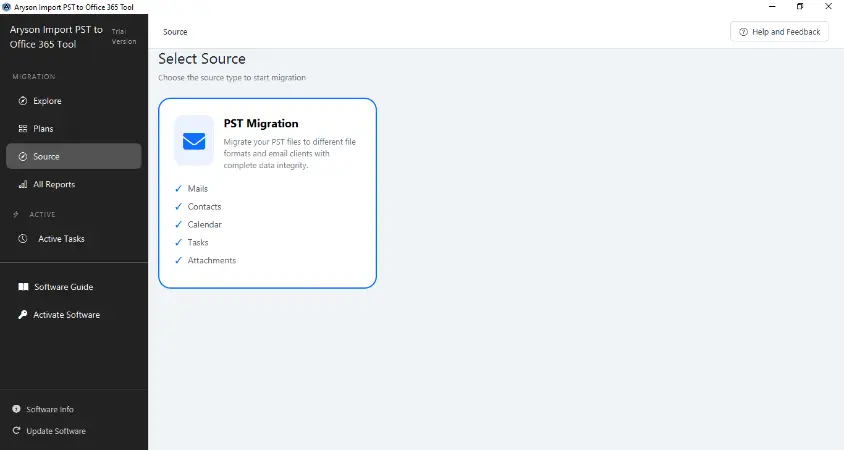
- To begin, install the Aryson Import to Office 365 Tool on your system.
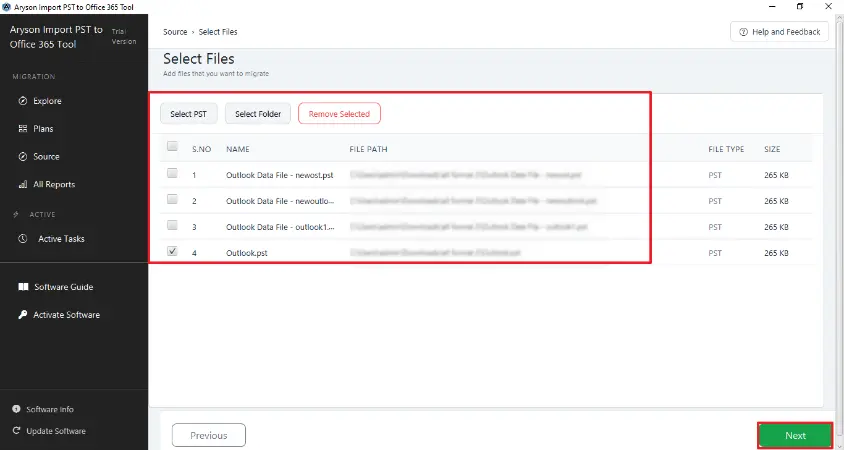
- After that, you have to launch it >> add the PST files you want to migrate.
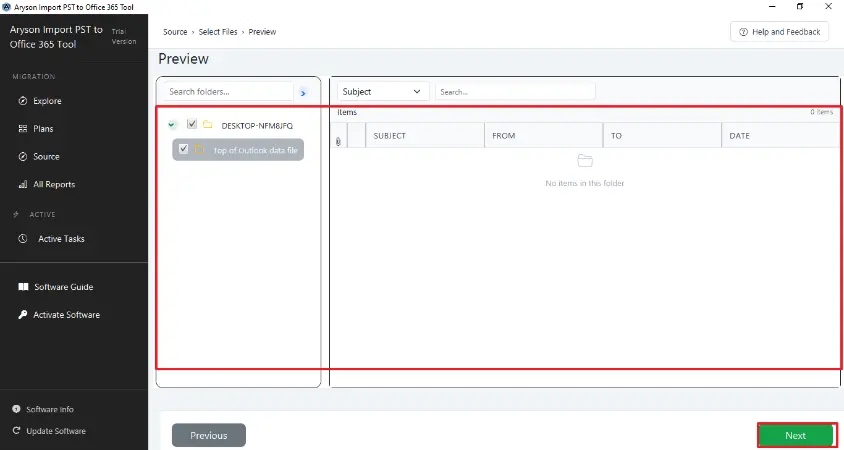
- Now, you can preview mailbox items to confirm the data before migration.
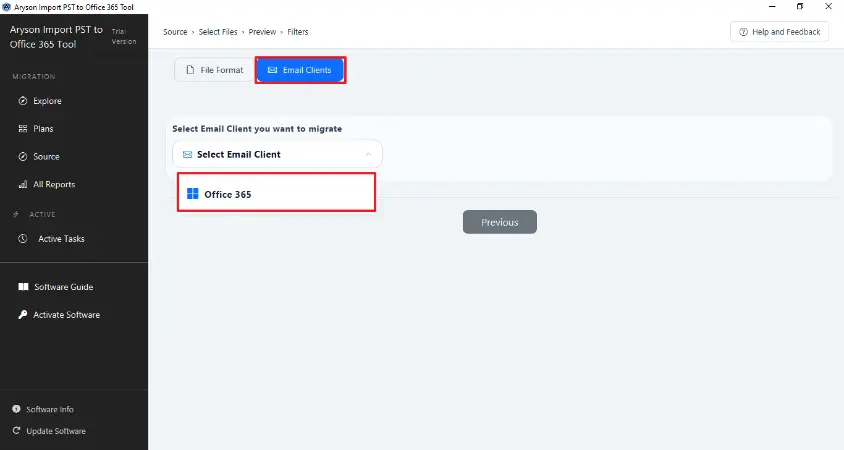
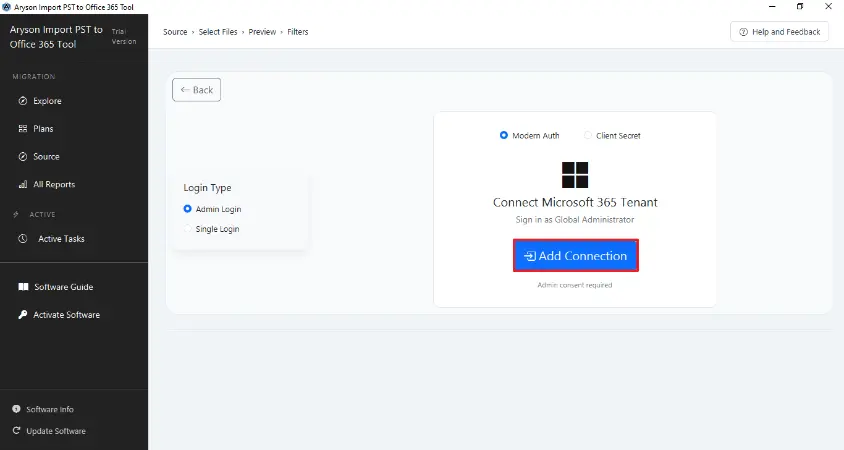
- Select Office 365 as the destination & simply enter the required credentials.
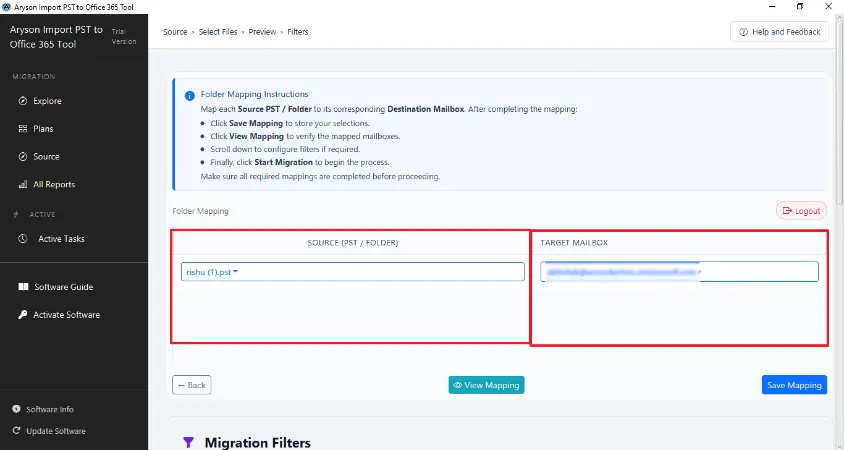
- In this step, you need to choose the specific mailboxes to be imported.
- Thereafter, you can apply optional filters, such as duplicate handling.
- At last, you have to press Start Migration to initiate the process of import.
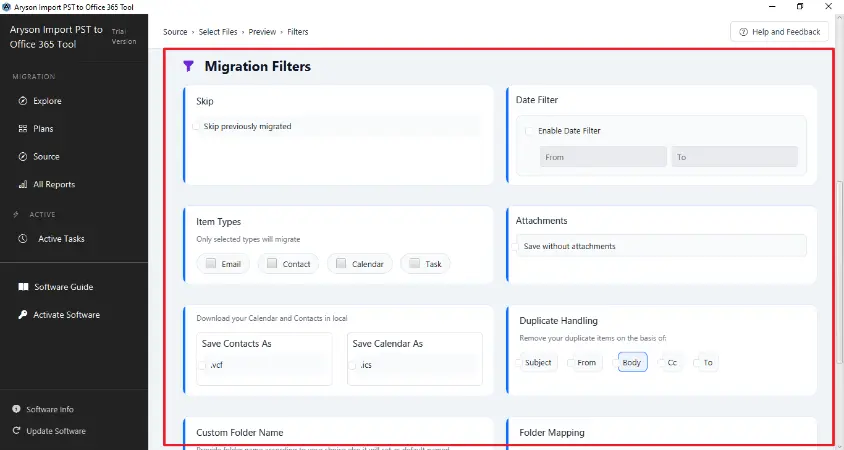
Comparing Microsoft PST Import Tool & Automated Solutions
When you migrate your PST files to Microsoft 365, organisations can choose between the native Microsoft PST Import Tool or automated migration tools. The table below highlights key differences to help determine the best approach for your needs:
|
Feature |
Microsoft PST Import Tool |
Automated PST Import Tool |
|
Ease of Use |
Users require manual steps and technical knowledge |
User-friendly interface with minimal manual input |
|
Batch Migration |
There is limited support for multiple PST files |
It supports batch migration of multiple files simultaneously |
|
Migration Speed |
You get a slower speed, especially with large files |
This provides faster migration with optimized processing |
|
Data Integrity |
It has moderate manual errors possible |
High, preserves emails, attachments, and metadata |
|
Reporting & Logs |
You will get Minimal reporting |
In this, it provides detailed reports & progress tracking |
|
Support |
This is community-based & Microsoft documentation |
Users get dedicated technical support from the tool vendor |
|
Security |
Standard Office 365 security |
Advanced security and encryption during migration |
Conclusion
To conclude, the process to migrate PST files to Microsoft 365 is an important step for organisations in order to move from local email storage to the cloud. The Microsoft PST Import Tool works well for your small migrations with simple mailbox structures but can be slow and requires manual setup. In contrast, the Aryson Import PST to Office 365 Tool provides a faster & more reliable approach that supports bulk migration & preserves folder structures and provides data accuracy. If you need any assistance or guidance during the migration, our support team is always available to help.
FAQs
Q1: What is the difference between the Microsoft PST Import Tool and automated tools?
Ans: The Microsoft PST Import Tool is manual and slow, best for small files. Automated tools like Aryson support bulk migration, incremental import, and faster, secure processing.
Q2: Can I migrate multiple PST files at once?
Ans: The Microsoft PST Import Tool has limited batch support. Aryson allows bulk migration of multiple PST files simultaneously.
Q3: Is my data secure during migration?
Ans: Aryson ensures secure migration without storing credentials. The Microsoft PST Import Tool offers standard security but lacks advanced protections.
Q 4: Can I filter emails or folders before migration?
Ans: Aryson supports selective migration by date, folder, or email type. The Microsoft PST Import Tool has minimal filtering options.
About The Author:

Rohan Wiese is a Technical Content Writer at Aryson Technologies, specializing in databases, e-mail recovery, and e-mail migration solutions. He enjoys conducting research and generating information that assists database administrators, businesses, and novices in resolving issues with MS SQL Server, MySQL databases, Cloud Computing, and Microsoft Exchange.
Realted Post