-

Written By Rohan Wiese
-
Updated on April 7th, 2026
PST Import Stuck at 0% in Microsoft 365 – Fix + Faster Alternative
Importing PST files into Microsoft 365 should be straightforward. But most users face difficulties when it shows a PST import stuck at 0%. Whether you’re dealing with a slow ingestion or a job stuck in analysis. In this article, we’ll explain all the scenarios and methods that help you fix the issue. Also, we will explain how the Aryson Import PST to Office 365 Tool helps you to solve this problem.
What Does PST Import Stuck at 0% Mean?
When your import job shows 0% progress. It usually indicates that the process hasn’t started properly or is blocked at the time of validation or ingestion stages. Microsoft itself confirms that PST import jobs can appear slow or stuck due to shared service limitations and delays in the process.
Common Causes Why Outlook Import PST Slow or Stuck
There are many reasons why PST import is stuck at 0% progress. Here are some reasons listed below for PST import into Exchange Online Stuck at 0%:
- A slow or unstable internet can disrupt the Azure upload.
- In Microsoft, a file size under 20GB is recommended.
- Moreover, a damaged or corrupt file may be skipped or block the import of PST files.
- When a wrong mailbox mapping is done, it gets stuck at 0%.
- Also, when you run multiple imports, it creates a conflict and slows down the process.
User Query:
ITAdmin_Rahul on Microsoft Community Asked: It has been hours that my PST import to Microsoft 365 is stuck at 0%. I am not sure whether the process has actually started or failed. I tried to even re-upload the file, but the issue is still there only, especially with large PST files & multiple mailboxes.
Therefore, suggest me a reliable and faster way to fix PST import stuck at 0% and complete the migration without errors or delays.
How to Fix PST Import Stuck at 0%
The solutions are given below to resolve the PST import that is stuck at 0% process.
Fix 01: Verify Network & Upload
- Make sure you use a stable high-speed internet connection.
- After that, upload the PST through AzCopy and avoid VPN interruptions.
Fix 02: Split Large PST Files
- You must break the PST into smaller chunks (<20 GB).
- For the faster process, import the PST files separately.
Fix 03: Assign Required Permissions
- To assign a permission, go to Exchange Admin Center >> Roles.
- Thereafter, you have to assign the Mailbox Import Export role.
Fix 04: Repair PST File
- Use ScanPST.exe
- Fix corruption before upload.
Fix 05: Validate CSV Mapping File
- Make sure the correct format: proper mailbox email or correct file path.
- Even a small mistake can freeze the job.
Fix 06: Check Mailbox Storage
- Make sure your mailbox has sufficient space before the import.
- If you need a mailbox, then use an archived mailbox.
Advanced Fixes1. Check “Analysis Phase Freeze” Sometimes the job is not stuck, but it’s frozen in the analysis stage, especially with:
Solution: You should recreate a job with smaller PST batches and simplify the folder hierarchy. 2. Recreate the Import Job Instead of Retrying Many users keep trying the same job, but the backend job may already be corrupted, or the UI may not reflect the real status. Best Practice: Delete Job >> Reupload >> Create Fresh Import 3. Import into Different Mailboxes First It is suggested to import PST into an alternative mailbox and then move data internally. 4. Use Different Import Message Upload the PST with a different method and switch between: Network upload and drive shipping. 5. Monitor Hidden Error via PowerShell Use: Get-MailboxImportRequest | Get-MailboxImportRequestStatistics It helps to identify corrupt items, hidden failures, and the status of the process. |
Why Outlook PST Import is Slow or Stuck
- Shared Microsoft Backend: The PST import process runs on Microsoft’s shared cloud infrastructure. There are many companies that use the same server at the same point in time, and speeds can vary. If the servers are under heavy load, your import may slow down or stop temporarily without any warning.
- Sequential Processing Per Mailbox: Imports are processed one step at a time for each mailbox. One task has to move forward before the next one starts, which means the overall process takes longer than expected, especially when the files are large.
- Multiple PSTs Reduce Performance: When you import several PST files at the same time, the available system resources get split. This does not speed things up. In most cases, it actually slows down each import job instead.
- Large Datasets Increase Delay: Bigger PST files take more time to get through each stage — uploading, scanning, and processing. Additionally, the more data you have, whether it is emails, attachments, or folders, the longer the whole thing takes from start to finish.
Automated Software to PST Import Issues in Microsoft 365
The Aryson Import PST to Office 365 Tool is securely move Outlook PST files directly into Microsoft 365. Likewise, it allows users to import one or multiple PST files and keep all emails and attachments intact. This software is made with a simple interface, that make it easy to use even for non-technical users. Also, it offers useful features like selective migration for the Office 365 Import Service. Unlike the manual method, this tool performs the migration more efficiently. Moreover, it is especially helpful for users who deal with large PST files or bulk migration.
Steps to resolve PST Import Fails in Microsoft 365:
- First, download the Aryson Import PST to Office 365 Tool.
- Then, select the PST file from your system and click on the Next button.
- Now, preview the folder’s details >> then click on Next to proceed.
- Next, click on the email client and select Office 365.
- After that, click on Add Connection >> enter the Office 365 credentials.
- Thereafter, map the source PST file to the Office 365 destination mailbox.
- Afterward, enable the filters for selective data migration and click on Start Migration.
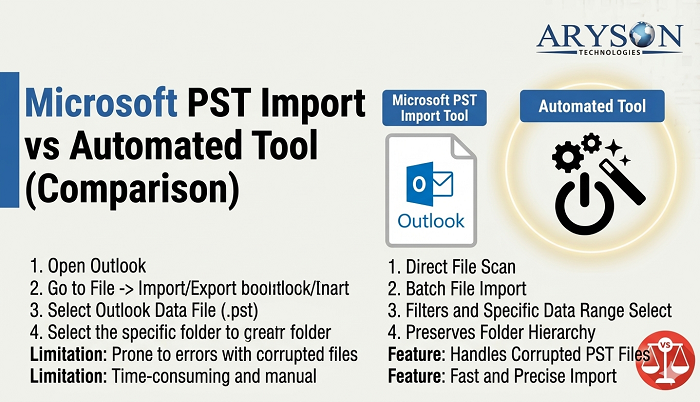
Comparison Manual vs Automated PST Migration
|
Feature |
Manual Import |
Automated Tool |
|
Speed |
Slow |
Much Faster |
|
Reliability |
Low |
High |
|
Bulk Migration |
Limited |
Supported |
|
Error Handling |
Minimal |
Advanced |
|
Duplication Removal |
No |
Yes |
|
Ease of Use |
Complex |
Simple |
Pro Tips for Smooth PST Import
- To begin the process, first test with a small PST file.
- Make sure to keep your PST files clean & compact.
- Moreover, avoid the import during the peak working hours.
- In addition, you need to maintain proper role permissions.
Conclusion
In this article, we covered all the important aspects of why the PST import stuck at 0%. With the correct approach, you can resolve this issue. While the manual fixes can resolve the problem, they are not reliable for large or repeated migrations. Therefore, it is recommended to use a professional tool that performs error-free PST migration in a hassle-free way.
Frequently Asked Questions
Q1. Why is my PST import stuck at 0% in Microsoft 365?
Ans. This usually happens due to a large PST file size, incorrect permissions, network interruptions, or delays on Microsoft’s servers. In some cases, the import job may be stuck in the analysis phase rather than actually processing data.
Q2. How long does it take to import a PST file into Exchange Online?
Ans. The speed depends on file size and server load. On average, Microsoft processes around 20–25 GB per day per mailbox, but delays can occur if multiple jobs are running or the network upload is slow.
Q3. What should I do if the Outlook PST import is slow or stuck?
Ans. You can try splitting large PST files, checking your internet connection, verifying mailbox permissions, and recreating the import job. Running fewer import tasks at the same time can also improve performance.
Q4. Why does PST import fail in Microsoft 365 even after upload?
Ans. Imports may fail due to corrupted PST files, incorrect CSV mapping, or mailbox storage limits being exceeded. Even small errors in configuration can stop the process from completing.
Q5. Is there a faster alternative to PST import in Microsoft 365?
Ans. Yes, you can use an automated software for quicker and more reliable transfers. These tools avoid common delays, support bulk migration, and reduce the chances of errors compared to manual methods.
About The Author:

Rohan Wiese is a Technical Content Writer at Aryson Technologies, specializing in databases, e-mail recovery, and e-mail migration solutions. He enjoys conducting research and generating information that assists database administrators, businesses, and novices in resolving issues with MS SQL Server, MySQL databases, Cloud Computing, and Microsoft Exchange.
Realted Post