

-

Written By Rohan Wiese
-
Updated on December 15th, 2025
How to Import PST to New Outlook? Quick and Easy Guides
If you have recently migrated to Microsoft hosting for your work emails and have your past emails saved as a PST file, this guide will help you quickly and easily import your PST data into the New Outlook. We’ll cover both manual steps along with the Aryson PST Converter Tool as an efficient automated solution. So that you are assured that all your emails, contacts, and calendar items are safely transferred to your new account without any hassle.
New Outlook vs Classic Outlook: What’s the Difference?
First, it helps to understand the difference between the “classic” Outlook and the “new” Outlook.
- Classic Outlook refers to the traditional desktop version of Outlook — for example, Outlook 2016, 2019, or the desktop client that comes with older Office / Microsoft 365 packages. In classic Outlook, full PST import/export (including mail, calendar, and contacts) has long been supported.
- New Outlook is the redesigned desktop client for Windows. It aims to be a more streamlined, modern app — but certain legacy functionalities (like full PST import/export) have been reworked, restricted, or removed.
Because of these changes, many of the familiar import workflows from classic Outlook no longer apply directly when you’re working in new Outlook.
Queries Asked on Microsoft: Import a PST File into New Outlook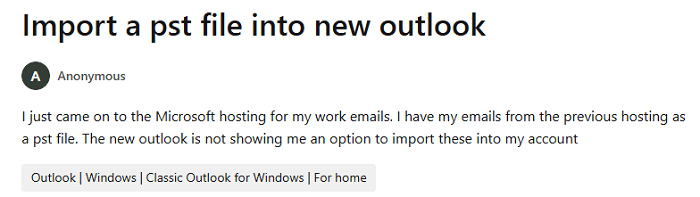
Understanding the Need to Import PST into New Outlook
- Users can restore old Outlook emails stored in PST files.
- Additionally, it helps bring back important attachments saved earlier.
- Moreover, contacts stored in older Outlook profiles become accessible again.
- Also, calendar events remain available for future use.
- Furthermore, it helps when switching to a new PC or Outlook upgrade.
- Likewise, users can recover backup data when needed.
- Meanwhile, business email archives stay within easy reach.
- Besides, all mailbox data stays in one place for better management.
- Therefore, it prevents data loss during migration to New Outlook.
- Users can improve work continuity without missing old messages.
Different Ways to Import PST into New Outlook
Although it depends on your setup and preferences, you can import PST files into the New Outlook using either manual or automated methods. Both methods are safe and widely used. The first option is suitable for personal mailboxes, while the second works well for business accounts using Microsoft 365.
Method 01: Manual Procedure to Import PST into New Outlook
The New Outlook now includes options to import PST files directly, though the process is slightly different from Classic Outlook. This method works best if your account is connected to Microsoft 365 or Outlook.com.
- Launch the New Outlook on your system.
- Ensure you are signed in with the account where you want to import PST data.
- Click on your profile icon or Settings (gear icon) in the top-right corner.
- Scroll down and select Manage Accounts or Accounts Settings.
- In the section of Account, find Import Outlook Data, then click Import.
- Click Browse to locate the PST file stored on your computer.
- After that, select the PST file you want to import.
- Now, tap on the Open button to add PST Files to New Outlook.
Important Notes About Import via New Outlook
- Direct PST import works only with accounts linked to Microsoft 365 or Outlook.com.
- Large PST files may take longer to sync.
- Always keep a backup of your PST before importing to prevent accidental data loss.
- Not all versions of the New Outlook support PST import; ensure your app is updated to the latest version.
Use the Toggle Switch button to Import PST File into New Outlook
The New Outlook now includes a toggle switch that lets users switch between Classic and New Outlook views. Using this feature, you can import PST files easily.
- Once again, open the New Outlook on your system.
- Make sure you are logged in with the correct Microsoft 365 or Outlook.com account.
- Locate the toggle switch at the top-right corner of the New Outlook interface.
- Switch to Classic Outlook mode temporarily.
- In Classic Outlook, go to File>> Open & Export >>Import/Export.
- Choose Import from another program or file.
- In the next panel, choose Outlook Data File (.pst).
- Browse your system to locate the PST file. Select it and click Next.
- Choose your Microsoft 365 or Outlook.com mailbox as the destination.
- Click Finish to move Old Outlook PST files into New Outlook.
- Once the import completes, toggle back to New Outlook using the switch.


Important Notes About the Toggle Switch Method
- This method requires Classic Outlook temporarily; the toggle switch helps access it quickly.
- Works well for both small and moderate-sized PST files.
- Large PST files may take longer to sync when switching back to New Outlook.
Additional Note: Manual methods to import PST files can be time-consuming, especially with large PST files or multiple accounts. Hence, we will introduce you to the automated solution to simplify the task with ease.
Method 02: Import PST to New Outlook Using Direct Automated Solution
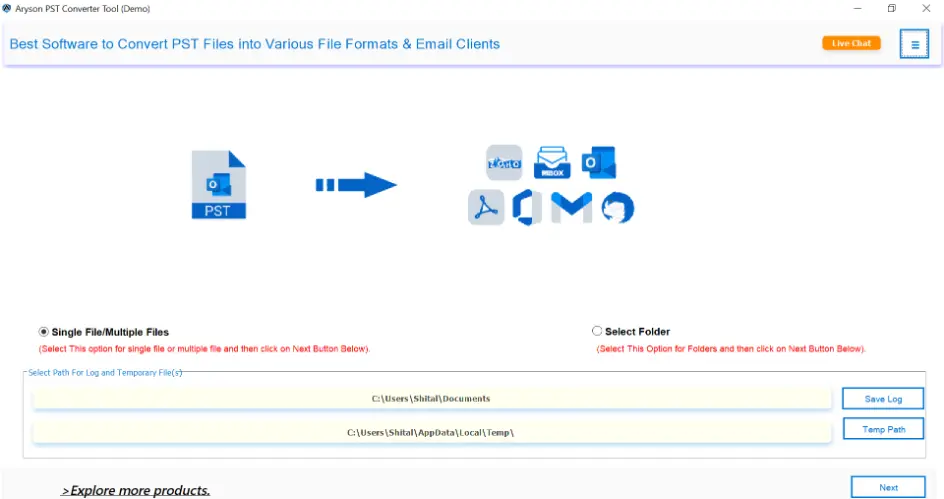
Aryson PST Converter simplifies the process to import PST files directly into Microsoft 365 or Outlook.com. It maintains email formatting, attachments, and properties. Moreover, it supports large PST files and multiple files at once. Along with that, this utility allows the selective import of specific folders or items. Users can use this software on any version of Outlook, including earlier one. Date Filter, Remove Duplicate, or Custom Folder name, there are several specific features that help users perform selective data conversion. Both technical and non-technical users can perform the conversion process with ease within a few clicks.
Follow these Steps to Import PST to New Outlook
- Firstly, install and open Aryson PST Converter on your system.
- After that, select the Open option to locate and add the PST file.
- Check all mailbox folders displayed in a tree view on the left side.
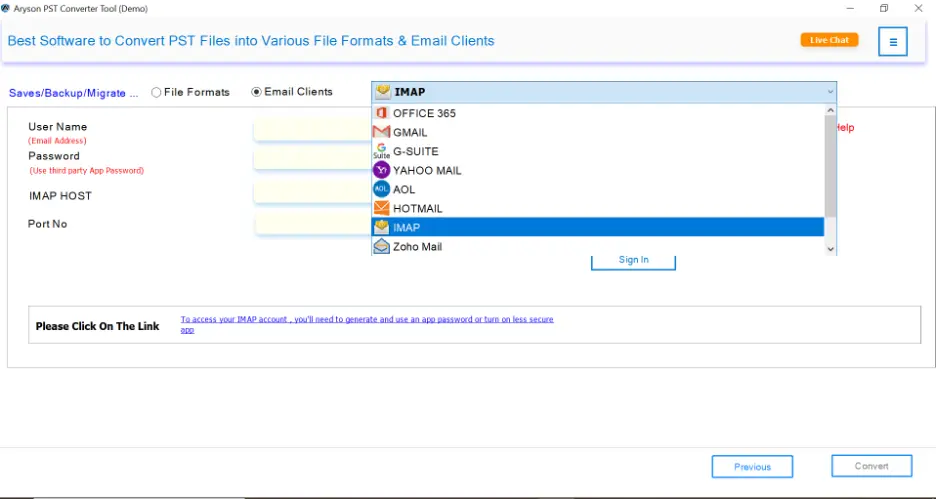
- From the list of output email client options, select IMAP.
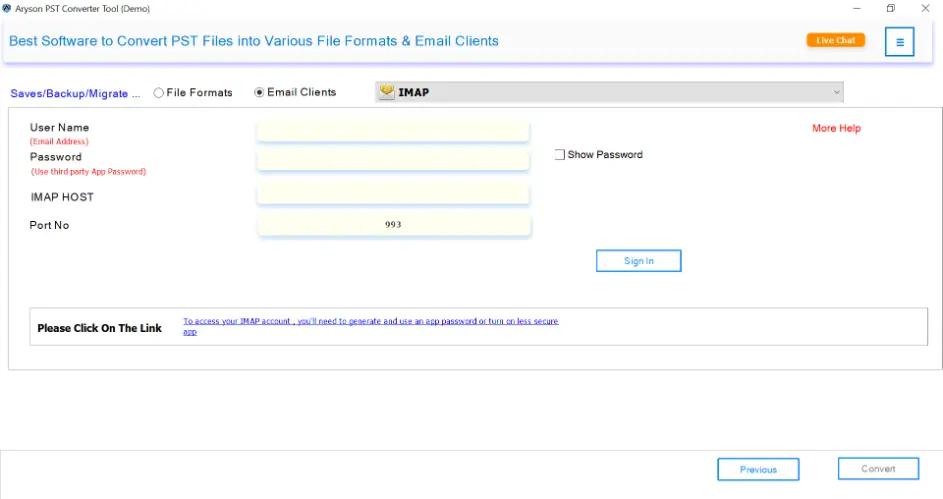
- Enter your New Outlook email address, IMAP server details, along app password.
- Now, users can choose date range or folder filters to import selected emails only.
- At last, click on the Convert button to open PST files in New Outlook.

What to Do When PST File is Corrupt?
Sometimes, there is an issue of corruption in the PST file. The problem arises when these files cannot be imported or are inaccessible in your MS Outlook profile or account. For this, there is an alternate solution Outlook PST Repair tool. This tool repairs the PST file error or corruption issue. There is no limitation regarding the size of the PST file for the recovery. After that, you can easily import the recovered PST file.
Conclusion
Once you understand the available methods, the process becomes much easier. Manual options work for small PST files, but they often require extra time and technical effort. On the other hand, an automated solution offers a faster and more reliable way to import PST to New Outlook. It protects email data, and reduces the risk of errors. Choosing the right method depends on your data size and comfort level. With the correct approach, accessing old Outlook data in the New Outlook becomes smooth and hassle-free.
Frequently Asked Questions:
Q1. What is the best way to import large PST files into the New Outlook?
Ans: Aryson PST Converter Tool is the best option. It supports large PST files, avoids sync issues, and saves time.
Q2. Will my folder structure remain the same after import?
Ans: Yes. When the Aryson PST Converter Tool is used, the original folder hierarchy stays intact in the New Outlook.
Q3. Can I import only selected emails from a PST file?
Ans: Yes. Aryson PST Converter Tool allows selective import using date range and folder filters. Manual methods do not offer this flexibility.
About The Author:

Rohan Wiese is a Technical Content Writer at Aryson Technologies, specializing in databases, e-mail recovery, and e-mail migration solutions. He enjoys conducting research and generating information that assists database administrators, businesses, and novices in resolving issues with MS SQL Server, MySQL databases, Cloud Computing, and Microsoft Exchange.
Realted Post



