

-

Written By Rohan Wiese
-
Updated on January 2nd, 2026
Inbox Zero 2026: Free Up 15GB Gmail Storage Without Deleting Anything
In 2026, many users face Gmail storage full warnings without wanting to delete important emails. Since Gmail shares space with Google Drive and Photos, inbox clutter grows quickly. However, Inbox Zero offers efficient way to manage emails without data loss. In cases where users need to keep emails for a long time and also free up space, then Aryson Gmail Backup Tool helps users to backup emails securely and reduce server space usage with complete data accuracy. This guide explains easy and practical ways to achieve Inbox Zero, free up Gmail storage, and keep your inbox clean. Continue with the complete blog to get all the simplified solutions to free up Gmail storage without deleting emails with ease.
User Query: My Gmail storage is showing full even though I don’t want to delete any important emails. So I need an appropriate solution to free up Gmail storage without deleting emails. I keep getting storage warnings, my inbox is cluttered, and Google Drive and Photos are also using space. Is there any real way in 2026 to free up the 15GB Gmail storage and achieve Inbox Zero without losing emails, attachments, or important data?
What Exactly Does Inbox Zero Really Mean?
Inbox Zero does not mean deleting all your emails. Instead, it focuses how to handle emails in an appropriate way. The main idea of Inbox Zero is to process emails as they arrive. When emails are managed properly, the inbox stays clean, and important messages remain easy to find. In 2026, email traffic is much higher than before. Businesses, subscriptions, and online services send emails every day. Therefore, Inbox Zero is no longer optional. It has become a practical method for managing Gmail efficiently.
Why Do Users Need a Proper Gmail Storage Solution?
Users often need a reliable Gmail storage solution because manual cleanup does not work in the long run. The reasons are clear and practical.
- To keep a safe copy of their work, legal, or personal messages, because they can’t be deleted.
- Gmail shares the same 15GB storage with Google Drive and Google Photos, so space fills up easily.
- Emails with attachments take up space over time. Hence, it becomes hard to manage them manually.
- Promotional and automated emails arrive daily, and without filters, the inbox quickly becomes cluttered.
- Repeated “Storage full” warnings affect Gmail performance and prevent smooth fluency to send and receive emails.
These reasons show that most of the users need a safe and long-term solution that frees up Gmail storage without deleting important data.
Efficient Mailbox Backup Solution to Reclaim Server Space
Users need long-term access to emails, and direct deletion can cause permanent data loss.
To safely manage Gmail storage, all you need to keep permanent copy of your emails. Aryson Gmail Backup Tool provides a secure, easy, and efficient way to backup Gmail emails when Gmail storage almost full. Using this automated approach, users can achieve Inbox Zero, reduce Gmail storage usage, and maintain a safe copy of all important emails without manual effort. It allows users to backup their entire mailbox, including inbox, sent items, drafts, contacts, and attachments, to a local system or preferred storage format. In case you want to sync it with a new Gmail account, then you can transfer Old Gmail Emails to new Gmail Account within a few clicks. Further, we will go through all the major advantages associated with this software:
Step-by-Step Solution: How to Free up Gmail Space
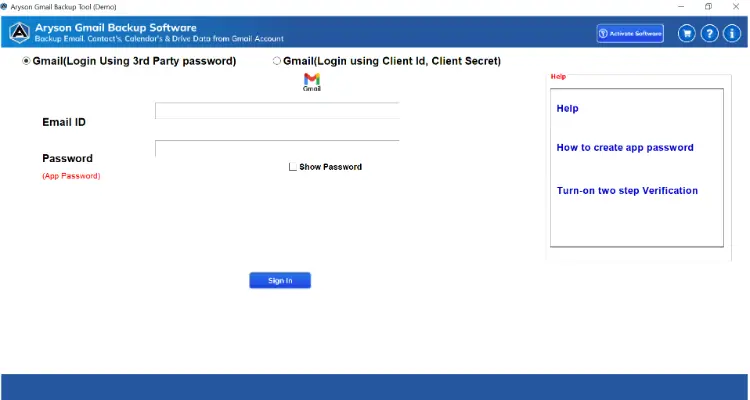
- Download the Aryson Gmail Backup Tool, launch it to start the backup process.
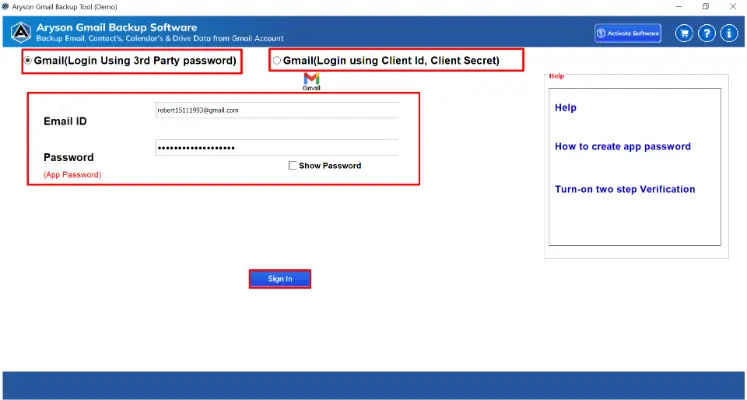
- Enter your Gmail credentials with required permissions to access mailbox securely.
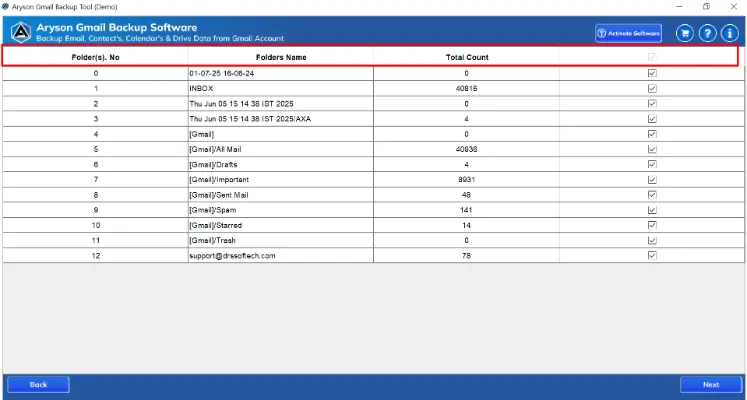
- Next, it will show all your Gmail data in a tree-view format, including Inbox, Sent Items, Drafts, Contacts, and Labels.
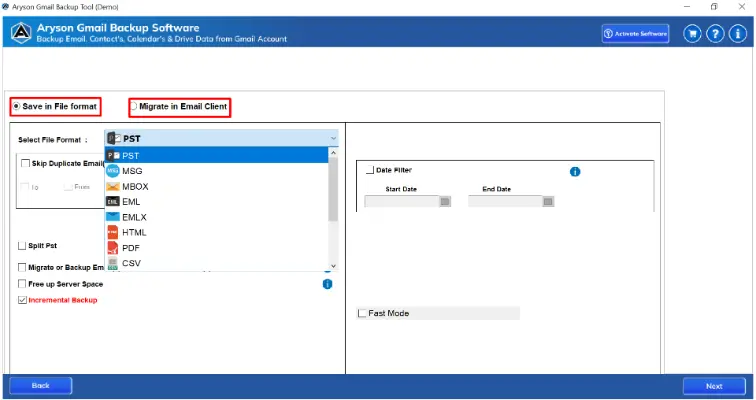
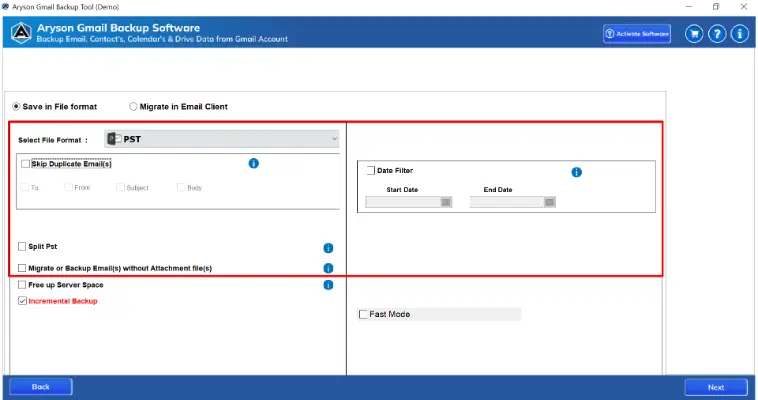
- Select the Backup option, either Save in File Formats or Migrate in Email Client.
- Use the filter options to select specific date ranges, labels, or email types.
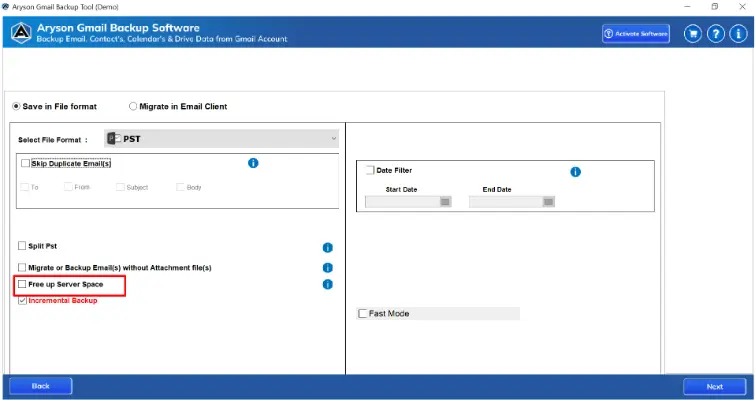
- Also, you can use the Free Up Server Space Option to Gmail storage cleanup without deletion.
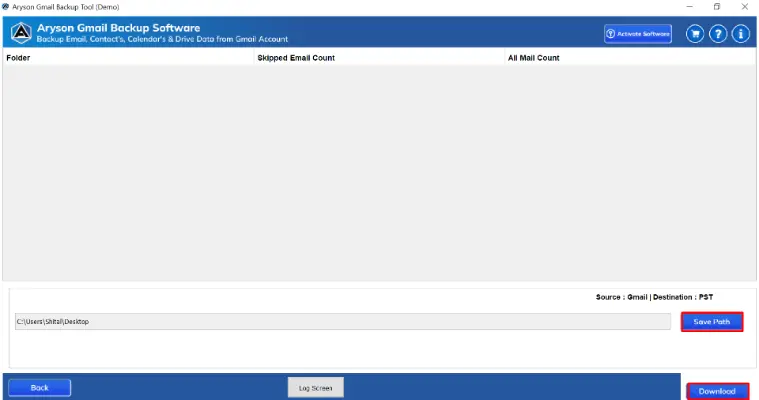
- Click the Download button to begin the backup and free up Gmail storage without deleting emails.
Additional Key Feature Associated With This Backup Solution
- Secure Email Backup: Back up all Gmail mailbox data, including inbox, sent items, drafts, contacts, and attachments.
- Multiple Saving Formats: Export emails in various formats such as PST, EML, MSG, PDF, or MBOX to access them with ease.
- Selective Backup Options: Choose specific folders, labels, or date ranges to back up, which helps save storage and organize your mailbox efficiently.
- Attachment Management: Download or remove large attachments and keep email content intact, without losing important data.
- Maintain Data Integrity: Preserves the original email structure, attachments, metadata, and folder hierarchy, ensuring a complete and secure backup.
- Server Space Optimization: Free up Gmail storage safely after backing up emails, allowing users to achieve Inbox Zero without deleting important messages.
- User-Friendly Interface: Easy-to-use interface allows even non-technical users to back up emails and manage Gmail storage in just a few clicks.
- Secure and Reliable: Uses a safe and stable process to ensure that email data is backed up without risk of corruption or loss.
- Supports Multiple Gmail Accounts: Backup emails from single or multiple Gmail accounts simultaneously, saving time and effort for users managing multiple accounts.
- Compatible with Various Email Clients: It works with multiple email clients, such as Outlook, Thunderbird, and more, when exporting emails in compatible formats.
Some of the Manual Gmail Storage Saving Techniques
However, if you want to handle things manually, the next section covers a few effective manual fixes you can use to reduce Gmail storage. Although you should keep in mind that you have the technical knowledge to navigate through the given terms related to your Gmail account. Along with that, avoid executing these manual methods hastily, as improper handling can result in irreversible data loss or the unintended permanent removal of critical files.
01: Find Large Emails Using Gmail Search
- To Gmail storage optimization 2026, sign in to your Gmail account.
- After that, type larger:10M in the search bar and press Enter.
- As a result, Gmail displays emails that contain large attachments.
- Next, open important emails and download attachments if required.
- In the end, archive or delete emails that are no longer useful.
- So that, you will accomplish the Gmail inbox cleanup tips.
02: Clean Promotional and Social Emails
- First of all, open Gmail and access the search bar.
- Then, enter category: promotions or category: social.
- Once done, select old or unnecessary emails in bulk.
- Following this, archive or delete the selected messages.
- Finally, empty the Trash folder to reclaim storage space.
03: Download Attachments and Remove Emails
- Initially, search for emails using has:attachment.
- Afterward, open the email and download the attachment to your system.
- At this point, confirm that the file is saved safely.
- Subsequently, archive or delete the email from Gmail.
- Eventually, clear the Trash folder to free up space.
04: Create Gmail Filters to Auto-Manage Emails
- At the start, click the search filter icon in Gmail.
- Next, enter sender details or specific keywords.
- Once completed, click on Create filter.
- Moving ahead, choose actions like Skip Inbox or Apply Label.
- In conclusion, save the filter to manage future emails automatically.
05: Clean Google Drive and Photos Storage
- To start, open Google Drive and sort files by size.
- After this, remove large or unused files.
- Once removed, empty the Drive Trash folder.
- Meanwhile, open Google Photos and delete unwanted media.
- Lastly, clear the Photos Trash to permanently free storage.
Conclusion
In the end, a balanced approach works best to free up Gmail storage without deleting emails. With the backup of your Gmail data, all your email & attachment stay safe, and storage stays free. As a result, it becomes easy to manage all your Gmail data. So that the inbox remains organized. To evaluate the software in depth, try the demo version, which will help you backup your Gmail data without any cost. If you encounter any issues while using the automated solution, you can frequently connect to our tech support team for further assistance.
Frequently Asked Questions:
Q1. Why does my Gmail storage get full even when I don’t delete emails?
Ans: Gmail shares the same 15GB storage with Google Drive and Google Photos. Because of this, files saved in other Google services also consume Gmail space in the background.
Q2. Can I back up my entire Gmail mailbox at once?
Ans: Yes, the Aryson Gmail Backup Tool allows bulk backup of the complete mailbox, including Inbox, Sent, Drafts, and custom folders.
Q3. Is the Aryson Gmail Backup Tool suitable for personal and business users?
Ans: Yes, this software works well for individual users, professionals, and organizations that need long-term Gmail data retention.
Q4. Can I select specific folders or emails for backup?
Ans: Yes, users can choose specific folders, labels, or date ranges to back up only the required Gmail data.
About The Author:

Rohan Wiese is a Technical Content Writer at Aryson Technologies, specializing in databases, e-mail recovery, and e-mail migration solutions. He enjoys conducting research and generating information that assists database administrators, businesses, and novices in resolving issues with MS SQL Server, MySQL databases, Cloud Computing, and Microsoft Exchange.
Realted Post



