-

Written By Rohan Wiese
-
Updated on September 19th, 2025
Fix Outlook PST Import Errors: Step-by-Step Troubleshooting Guide
Microsoft Outlook is one of the most widely used email clients for professionals and businesses. It stores all your mailbox items, such as emails, contacts, calendars, and tasks, in PST format. You can backup and move Outlook data with this format. Most of the users face a technical issue when they try to import PST file. That error is basically called “Outlook Cannot Import PST File”. As every third person is Outlook user, that’s why this error should be fixed at the moment. We are here to cover all the methods, including the Aryson Outlook PST Repair Tool to fix Outlook PST Import Errors. Download Now Purchase Now
Common Reasons for PST Import Errors in Outlook
When you try to import a PST file in Outlook, different error messages may appear. To solve the problem, it is important to know the main reasons behind it. Here are the most common reasons for this error:
- If the PST file is damaged, Outlook cannot read or import it. Usually, it happens because of a sudden system crash or improper shutdown.
- Every Outlook version has a file size limit. Old versions (2002 and before) only support up to 2 GB, while newer ones (2010 and later) allow up to 50 GB. If your PST file is bigger than the limit, errors will appear.
- In case your PST file was created in an old version, it may not open correctly in the new version until unless you convert it.
- If you are importing into the wrong Outlook profile or account, the import may fail.
- If your PST file is stored on a shared drive or external device with limited permissions, Outlook might block access.
- Sometimes, antivirus programs or extra add-ins in Outlook can stop the PST file from being imported.
After understanding these reasons, it will be easy for you to apply the right fix and successfully import your PST file into Outlook.
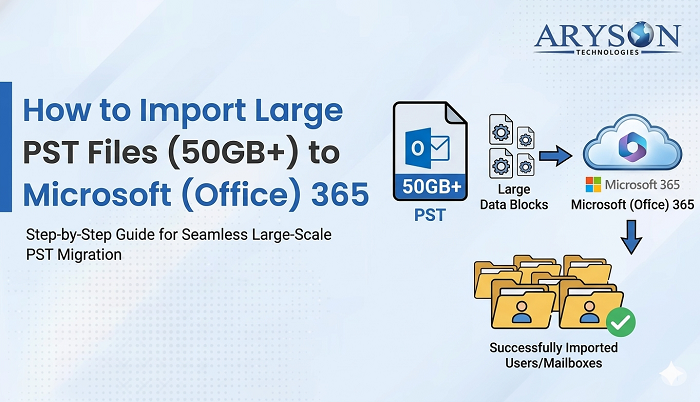
Note: If you want to import a PST file directly into Microsoft 365 but encounter an Outlook PST import error, you can try Aryson Import PST to Office 365 Tool, which easily imports your PST file into your Microsoft 365 account without any data loss.
Explore Methods to Fix Outlook PST Import Errors
Below, we will explore some of the most effective manual methods to resolve Outlook PST import issues. You should follow them in order. So that the simplest fix may work without any advanced steps.
Method 01: Adjust the Antivirus Settings of your Outlook Account
Sometimes, the antivirus program can interfere with Outlook. As a result, it stops Outlook from importing the PST file. As a result, you can see the error “Cannot Import PST to Outlook” with code 0x80004001.
To fix this, first check your antivirus settings. Next, allow Outlook to perform the import process without restrictions. When you make this small change, your antivirus will work with Outlook with ease.
Method 02: Use the Outlook Import/Export Feature Properly
If the issue continues, you can try Outlook’s built-in Import/Export option. Here are the steps:
- First, open the Outlook application on your computer.
- Then, tap on the File from the top menu.
- After that, select Open & Export and choose Import/Export.
- In the wizard, click Import from another program or file and press Next.
- Now, choose Outlook Data File (.pst) and click Next again.
- Next, select the PST file you want to import into Outlook.
- To avoid duplicate emails, pick Replace duplicates with items imported.
- Afterward, choose the account or folder where the data should be placed.
- Finally, click Finish to start the import process.
By following these steps carefully, you can successfully import your PST file into Outlook.
Method 03: Change File Permissions for PST to Fix Outlook PST Import Errors
In some cases, permission restrictions can also stop Outlook from importing the PST file. Therefore, you should make sure that all users have full access. To do this:
- First, find the PST file on your computer.
- After that, right-click on it and choose the Properties option.
- Then, go to the Security tab.
- Next, click Edit to modify the permissions.
- From here, select Everyone and tick the box for Full Control.
- Finally, hit the OK on both windows that will save the changes.
When all the permissions are updated, your Outlook account will be able to access. And then you can import the PST file without any issue.
Method 04: Check PST File Properties to Fix Outlook PST Import Errors
Before you try again, it is also important to check the file properties. If your PST file is marked as read-only, then Outlook cannnot be able to import it. Here are the steps on how you can resolve it:
- First, locate your PST file on your system.
- Next, right-click on it and select Properties.
- Then, look for the Read-only checkbox. If it is selected, uncheck it.
- Lastly, click OK to save the changes.
- Now, when you attempt the import again, Outlook should be able to access your file without issues.
Method 05: Then, Create a New Outlook Profile and Re-import PST
Sometimes, the issue lies in the Outlook profile, not with the PST file. So the better way is to create a new profile to fix this error:
- Open Control Panel>>Mail>>Show Profiles.
- After that, tap on the Add to create a new profile.
- Then, set up your email account in the new profile.
- Set the new profile as the default.
- Open Outlook and again try to import the PST file.
- This method often works if your current Outlook profile is corrupted.
Method 06: Repair PST File with ScanPST.exe to Fix Outlook PST Import Errors
Microsoft provides a free built-in utility called the Inbox Repair Tool (ScanPST.exe) to fix minor corruption.
- First of all, you should close Outlook completely.
- Navigate to the Outlook installation folder:
- Usually, it can be C:\Program Files\Microsoft Office\OfficeXX.
- Find and open ScanPST.exe.
- After that, browse and select your PST file.
- At last, click Start to scan for errors.
- If errors are still found, tap on the Repair to fix them.
- Once the repair is complete, try importing the PST again.
Note: ScanPST works well for small issues but may not fix severely corrupted files.
Repair Corrupt Outlook Data File PST with Aryson PST Repair Software
One of the major issues with Outlook errors is that your Outlook data file is severely corrupted. In that case, simply go for the most recommended Aryson PST Repair Tool. It can recover complete mailbox items without data loss. It has the flexibility to recover all types of PST files. So, you can add that it is either mildly corrupted or that it is majorly corrupted. Along with emails, you can restore your contacts, calendars, journals, tasks, and attachments that are associated with your PST file. Also, it recovers lost or deleted emails from a PST File. This software supports both ANSI and Unicode PST files of any size. Additionally, it is compatible with all versions of Microsoft Outlook, including Outlook 2021, 2019, 2016, and earlier.
Follow these Steps to Repair Corrupted PST File
- Download the Aryson PST Repair Tool and click Open to add a corrupted PST file.
- After that, choose the file recovery mode from the given three modes of recovery.
- Now, pick and preview the specific Outlook file data which you want to recover.
- When the PST file recovery process completes, just click on the save button.
- From the mentioned feature and output formats, pick accordingly>>Click Ok.
Conclusion
Outlook PST corruption can create big problems, such as not being able to open your emails or seeing error messages again and again. Manual solutions like ScanPST.exe may fix small issues, but they usually do not work for badly damaged or very large files. In such situations, Aryson PST Repair Software is a dependable choice to fix Outlook PST import errors. It repairs broken PST files and keeps all your emails, contacts, and attachments safe. With its simple design and powerful recovery features, the tool makes it easy to restore your Outlook data without any hassle.
Frequently Asked Questions:
Q1. Why is my PST file not importing into Outlook?
Ans: This can happen if the PST file is corrupted, too large, not compatible with your Outlook version, or if there’s an account setup issue.
Q2. How do I fix PST corruption?
Ans: For small issues, you can use Outlook’s built-in ScanPST tool. But if the file is badly damaged, Aryson PST Repair Tool works better.
Q3. Can I import a large PST file into Outlook?
Ans: Yes, but if it crosses Outlook’s size limit, you need to split it into small parts before importing.
Q4. What is ScanPST.exe, and how does it work?
Ans: It’s a free Microsoft tool that checks your PST file for errors and repairs minor corruption automatically.
Q5. Do I need third-party software to fix PST errors?
Ans: Yes, if your PST is severely corrupted or oversized, then Aryson PST Repair Tool is the safe and reliable option.
About The Author:

Rohan Wiese is a Technical Content Writer at Aryson Technologies, specializing in databases, e-mail recovery, and e-mail migration solutions. He enjoys conducting research and generating information that assists database administrators, businesses, and novices in resolving issues with MS SQL Server, MySQL databases, Cloud Computing, and Microsoft Exchange.
Realted Post