-

Written By Rohan Wiese
-
Updated on March 9th, 2026
How to Import Google Takeout Emails to Outlook Easily (2026 Guide)
Google Takeout is a service that allows users to export Gmail data in MBOX format. However, administrators cannot open these files directly in Microsoft Outlook, which creates challenges for users who want to access or manage their emails in Outlook. In this blog, we will discuss some of the manual methods to import Google Takeout to Outlook and the use of Aryson MBOX Migrator to simplify the migration process.
Why Import Google Takeout Emails to Outlook?
Several organizations and industry professionals prefer to convert Google Takeout to Outlook for the potential reasons mentioned below.
- Users can access Gmail backup data in a desktop email client.
- Moreover, Microsoft Outlook allows them to centrally manage their data.
- Additionally, individuals can access their Outlook emails offline after the import.
- Furthermore, they can archive their important Gmail data post migration.
- Also, emails are easier to manage in MS Outlook instead of Gmail.
Best Methods to Import Google Takeout to Outlook
In this section, we will discuss some of the most effective methods to migrate Google Takeout emails to the Outlook platform.
- Using Mozilla Thunderbird
- Use of Microsoft Outlook
- Use an Advanced Solution
Carefully read through each of these methods, consider the important aspects like data size, time taken, and technical expertise required, and then proceed with the most suitable method.
Method 1: Import Google Takeout Emails to Outlook Using Thunderbird
Some of the technical experts use Mozilla Thunderbird as an intermediate email client to open the Google Takeout MBOX file. After that, they transfer the emails to Microsoft Outlook.
Steps to Import Google Takeout to Outlook
- To begin, install and launch Mozilla Thunderbird on your system.
- After that, install the ImportExportTools NG add-on in Thunderbird.
- Then, import the required Google Takeout MBOX file into Thunderbird.
- Next, export the Thunderbird emails to EML format.
- At last, drag and drop these EML files into Microsoft Outlook folders.
Method 2: Use IMAP to Import Google Takeout Emails to Outlook
Alternatively, users can upload their Google Takeout archive emails back to the Gmail account and then synchronize them with Microsoft Outlook using IMAP.
Steps to Use IMAP Synchronization to Import Google Takeout Emails
- First, import the Google Takeout MBOX file into Mozilla Thunderbird.
- After that, set up your Gmail account in Mozilla Thunderbird.
- Next, upload the imported emails to the Gmail mailbox.
- Use IMAP settings to add the Gmail account to Microsoft Outlook.
- At last, allow MS Outlook to sync and download the emails automatically.
Drawbacks of the Manual Approaches
- Both the manual methods require technical knowledge of email clients and configurations.
- Moreover, it might take long hours to handle large Google Takeout files.
- Folder hierarchy and email metadata may not remain intact after migration.
- Additionally, there are chances of human errors that lead to incomplete migration.
- These methods are not suitable for bulk or large-scale email transfers.
Method 3: Advanced Solution to Import Google Takeout to Outlook
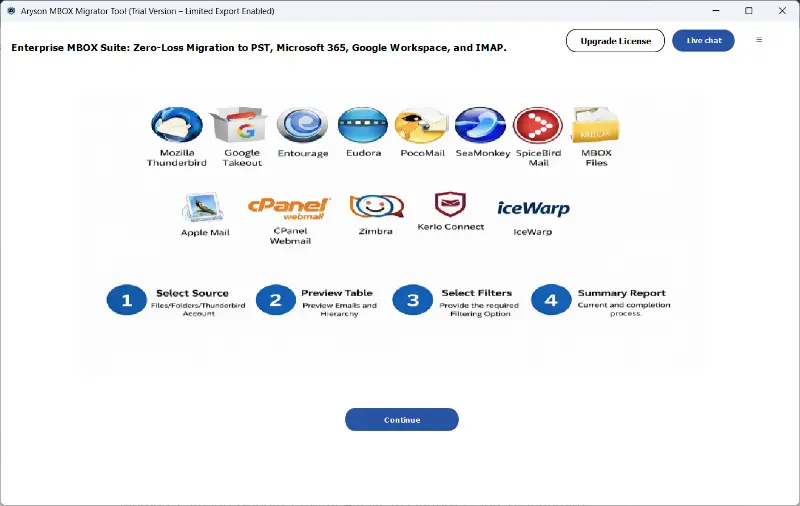
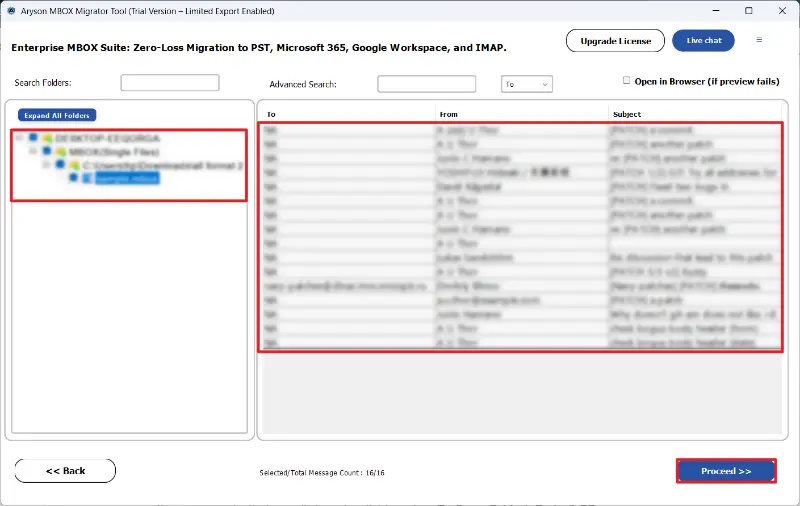
The Aryson MBOX Migrator is the most reliable software that migrates Google Takeout MBOX data to Outlook within a few seconds. Moreover, this software maintains the original folder hierarchy and formatting of the source emails. It aims to provide 100% data integrity and accuracy through the preview panel. Additionally, users can use this software to migrate Google Takeout emails to Office 365, Thunderbird, Gmail, and many other clients. This software is compatible with almost all Outlook versions and offers advanced features like removing duplicate emails. Now, follow the steps given below.
Simple Steps to Migrate Google Takeout Emails to Outlook
- Download and install the Aryson MBOX Migrator on your existing PC.
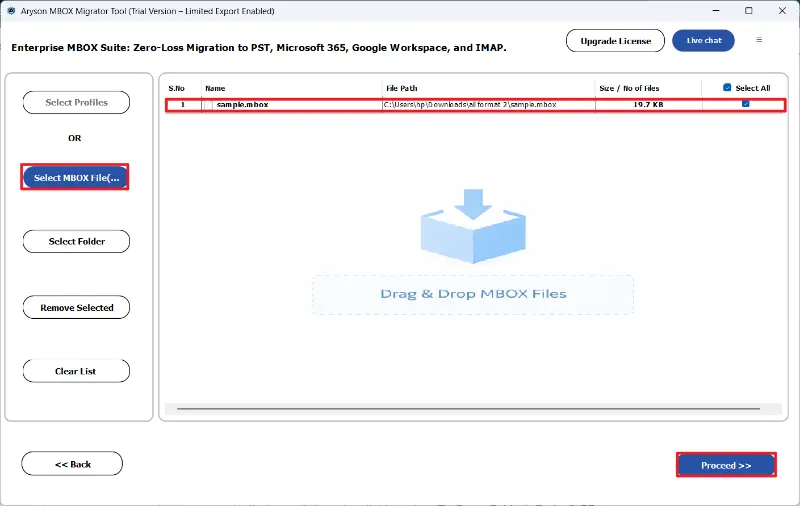
- After that, load the required Google Takeout emails to convert.
- Now, select and preview your selected files and press Next.
- After that, select PST from the list of file formats in the drop-down list.
- If required, use the advanced features of the software.
- Click on the Start Export button to migrate Google Takeout MBOX to Outlook.
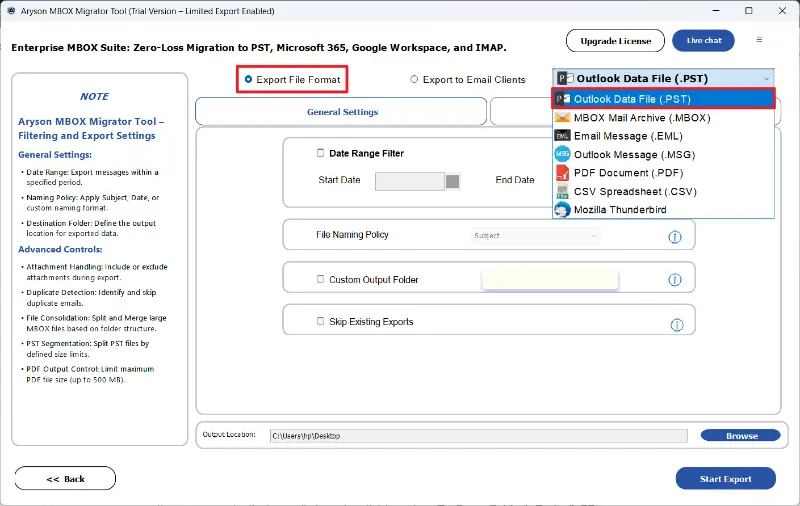
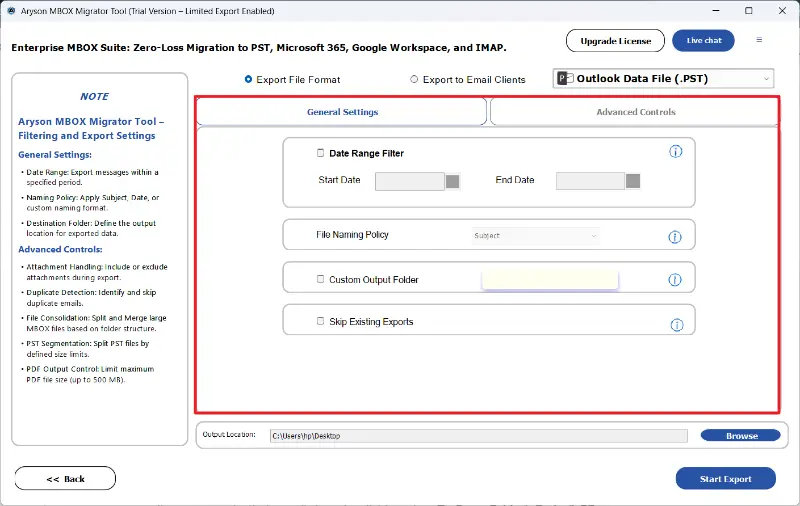
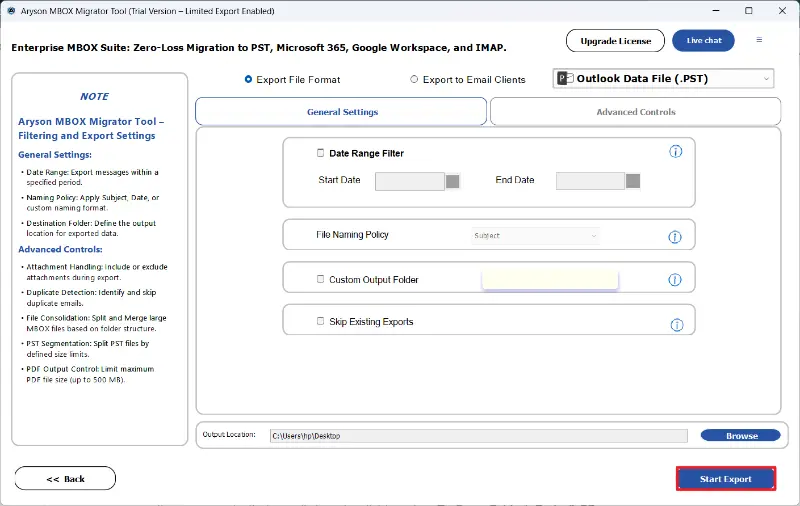
After exporting the Google Takeout MBOX files into PST format, you have to import these PST files into Microsoft Outlook.
Exclusive Features of the Aryson MBOX Migrator
- This software can convert MBOX files to PST, PDF, EML, MSG, CSV, etc. formats.
- Moreover, it can automatically detect (.mbox, .mbx, .mbs) files and load them.
- It preserves the original folder hierarchy, email metadata, attachments, and formatting.
- In addition, it offers advanced filters like date range, folder selection, & email items search.
- It can remove duplicate emails based on fields such as To, From, Subject, Body, & CC.
- Users can split large PST files and merge them for better mailbox management.
- Also, it supports secure cloud migration to Office 365, Gmail, and Google Workspace.
Conclusion
In this blog, we discussed some of the effective methods to import Google Takeout to Outlook.
The manual methods work well for small amounts of Google Takeout data. Whereas the automated software is used by organizations to migrate large amounts of data within a few seconds. Moreover, if a beginner uses this software, they can use the tech support feature to get personalized assistance in case they get stuck during the migration.
FAQs
Q1. Can I directly import Google Takeout emails into Outlook?
Ans-Yes, using the Aryson MBOX Migrator, you can directly transfer emails from Gmail to Outlook.
Q2. What file format does Google Takeout use to export Gmail emails?
Ans- Google Takeout uses the MBOX format to export Gmail emails.
Q3. Which free tool can open Google Takeout MBOX files?
Ans- The demo version of Aryson MBOX Migrator is a free tool that can open up to 50 Google Takeout MBOX files/folders for free.
Q4. How can I convert Google Takeout MBOX files to Outlook PST?
Ans- You can use the Aryson MBOX Migrator to convert Google Takeout MBOX files to Outlook PST.
Q5. Why do users migrate Google Takeout emails to Outlook?
Ans- Users often migrate emails to Microsoft Outlook to manage Gmail backups, access emails offline, and organize mailbox data in a single platform.
About The Author:

Rohan Wiese is a Technical Content Writer at Aryson Technologies, specializing in databases, e-mail recovery, and e-mail migration solutions. He enjoys conducting research and generating information that assists database administrators, businesses, and novices in resolving issues with MS SQL Server, MySQL databases, Cloud Computing, and Microsoft Exchange.
Realted Post