-

Written By Rohan Wiese
-
Updated on February 6th, 2026
How to Migrate Google Workspace to ProtonMail (Easy Steps)
Summary:- In an increasingly digital world, the need for robust online privacy and data protection has become more crucial than ever. Many people and businesses are now reconsidering their use of services like Google Workspace. ProtonMail is a secure alternative that’s gaining real traction. It’s built around end-to-end encryption and provides the kind of email privacy that Google simply doesn’t offer. This simple guide will help you to migrate Google Workspace to ProtonMail step by step. You can either do it manually or use the Aryson Google Workspace Migration Tool to accomplish the task with accuracy.
Brief About Google Workspace & ProtonMail
Google Workspace is a popular suite of cloud-based tools used by individuals, teams, and businesses. Although it offers strong features and collaboration, Google does collect data for various purposes, which raises privacy concerns for many users.
On the other hand, ProtonMail is an email service built with privacy in mind. Based in Switzerland, it offers end-to-end encryption. It means only you and the recipient can read your emails. ProtonMail doesn’t track you, show ads, or access your messages. Hence, it is a trusted choice for users who want complete control over their email communication.
If privacy and data security are your top priorities, then it’s better to switch from Google Workspace to ProtonMail.
Reasons to Perform Google Workspace to ProtonMail Migration
Here are some of the beneficial pointers that help you to understand the need for this migration:
- ProtonMail uses strong encryption to protect your emails. No one, not even ProtonMail, can read your messages.
- Unlike Google Workspace, ProtonMail doesn’t track your activity or display targeted ads.
- ProtonMail is based in Switzerland, where privacy laws are some of the strongest in the world.
- With ProtonMail, your data belongs to you. It’s never shared or used for marketing purposes.
- Whether you’re using email for personal reasons or managing a team, ProtonMail has options for everyone.
Methods to Migrate Google Workspace to ProtonMail
To help you switch smoothly, there are a few different ways to move your emails from Google Workspace to ProtonMail. Each method depends on how much time you have and how comfortable you are with the process. Let’s explore the available options to complete the task.
Method 01: Automated Migration from Google Workspace to ProtonMail
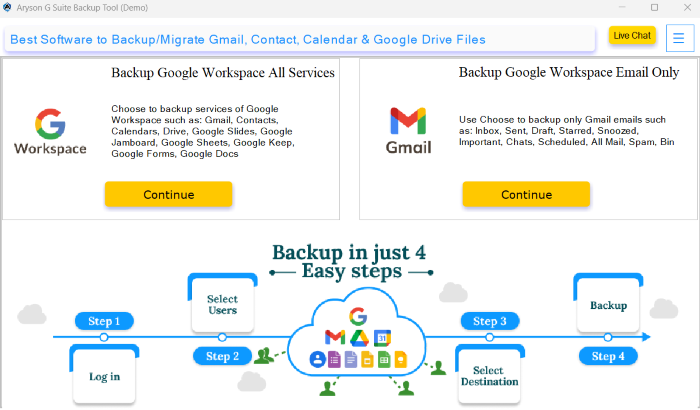
One of the most reliable solutions for migrating emails from Google Workspace to ProtonMail is the Aryson Google Workspace Migration Tool. This utility is built to simplify the migration process by allowing users to transfer emails in bulk using IMAP securely. It supports smooth and direct email migration while preserving the folder hierarchy and maintaining data integrity. Moreover, it comes with smart filters to migrate specific emails based on date, subject, or sender. Whether you’re a business or an individual user, its easy-to-use interface and advanced features make it a trusted option for safe and accurate migration. With no risk of data loss and full compatibility with ProtonMail’s IMAP settings, Aryson’s tool ensures a seamless transition without any technical complexity.
Migrate Google Workspace to ProtonMail Step-by-Step
- Step 01: Install and Run the Aryson Google Workspace Migration Tool on your system.
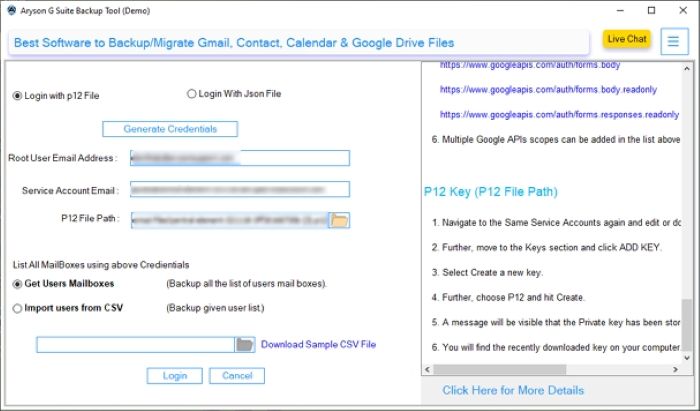
- Step 02: Provide the Google Workspace admin credentials. Click Sign In to connect G Suite account.
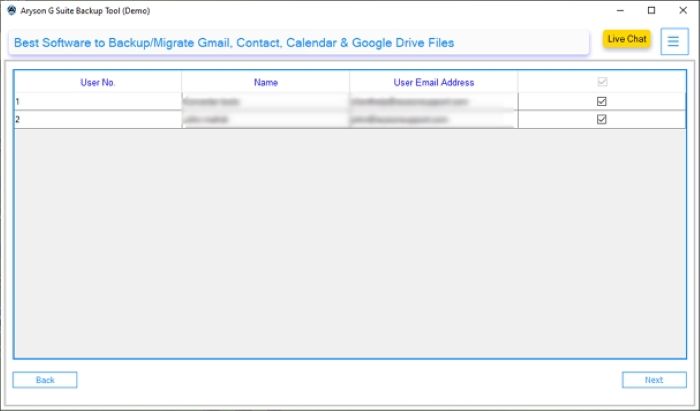
- Step 03: Select the users or specific email address that you want to migrate and click Next.
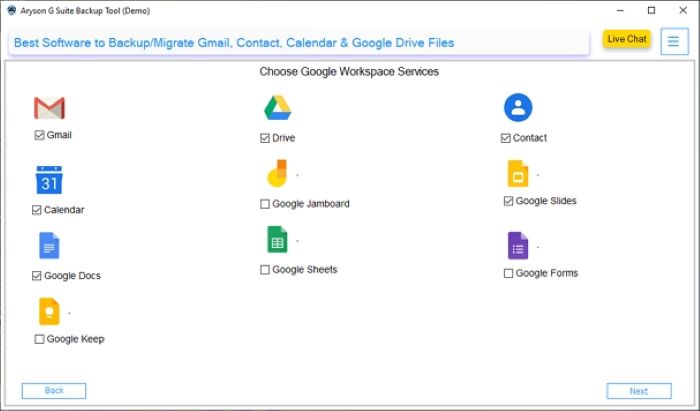
- Step 04: Now, pick any Google Workspace service according to your preference and hit Next.
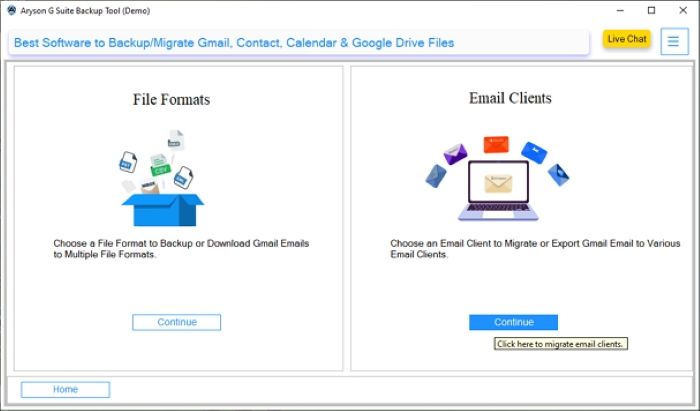
- Step 05: In the next panel, mark the Email Client option and click Continue to move ahead.
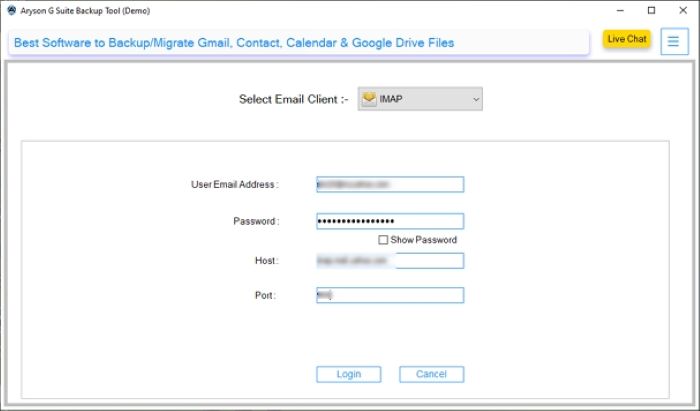
- Step 06: Choose IMAP and the ProtonMail email address, Password, Host, & Port>>Login.
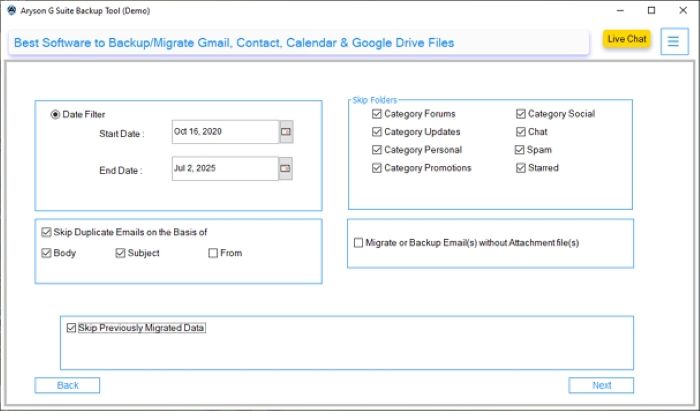
- Step 07: Also, you proceed with the additional feature of the software and tap the Next button.
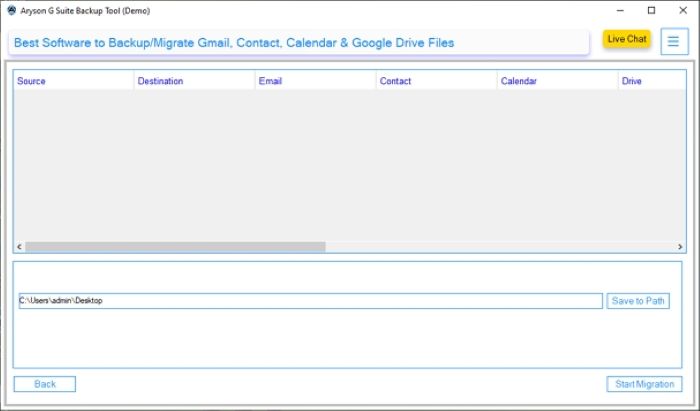
- Step 08: Click the Start Migration button to begin the Google Workspace to ProtonMail migration
Method 02: Migrate Google Workspace to ProtonMail with Easy Switch
If you prefer a more hands-on approach or are not using a ProtonMail plan that supports Easy Switch, you can manually migrate your emails using IMAP and the ProtonMail Bridge.
Things to Know Before Migration
Before you begin the migration, keep these key points in mind:
- You need a ProtonMail Plus, Professional, or Visionary plan to access import tools.
- ProtonMail’s Easy Switch tool only supports email migration, not calendar or contact migration.
- Make sure IMAP is enabled on your Google account for manual transfers.
- Additionally, back up your Workspace data before starting the process.
From preparing for the move to using ProtonMail’s Easy Switch tool and completing the setup, we’ll ensure a smooth and focused transition that prioritizes your privacy.
Steps to Move Emails from Google Workspace to ProtonMail Manually
- First, sign in to your Google Workspace account using the correct credentials.
- Go to Gmail Settings >> See all settings >> Forwarding and POP/IMAP.
- Under the IMAP access section, select Enable IMAP, then click Save Changes.
- After that, go to ProtonMail Bridge and download it for your OS.
- In the next step, install and open the Bridge application.
- Now, enter your ProtonMail credentials.
- The Bridge will provide you with IMAP/SMTP server settings that you can use in your email client.
- Next, add both your Google Workspace and ProtonMail accounts using the correct server settings.
- Once both accounts are set up in the client, select the emails in your Google account.
- Drag and drop them into the matching folders in your ProtonMail account.
- Keep the email client open until the entire mailbox is copied over successfully.
Limitations of the Manual Method
Before choosing the manual approach, it’s essential to be aware of a few key limitations that may affect the migration process:
- ProtonMail Bridge only works with Plus, Professional, or Visionary plans.
- Contacts and calendars aren’t migrated. So you’ll need to move them separately.
- Manual transfers can be slow, especially with large mailboxes.
- You’ll need to install and configure ProtonMail Bridge, Thunderbird, and add-ons.
- Some folders may not copy over exactly and may require manual organization.
- A stable connection is required throughout the process to avoid errors or incomplete sync.
Conclusion
The decision to migrate Google Workspace to ProtonMail often comes down to privacy and trust. Whether you choose the Easy Switch option or opt for the automated method, both provide reliable ways to transfer your emails safely. But in terms of automated migration, you don’t need to be highly technical to complete the process. Additionally, it offers a free trial and 24/7 technical support for users. Once the migration is complete, you’ll have a private, ad-free inbox with full ownership of your communication.
Frequently Asked Questions:-
Q1. Can I migrate my Google Workspace emails directly to ProtonMail?
Ans: Yes, Aryson Google Workspace Migration Tool lets you migrate emails directly from Google Workspace with IMAP access. Alternatively, you can use manual methods for small-scale migration.
Q2. Does ProtonMail support importing contacts and calendars from Google Workspace?
Ans: No, ProtonMail currently only supports email migration. Contacts and calendar events must be exported separately using the automated solution.
Q3. Is ProtonMail Easy Switch available on free accounts?
Ans: No, the Easy Switch tool is only available on paid ProtonMail plans such as Plus, Professional, or Visionary.
About The Author:

Rohan Wiese is a Technical Content Writer at Aryson Technologies, specializing in databases, e-mail recovery, and e-mail migration solutions. He enjoys conducting research and generating information that assists database administrators, businesses, and novices in resolving issues with MS SQL Server, MySQL databases, Cloud Computing, and Microsoft Exchange.
Realted Post