-

Written By Rohan Wiese
-
Updated on March 10th, 2026
How to Fix Outlook Error Code 0x80072f06 (Step-by-Step Guide)
Microsoft 365 users very often face the Outlook error 0X80072f06. It might occur when MS Outlook cannot establish a secure connection with the mail server due to certificate problems, synchronization failures, or incorrect system settings. If not fixed, this error might interrupt the email communication, and the user would face issues in sending or receiving emails. This article covers the most effective manual troubleshooting methods and the use of Aryson OST Recovery Software to quickly recover the corrupted OST files. Download Now Purchase Now
Understanding the Outlook Error Code 0X80072f06
Microsoft Outlook Error of code 0x80072f06 usually appears when MS Outlook fails to connect securely to the mail server. As a result, Outlook might fail to send or receive emails securely to the email server. Moreover, this error may lead to synchronization issues and result in error messages popping up again and again.
This error might occur due to various reasons, and users can resolve it by checking the internet, date, and time, and restarting Outlook. There are various causes of this error to take place. Read about them in the upcoming section of the blog.
Causes of the Outlook Error 0X80072f06
Half of the issue is solved once you know the root cause behind the problem. Therefore, before moving on to the methods to fix the Outlook error of code 0X80072f06, let us discuss the root causes of this error in detail.
- The unstable or lack of internet connection might cause this error.
- Moreover, the date and time on your system are incorrect.
- This error might have occurred due to SSL or security certificate problems.
- There might be an antivirus or firewall that has blocked Outlook.
- The email server settings might be incorrect.
- Even a corrupted Outlook profile might result in this error.
In case any of the above situations has taken place, read the associated recovery solution to fix the error accordingly.
How to Fix Outlook Error 0X80072f06
The Outlook error code 0x80072f06 generally takes place due to issues with the certificate, corrupted system files, or problems with the Offline Address Book (OAB). To fix these issues, we will try some of the most effective methods. Go through them one by one and try fixing the issue.
Fix 1: Perform a System Restore
You might be seeing the Outlook error due to a corrupted or damaged Windows file. You can fix this issue by restoring the system to an earlier point. Now, follow the steps below to restore your system.
- To begin, run the Control Panel on your system & select Recovery.
- After that, click on the Open System Restore option.
- Next, click on the Next button displayed in the System Restore window.
- Then, choose a restore point from the list.
- If the desired restore point is not in the list, tick the Show more restore points.
- After that, click on the Next button and then hit the Finish button.
- Now, wait for Windows to complete the restoration process.
- Next, restart your system and check if the error is resolved.
In case this method didn’t work for you, try using the upcoming fix to resolve the issue.
Fix 2:Update or Rebuild the Offline Address Book (OAB)
Sometimes, the Outlook 0x80072f06 error takes place due to synchronization issues between Microsoft Outlook and Exchange. You can simply update or rebuild the Offline Address Book to resolve this issue.
Steps to perform are as follows:
- Firstly, update the Offline Address Book.
- Install and run Microsoft Outlook on your system.
- After that, go to the Send/Receive tab and click on the Send/Receive Groups option.
- Next, select the Download Address Book option.
- Then, click on the OK button to begin the update.
- Now, you have to delete and rebuild the OAB.
- In case updating this does not work, you should try to rebuild the OAB.
Simple Steps to Delete/ Rename the Offline Address Book
- To begin, close the Outlook application.
- After that, navigate to the path below:
|
C:\Users\%username%\AppData\Local\Microsoft\Outlook |
- Next, search for the Offline Address Book folder.
- After that, rename it or delete it as you want.
- Next, run the Microsoft Outlook application on your system.
- After that, navigate to the Send/Receive tab >> click on the Send/Receive Groups.
- Next, click on the Download Address Book option.
- At last, simply download a fresh copy of the OAB.
Fix 3:Recreate your Outlook Profile
You might encounter the Outlook 0x80072f06 error due to a corrupted Outlook profile. This corrupted profile can cause synchronization errors. Make sure to follow the steps below carefully to resolve the issue.
Steps to Perform are as Follows:
- First, run the Control Panel on your system.
- After that, click on the Mail option in Microsoft Outlook.
- Post that, select the Profiles option.
- Now, just remove the corrupted profile and click on the Add option to create a new profile.
- Next, set up your email account again and restart Outlook.
- At last, check if the issue is solved or not.
If this method didn’t help you, the issue might reside in the SSL Certificate. Therefore, you can verify these certificates via the steps below.
Fix 4:Cross-Verify the SSL Certificates
You must check whether your certificates are invalid or expired, as an expired certificate can also cause the error 0x80072f06.
Steps to Perform are as Follows:
- First, hold the Ctrl key and right-click on the Outlook icon in the system tray.
- After that, select the Test E-mail AutoConfiguration option.
- Next, provide your email address & password.
- Tick the Use Autodiscover option.
- After that, click on the Test button to proceed further.
- Now, verify whether the OAB URL is correct.
- In case the certificate does not match the OAB URL, you have to contact your Exchange or Microsoft 365 administrator to update the certificate.
|
Note: However, all the above fixes work well; if they didn’t help you, the issue might reside in the OST files. If you have a corrupted OST file or it is out of sync with the Exchange or Microsoft 365 server, the Outlook error 0x80072f06 might occur. |
Advanced Software to Fix Corrupted OST Files
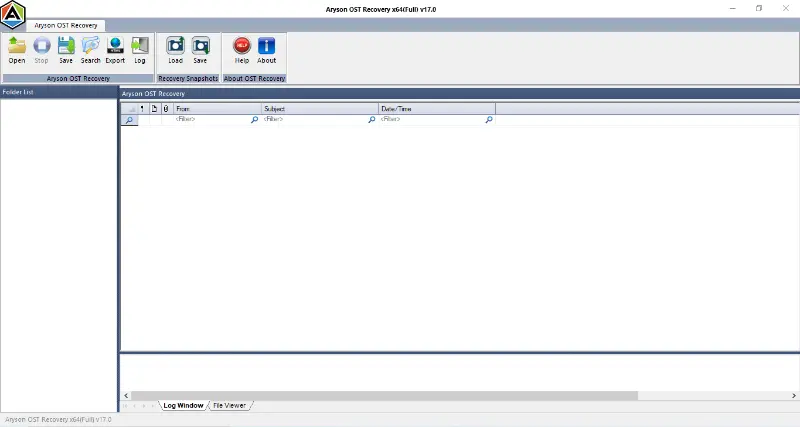
Aryson OST Recovery Tool is an admin-friendly recovery software that repairs and recovers multiple inaccessible OST files within a few clicks. This software aims to provide the user with complete data accuracy and integrity. Moreover, users can preview their selected data before the recovery process begins. Additionally, this utility offers three different recovery modes: Standard, Advanced, and Deep as per the severity of the corruption. Also, the same software can be used to fix the Outlook error 0x80040115. Now, follow the recovery steps below to achieve a secure recovery.
Simple Steps to Fix Error 0X80072f06 in Outlook
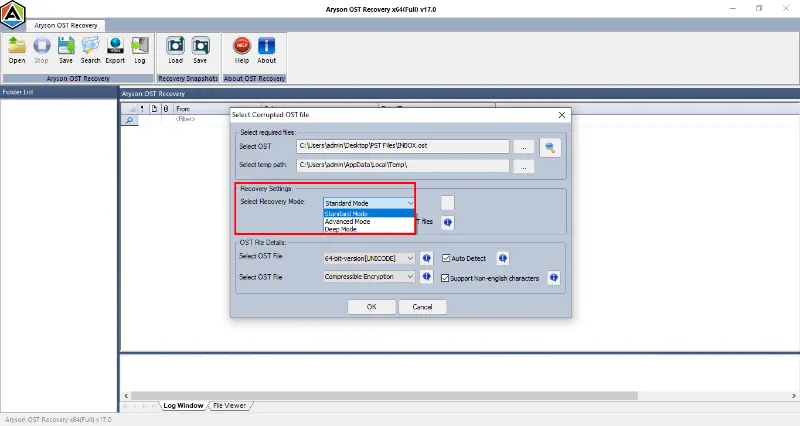
- First, install and run the Aryson OST Recovery Tool on your existing device.
- After that, add the desired corrupted OST files to recover >> Next.
- Then, pick the Standard, Advanced, or Deep mode to fix the corruption.
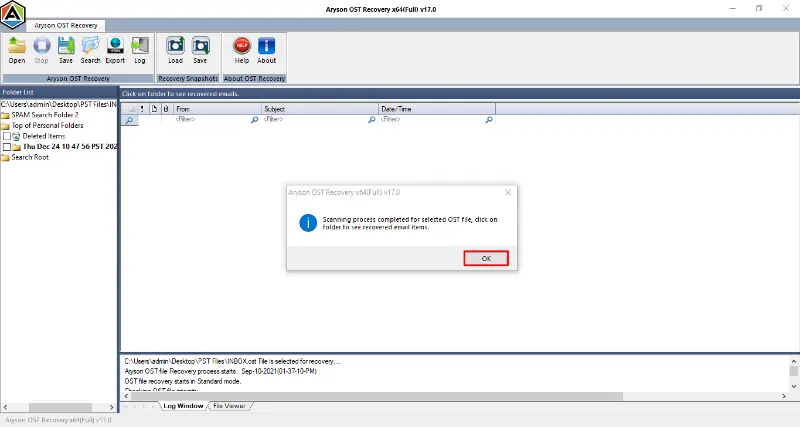
- The user has to scan the selected OST Files >> click OK.
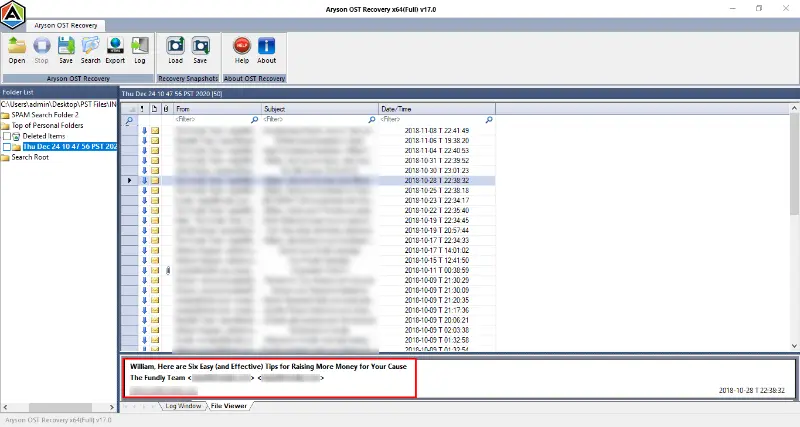
- Next, you must cross-verify the OST files before saving them.
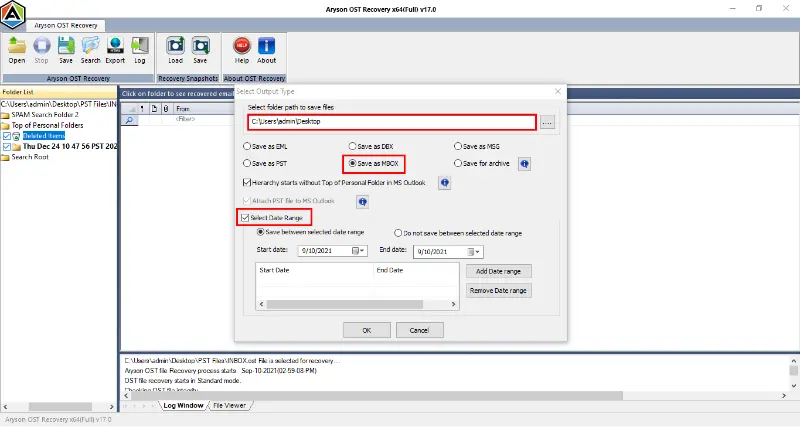
- Now, select the output format for the recovered file >> use the advanced features.
- Specify a path to save the output file and click on the OK button.
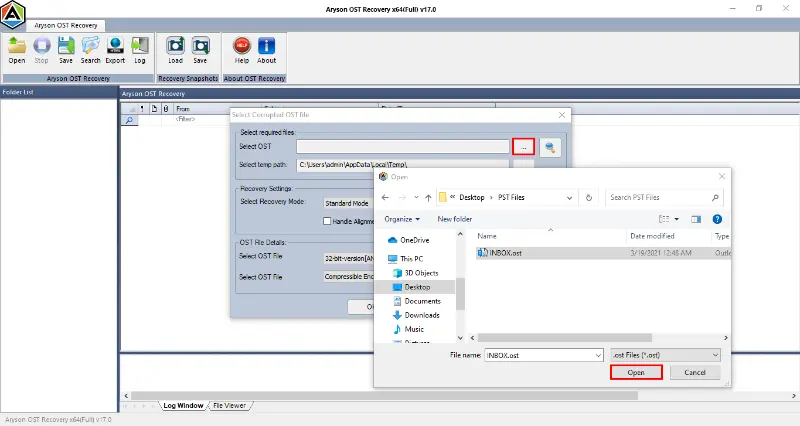
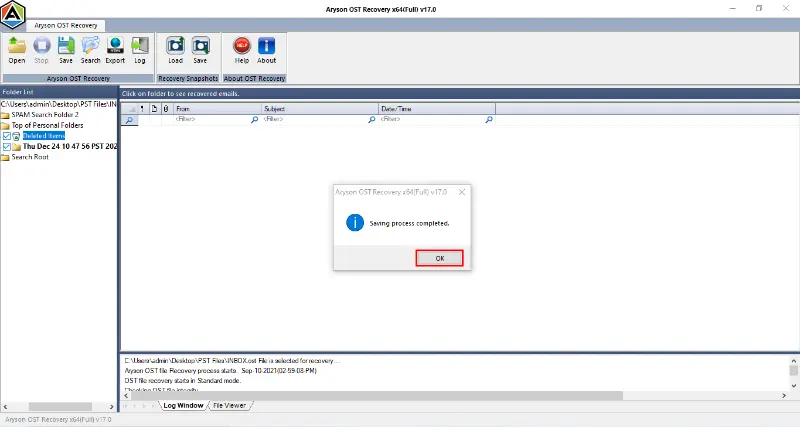
If you have followed the above steps carefully, the corrupted OST file must have been recovered.
Conclusion
In this blog, we discussed the major reasons behind the Outlook error 0X80072f06 and explored some of the most effective manual troubleshooting methods to fix this error. Along with that, we learnt how to use the above automated software to recover the inaccessible OST files and eventually resolve the Outlook error. This software can recover different levels of corruption in the OST files. Despite the simple interface, if you still face any issues in the recovery process, reach out to our tech support team for personalised assistance.
FAQs
Q1. How do I fix Outlook error 0x80072f06?
Ans- However, the manual methods work well; it is advised to opt for the Aryson OST Recovery Tool to quickly recover your Outlook data.
Q2. What causes Outlook error 0x80072f06?
Ans- The most common causes of error 0x80072f06 include:
✔ SSL certificate issues
✔ Incorrect date and time
✔ Corrupted OST file
✔ Daaged Outlook profile
✔ Offline Address Book (OAB) sync issues
✔ Firewall or antivirus blocking Outlook
Q3. Can a corrupted OST file cause error 0x80072f06?
Ans- Yes, a corrupted or out-of-sync OST file can cause error code 0x80072f06 in Outlook. But you can fix these corrupted files using the Aryson OST Recovery Software for a quick recovery.
Q4. How do I rebuild the Offline Address Book in Outlook?
Ans- To rebuild the Offline Address Book:
✔ Close Outlook.
✔ Go to C:\Users\%username%\AppData\Local\Microsoft\Outlook
✔ Delete or rename the OAB folder.
✔ Restart Outlook.
✔ Download the Address Book again from Send/Receive.
Q5. Does recreating the Outlook profile fix error 0x80072f06?
Ans- Yes, recreating the Outlook profile can fix error 0x80072f06 if the issue is caused by corrupted profile settings or synchronization problems. A new profile allows Outlook to connect to the server with fresh settings.
About The Author:

Rohan Wiese is a Technical Content Writer at Aryson Technologies, specializing in databases, e-mail recovery, and e-mail migration solutions. He enjoys conducting research and generating information that assists database administrators, businesses, and novices in resolving issues with MS SQL Server, MySQL databases, Cloud Computing, and Microsoft Exchange.
Realted Post