-

Written By Rohan Wiese
-
Updated on March 31st, 2026
How to Import Large PST Files (50GB+) to Microsoft (Office) 365
Handling very large PST files, like 50GB or more, can quickly become frustrating, especially when standard methods fail with errors such as memory issues in Outlook. Many users run into this problem even when their Microsoft 365 mailbox has enough storage capacity. This article provides the methods to import large PST to Office 365, which include the Aryson Import PST to Office 365 Tool for secure migration.
Daniel Query: I’ve got a PST file around 95GB from my old Rackspace mailbox, and every time I try bringing it into Microsoft 365 through Outlook, it just fails with a memory error. My mailbox can handle up to 100GB, so I didn’t expect this problem. Has anyone managed to deal with something like this—maybe by breaking the file into smaller parts or using a different method?
About PST File and Why Does Size Matter
Basically, a PST file (Personal Storage Table) is where Outlook stores your mailbox data on a local system. It includes things like emails and attachments. Many users use PST files when they want to keep a copy of their data or shift it from one account to another.
File size becomes an issue when the PST starts getting too big. A larger file can slow Outlook down and sometimes cause errors during opening or importing. In many situations, the file may not load properly at all. That’s why when you work with large PST files, especially those beyond 50GB, needs a more careful approach to avoid problems.
Understand the Office 365 & PST Import Limits
- If the PST file is larger than the import may fail or stop midway.
- Direct import of oversized PST files can result in incomplete or failed imports.
- Microsoft import methods like network upload & drive shipping have their own restrictions.
- Large PST files may take a long time to upload and process.
- Likewise, there are data limits at the time of process which include item count per mailbox.
Pre-Migration Checklist: Import Large PST to Office 365
- Check the PST file size and make sure your Office 365 mailbox has enough available space.
- Scan the PST file for corruption before starting the import.
- Moreover, remove unnecessary or duplicate emails to reduce file size.
- Make sure you have a stable internet connection for large data transfers.
- Moreover, you need to verify that you have the required permissions in Office 365.
- Make sure to take a backup of your PST file to avoid data loss at the time of migration.
Method 01: Split Oversized PST File to Office 365 for Smooth Import
Follow this method to import oversized PST File to Office 365 in a smooth way with the help of Outlook.
- First, launch Microsoft Outlook on your computer.
- Then, click on the File tab >> open Account Settings and select Account Settings again.
- Now, go to the Data Files section and choose the large PST file you want to work with.
- Next, select Open File Location to find where the PST file is stored on your system.
- Afterward, break the large PST file into smaller files through the ” Achieve ” option.
- After splitting, return to Outlook and navigate to File >> Open & Export >> Import/Export.
- Thereafter, pick Import from another program or file, then select Outlook Data File (.pst).
- Locate one of the smaller PST files and choose your Office 365 mailbox as the destination.
- Now, follow the same steps to import each split PST file one by one.
- Once done, check your mailbox to confirm that all data has been imported properly.
Limitations of the Manual Method:
- The process can be time-consuming when dealing with large PST files.
- It requires manual efforts to split and then import each file separately.
- The email hierarchy or folder structure may get altered at the time of splitting.
- If it is not managed carefully, then there is a chance of data duplication.
Method 02: Use Professional Software to Import Large PST to Office 365
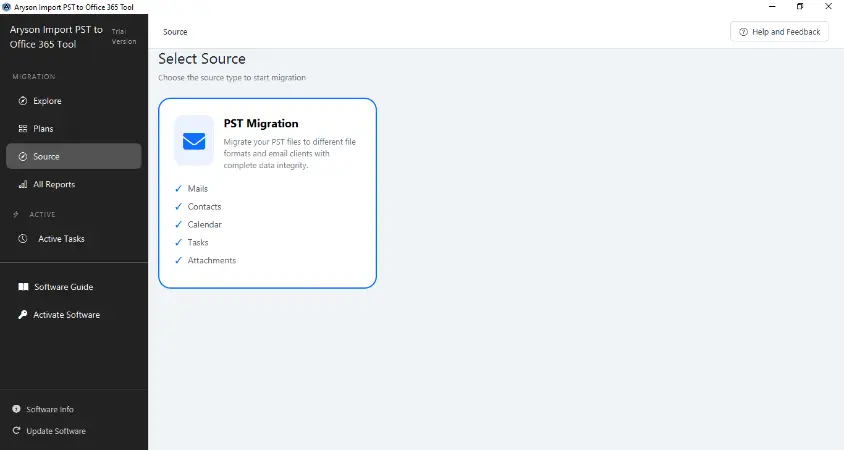
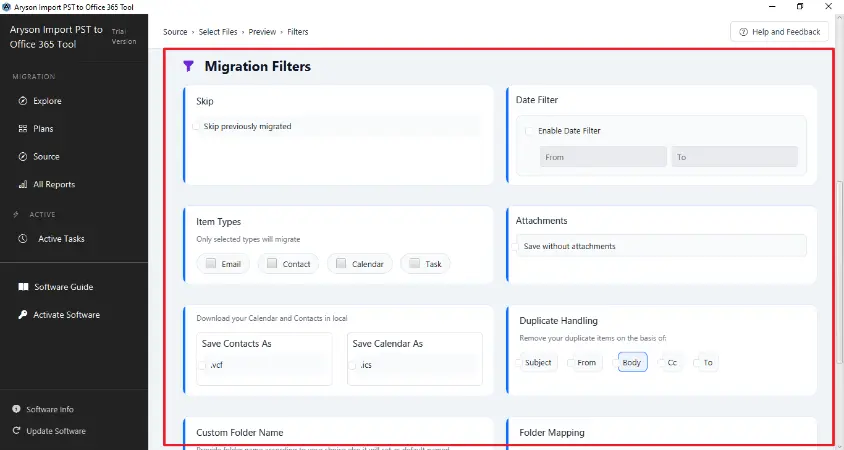
The Aryson Import PST to Office 365 Tool is made to simplify the migration process. It allows users to upload single or multiple PST files without data loss. This software supports bulk migration and saves business users time who handle large datasets. Also, it provides features like date filters and selective migration. The user can upload PST file into Office 365 with ease, as this software has a simple user interface. Likewise, this makes sure a secure transfer of mailbox data directly to Office 365 without complications. Follow the method to import PST files larger than 50GB to Microsoft 365.
Steps to Import PST File to Office 365:
- First, download the Aryson Import PST to Office 365 Tool.
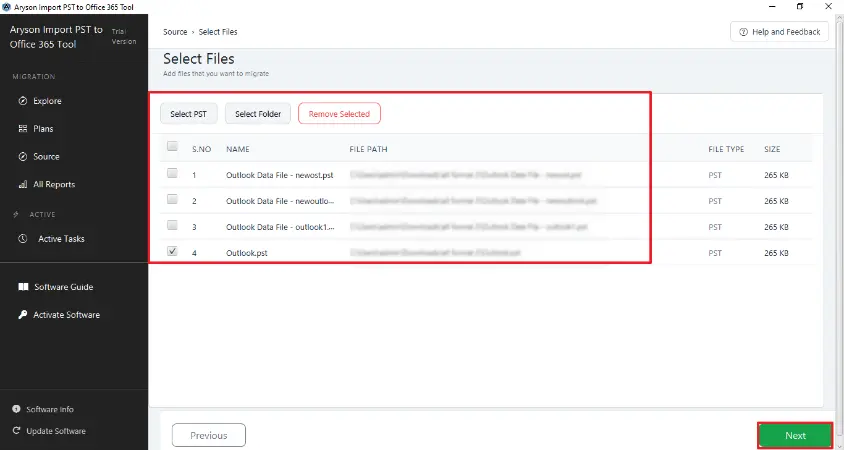
- Then, select the PST file from your system and click on the Next button.
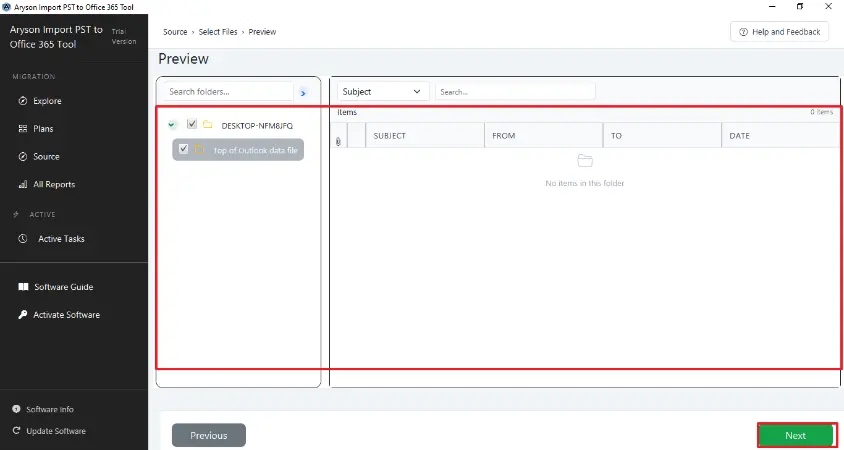
- Now, preview the folders details >> then click on Next to proceed.
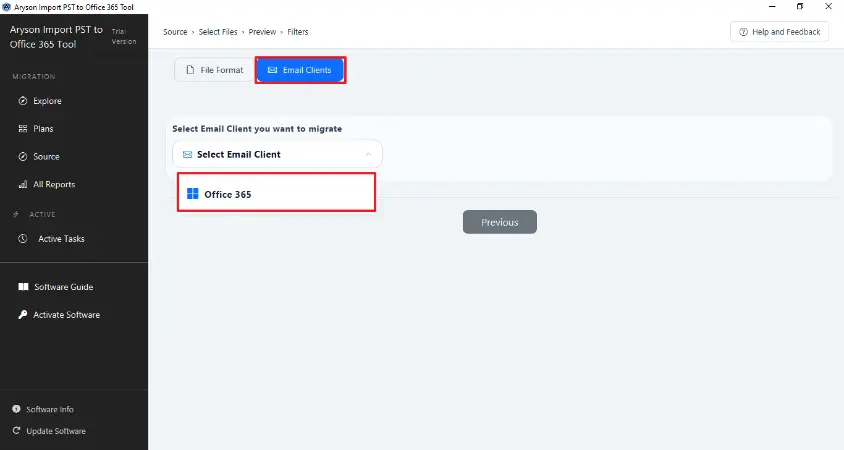
- Next, click on the email client and select Office 365.
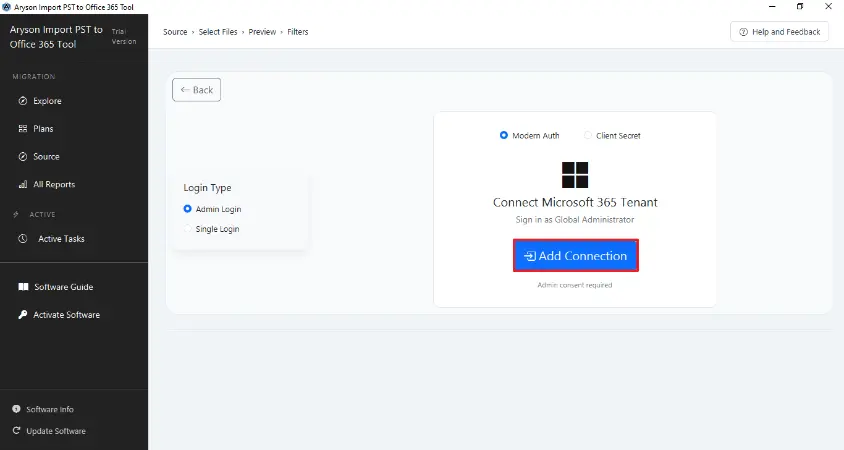
- After that, click on Add Connection >> enter the Office 365 credentials.
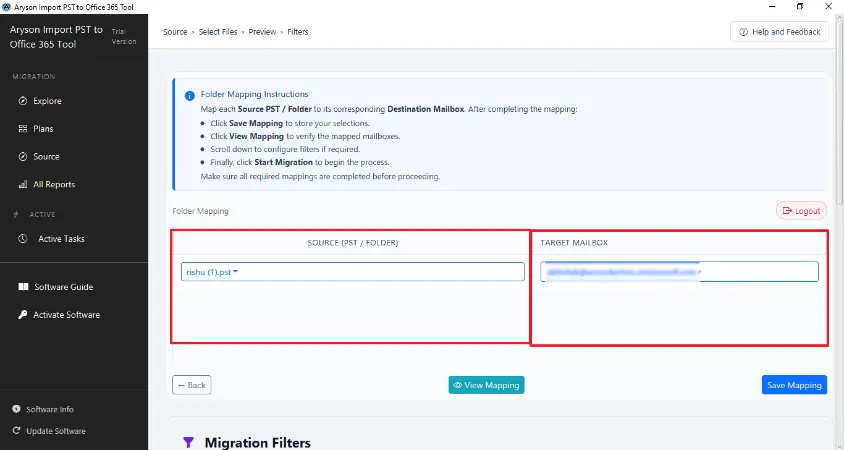
- Thereafter, map the source PST file to the Office 365 destination mailbox.
- Afterward, enable the filters for selective data migration and click on Start Migration.
Comparison: Manual Method Vs Professional Software
See the quick comparison before you upload Big PST Files to Office 365.
|
Features |
Manual Method |
Professional Software |
|
Data Integrity |
Risk of data loss or corruption |
Maintain complete data integrity |
|
Time Consumption |
Time-consuming, specially fo large files |
Fast process with bulk migration |
|
Folder Structure |
May get altered during the process |
Preserves original hierarchy |
|
Bulk Migration |
Not supported |
Supports multiple PST files at once |
|
Selective Migration |
Not available |
Available with advanced filters |
|
Ease of Use |
Complex and requires technical steps |
Simple and user-friendly interface |
|
Technical skills required |
Moderate to high |
Minimal |
|
Security |
Depends on user handling |
Secure and reliable migration process |
Common Errors When Users Import Large PST to Office 365
- Office 365 enforces restrictions on mailbox and upload sizes. PST files that are too large may fail to import.
- Slow or unstable network connections can cause the upload to stop or result in incomplete migration.
- If the PST file is corrupted, Office 365 cannot read it, and the import will fail.
- When you import the large PST files manually, the original folder structure can get disrupted.
- Furthermore, incorrect credentials can prevent a successful connection and PST upload.
Conclusion
When an individual tries to import a large PST to Office 365 it seems difficult when handled manually, often leading to slow uploads, data loss, or broken folder structures. Using professional tools like Aryson Import PST to Office 365 simplifies the process, allowing secure, fast, and accurate migration of even very large files. By splitting oversized PSTs, ensuring a stable internet, and applying selective migration filters, users can optimize performance and maintain data integrity. Whether for a single mailbox or multiple accounts, following these best practices ensures a smooth and hassle-free transfer of large PST files to Office 365.
Frequently Asked Questions
Q1. Can I import PST Files larger than 50GB to Office 365?
Ans. Yes, but importing such large files directly can be difficult. You may face errors or performance issues. It’s usually better to split the PST file into smaller parts or use a reliable tool to complete the import smoothly.
Q2. What is the safest way to upload big PST files to Office 365?
Ans. The safest approach is to use a trusted automated tool or Microsoft’s network upload method. These options reduce the risk of data loss and handle large files more efficiently compared to manual import through Outlook.
Q3. How to handle import failures for oversized PST files?
Ans. If the import fails, try splitting the PST into smaller files, check for corruption, and ensure you have a stable internet connection. You can also retry the process using a different method, like network upload or a professional tool.
Q4. Is splitting PST files necessary for large imports?
Ans. In many cases, yes. Splitting large PST files helps avoid errors, improves performance, and makes the import process more manageable, especially when dealing with files over 50GB.
About The Author:

Rohan Wiese is a Technical Content Writer at Aryson Technologies, specializing in databases, e-mail recovery, and e-mail migration solutions. He enjoys conducting research and generating information that assists database administrators, businesses, and novices in resolving issues with MS SQL Server, MySQL databases, Cloud Computing, and Microsoft Exchange.
Realted Post