-

Written By Rohan Wiese
-
Updated on April 7th, 2026
How to Fix a Corrupted or Damaged PST File in Outlook [2026 Guide]
IT professionals use PST files to store their Outlook data, such as emails, contacts, calendars, attachments, & notes in a single local file. But, when these files get corrupted or damaged, Outlook prevents them from opening, throws the error codes like 0x80040600 or 0x8004060C, or it will stop the synchronization in between without any explanation. For individuals who often face these issues, this article explains exactly how to fix a corrupted or damaged PST file in Outlook. Along with that, it addresses some of the most common causes and methods to fix corrupted PST file Outlook, including the use of the Aryson Outlook PST Repair Tool for quick recovery. Download Now Purchase Now
DataAdmin92 on Reddit Asked: PST file corrupted after an unexpected power outage. My PC shut down while Outlook was syncing emails, and now the PST file is not getting opened. I tried to run ScanPST.exe, but it stops halfway only during the scan and never completes the repair.
Are there any reliable software or manual methods to fully recover a corrupted PST file, especially one that ScanPST cannot handle?
Symptoms of a Corrupted or Damaged PST File
Several warning signs indicate that your PST file has been corrupted or damaged. Some of the most common ones are listed below.
- Users may see error code 0x80040600 when trying to send, receive, or delete emails.
- Moreover, Outlook may throw error code 0x8004060C, indicating the PST file has exceeded its maximum size limit.
- The inbox or specific mail folders may become completely inaccessible or appear empty.
- Additionally, Outlook may freeze, crash repeatedly, or become unresponsive during startup or send/receive operations.
- You may see the message “Cannot open your default email folders” every time Outlook loads.
- Even after Outlook opens, emails, contacts, or calendar entries may appear missing without any apparent reason.
Common Reasons For PST File Corruption in Outlook
The corruption in the PST file can be triggered due to various technical reasons. Once you understand these causes, you can efficiently prevent several future issues and can pick the right recovery method.
- Oversized mailbox files might cause issues in PST files.
Outlook 2002 & earlier versions are restricted to 2 GB, while Outlook 2010 and later versions cap at 50 GB. After these limits, corruption takes place.
- Moreover, sudden system shutdowns or power failures while Outlook is active can corrupt the internal structure of PST files.
- You may also face this problem due to virus or malware attacks that directly modify or encrypt the PST file contents.
- Additionally, bad sectors or disk errors on the hard drive where the PST file is stored can cause partial or complete file damage.
- Even an abrupt Outlook closure during a large send/receive operation can damage the PST file header.
Now, from the above causes, identify the reason you are facing PST issues. Refer to the upcoming methods and choose the most suitable one to repair damaged PST file.
How to Fix Corrupted PST File Outlook?
In this section, we will focus on the most effective methods to repair a damaged PST file and restore full Outlook access.
- Use the Inbox Repair Tool (ScanPST.exe)
- Create a New Outlook Profile
- Use the Import and Export Wizard
- Use Advanced Software
Read through each method carefully and apply the one that matches your situation. If the manual methods do not resolve the issue, the automated solution in Fix 4 will handle even severe corruption completely.
Fix 1: Use the Inbox Repair Tool (ScanPST.exe)
Microsoft includes a free built-in utility called ScanPST.exe, also known as the Inbox Repair Tool, with every version of Outlook. It scans the PST file structure and repairs minor internal errors that prevent Outlook from opening correctly. Your first steps should always be locating ScanPST.exe by Outlook Version.
Based on the Outlook version & Office installation type, the file path varies for ScanPST.exe. Therefore, use the paths given below carefully.
|
Outlook 2019: C:\Program Files (x86)\Microsoft Office\root\Office16 Outlook 2021: C:\Program Files (x86)\Microsoft Office\root\Office21 Microsoft 365: C:\Program Files\Microsoft Office\root\Office16 Outlook 2016: C:\Program Files (x86)\Microsoft Office\root\Office16 Outlook 2013: C:\Program Files (x86)\Microsoft Office\Office15 Outlook 2010: C:\Program Files (x86)\Microsoft Office\Office14 |
If you do not find the file at the path above, open the Windows Explorer & search for scanpst.exe.
Steps to Fix Corrupted PST File Outlook Using ScanPST
- First, close Microsoft Outlook completely, including from the system tray.
- Navigate to the correct ScanPST.exe path for your Outlook version using the table above.
- Double-click SCANPST.EXE to launch the Inbox Repair Tool.
- Click Browse and select the corrupted PST file. If you are not sure of the path, open Outlook’s File >> Account Settings >> Data Files tab to see the exact file location.
- Click Start to begin scanning the PST file through all 8 internal phases.
- If errors are detected, check the box to create a backup before repairing – this is critical. Never skip this step.
- Click Repair and wait for the process to complete.
- Reopen Outlook and check whether the PST file loads without errors.
Note: If error 0x80040600 or 0x8004060C persists after running ScanPST, the corruption is beyond what the free tool can handle. In such a situation, you may proceed to use the automated software discussed below.
Fix 2: Create a New Outlook Profile
In some cases, the PST file itself is intact, but the Outlook profile pointing to it has become corrupted. Creating a new profile forces Outlook to rebuild its settings and reconnect to the PST file cleanly.
Steps to Create a New Outlook Profile
- First, close Outlook completely and open the Control Panel on your Windows system.
- Click on Mail and then select Show Profiles from the Mail Setup window.
- Click on the Add button to create a new Outlook profile & provide it a name.
- Provide the account details if asked by the setup wizard.
- After that, select Always use this profile option >> select new profile from the dropdown.
- Run MS Outlook again & check whether the PST file loads correctly in that newly created profile.
This method efficiently resolves the accessibility issues of PST files that take place due to a damaged profile.
Fix 3: Rebuild PST using the Import and Export Wizard
When the Outlook data file partially opens, but contains errors or a missing folder, you can use Outlook’s built-in Import & Export Wizard to transfer all your accessible mailbox data into an empty PST file. This way, you can even rebuild the PST file from scratch using the preserved data.
Steps to Rebuild PST Using Import and Export
- Open Microsoft Outlook and click on the File menu.
- Select Open & Export and then click Import/Export.
- Choose the Export to a file option & click Next.
- Then, select the PST as the export format and click Next.
- Choose the mailbox folders you want to export and check Include subfolders to capture all data.
- Choose the destination on your hard drive to save the new PST file & use a different location from the corrupted original.
- Click Finish to complete the export process.
- Next, go back to File >> Open & Export >> Import/Export.
- Now, choose the Import from Another Program or file option & import the newly created PST back into Outlook.
Note: This method only captures data that Outlook can still read. If entire folders are inaccessible due to severe corruption, they will not appear in the export. In such cases, it is better to use the automated software discussed below.
Fix 4: Best Solution to Fix Corrupted PST File Outlook
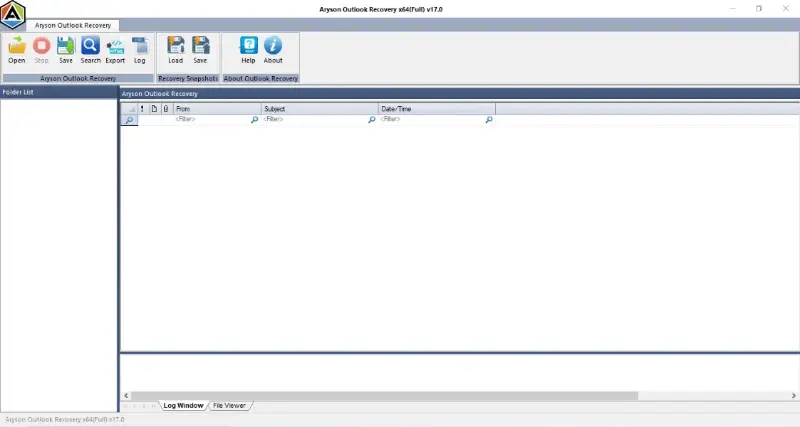
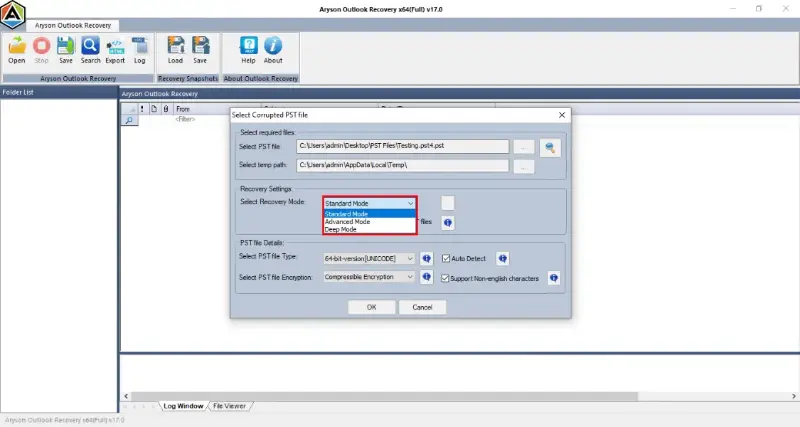
The Aryson Outlook PST Repair Tool is an expert-recommended software that helps organisations to repair corrupt and damaged PST files of any size. This software can even repair the files that ScanPST cannot process. Moreover, it allows individuals to recover all the mailbox data, including the emails, attachments, contacts, calendars, tasks, and notes. In addition, this utility keeps the original folder structure intact throughout the process and supports password-protected PST files. This software consists of three scanning modes: Standard, Advanced, and Deep Scan Mode. With the help of Aryson recovery software, it is possible to repair multiple PST files in a single operation, and users can even rebuild PST Files for free using the same utility.
Quick Steps to Fix PST File Errors
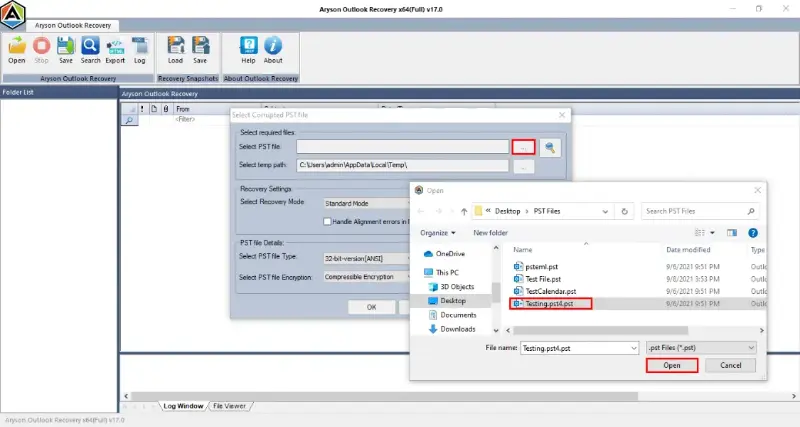
- First, download & install the Aryson Outlook PST Repair Tool on your system.
- Click the Open button to browse and select one or more corrupted PST files for repair.
- Select the appropriate scan mode: Standard for minor corruption, Advanced for partial access issues, or Deep Scan for severely damaged or completely inaccessible files.
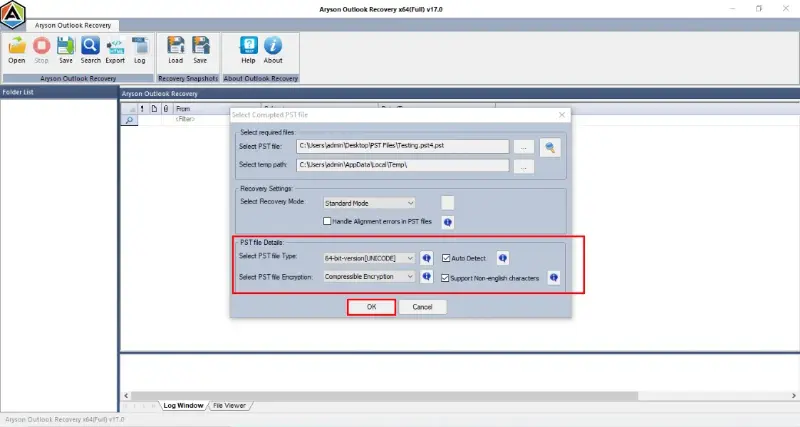
- Adjust any additional settings as required >> click OK to begin the scanning process.
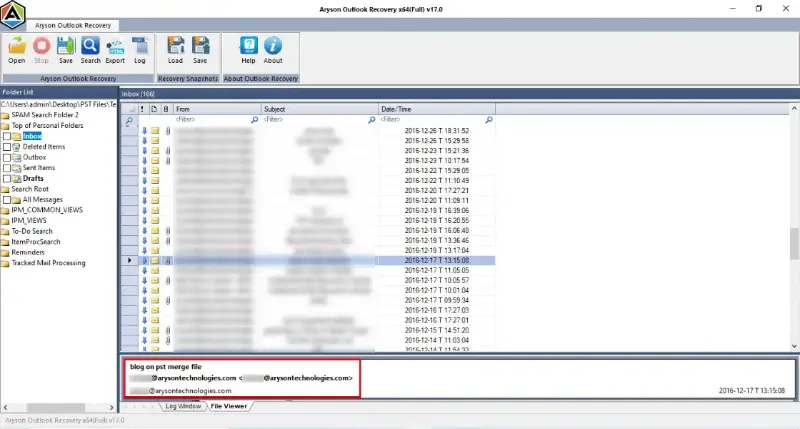
- After scanning, browse the full tree-view of the recovered mailbox to preview.
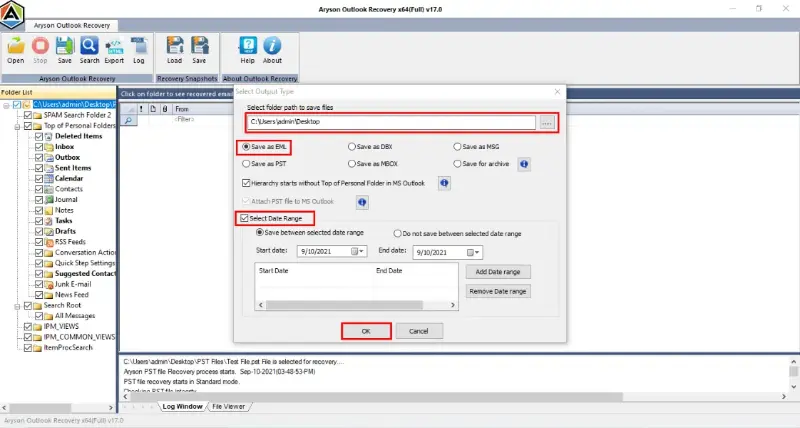
- Select the required folders & items & choose a preferred output format.
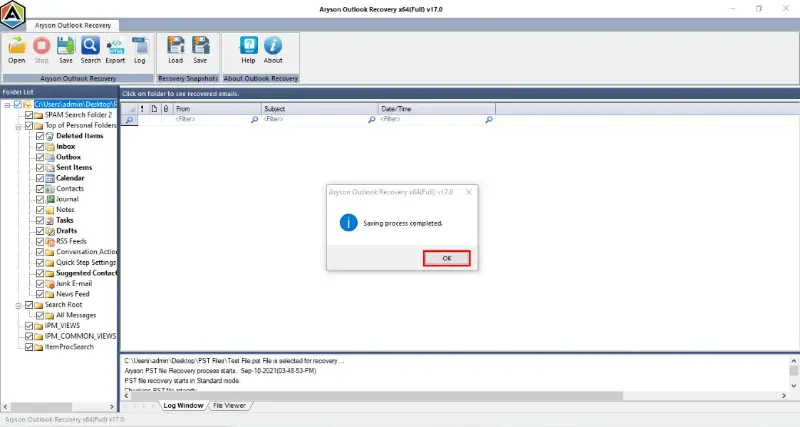
- Click OK and save the recovered PST file to your desired location on the hard drive.
Free Preview- Cross-verify Your Emails Free of Cost
The demo version of Aryson Outlook PST Repair Tool lets you scan your corrupted PST file & preview every recoverable item, including the emails, contacts, calendar entries, etc. This will allow you to avoid any data loss and repair the necessary data only. Eventually, a precise selection results in better performance and efficiency. To get a hands-on experience, you can try the demo version, and once you get satisfactory results, you can purchase it to get access to more features.
Conclusion
In this blog, we covered the most common causes of PST file corruption in Microsoft Outlook, including the error codes 0x80040600 and 0x8004060C. We walked through four practical methods to fix corrupted PST file Outlook, like Microsoft’s free ScanPST tool, creating a new Outlook profile, rebuilding the PST via export, & using the Aryson PST Recovery Tool. For minor corruption, manual methods may be sufficient. For anything beyond that, the Aryson tool makes sure to provide a complete recovery without data loss. If you face any difficulty during the process, reach out to the support team for personalised assistance.
FAQs
Q1. What do Outlook error codes 0x80040600 and 0x8004060C mean?
Ans: Error 0x80040600 indicates Outlook cannot read or access the PST file due to internal corruption, while 0x8004060C means the PST file has exceeded its maximum size limit and Outlook can no longer write to it. Both require immediate PST repair.
Q2. Where is ScanPST.exe located in Outlook 2019, 2021, and 365?
Ans: For Outlook 2019 and 365, ScanPST.exe is located at C:\Program Files (x86)\Microsoft Office\root\Office16. For Outlook 2021, check C:\Program Files (x86)\Microsoft Office\root\Office21.
Q3. Can I fix a corrupted PST file without losing any data?
Ans: Yes, using the Aryson Outlook PST Repair Tool, you can fix a corrupted PST file without losing any data.
Q4. Why does ScanPST fail on large PST files?
Ans: ScanPST is reliable only on PST files up to approximately 2 GB. On larger files, it tends to stall, freeze, or complete without fully resolving the underlying corruption. For PST files over 5 GB, the Aryson Outlook PST Repair Tool is the recommended solution as it has no file size restrictions.
Q5. Can I repair multiple PST files at the same time?
Ans: Yes, the Aryson Outlook PST Repair Tool supports bulk repair, allowing you to load and process multiple PST files in a single operation. This is particularly useful for IT administrators managing large Outlook environments or migrating multiple user mailboxes at once.
About The Author:

Rohan Wiese is a Technical Content Writer at Aryson Technologies, specializing in databases, e-mail recovery, and e-mail migration solutions. He enjoys conducting research and generating information that assists database administrators, businesses, and novices in resolving issues with MS SQL Server, MySQL databases, Cloud Computing, and Microsoft Exchange.
Realted Post