-

Written By Rohan Wiese
-
Approved By
Shivam Rathore -
Updated on February 9th, 2026
What happens if my OST file becomes too large? Expert Guides
Summary:- Generally, the OST file stores an offline copy of your important emails, contacts, and attachments. Over time, as more messages and files are added, the OST file can grow significantly in size. If it is not managed properly, it can lead to serious problems for Outlook users. This can cause a slowdown in Outlook performance or a crash. To avoid these problems, you can use an OST Splitter Tool to manage and reduce the size of large OST files. In this blog, we’ll explain what happens when the OST file is too large and share simple methods to fix it.
Why Your OST File Becomes Too Large in Outlook?
There are several reasons why your OST file increases the file size, including:
- When you send or receive a lot of emails daily.
- Large attachments are stored in your mailbox.
- You are not deleting your old emails and the deleted items folder.
- Your Outlook is set to sync too much offline mail.
All of these reasons can increase your OST file size.
What Happens If My OST File Is Too Big?
Once your OST file becomes oversized, you will face multiple problems, such as:
- You cannot open and load your OST file.
- Not applicable to add data into the existing OST file.
- Multiple functions can stop working in MS Outlook.
- A large file can easily be prone to corruption.
What is the Maximum OST File Size?
The size of the OST file depends on the version of MS Outlook that you are using.
- Outlook 2007 – Up to 20 GB
- Outlook 2010 and later – Up to 50 GB
If the size reaches the limits, it’s need to take action and manage your file.
How to Fix Outlook OST File Too Large Issue Manually?
There are multiple manual methods available to fix the oversized OST file. So that you can prevent your data from being inaccessible or prone to corruption. You can apply these basic methods to reduce the size of a large OST file in Outlook, like:
- Remove unnecessary emails from your OST File.
- Download important and oversized attachments on your device.
- Permanently clean the deleted items folder.
- Rewrite the name of your OST file and create it again.
Let’s explore all the methods in detail.
Method 01: Remove Unnecessary Add-ins From Outlook
When your OST file is too large, you need to decrease its size. Here is how you can perform it to decrease the size of the OST file:
- Once Outlook is open, click on the File menu, and then click on Options.
- Now, choose the Add-ins options from the list and select Manage.
- After that, choose the COM Add-Ins from the given list and hit Go.
- Unmark all the Add-ins that are not in use and press OK.
Method 02: Compact the Large OST File With Outlook Built-in Feature
You can decrease the size by removing all the unnecessary information from your OST file. Continue with the steps below:
- Firstly, go to the Home Page in Outlook and choose the Deleted Items folder.
- Right-click on it and select Empty Folder from the list.
- Then, compact it by using these steps:
- Click on the Data file option from the given tabs and choose Settings.
- Further, select the Advanced tab and then go to Outlook Data File Settings.
- In the last step, choose the Compact Now option to decrease the size of the OST file.
Method 03: Use Archive Option to Fix Outlook OST File Too Big
Sometimes, archiving old emails can reduce the size of the OST file. Changing the location of the archive in your system might be beneficial to reduce OST size.
- Firstly, click on the File tab and choose Tools, then Cleanup Mailbox.
- Now, you can transfer your data to the archive folder by selecting the Auto Archive option.
- In the last step, click Empty and click Close.
Method 04: Turn Off Shared Folder Sync in Outlook
Shared folders in Outlook can quickly add to the size of your OST file, which leads to Outlook performance issues. To improve Outlook’s speed, you can turn off the sync feature for shared folders by following these simple steps:
- Open Outlook and click on the File tab.
- Go to Account Settings, then select Account Settings again from the dropdown.
- Under the Data Files tab, pick the OST file you’re using.
- Click Settings, then move to the Advanced tab.
- Afterward, choose Outlook Data File Settings and uncheck the option that says Download Shared Folders.
- Finally, click OK. Close and restart Outlook to apply the new settings.
Drawbacks of Using the Manual Method
While manual methods can sometimes fix minor issues with Outlook OST files, they come with several limitations. Here are the key drawbacks you should be aware of:
- Manual solutions often require multiple steps, which can take a lot of time.
- If the OST file is severely corrupted or too large, manual fixes may fail.
- There’s always a chance you could lose important emails or data during manual troubleshooting.
- If you’re not confident using advanced Outlook settings, the manual method can be a hassle.
- Moreover, manual options don’t have the tools needed to fix deep-level or structural issues in the OST file.
To recover from these limitations, you can use the professional tool and get a hassle-free solution.
Best Tool to Repair and Manage an OST File Too Large
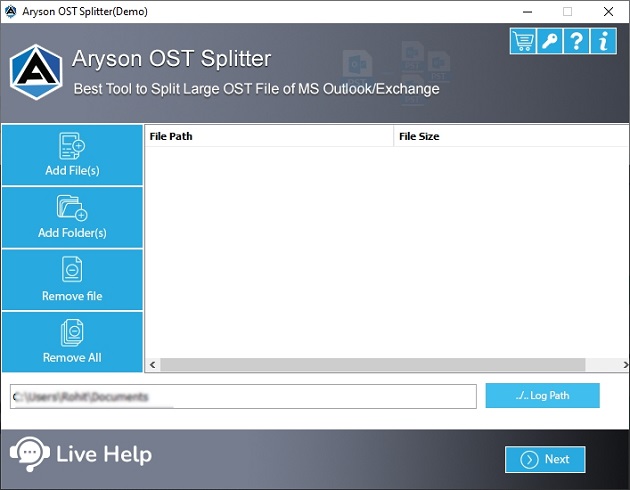
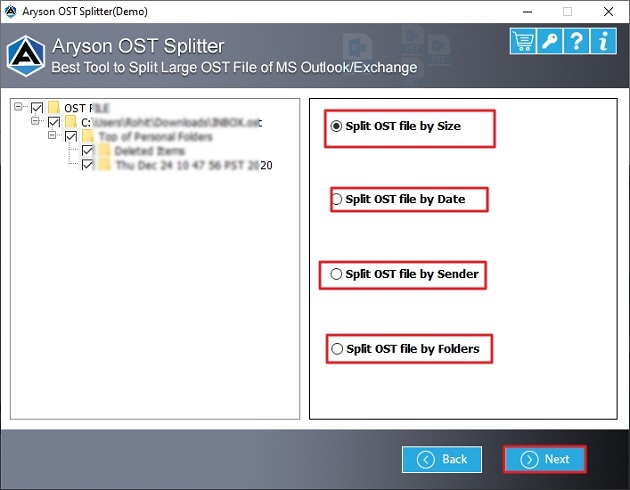
The Aryson OST Splitter Tool is helpful to decrease the size of the OST file. It splits your oversized OST files into smaller parts based on Size, Date, Sender, and Folder. With this top-notch utility, you can split a single or multiple OST files simultaneously without any hassle. You can access all your important emails, contacts, events, and other data without relying on MS Outlook. Additionally, it offers a simple interface, which is easy to understand and operate even for non-tech users.
Steps to Split an Oversized OST File With an Advanced Utility:
- Firstly, install the OST Splitter Tool on your system.
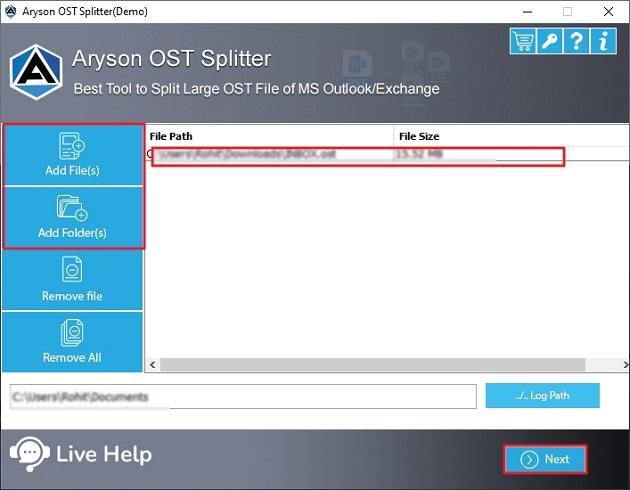
- Click on Add File or Add Folder, and select the oversized OST. Press Next.
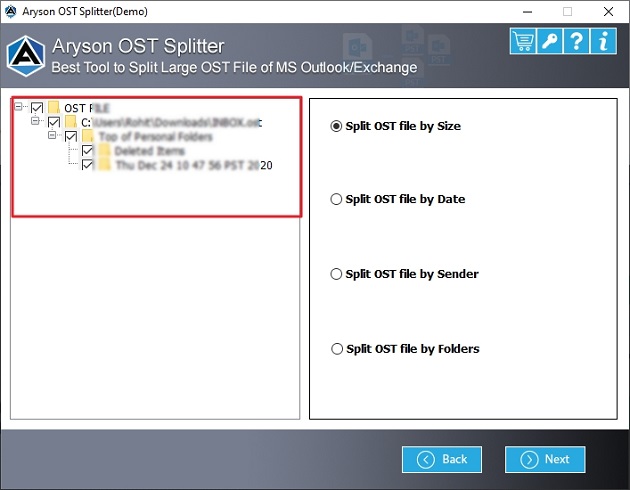
- After that, cross-verify & select the added OST file.
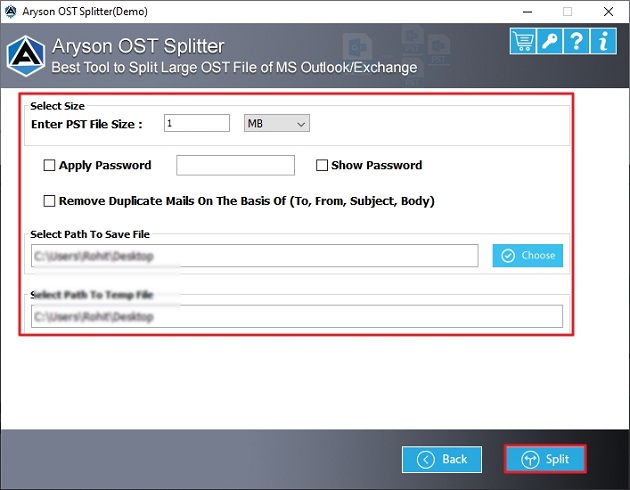
- Choose the Split options according to your requirements.
- Lastly, apply features and filters. Click Split to initiate the splitting process.
Benefits of Using the OST Splitter Tool:
If your OST file becomes too large, the best solution is to split the OST file into several smaller parts. This process can be done by using an effective and efficient OST Splitter Tool. It offers several developed features or filters, like:
- With the Remove duplicate option, you can exclude duplicate emails.
- Ability to see the content of the OST file before splitting it.
- Provides a feature to protect the OST file by applying a Password to it.
- Fully compatible with all Windows OS versions, including Windows 11, 10, 9, and more.
Conclusion
Above, we shared different methods to reduce the size of the OST file. It protects your Outlook from slowing down when the OST file too large. You can use either the manual method or a splitter tool to decrease the OST size. However, we recommend using the professional tool as a good choice. It saves your time, efforts, and offers a hassle-free result without data loss. Moreover, the trial (demo) version of this software is public to estimate its performance and familiarity.
Frequently Asked Questions:-
Q1. How can I check the size of my OST file?
Ans: Follow the steps below to check the size of the OST file:
✅ Open Outlook and go to the File tab.
✅ Click on Account Settings, then select Account Settings again.
✅ In the Data Files tab, you’ll see a list of your data files along with their sizes.
Q2. What should I do if my OST file exceeds the maximum size limit?
Ans: If your OST file exceeds the maximum size limit for your Outlook version. You can use either the manual method or an OST Splitter Tool to divide the file into smaller parts.
Q3. Will splitting my OST file affect my Outlook data?
Ans: No, using an OST Splitter Tool preserves the structure and formatting of your data during the splitting process. It ensures that your Outlook data remains intact.
Q4. Can a large OST file cause Outlook to stop responding?
Ans: Yes, if the OST file becomes too large, Outlook may slow down or stop responding entirely. This is because the program struggles to process and load such a heavy data file.
About The Author:

Rohan Wiese is a Technical Writer at Aryson Technologies. He is an expert Email Forensic, Cloud Computing, and a passionate nerd with over 10 years of experience in technical content writing. He writes about Cloud Migration, Database Recovery, Email Backup, Windows, Mac, and Tech.
Related Post