-

Written By Harshita Sachdeva
-
Approved By
Shivam Rathore -
Updated on May 27th, 2026
Migrate Company to New Microsoft 365 Tenant: 2026 Update Guide
Fact-checked and reviewed in accordance with our
Editorial Policy
User Query: We are acquiring a business. Both of us have 365 tenants. I would like to migrate their tenant into ours so that I can retain their email/OneDrive accounts from the old business. I would ideally make their current email addresses aliases of their new email addresses. Is there a guide on how to do this? How simple/hard is it? The business only has about 25-30 employees to migrate over.
Summary: Organizations often face challenges while moving their essential data during mergers, acquisitions, or rebranding. Since Microsoft lacks a one-click method, it is necessary to first plan the entire migration carefully to migrate company to new Microsoft tenant. This guide explores manual strategies, their inherent complexities, and how the Aryson Microsoft 365 Migration Tool simplifies the entire transition effectively, ensuring zero data loss and total integrity.
Instantly Transfer Company to New Microsoft Tenant
- Install & launch the Aryson Microsoft 365 Migration Tool.
- Connect to the source tenant (company) via the Modern Auth or Impersonation.
- Use the Modern OAuth method to connect to the destination account.
- Map the sub-users of the source and destination accounts >> use advanced filters.
- Click the Start Migration button to begin the migration.
Who Needs to Migrate Company to New Microsoft Tenant?
- Enterprises merging or navigating complex acquisition processes.
- Businesses that are rebranding under a completely new domain identity.
- Organizations are splitting today into two separate legal entities.
- Companies are consolidating multiple regional tenants into one global.
- IT teams streamlining license costs across satellite departments.
- Legal teams need data unified for compliance audits.
Complete Migration of Company to New Microsoft Tenant
Now, as we have discussed, the potential users who may need to move their data between tenants, let’s proceed to the actual steps of migration. Read through the manual and automated methods; consider all the important aspects of each method carefully. After that, pick one as per your requirements. If the manual methods fail to work for you, refer to the professional method discussed in the upcoming sections of the blog.
Method 1: Use Microsoft Native Cross-Tenant Migration
Microsoft’s native cross-tenant migration allows users to move mailboxes using the Exchange admin center and PowerShell. It involves preparing the source, setting up organization relationships, and creating migration batches.
Steps to Migrate Company to New Microsoft Tenant:
- Verify the domain in the target tenant.
- Prepare source mailboxes for the move.
- Create a migration endpoint in Exchange.
- Establish the organizational relationship and trust.
- Start the migration batch from the admin center.
- Monitor the progress and finalize the batch.
Method 2: Manual PST Export and Import Strategy
For smaller teams, the PST export/import method is viable. Administrators export mailbox data to PST files from the old tenant and manually upload them into the new environment.
Manual Steps to Migrate Company to New Microsoft Tenant 365:
- Export mailboxes to PST via Outlook.
- Set up new accounts in the destination.
- Open Outlook with the new credentials.
- Use the Import/Export wizard for PST.
- Map folders to the new account.
- Wait for the cloud sync to complete.
- Verify all emails and attachments are present.
Drawbacks of Manual Methods
- Complex PowerShell scripting poses a high risk of syntax errors and data loss.
- Manual PST transfers double the workload by moving data twice through local drives.
- Vital email metadata and original timestamps often disappear during the manual syncing process.
- Critical folder permissions and SharePoint site structures are difficult to preserve.
- Lack of built-in scheduling results in significant downtime for the entire organization during transfer.
- Throttling limits from Microsoft frequently cause manual migration batches to fail.
Method 3: Solution to Migrate Company to New Microsoft Tenant
The primary concern of most of the enterprises and IT admins is data integrity and speed of migration. Therefore, they prefer to use the Aryson Microsoft 365 Migration Tool to migrate their essential data securely. Whether it be 40 emails or 40 mailboxes, this software serves 100% data integrity and guarantees accuracy. Even if a complete beginner needs to migrate a company to a new Microsoft tenant, they can use the advanced filters of the software to simplify migration. The same software can be used to perform a Microsoft 365 Tenant to Tenant migration. Also, this utility comes with a free demo version for pre-evaluation.
Step-by-Step Tutorial to Move Company to New Office 365 Tenant
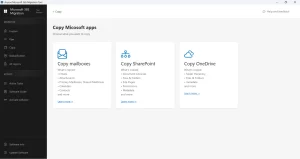
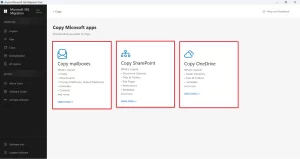
- Install & run the Aryson Microsoft 365 Migration Tool.
- Choose among Copy Mailboxes, SharePoint, or OneDrive cards.
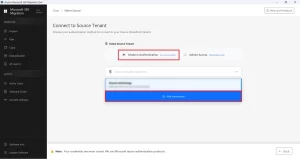
- Enter the source tenant account via Modern Auth.
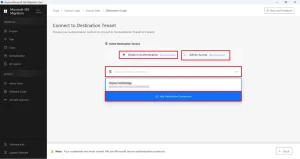
- Log in to the destination tenant account via Modern Auth or Impersonation.
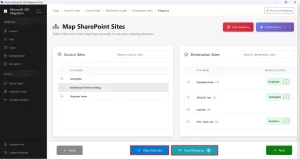
- Map the source and destination accounts and view the resultant mapping.
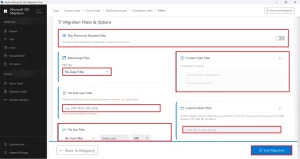
- If required, apply the additional filters and click on Start Migration.
Why Do Organizations Use the Aryson Microsoft 365 Migration Tool?
- Keeps Mailbox, SharePoint, and OneDrive structures fully intact.
- Even a beginner can move domain between Office 365 Tenants.
- The duplicate detection prevents redundant data entry.
- Migrates hundreds of enterprise user accounts simultaneously.
- Compliance logs verify every migrated record completely.
- OAuth2 authentication ensures company credentials stay protected.
Mark’s Success Story: 15TB Migrated in Record Time
Mark, an IT director for a logistics firm, asked, “Can I move 15TB for 450 users this weekend without breaking our folder hierarchy?” Native tools were too slow for his massive scale. He switched to the Aryson Microsoft 365 Migration Tool for its batch mapping capabilities. By Monday, 99.9% of his data—including 2.5 million emails and 400,000 SharePoint files—had been successfully migrated. The results were staggering: 0% metadata loss and 85% faster speeds.
Conclusion
It is essential to pick the right path to migrate Company to new Microsoft Tenant, depending on your organization’s size and technical depth. Manual methods are tedious and prone to errors during high-volume transfers. For an efficient transition that preserves data integrity and minimizes downtime, using the Aryson Microsoft 365 Migration Tool is the most reliable approach. It ensures a smooth workflow, so your team can stay productive.
Frequently Asked Questions
Q.1 What does it mean to migrate a company to a new Microsoft tenant?
Ans. It means transferring an organization’s Microsoft 365 data, including mailboxes, OneDrive accounts, SharePoint sites, users, permissions, and configurations, from one Microsoft tenant to another securely.
Q.2 Does Microsoft provide a native tool to migrate from one tenant to another?
Ans. Microsoft provides limited native migration capabilities, but they are often insufficient for complete tenant-to-tenant migration. Therefore, the Aryson Microsoft 365 Migration Tool is available to simplify the process with centralized management and secure API-based migration.
Q.3 How to migrate company to new Microsoft Tenant?
Ans. Download the Aryson Microsoft 365 Migration Tool, connect source and destination tenants using Modern Authentication, map users and workloads, apply filters if required, and start the migration process for mailboxes, SharePoint, and OneDrive data.
Q.4 Can users continue working during a Microsoft 365 tenant-to-tenant migration?
Ans. Yes, the above software supports incremental migration and structured workload transfer, allowing users to continue working with minimal downtime during the migration process.
Q.5 How does the software ensure data integrity during the migration process?
Ans. The software uses Microsoft Graph API, OAuth 2.0 authentication, encryption standards, duplicate detection, and metadata preservation to maintain complete data integrity and prevent data loss during migration.
Q.6 What types of licenses does the software offer?
Ans. Aryson Microsoft 365 Migration Tool provides users with 4 different licenses based on the features and formats supported. They include Single User, Administrator, Technician, and Enterprise Licenses.
Q.7 Does the software maintain folder structure, permissions, and metadata during migration?
Ans. Yes, the software preserves folder hierarchy, mailbox structure, permissions, email properties, document metadata, and SharePoint.
Q.8 What kind of customer support is available, and how do I reach it?
Ans. Aryson provides 24/7 technical support to assist users with installation, migration, troubleshooting, and enterprise migration challenges. We provide live chat, phone, emails support. You just have to navigate to the live chat option within the software to reach out.
About The Author:

Harshita Sachdeva, a professional technical writer at Aryson Technologies, specialize in delivering clear, hands-on documentation for data management, migration, and recovery solutions. With a meticulous, reader-first approach, I break down complex technical processes into simple, actionable content - helping IT professionals and decision-makers tackle challenges efficiently.
Related Post