-

Written By Harshita Sachdeva
-
Approved By
Shivam Rathore -
Updated on August 24th, 2026
Microsoft 365 Tenant to Tenant Migration: Expert Guide in 2026
Fact-checked and reviewed in accordance with our
Editorial Policy
User Query: Recently, our organization acquired another firm, and this calls for migrating M365 data from their tenant to ours. We are not sure about the protocol we should follow for the migration. Since this data includes confidential information, we are concerned about losing data during the process, too. Is there any reliable solution available that helps us with the migration and keeps the data intact during data transfer?
Summary: Mergers, acquisitions, and IT consolidations force organizations to conduct Microsoft 365 tenant-to-tenant migration to consolidate emails, files, chat tools, and more into one place. Yet it’s complex and potentially perilous to transfer between Microsoft 365 mailboxes, SharePoint sites, Teams information, and OneDrive. Therefore, this blog covers the pre-migration planning phases and manual methods to perform tenant-to-tenant migration. Along with that, you will also learn the effective use of the Aryson Tenant to Tenant Migration for both technical and non-technical users.
Instant Solution to Perform Microsoft Tenant-to-Tenant Migration
- Download, install & run the Aryson Tenant-to-Tenant Migration Tool on Windows.
- Select among Copy mailboxes, SharePoint, OneDrive, or Teams cards.
- Enter credentials for the source tenant >> click Add connection.
- Use modern OAuth or impersonation & add the destination tenant.
- Map the source and destination account data >> apply filters.
- Click the Start Migration button to begin migration.
Users Who Need to Perform Microsoft 365 Tenant to Tenant Migration
- IT admins who consolidate email infrastructure after a company merger.
- Legal teams that preserve compliance records during organizational restructuring.
- Business owners who split subsidiaries into separate Microsoft 365 environments.
- MSPs and consultants are managing tenant transitions for clients after ownership changes.
- Enterprises rebranding and moving all users to a new Microsoft 365 tenant.
- Business proprietors that divide their subsidiaries into different Microsoft 365 environments. They usually assess Office 365 single tenant versus several tenants at first to determine the correct framework.
Prerequisites: What to Do Before Migration?
In order to achieve a successful migration, there is always a need to perform some preliminary steps before you even begin the migration process. Listed below are some of the steps to follow to minimize data loss and downtime as well. For the latest prerequisites and supported configurations, refer to Microsoft’s official cross-tenant mailbox migration documentation.
Phase 1: Pre-Migration Planning
- Make a list of all mailboxes, SharePoint sites, OneDrive accounts, Teams rooms, and other shared resources.
- You can even reduce the data volume by deleting inactive accounts or expired accounts.
- Make sure you use cutover migration for small organizations and phased batches for enterprises.
- It is important to inform all users about the schedule of migration and the post-migration activities.
Note: Before starting the cutover, ensure that your domain is properly prepared to move domain between Office 365 tenants without affecting active services. The process requires careful domain removal, verification, and DNS configuration in the destination tenant. Following these steps correctly helps prevent authentication or mail-flow issues and ensures a smooth transition to the new Microsoft 365.
Phase 2: Target Tenant Preparation
- Create a temporary routing domain—such as target.onmicrosoft.com—for the first synchronization of emails.
- Pre-create every user account within your target tenant and allocate the necessary Microsoft 365 licenses beforehand.
- Match your source UPNs with your target user IDs.
- Duplicate all your source’s security settings, DLP policies, and compliance standards over to the target.
Phase 3: Identity & Permissions Setup
- Enable cross-tenant access settings in Azure AD on both source and target tenants.
- Establish trust between tenants using Microsoft Entra ID (Azure AD B2B).
- Assign Exchange, SharePoint, and OneDrive admin permissions to the migration app.
- Verify all service accounts have full access before starting any data transfer.
Manual Workflows to Migrate Microsoft 365 Tenants Securely
Let’s move on to the manual methods for migrating between tenants in O365—assuming that your pre-migration tasks were completed successfully. Carefully follow the steps of each method to achieve successful migration, and if none of them works for you, try out the professional solution elaborated.
Method 1: Microsoft 365 Admin Center – Migrate Tenant to Tenant
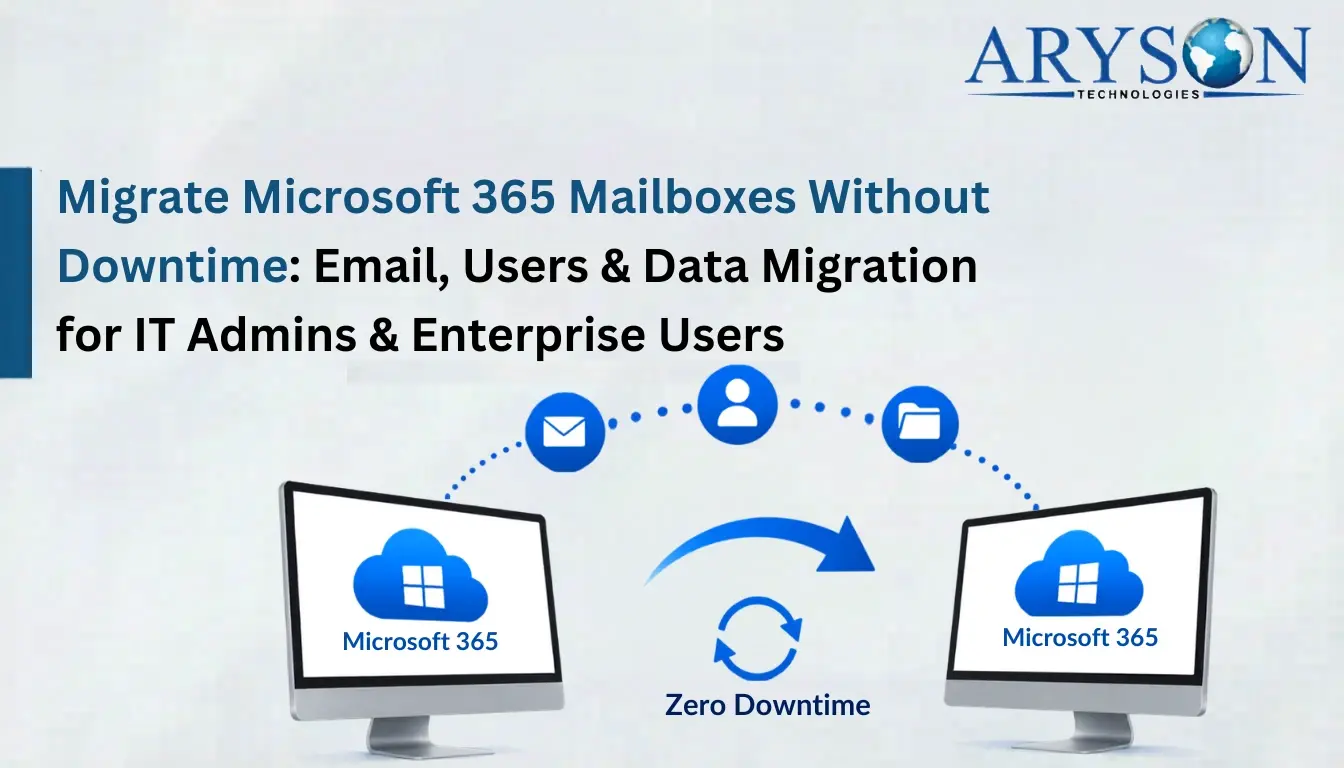
Microsoft offers a native cross-tenant mailbox migration tool through the Exchange Admin Center. Admins configure organizational relationships between source and target tenants, then migrate mailboxes using PowerShell migration batches. Best suited for small mailbox sets with experienced administrators available.
Follow the steps below to perform the Migration
- Open the Microsoft 365 Admin Center on both source and target tenants.
- Navigate to Exchange Admin Center >> Migration >> Add Migration Batch.
- Configure cross-tenant organizational relationships in Azure AD for both tenants.
- Grant mailbox import/export permission to the migration application.
- Make a CSV file that maps your source mailboxes to your target mailboxes.
- Run the New-MigrationBatch cmdlet in PowerShell with the CSV and endpoint.
- Execute Start-MigrationBatch >> monitor progress in the Admin Center.
- Verify migrated mailboxes in target >> run Complete-MigrationBatch to finalize.
Method 2: PowerShell – SharePoint & OneDrive Migration
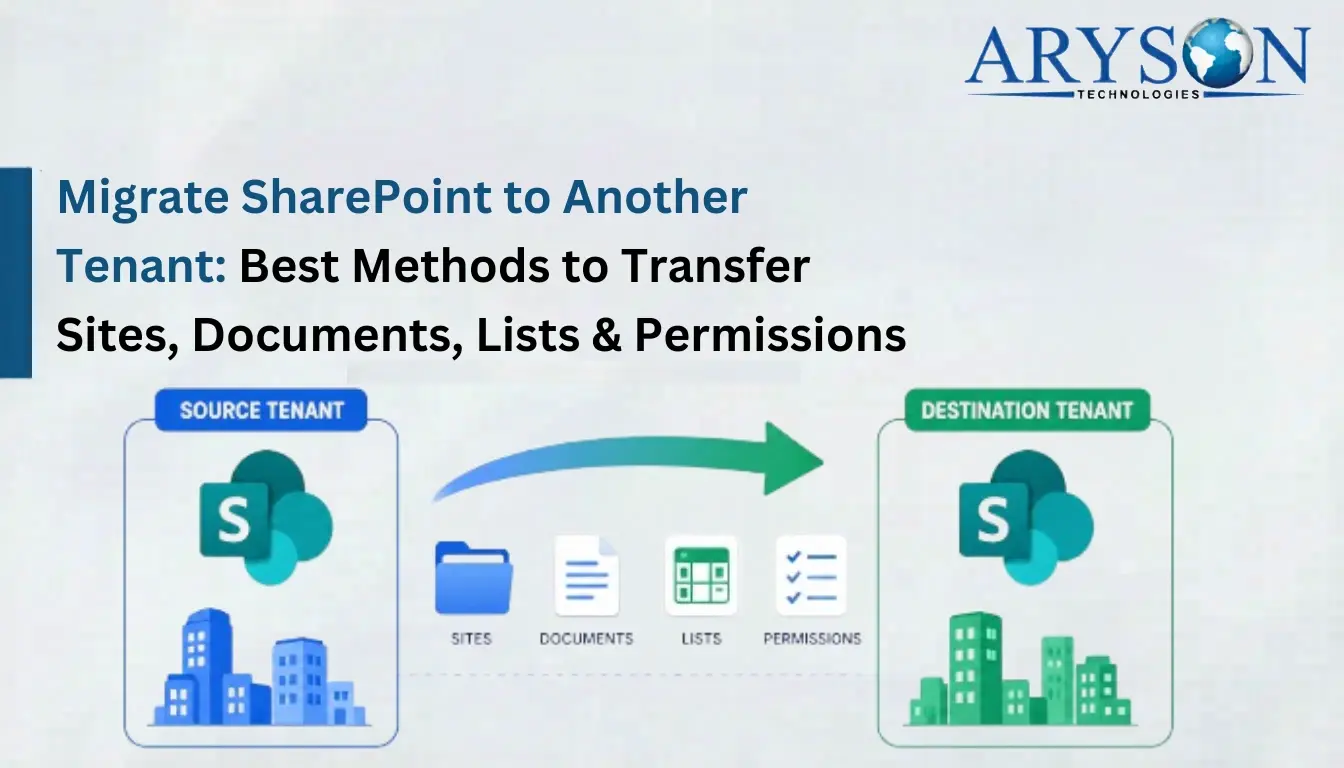
You can handle the migration of SharePoint and OneDrive data between tenants with the help of the Microsoft SharePoint Migration Tool (SPMT) or PowerShell cmdlets. But before you begin the actual migration, make sure to set up site mappings and user mappings beforehand. Perform the steps below to begin the migration process.
- Download the SharePoint Migration Tool (SPMT) from Microsoft’s official site.
- Launch SPMT >> sign in with source tenant admin credentials.
- Select SharePoint sites or OneDrive accounts to migrate.
- Enter the target tenant URL >> authenticate with the destination admin account.
- Upload the user mapping CSV to align the source and target user identities.
- Configure migration settings >> select incremental migration if needed.
- Click Migrate >> monitor the real-time progress report inside SPMT.
- Verify all content in the target SharePoint and OneDrive after completion.
Drawbacks of Manual Methods
- Complex Azure AD cross-tenant configuration required.
- Risk of migration failures and timeouts.
- Loss of metadata and version history possible.
- No unified dashboard for all workloads.
- DNS and cutover steps are error-prone.
Method 3: Aryson Tenant-to-Tenant Migration Tool – Enterprises’ Choice
In order to avoid the above downsides of the manual methods, organizations that have crucial tenant data prefer to opt for the Aryson Tenant-to-Tenant Migration Tool. This Graph API-based solution uses the TLS-encrypted HTTPS protocol to deliver data between source and destination tenants. With the help of this software, you can now migrate mailboxes, SharePoint (lists from one site to another), OneDrive, and Teams data all from the same utility. Moreover, you may also transfer your OneDrive data to SharePoint—or even the other way round. Besides that, the highly developed filters as well as manual mapping possibilities really increase the ease of use for those users preferring a step-by-step cross-tenant migration process.
Will my Teams data be available after migration?
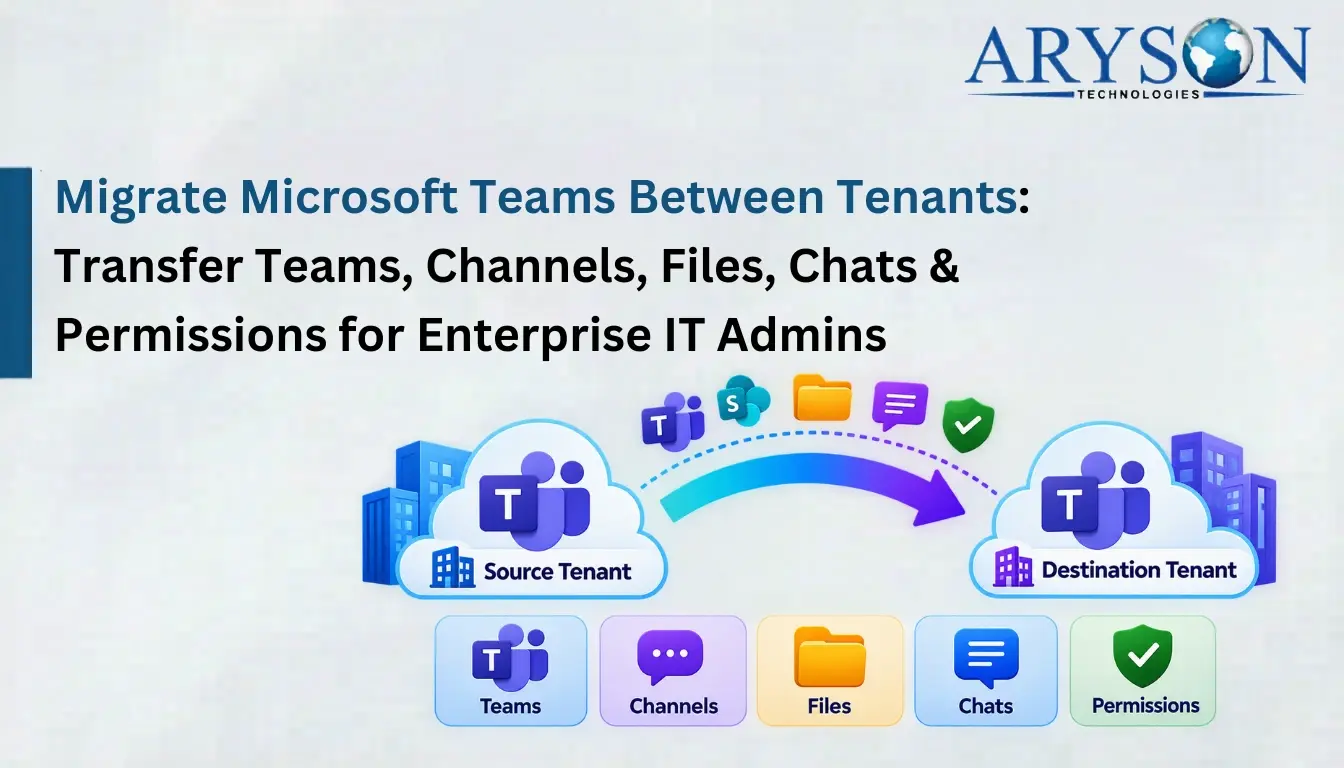
Yes, with the help of this cross-tenant migration utility, you can move teams, channels, messages, replies, files, folders, metadata, Planner data, tabs, and supported apps. Meanwhile, be sure to preserve the original Teams and channel structure completely. For instance, when a company has 50 teams, 300 channels, and thousands of conversations, users will still locate all their information within the very familiar framework post-migration. Team owners and members can also be mapped to their new accounts.
Step-by-Step Tutorial to Perform Tenant-to-Tenant Migrations for Enterprise
- Download and install the Aryson Tenant to Tenant Migration Tool >> run as administrator.
- Select migration scope: mailboxes, SharePoint, OneDrive, or Teams.
- Enter the source tenant admin email and password >> authenticate via OAuth/client ID or secret.
- Authenticate destination tenant admin credentials >> validate connection.
- Map the source and destination tenant accounts >> use the required filters.
- Click Start Migration >> monitor real-time progress logs per user.
For more detailed steps, refer to the Aryson Tenant to Tenant Migration software guide. It provides step-by-step instructions on how to use the tool and complete the migration process without hassle. Aryson’s documentation covers tenant connections, authentication, migration configuration, and related setup procedures.
🎥 Watch the Complete Migration Video
Why Is Aryson Considered Better than Manual Workarounds?
- It even keeps headers, attachments, folder hierarchy, and timestamps intact.
- Along with that, both OneDrive to SharePoint & vice versa are supported by this tool.
- Delta migration support captures newly arrived data without remigrating existing items.
- The advanced user mapping eliminates manual CSV creation for large user sets.
- Advanced filters allow selective migration by date range, folder, or item type.
- Free demo version available to evaluate performance before purchasing a license.
Andrew’s Success Story
Andrew James—an IT director at a medium-sized law firm in Chicago—was confronted with a 3000-mailbox tenant migration following a merger. PowerShell batches consistently failed around 40% completion. She turned to the Aryson Tenant-to-Tenant Migration instead, mapped out all users quite easily, applied some date filters for active information, and then completed the entire Microsoft 365 Tenant-to-Tenant (T2T) migration It kept the mailboxes and SharePoint lists intact—in under 48 hours with zero data loss.
Conclusion
Cross-tenant migration is one of the most crucial operations performed within an organization. Initially, it might sound like a cumbersome task to migrate data between tenants and at the same time make sure of data integrity. But once you perform the preliminary steps successfully, half of your concerns will be resolved right away. The manual methods will work fine for small startups. Whereas, to meet the requirements of large enterprises, the professional solution is highly recommended. Not only migration, but the software will continue to assist even post-migration with the live monitoring panel and the chat support that is available 24/7.
Frequently Asked Questions
Q. 1 How does the software handle Microsoft Graph API throttling?
Ans: API-based migrations can encounter Microsoft 365 service throttling when a large number of requests are submitted. Therefore, this software manages request processing and continues transferring data according to Microsoft 365 service limits.
Q.2 Does the software support incremental or delta migration?
Ans: Yes, the Aryson Tenant to Tenant migration software supports delta migration. That means it transfers only newly added or modified data after the initial migration, which eventually helps users avoid duplicate transfers and reducing migration time.
Q3. Does the Aryson Tenant-to-Tenant Migration Tool migrate permissions?
Ans: Yes, the software supports permission migration when users migrate Teams. It helps preserve team ownership and assigned permissions during migration, ensuring users retain the appropriate level of access in the destination tenant.
Q4. Does the software require application-level permissions in Microsoft 365?
Ans: Yes, the required Microsoft 365 application permissions must be configured for the workloads being migrated. These permissions allow the migration service to access and transfer the required data.
Q.5 Can I migrate selected data instead of the entire Microsoft 365 tenant?
Ans: Yes, with the help of the tenant migration software, administrators can apply filters based on data type, date range, folders, users, or other supported criteria to perform selective migration.
Q.6 Does the software migrate Teams channels and conversations?
Ans: Yes, the software supports the migration of Teams data, which can include teams, channels, messages, replies, files, folders, metadata, Planner data, tabs, and supported apps. All this while maintaining the Teams and channel hierarchy.
Q.7 Can source users be mapped to different destination accounts?
Ans: Yes, the user mapping allows administrators to associate source accounts with their corresponding destination accounts before starting the migration.
Q.8 Can administrators monitor the migration process in real time?
Ans: Yes, the software provides migration progress information, including processed items, migrated data, skipped or failed items, and user-level migration status.
Q.9 What happens if some items fail during migration?
Ans: Migration logs really help system administrators see which items have failed or been skipped – this lets them check out any issues and do something about it rather than having to start the whole migration process all over again.
Q.10 Does the Aryson Tenant-to-Tenant Migration Tool support OneDrive to SharePoint migration?
Ans: Yes, the software really does support migrating your OneDrive data to SharePoint – it lets admins transfer files and folders from one person’s OneDrive account to specific SharePoint locations whilst keeping all the folder structures intact.
About The Author:

Harshita Sachdeva, a professional technical writer at Aryson Technologies, specialize in delivering clear, hands-on documentation for data management, migration, and recovery solutions. With a meticulous, reader-first approach, I break down complex technical processes into simple, actionable content - helping IT professionals and decision-makers tackle challenges efficiently.
Related Post