-

Written By Harshita Sachdeva
-
Approved By
Shivam Rathore -
Updated on June 9th, 2026
Convert VCF to PST Format: Save Contacts to Outlook Easily
Fact-checked and reviewed in accordance with our
Editorial Policy
Query: How do I convert multiple VCF files into PST format so that I can successfully import all my contacts into Microsoft Outlook at once?
Summary: VCF file, also known as a vCard. It is commonly used to store contact information such as names, phone numbers, email IDs, addresses, and even profile images. Although VCF files work well on mobile devices, Google Contacts, and iCloud, many users prefer to access their contact list inside Microsoft Outlook. This is why a large number of people search for a simple and reliable way to convert VCF to PST.
Outlook uses PST files to store emails, contacts, calendars, and other mailbox data. However, Outlook does not support bulk importing of VCF files directly. Hence, we recommend using the Aryson VCF to CSV Converter to convert multiple VCF files to PST. This blog covers the best and most trusted ways to convert VCF file data to PST in easy steps.
Quick Steps to Convert VCF File to PST
- Install & run the Aryson VCF Converter Tool on your system.
- Load the required VCF files >> select a specific one to preview in the right panel.
- Select PST under the File Formats dropdown list.
- Use the additional features >> specify path to save >> click Convert.
Reason to Convert VCF File to PST Format
There are many reasons why users move contacts from VCF format into PST. Here are the most common ones:
- Better Contact Management: PST keeps all your contacts stored in one place, which makes it easier to manage large contact lists.
- Bulk Storage: Unlike VCF files that store one contact per file (mostly), PST allows you to save a huge number of contacts together.
- Improved Accessibility: PST files can be easily opened in Microsoft Outlook, which many organizations use for daily communication.
- Easy Backup and Restore: PST files help you create a complete backup of your contacts, and you can restore them whenever needed.
- Smooth Data Transfer: PST makes it simple to move contacts from one computer to another without any format issues.
- Business and Professional Use: Many companies prefer Outlook for contact management, so converting VCF to PST helps maintain consistency across devices.
- Better Compatibility: PST format works well with all Outlook versions, whereas VCF files may not import correctly in bulk.
These reasons make PST a useful and more structured format for long-term contact storage.
Top Recommended Methods to Convert VCF to PST
You can convert VCF file to PST in several ways. This guide explains:
- Use Microsoft Outlook
- Using Windows Contacts
- Aryson VCF to PST Converter
Each method has different steps and limitations, so choose the one that fits your needs.
Method 1: Free Method to Convert VCF to Outlook PST
This method is suitable when you have only one or a few VCF files. Outlook can read VCF files, but it only imports them one by one.
- First, open Microsoft Outlook on your computer.
- Then click on File from the top-left corner.
- After that, select Open & Export.
- Now choose the Import/Export option.
- From the list of actions, select Import a vCard file (.vcf) and click Next.
- Browse the folder where your VCF file is saved.
- Choose the file and click Open to convert VCF to PST.
- Outlook will now add that single VCF file to your Contacts folder.
Method 2: Convert VCF to CSV Using Windows Contacts
This method uses Windows Contacts to combine several VCF files and export them in CSV format, which Outlook supports. Although it is manual, it can handle multiple files better than the first method.
- Open the Start Menu and search for Windows Contacts.
- Once it opens, click the Import option.
- Choose vCard (VCF) from the list and click Import.
- Select the VCF files you want to import.
- You may have to repeat this for every file.
- After all contacts are imported, click the Export option.
- Select CSV as the export format and save the file.
- Now open Outlook and go to File > Open & Export > Import/Export.
- Choose Import from another program or file.
- Select CSV and click Next.
- Choose your Contacts folder and import the file to convert VCF to PST.
Why Manual Methods May Not Work for Everyone
Although manual solutions are free, they come with several challenges. Below are some common issues users face during manual conversion:
- They cannot import multiple VCF files at once in Outlook.
- Mapping fields becomes difficult when using CSV.
- They may lose data such as notes, custom fields, or images.
- The process becomes slow and repetitive.
Because of these reasons, many users prefer an automated method that completes the conversion accurately and in less time.
Method 3: Automated Software to Convert VCF to PST
Aryson VCF Converter Tool offers a simple and secure way to convert single or multiple VCF files into PST format without losing any contact details. It will be helpful for both home users and professionals who want accurate results with minimum effort. It can handle bulk VCF files smoothly. Moreover, it maintains the complete contact structure, which includes names, email IDs, phone numbers, addresses, company details, and even images. This software can also import VCF to Google Contacts. Because of this, the conversion becomes more reliable and time-saving.
Simple Working Steps to Open VCF in Outlook
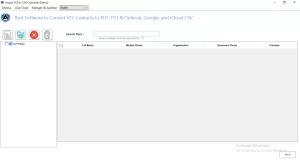
- First, download and install the Aryson VCF Converter Tool on your system.
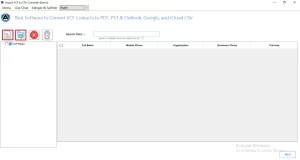
- Now, start the process and add the required VCF file to convert it to PST.
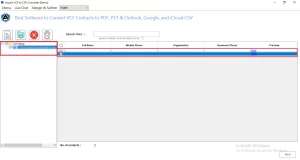
- When you add them, select any specific one accordingly to proceed further.
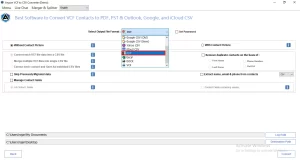
- From the select Output format panel, select PST as the resultant one.
- There are several additional features; pick any of them that are needed.
- Provide a destination path and click Convert to export VCF to PST format.
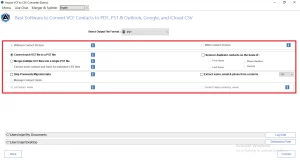
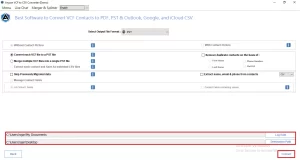
Apart from the PST format, users can also import VCF Contacts to Yahoo Mail, Thunderbird, iCloud, and many other clients.
Samy’s Success Story: 3,200 VCF Files Converted in Under an Hour
Samy, an HR manager, needed to migrate 3,200 candidate contacts from a CRM into Outlook without losing phone numbers, emails, or custom fields. The manual way to save VCF in Outlook was too slow for bulk processing. She used the Aryson VCF Converter Tool to transfer all contacts quickly, ensuring zero data loss, no duplicates, and a fully searchable Outlook contacts file within an hour.
Conclusion
Choosing the right method to convert VCF to PST depends on how many contacts you have and how comfortable you are with manual steps. If you have only a few VCF files, the manual Outlook import method works well. But when you have hundreds of VCF files or want a more accurate and faster process, the above automated tool gives you the best results. It keeps your contact details safe and converts everything into a well-organized PST file that can be easily opened in Outlook.
Frequently Asked Questions
Q.1 How to convert VCF to PST?
Ans. With the help of the Aryson VCF to PST converter, you can efficiently convert VCF to PST.
Just load the required VCF files, preview them, select PST as the output format, apply filters, and click Convert.
Q.2 Can I import VCF file to Outlook in bulk?
Ans. Yes, using the Aryson VCF to PST converter, you can efficiently import a VCF file to Outlook in bulk.
Q.3 Why can’t I import VCF contacts into Outlook?
Ans. Outlook may fail importing VCF contacts due to unsupported versions, corrupted VCF files, improper formatting, or missing contact fields while importing multiple contacts simultaneously.
Q.4 Does converting VCF to PST preserve all contact fields?
Ans. Yes, the above VCF to PST converter preserves contact fields, including names, phone numbers, email addresses, company details, photos, and other metadata accurately.
Q.5 What should I look for when choosing a VCF to PST converter tool?
Ans. Choose a tool supporting bulk conversion, metadata preservation, duplicate removal, Unicode characters, Outlook compatibility, secure processing, preview options, and an easy-to-use interface for migration.
Q.6 Is there a free trial available to test the software before purchasing?
Ans. Yes, Aryson provides a free version of the Aryson VCF to PST converter to convert up to 50 emails/folders.
Q.7 Is chat support available if I run into issues during conversion?
Ans. Yes, Aryson provides its users with live chat, email, and phone support to provide them with 24/7 personalized assistance.
About The Author:

Harshita Sachdeva, a professional technical writer at Aryson Technologies, specialize in delivering clear, hands-on documentation for data management, migration, and recovery solutions. With a meticulous, reader-first approach, I break down complex technical processes into simple, actionable content - helping IT professionals and decision-makers tackle challenges efficiently.
Related Post


