

-

Written By Rohan Wiese
-
Updated on February 6th, 2026
Fixing “Object Not Found” Error 3011 in Microsoft Jet
Recently, Sophie from London asked about the “Object Not Found” Error 3011, which she is facing. And also asked for a reliable and quick way to get rid of this error without losing her data. Did you also come here searching for a solution to this problem? If yes, no worries. Your search ends here. Here in this blog, we will discuss some simple methods to fix this issue, including the Aryson Access Database Recovery tool to recover your database object. Just read the entire blog to fix the issue. Download Now Purchase Now
What Does the ‘Object Not Found’ Error 3011 Mean in MS Jet?
First of all, let’s understand the error and its root causes. Microsoft Jet Database Engine is the core engine behind Microsoft Access Databases (mdb or accdb files). The error Sophie is facing above occurs when the Jet tries to access a database object but can’t find it. Many users encounter Access error 3011 object not found when working with queries, forms, or linked tables in MS Access.
Sophie’s User query: While working in MS Access, I encountered an error: ‘The Microsoft Jet database engine could not find the object. Error 3011.’ The object names are correct, and even after relinking the tables, the issue was not resolved. I suspect my database might be corrupted. Is there any quick way to fix this error without losing data?
What Happens When runtime error 3011 access database Appears
- Queries may not run.
- The error may affect the loading of forms or reports.
- It may stop the VBA code execution in between.
- Overall database functionality may be interrupted.
What Causes Access Error 3011: Object Not Found Error?
However, this error takes place when the database object is not found by MS Access; still, there are multiple reasons. Some of them are listed below:
- Incorrect Object Name – The name of the database object is not correct, or it doesn’t even exist in the database.
- Corrupt Access Database(accdb / mdb) – The Jet engine cannot find object error might occur if your Access database is corrupted. And, its corruption may make it invisible to the Jet engine.
- Wrong File Path – A wrong or missing file path may trigger this error, if your database connects to external sources like Excel, CSV, etc.)
- Database Object deleted – The required table, query, or any other database object has been accidentally deleted.
- Incomplete Database Migration – Moving the database to a new system or version without proper relinking may cause cannot find object error 3011 Access.
- Broken Linked Tables- In case Access is linked to an external backend database, renaming or moving your database may cause this error.
Troubleshooting Error 3011 in Microsoft Jet
If you want to fix the “Object Not Found” Error 3011 in Microsoft Jet, you can fix it easily through the different solutions provided below. Moreover, a reliable and quick method is also mentioned below, along with a step-by-step guide. You can pick any of these methods according to your preference.
Solution 1: Restarting Microsoft Access
For some users, just restarting the application can resolve this kind of error, so you can also try this way and see whether it works for you or not.
Solution 2: Checking Excel File Format
This corrupt object error Access error may also take place if you are exporting data to an Excel file with the .xls file format, because in the newer versions of MS Excel, it is no longer used. Instead, the .xlsx format is used. Therefore, such files are not compatible and result in this error.
Solution 3: Using Compact and Repair
You can use the compact and repair database to fix the error. This tool can fix any kind of database corruption.
Steps to follow are listed below:
- Open the corrupted Access database file.
- Then, go to the menu bar and select Database Tools.
- From there, select the Compact and Repair Database option.
Reliable and Quick Way to “Object Not Found” Error 3011
The most reliable and quick way to recover your data from MS Access is using the Aryson MS Access Database Repair Tool. This software allows you to store BLOB data successfully. Also, you can easily repair the MS Access files created in its different versions, like MS Access 95, 97, 2000, 2002(XP), 2003, 2007, 2010, 2013, 2016, 2019, and Access for Office 365. Along with that, you can recover OLE Object or MEMO data types from Damaged Access Database files. Also, you can resolve the “Unrecognized database format error 3343 access” error through the same utility. To use the software easily, a step-by-step guide is provided below:
Steps to Use the Software are as follows:
- Install the Aryson MS Access Database Repair Tool on your PC.
- Then, search for and select your Corrupted MS Access Database Files.
- Now, you can define any recovery options, like recovery modes, either Advanced or Standard.
- Then, click the OK button, and the scanning process will start.
- Now, you can preview your recovered files also.
- Next, pick the desired location to save your recovered files.
- Finally, click the Save button to start saving these recovered files.
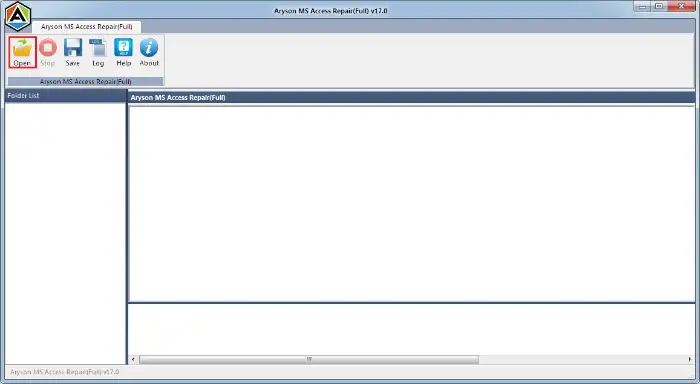
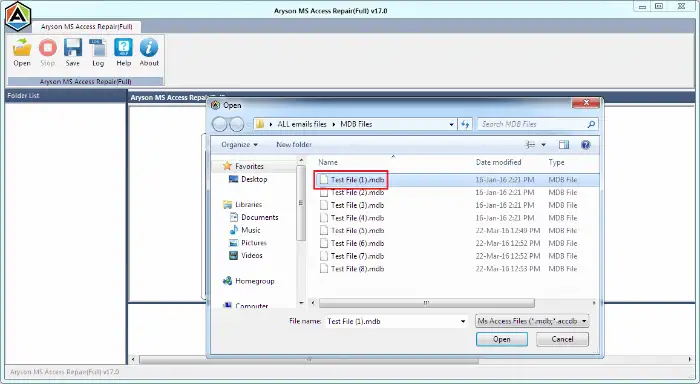


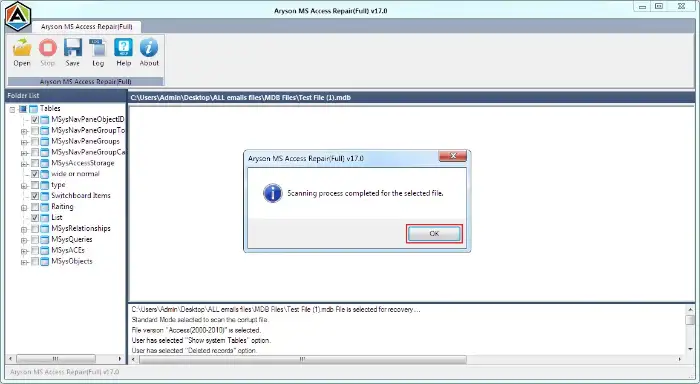
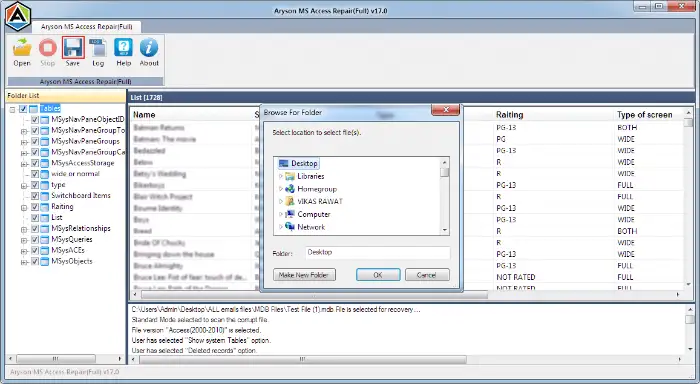
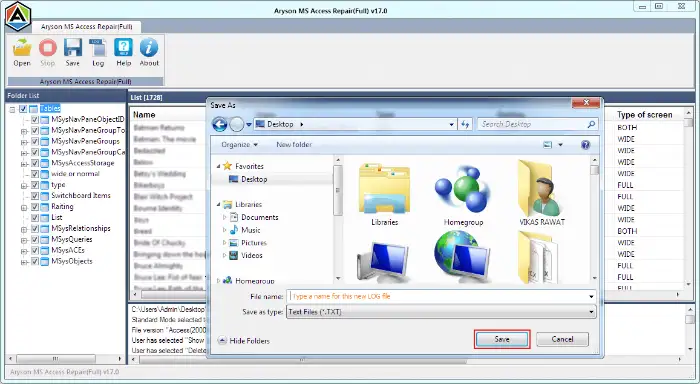
Also, you can use the same software to repair corrupt Access database within a few seconds.
Just walk through these steps to recover our database files safely as well as efficiently.
Conclusion
As we discussed in the blog above, to resolve the “Object Not Found” Error 3011
You can refer to any of the Jet engine error 3011 fixes mentioned above. However, the compact and repair method should work fine, but in case you want to ensure minimum data loss and fast recovery, you can go for Aryson MS Access Database Repair. This software ensures no data is lost as well, and it is the quickest Jet engine error 3011 fix. However, the software is the most suitable solution; you can pick any of the methods according to your preference. Still, if you are left with any queries, you can refer to the FAQs section below.
Frequently Asked Questions
Q-1 Can u fix Error 3011 without losing any data?
Ans- No, you can easily fix the error 3011 by using the Aryson MS Access Database Repair tool, without losing any of your data. However, the manual methods may result in data loss.
Q-2 How is Standard recovery mode different from the Advanced one?
Ans: Standard Mode: It is suitable for minimal corruption and offers quick recovery.
Advanced Mode: Whereas it offers deep recovery by repairing severely corrupted databases, restoring inaccessible or damaged objects.
Q-3 How to check which object is causing Error 3011?
Ans- You should carefully review your queries, forms, reports, and VBA code to identify any references to objects that do not exist. You should also verify linked tables in external databases.
Q-4 Can broken linked tables cause this error?
Ans- Yes, the Jet engine cannot locate the linked table if they are moved, renamed, or deleted, triggering Error 3011.
About The Author:

Rohan Wiese is a Technical Content Writer at Aryson Technologies, specializing in databases, e-mail recovery, and e-mail migration solutions. He enjoys conducting research and generating information that assists database administrators, businesses, and novices in resolving issues with MS SQL Server, MySQL databases, Cloud Computing, and Microsoft Exchange.
Realted Post


