-

Written By Rohan Wiese
-
Updated on September 18th, 2025
Import PST to Thunderbird Without Outlook Using 02 Top Methods
If you want to access your emails stored in a PST file but don’t have Microsoft Outlook installed, Thunderbird is a perfect alternative. Thunderbird is free, lightweight, and supports multiple email formats. However, importing PST files into Thunderbird without Outlook can be quite challenging for users. This complete blog will show you two top methods to accomplish this task easily. Either you can go through manually to import PST to Thunderbird, or you can use Aryson PST Converter Tool to accomplish the task within a few clicks
Why Users Need to Import PST to Thunderbird Without Outlook
Many users face this scenario where they need to access PST files. But they do not install or use Outlook. Some of the common reasons are here:
- Outlook is not installed – Organizations or personal users may not have a licensed version of Outlook.
- Switch to free Email Clients – Thunderbird is free and lightweight, which is appropriate for Windows, Mac, and Linux users.
- Avoiding PST corruption – PST files can get corrupted over time, and moving emails to Thunderbird can reduce risks.
- Centralized email management – Thunderbird allows you to manage multiple email accounts in one place efficiently.
After importing PST files to Thunderbird, users will gain wide flexibility and better storage management. As a result, it provides easy email access without Outlook.
How to Import PST to Thunderbird
Among the various ways to convert PST to Thunderbird, we will go through the two most commonly used approaches. In the upcoming approaches, we have the manual along with an automated approach. Do not waste time; just proceed with the next section and opt for that specific method that feels appropriate for you.
Solution 01: Manual Method to Import PST to Thunderbird Without Outlook
Follow the step-by-step instructions below to complete the migration successfully.
- First, open the Control Panel and go to Programs>>Default Programs>>Set your default programs.
- Then, select Outlook, click Set this program as default, and press OK.
- Next, launch Thunderbird and open the Thunderbird menu.
- After that, navigate to Tools>>Import to start the import wizard.
- Now, select Mail and click Next to specify the type of data.
- Then, choose Outlook as the source program and click Next.
- Finally, click Finish to let Thunderbird import all your PST emails and folders.
- At last, you can verify your mailbox to ensure all emails, attachments, and folder structures are correctly imported.
After completing these steps, your PST emails will be accessible in Thunderbird, and you can start managing them just like any other mailbox.
Cons Associated with the Manual Solution
However, the manual method can be useful for small PST files; it comes with several drawbacks that may affect the migration process. These limitations include being time-consuming and lead to errors. Also, it does not provide support for bulk migration. Along with that, it has a risk of losing emails, attachments, or folder structures. Additionally, users need technical knowledge to perform the import process correctly.
Solution 02: Best Automated Solution to Import PST to Thunderbird
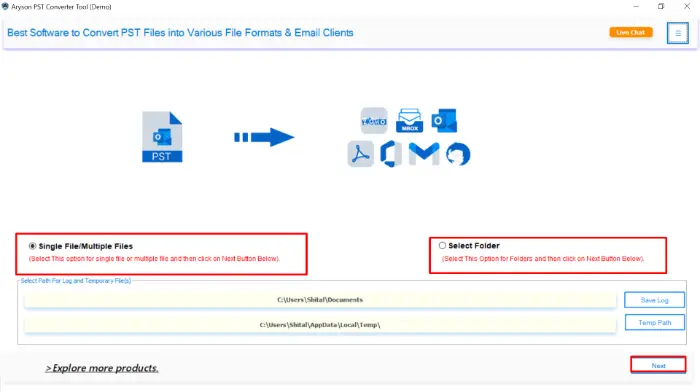
Aryson PST Converter is a simple and reliable solution to import their PST files into Thunderbird without using Outlook. It will directly import PST into Thunderbird. Just simply choose Thunderbird as the output and import all your PST data. Also, you have the option to convert PST to MBOX and other formats as well. This software can move multiple PST files at once, select specific folders, and keep all emails, attachments, contacts, and folder structures safe. It has an easy-to-use interface that makes it suitable for everyone, even if you are not tech-savvy. Since it works without Outlook, it saves time and makes email migration smooth and hassle-free.
Simplified Steps to Import PST to Thunderbird Profile
- First, download and install the Aryson PST Converter on your system.
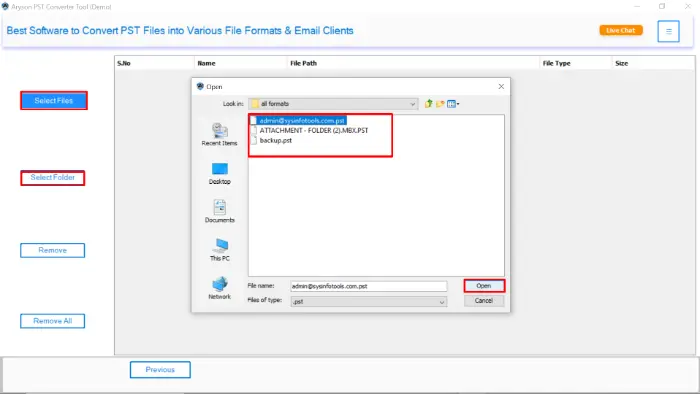
- Click on the Select File button to upload your specific PST files>>Next.
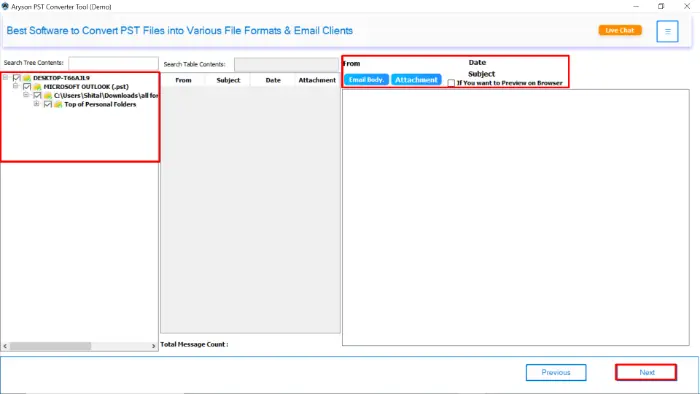
- Next, preview the data inside the PST file, including emails and folders.
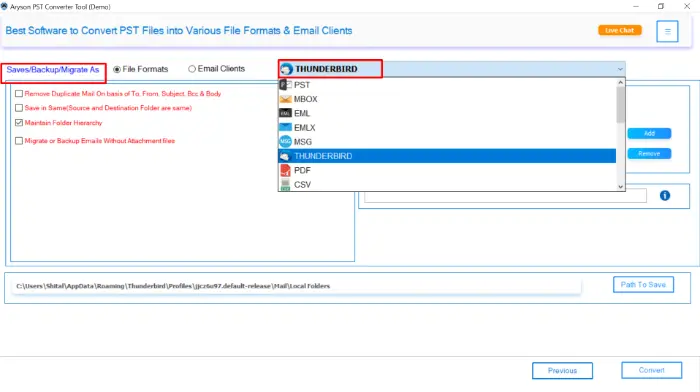
- After that, choose Thunderbird from the Save/ backup/migrate As option.
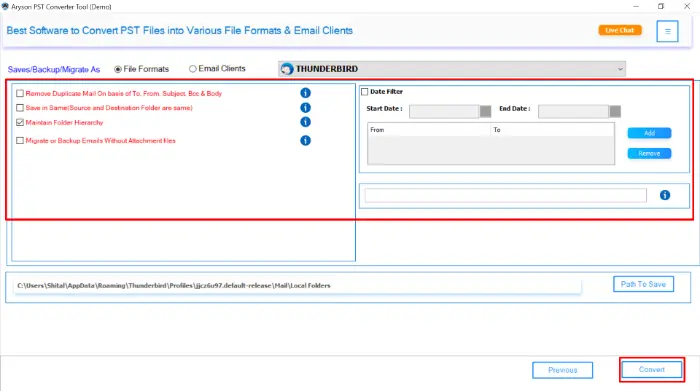
- Now, apply filters and click Convert to import PST to Thunderbird profile.
Conclusion
Now, you have a better understanding of how to import PST to Thunderbird. No matter whether Outlook is installed or not, you can import a PST file to Thunderbird without Outlook with the help of this blog. Although it will completely depend on your unique needs. It includes file size and time constraints, and it will determine which approach is best for you. Other than that, Aryson PST Converter Tool provides a smooth and expert way to import PST data without Outlook. Even though manual methods are still good for small datasets. So that you can successfully import the PST file and provide a flawless email client switch.
Frequently Asked Questions
Q1. Can I import PST files into Thunderbird without installing Outlook?
Ans: Yes, it is possible. You can use either manual methods with intermediate formats like MBOX or an automated PST to Thunderbird converter tool.
Q2. What is the easiest way to import PST to Thunderbird without Outlook?
Ans: Using the Aryson PST to Thunderbird Converter Tool is the easiest and most reliable method, as it supports direct migration with all emails and attachments intact.
Q3. Can I import multiple PST files at once into Thunderbird?
Ans: Manual methods usually allow only one file at a time, but the Aryson PST Converter supports bulk migration of multiple PST files simultaneously.
Q4. Will the email attachments be preserved during migration?
Ans: If you use an Aryson PST Converter, all attachments are preserved. Manual conversion may risk losing some attachments.
About The Author:

Rohan Wiese is a Technical Content Writer at Aryson Technologies, specializing in databases, e-mail recovery, and e-mail migration solutions. He enjoys conducting research and generating information that assists database administrators, businesses, and novices in resolving issues with MS SQL Server, MySQL databases, Cloud Computing, and Microsoft Exchange.
Realted Post