-

Written By Rohan Wiese
-
Updated on July 17th, 2025
How to Safely Remove Duplicate Contacts in Outlook (2025 Guide)
Summary:- Microsoft Outlook is one of the most widely used email clients for both personal and business communication. With features like mail, calendar, and contact management, Outlook helps users stay organized. As your contact list grows, it becomes easier to gather duplicate entries. It often happens when you sync Outlook across multiple devices, frequently import PST files, or manually add contacts. These duplicates can lead to confusion and waste time when sending emails. If you’re facing the same issue, don’t worry. This comprehensive guide will walk you through how to quickly remove duplicate contacts in Outlook. We’ll cover both manual and automated Outlook Duplicate Remover, which simplifies the entire process in just a few clicks.
Why Do Duplicate Contacts Appear in Outlook?
Firstly, it’s important to understand what causes duplicate contacts. Knowing this helps to avoid the problem in the future. Here are the most common reasons:
- You might have imported the same PST file more than once unknowingly.
- Next, Outlook syncing with Google Contacts can create overlapping records.
- Combining Outlook data files without applying filters can generate duplicates.
- Sometimes, manually added contacts more than once can be the reason for this.
Although these issues are common, the best thing is that they can be fixed quickly with the right approach.
Understanding the Need to Delete Duplicate Contacts in Outlook
Duplicate contacts can increase the size of Outlook mailbox over time. Here’s why removing them is necessary:
- Removing duplicates keeps your contact list clean and well-organized.
- It helps you find the right person quickly without any confusion.
- You avoid sending emails to outdated or incorrect addresses.
- It improves the overall speed and performance of Outlook.
- Cleaning duplicates frees up unnecessary space in your Outlook data file.
- It ensures smooth syncing with mobile devices and other applications.
- You maintain a more professional image when managing contacts.
- Regular cleanup makes day-to-day communication easier and more efficient.
Keeping your Outlook contacts free from duplicates helps you stay productive and organized in daily communication.
Top Solutions to Remove Duplicate Contacts in Outlook
Managing contacts in Outlook becomes easy when your contact list is free from duplicates. The solutions below will help you clean up your address book quickly and efficiently.
Solution 01: Best Way to Remove Duplicate Contacts in Outlook
To save time and avoid the hassle of manual methods, it’s highly recommended to use Aryson Outlook Duplicate Remover Tool. This software can identify and remove duplicate items, not just contacts, but also emails, calendars, notes, tasks, and journals, from Outlook data files. Also, it supports batch processing to clean multiple Outlook contacts at once. Along with that, you can choose specific folders to scan and clean. Additionally, it works with all versions of MS Outlook, including Outlook 2021, 2019, 2016, and earlier.
Follow these Steps to Remove Duplicate Contacts in Outlook
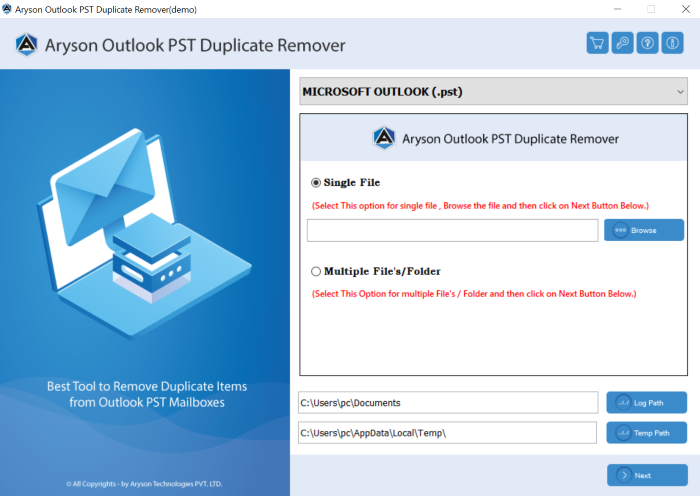
- Download and open the Aryson Outlook Duplicate Remover Tool on your system.
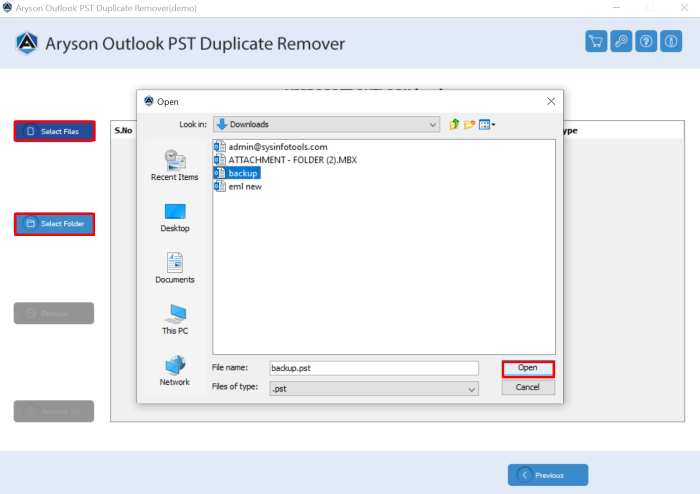
- After that, click on the Select File to add the Outlook Data File of Contacts>>Open.
- From the dropdown, select the mailbox items you want to scan, such as Contacts.
- Choose the option to remove duplicates from PST or save them to a new PST file.
- Lastly, click Next to delete the duplicate item from your Outlook Contact list.
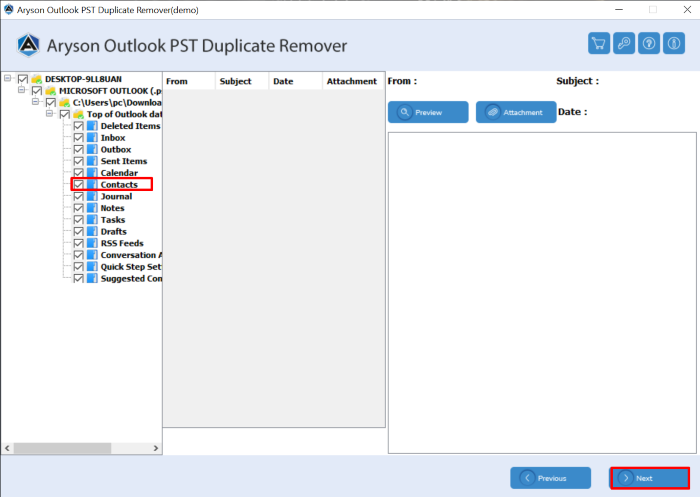
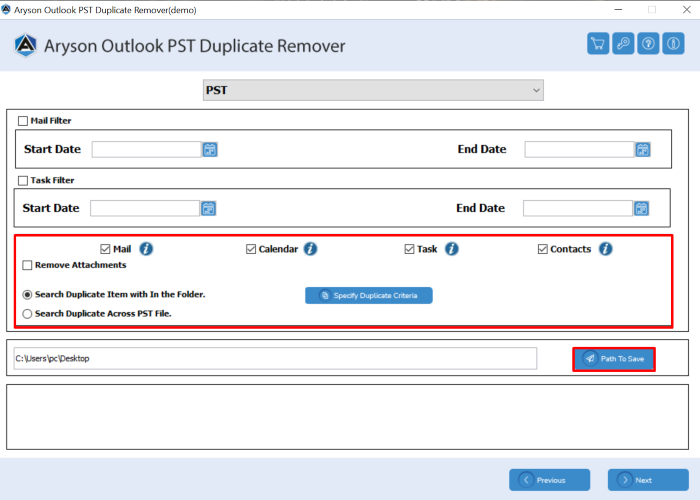
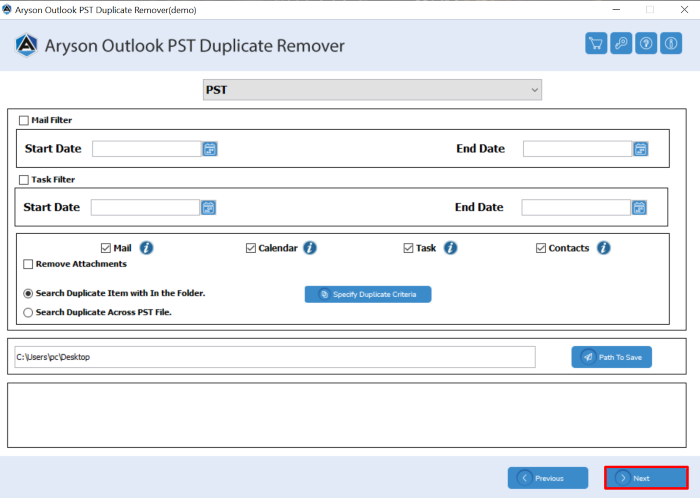
Note: If your PST file is damaged, then you should repair the PST file data then perform the process of removing duplicate contacts.
Solution 02: How to Remove Duplicate Contacts in Outlook
If your Outlook contacts folder isn’t too large, you can remove duplicates manually by reviewing and deleting them one by one.
Steps to Manually Delete Duplicate Contacts in Outlook:
- First, open Outlook and click on the People icon to access your contacts.
- Then, choose the folder where your contact list is stored on the left side.
- After that, sort contacts by name, email, or company for easy scanning.
- Next, go through the list and find contacts that look similar or identical.
- Now, right-click on each duplicate contact and click on Delete to remove it.
- Finally, open the Deleted Items folder and empty it to erase them fully.
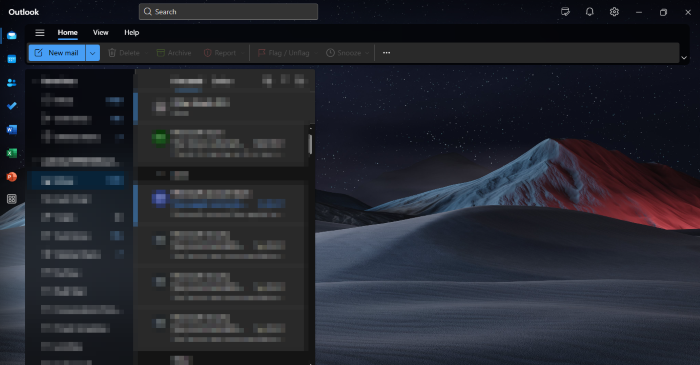
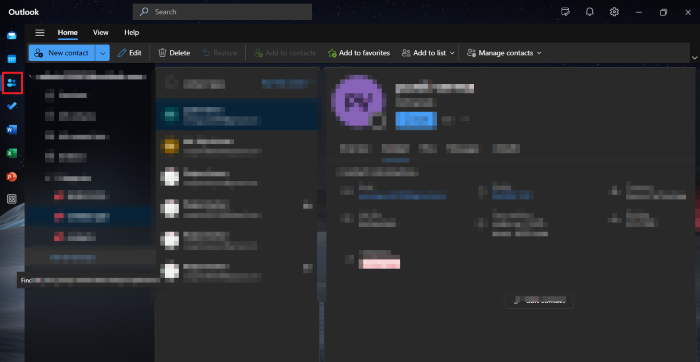
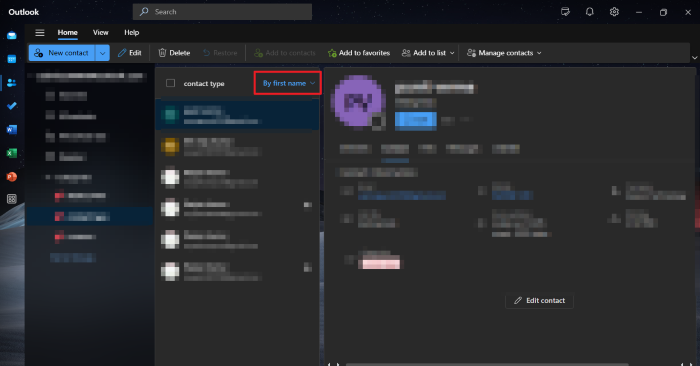
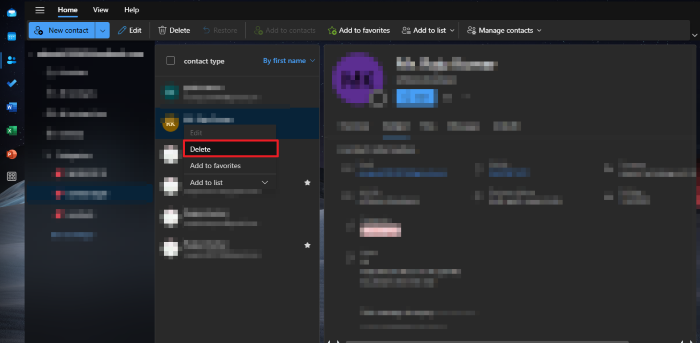
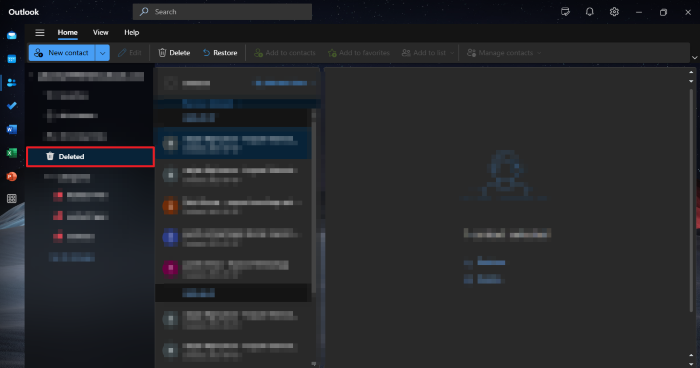
Additional Tip: You can press Ctrl while selecting multiple duplicates to delete them faster. Although this method is easy to follow, it can be extremely time-consuming and error-prone if your contact list is large.
Solution 03: Use MS Excel to Remove Duplicate Contacts in Outlook
If you prefer managing data in Excel, this method lets you export contacts, remove duplicates easily, and re-import the cleaned list into Outlook.
- Open Outlook and go to File >> Open & Export >> Import/Export.
- Select Export to a file and choose Comma Separated Values (CSV).
- Pick the Contacts folder, save the file, and click Finish.
- After that, open the saved file in Microsoft Excel.
- Now, press Ctrl + A to select all contact data.
- Go to the Data tab and click on Remove Duplicates.
- Select columns like Full Name or Email Address to identify duplicates.
- Click OK to remove duplicates and save the cleaned file as CSV.
Go back to Outlook and open the Import/Export wizard again. - Choose Import from another program or file and select your updated file.
- Select the Contacts folder as the destination and click Next.
- Choose Do not import duplicates and click Finish to import clean contacts.
Here are the Issues with Manual Contact Removal
Manual methods can help you they do come with some challenges. Below are the key drawbacks:
- Sorting and identifying duplicates manually can take a lot of time.
- It’s not efficient if your contact list is large or scattered across folders.
- There is no bulk action option, you must remove contacts one by one.
- Risk of data loss if you select the wrong columns while removing duplicates.
- Not ideal for users unfamiliar with Excel or Outlook import/export steps.
Hence, the manual solutions can be insufficient when you want speed, accuracy, and ease, with a large number of contacts.
Conclusion
Removing duplicate contacts from Outlook not only keeps your address book organized but also improves your day-to-day productivity. However, Outlook and Excel-based methods can help in basic cases, they may not offer the precision or ease needed for larger contact lists. That’s where using a dedicated solution can really make a difference. With just a few clicks, you get accurate results and remove duplicate contacts in Outlook to keep your Outlook error free.
Frequently Asked Questions:-
Q.1 How do I stop duplicate contacts from syncing in Outlook?
Ans: Avoid syncing the same accounts across multiple devices and use tools that detect duplicates during import.
Q.2 Does Outlook automatically remove duplicates?
Ans: No. Outlook doesn’t have a built-in duplicate remover. You’ll need to manage duplicates manually or use Aryson Outlook Duplicate Remover software.
Q.3 Can I remove duplicate contacts in Outlook 365 using the same steps?
Ans: Yes. All the methods above apply to Outlook 365, Outlook 2021, and earlier versions.
Q.4 Will deleting a contact remove their email history?
Ans: No. Deleting a contact will not delete past emails or calendar invites related to them.
About The Author:

Rohan Wiese is a Technical Writer at Aryson Technologies. He is an expert Email Forensic, Cloud Computing, and a passionate nerd with over 10 years of experience in technical content writing. He writes about Cloud Migration, Database Recovery, Email Backup, Windows, Mac, and Tech.
Related Post