-

Written By Rohan Wiese
-
Updated on July 11th, 2025
How to Repair Corrupt Access Database and Restore Your Data Fast!
Summary: Microsoft Access is a powerful and user-friendly database management tool used by businesses and individuals to store and manage data. Like other databases, it’s prone to corruption under certain conditions. Issues like sudden system shutdowns or a corrupt Access database and interrupt your workflow. In that case, all you need to repair corrupt Access database. If you’re dealing with an unreadable or inaccessible .mdb or .accdb file, don’t worry.
There are several proven methods to address the issue. In this blog, we’ll walk you through the best solutions to repair a corrupt Access database. For users looking for a quick and secure fix, the Aryson Access Database Recovery Tool offers an advanced yet easy-to-use way to restore damaged files without any technical expertise. Let’s explore the top methods to get your Access database working again. Download Now Purchase Now
Why Do Access Databases Get Corrupted?
Microsoft Access is a reliable database management tool, but it’s not completely resistant to damage. It can occur due to various technical and user-related reasons.
Here are some of the Access Database Corruption Causes:
- Sudden system shutdowns while the database is open can lead to file corruption.
- Faulty hardware, such as bad sectors on the hard disk, may damage the database.
- Also, virus or malware attacks can infect and corrupt the file.
- Moreover, network interruptions during multi-user access can break file integrity.
- As the file grows, exceeding the 2GB limit can make it unstable.
- In addition, frequent editing or large imports/exports can overload the database.
What Are the Signs of a Corrupted Access Database?
Corruption in Access files may not always be obvious at first. However, the following signs are clear indicators that your database needs repair:
Signs That Indicate Database Corruption:
- Unrecognized Database Format” error message
- Inability to open the file in Microsoft Access
- Missing records or broken table links
- Unexpected crashes when trying to use the database
- Unresponsive or freezing interface
- Strange characters or empty values in tables
If you’re facing any of these issues, proceed with the repair methods below.
Methods to Repair Corrupt Access Database & Restore Data
There are a few reliable ways to fix it. Below are the most effective methods you can use to repair a corrupt Access database and recover your important data.
Repairing Access Database Corruption by Manually
If your Access database stops opening or throws errors, don’t worry. You can try these manual methods to repair Access database corruption:
Method 01: Try Restoring Your File from a Backup
If you have a backup, this is the safest way to repair corrupt Access database without technical work.
Here’s what you need to do:
- First, open File Explorer and locate the saved backup of your database.
- Next, right-click the file and choose Copy to make a duplicate.
- After that, go to the location of your damaged Access database.
- Now, paste the backup in the same folder where the original file is stored.
- Now, allow the system to replace the corrupt database with the copied backup.
Use this step if you’ve saved an earlier working version of your database.
Method 02: Let the Jet Engine Handle Basic File Repairs
The Jet engine in Access often repairs issues silently during read and write processes.
Try this method if the file shows minor issues:
- First, open Microsoft Access, but do not open the damaged file directly.
- After that, click on Database Tools from the top navigation ribbon.
- Then, select Compact and Repair Database to begin the recovery process.
- Next, browse your system and locate the corrupted Access file.
- Finally, click OK to repair corrupt Access database.
Ideal for minor corruption or bloated files that still open partially.
Method 03: Remove the Temporary Lock File from Your System
Access creates a hidden lock file that may prevent recovery if it doesn’t close properly.
Follow these instructions to fix it:
- First, make sure that Microsoft Access is completely closed on your device.
- Then, go to the folder where your Access database file is located.
- Now, look for a file with the same name but with a .ldb or .laccdb extension.
- After that, right-click on the lock file and choose the Delete option.
- Once deleted, try opening your main Access database again.
Use this if you’re in a multi-user setup or Access says the file is locked. Also, you can remove Password from Access Database with ease.
Method 04: Import Your Database into a New Blank File
When Access won’t open the original file, importing the objects into a new file might save your data.
Follow these steps to recover it:
- Open Microsoft Access and click File >> New >> Blank Database.
- Next, go to the External Data tab and click on Access under Import.
- Then, in the dialog box, click Browse and choose the damaged file.
- After that, select “Import tables, queries, forms…” and hit OK.
- Finally, pick the objects you want to import and click Finish.
After going through the above-mentioned steps, you can repair corrupt Access database.
Method 05: Using the ‘Compact and Repair’ Tool
Microsoft Access includes a built-in feature called Compact and Repair that helps fix minor corruption issues in .mdb and .accdb files. You can use this option whether the database is currently open or not accessible.
If the Corrupt Database Is Still Open:
When the file is open and unsaved changes exist, follow these quick steps:
- First, go to the File menu within your open Access database.
- Then, from the Info section, select the Compact & Repair option.
- Next, Access will begin the repair process automatically.
- After that, a compacted and repaired version of the database will be created.
- Finally, the new file will be saved in the same location as the original one.
Use this when your database is open but acting unstable or crashing unexpectedly.
Method 06: Use the Decompile Command to Clean VBA Code
If your file uses macros or VBA code, corrupted scripts may stop it from working.
Use the decompile command as shown below:
- First, press Windows + R to open the Run dialog on your system.
- Then, paste this command (adjust the path as needed):
- After that, hit Enter and wait for Access to open the file.
- Now, go to your database and recompile the code using the Compile option.
- Finally, save and close your database, then reopen it normally.

Try this to repair corrupt Access database if you suspect issues with macros, modules, or form events.
Why Manual Methods May Not Fully Repair Your Access Database Files
Manual methods can be helpful with technical expertise. However, they come with several limitations you should be aware of before relying on them completely.
- If the file is deeply damaged, these methods might fail.
- These options cannot restore deleted records or missing objects.
- Some steps, like importing database objects one by one, can be slow.
- With these methods, some tables or forms might still be missing.
- Corruption by damaged macros, VBA code doesn’t repair them properly.
- You need to know how to run commands or navigate Access tools properly.
So, while manual steps are worth trying first, they may not always solve the problem completely.
Repair Corrupt Access Database Using a Professional Tool
These manual methods can be very helpful if your database is only lightly corrupted. However, for more severe damage where Access cannot open the file at all, you may need to use Aryson Access Database Repair Tool to repair corrupt Access database. It supports both .mdb and .accdb formats and recovers every component of your database, including tables, forms, reports, macros, and more. Whether the file is slightly damaged or severely corrupted, the tool provides two smart recovery modes to handle both scenarios. It also gives users a preview of all recoverable data before saving and works smoothly with all versions of Microsoft Access.
Follow the Steps to Repaqir and Restore Corrupt Access Database:
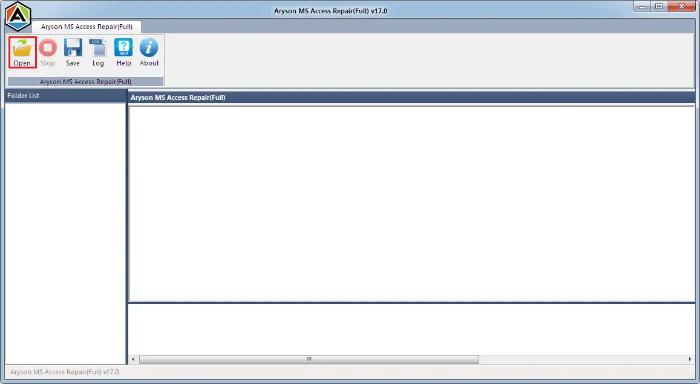
- Install the Aryson Access Database Recovery Tool and Click Open.
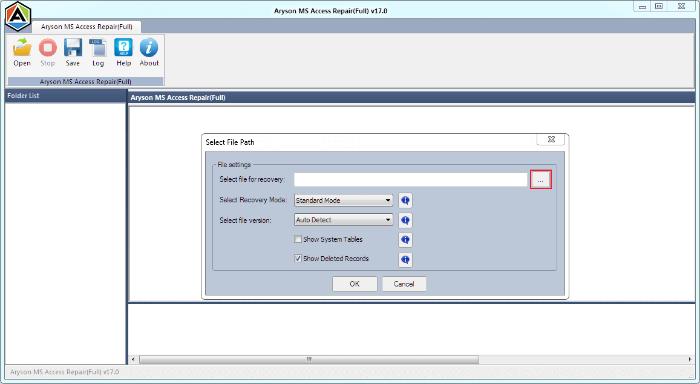
- After that, select the access database file for recovery. Select File version>>Ok.
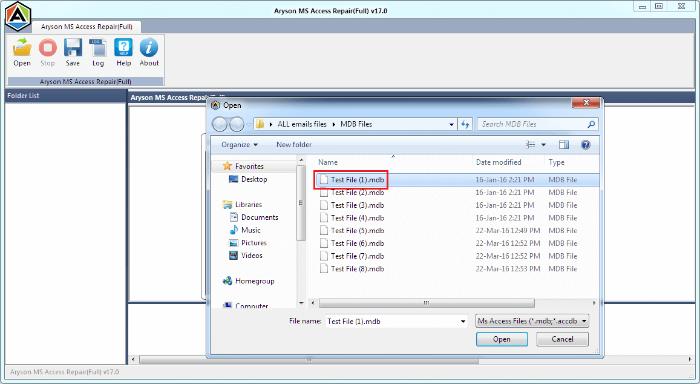
- Now, choose the access data file and click on the Open button to add them.
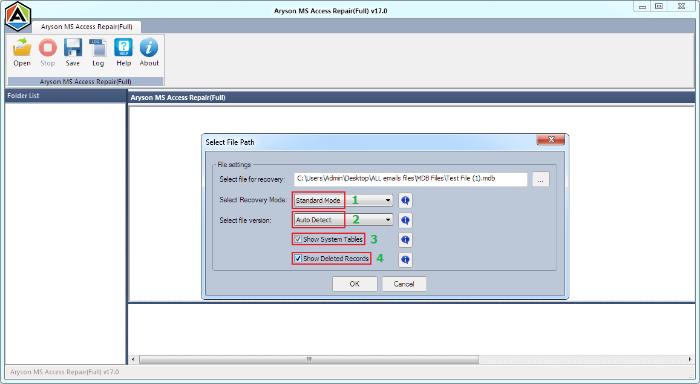
- You will get the option to select recovery mode according to the data corruption level.
- After scanning, click the Ok button to save the recovered database in your system.

Conclusion
As soon you fix the problem, it will be easy to repair corrupt Access database without losing anything important. For accurate and complete recovery, using the best tool to repair Access database ensures a better result. Its simple interface makes it ideal even for users with no technical background.
Frequently Asked Questions (FAQs):-
Q1. How do I know if my Access database is corrupted?
Ans: Common signs include errors like “Unrecognized Database Format,” missing records, broken links, or the database not opening at all. You may also see unusual characters or experience frequent crashes.
Q2. Can I recover deleted tables or queries from a corrupt Access database?
Ans: Manual methods won’t bring back deleted data unless you have a backup. However, recovery tools may retrieve lost components if they are still within the file structure.
Q3. Does Aryson Access Database Recovery Tool support both MDB and ACCDB files?
Ans: Yes, it supports repairing both .mdb and .accdb formats and works with all major versions of MS Access, including 2019, 2016, and earlier.
About The Author:

Rohan Wiese is a Technical Writer at Aryson Technologies. He is an expert Email Forensic, Cloud Computing, and a passionate nerd with over 10 years of experience in technical content writing. He writes about Cloud Migration, Database Recovery, Email Backup, Windows, Mac, and Tech.
Related Post



