-

Written By Harshita Sachdeva
-
Approved By
Shivam Rathore -
Updated on June 18th, 2026
Transfer from Gmail to Google Workspace for Business in 2026
Query: “I have around 150 users on personal Gmail accounts and need to migrate all emails, contacts, and calendar data to Google Workspace before the end of this month. I have tried doing it manually, but the process was too time-consuming and inconsistent across accounts. Is there a reliable method to handle this Gmail to Google Workspace migration accurately at this scale?”
Summary: Gmail serves as a widely used personal email platform that offers basic communication and storage capabilities. On the other hand, Google Workspace drives a structured environment with centralized admin controls. Also, it enhanced security policies and professional tools built for business use.
As organizations scale their operations, Gmail alone no longer meets the demands of a growing workspace. This blog covers reliable approaches to transfer from Gmail to Google Workspace without any data loss. We will also include the Aryson Gmail Backup Tool for error-free migration.
Migrate from Gmail to Google Workspace: Scenarios
- Personal Gmail accounts lack centralized admin controls.
- Businesses need professional email addresses with a custom domain.
- Compliance requirements cannot be met through personal Gmail accounts.
- IT teams require centralized user and access management.
- Enterprise-grade security and identity management become necessary.
- Data retention policies require a formally managed workspace.
Manual Method to Transfer from Gmail to Google Workspace
Google’s native Data Migration Service works well for smaller migrations, but organizations handling hundreds of Gmail accounts often require additional automation, reporting, and batch-processing capabilities. This method is suitable for smaller organizations with limited user accounts and basic migration requirements. Follow the steps below to complete the migration.
Working Process to Set up Gmail for Google Workspace
Step 01: Set Up Google Workspace Account
- Sign in to the Google Admin Console at admin.google.com.
- Create user accounts for all Gmail users within the Google Workspace domain.
- Assign appropriate Google Workspace licenses to each user account.
Step 02: Access the Data Migration Service
- In the Google Admin Console, navigate to Account and then Data Migration.
- Select Email as the migration type and click Continue.
Step 03: Configure the Migration Source
- Select Gmail as the migration source from the available options.
- Select Gmail as the migration source and authorize access to the source account.
- Sign in with a Google Workspace administrator account and authorize the required permissions for migration.
Step 04: Set Migration Options
- Specify the migration start date to define the email date range for transfer.
- Select folders to include or exclude from the migration as required.
- Click Select Users to proceed to the user mapping stage.
Step 05: Map User Accounts
- Add the source Gmail addresses and map them to the corresponding Google Workspace accounts.
- Upload a CSV file for bulk user mapping if migrating multiple accounts simultaneously.
- Click Start to initiate the migration process.
Step 06: Monitor and Complete Migration
- Track the migration progress from the Data Migration dashboard in the Admin Console.
- Verify that all emails have transferred accurately to the destination Google Workspace accounts.
- Once migration is complete, notify users to begin accessing their new Google Workspace mailboxes.
Limitations of the Manual Method:
- Google Data Migration Service primarily migrates email data.
- Google Drive files cannot be migrated through this method.
- Large-scale migrations require extended timeframes.
- Migration failures lack clear error resolution options.
- Requires super admin credentials and technical configuration.
- Limited reporting and audit visibility during migration.
- Bulk user mapping via CSV can be error-prone.
Automated Solution to Transfer from Gmail to Google Workspace
The Aryson Gmail Backup Tool is an enterprise-grade solution designed to back up and migrate Gmail emails accurately into Google Workspace & other supported email clients. Moreover, the tool offers batch processing for multiple Gmail accounts simultaneously, making it suitable for organizations managing large user bases. The advanced filters, which include Date Range, Skip Duplicate Emails, and other filters, give administrators complete control over the migration process.
Steps to Switch from Gmail to Google Workspace
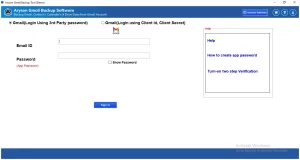
- Install the Aryson Gmail Backup Tool on your system.
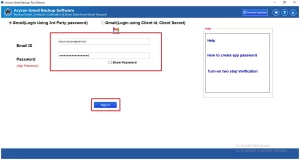
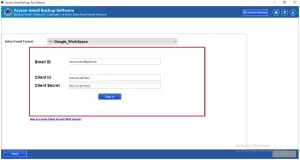
- Sign in to the Gmail account using secure Google OAuth authentication.
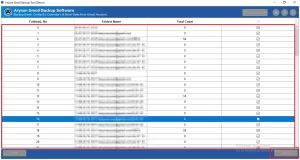
- Select the Gmail mailboxes or folders required for migration >> Next.
- Then, select Google Workspace as the destination email client >> input the credentials.
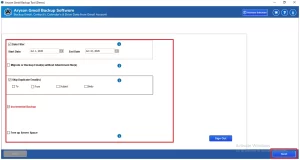
- Apply filters such as Date Range, Skip Duplicates, or other settings as needed.
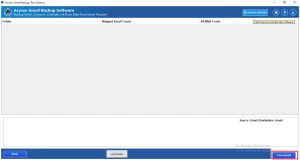
- Click the Download button to initiate the Gmail to Google Workspace migration.
Enterprise-Grade Features of This Utility
- Backs up the complete Gmail mailbox, including Inbox, Sent, Drafts, Spam, and Trash.
- Allows batch backup of multiple Gmail accounts simultaneously.
- Includes a Date Filter to migrate emails within a specified date range.
- Skips duplicate emails using filters based on To, From, Subject, and Body.
- Allows migration of emails without attachments if required.
- The user can also export emails from Gmail to Webmail Account.
- Preserve original email metadata, including sender, receiver, and timestamp.
- Uses secure Google OAuth authentication without storing Gmail passwords.
- Offers a free demo version that converts 50 emails per folder to evaluate the tool’s features.
Real-Life Scenario
David Reynolds, Systems Administrator at Reynolds Healthcare Group, Houston, needed to migrate around 200 personal Gmail accounts to Google Workspace before the organization’s IT infrastructure upgrade deadline. The native Data Migration Service failed to process multiple accounts simultaneously, making it insufficient for their operational scale.
He switched to the Aryson Gmail Backup Tool, utilized the batch processing feature with the Date Filter option, and migrated from Gmail to a Google Workspace (G Suite) account within the planned timeline.
Conclusion
In this blog, we discussed the available approaches to transfer from Gmail to Google Workspace. Each method serves a purpose that depends on the migration complexity. Organizations with a limited number of users may find the path for basic email migration. However, for enterprises that manage 150+ Gmail accounts, use the Aryson Gmail Backup Tool. You can evaluate your migration requirements carefully and select the approach that best suits your IT business objectives.
Frequently Asked Questions
Q1. How do I transfer from Gmail to Google Workspace?
Ans. You can transfer Gmail to Google Workspace using the Aryson Gmail Backup Tool. Simply add your Gmail account, choose Google Workspace as the destination, authenticate the account, and start the migration process.
Q2. Can I migrate all Gmail folders to Google Workspace?
Ans. Yes, the Aryson Gmail Backup Tool migrates all Gmail folders and labels to Google Workspace while maintaining the original mailbox hierarchy.
Q3. Does the migration preserve email metadata?
Ans. Yes, the tool preserves email metadata, including To, From, Subject, Date, Attachments, and other email properties throughout the migration.
Q4. Is it possible to migrate multiple Gmail accounts to Google Workspace at once?
Ans. Yes, the Aryson Gmail Backup Tool supports batch migration, allowing administrators to migrate multiple Gmail accounts to Google Workspace efficiently.
Q5. Can I migrate Gmail emails from a specific date range?
Ans. Yes, the software includes a Date Filter feature that enables users to migrate emails from a selected date range instead of transferring the entire mailbox.
Q6. Can duplicate emails be excluded during migration?
Ans. Yes, the Aryson Gmail Backup Tool provides an option to exclude duplicate emails, helping users avoid redundant data in the destination account.
Q7. Is the Gmail to Google Workspace migration tool suitable for non-technical users?
Ans. Yes, the software features a user-friendly interface and simple migration steps, making it suitable for both technical and non-technical users.
Q8. Does the tool help reclaim storage space in Gmail?
Ans. Yes, After successfully migrating mailbox data, organizations may choose to clean up or archive older content from personal Gmail accounts, helping optimize storage utilization.
Q9. Does the Gmail to Google Workspace migration process maintain data integrity?
Ans. Yes, the Aryson Gmail Backup Tool maintains email formatting, folder structure, attachments, and metadata to ensure complete data integrity during migration.
Q10. Is 24/7 customer support available during Gmail to Google Workspace migration?
Ans. Aryson provides dedicated technical support to assist users with installation, configuration, and migration-related queries throughout the process.
About The Author:

Harshita Sachdeva, a professional technical writer at Aryson Technologies, specialize in delivering clear, hands-on documentation for data management, migration, and recovery solutions. With a meticulous, reader-first approach, I break down complex technical processes into simple, actionable content - helping IT professionals and decision-makers tackle challenges efficiently.
Related Post