-

Written By Rohan Wiese
-
Updated on July 8th, 2025
How to Import Outlook Emails to Windows Live Mail: Step-by-Step Guide
Summary:- Are you looking to move your valuable emails from Outlook to Windows Live Mail? You may be migrating from an older system or prefer Windows Live Mail for specific tasks. Both are powerful email clients, but transferring data between them isn’t always a simple copy-paste. The best part is that with the right approach, you can import Outlook emails to Windows Live Mail smoothly. This comprehensive guide will walk you through the manual methods and the benefits of using the specialized Aryson PST Converter. By the end, you’ll have all the knowledge you need to ensure a successful and secure email transfer.
Understanding the Basics of Outlook & Windows Live Mail
Before you start the email transfer process, it’s essential to know how Outlook and Windows Live Mail work:
Outlook is a powerful email program used mainly by professionals and businesses. It stores emails, contacts, calendars, and more in special file formats called PST or OST. Outlook is part of Microsoft Office and comes with advanced features like rules, folders, and shared calendars.
On the other hand, Windows Live Mail (WLM) is a free email application from Microsoft, primarily used for personal emails. It saves each email as a separate file in EML format. It’s simpler than Outlook and was part of the Windows Essentials package, which is no longer available.
The most significant difference is in how they save emails(Outlook uses PST/OST), while WLM uses EML. That’s why you can’t move emails directly; you need to follow the proper steps or use a tool to do it correctly.
Why Transfer Outlook Emails to Windows Live Mail?
Here are some of the main reasons to move Outlook emails to Windows Live Mail:
- If your Outlook license has expired, you may want to keep your emails accessible in another program.
- Additionally, WLM stores emails in EML format, which is ideal for local backups.
- Along with that, Windows Live Mail is simpler and easier to use for basic email tasks.
- Moreover, older computers may run Windows Live Mail better than Outlook.
- For personal use, some users prefer the clean and lightweight look of WLM.
- Apart from that, moving emails ensures your essential data stays safe and accessible.
Methods to Import Outlook Emails to Windows Live Mail
To help you move your emails without losing data, here are the best methods you can use to import Outlook emails into Windows Live Mail.
Method 01: Quick & Reliable Way to Import Outlook Emails to Windows Live Mail
Aryson PST Converter is a powerful yet easy-to-use tool that simplifies the entire process of importing Outlook emails into Windows Live Mail. It converts Outlook PST files to EML format supported by Windows Live Mail. In addition, you can import PST Files to Outlook Web App using the IMAP. Also, it preserves the original folder structure, metadata, and attachments. Furthermore, it provides a preview of all mailbox items before conversion. Along with that, users can apply filters by date, folder, or item type for selective export. This utility is compatible with all Outlook versions and works on every major Windows OS.
How to Convert PST to EML(compatible with WLM) Using Aryson’s Software
- Runs the Aryson PST Converter Tool on your Windows system.
- After that, tap on Select file and pick the PST file>>Click Open to add them>>Next.
- Now, this tool will display all your mailbox folders and preview the content if needed.
- In the next panel, choose EML as the saving format from the list of export options.
- Then, click the Path to Save button to select a destination folder to save the EML files.
- Once done, apply any desired filters, such as a date range or specific folder selection.
- Finally, click the Convert button to migrate emails from Outlook to WLM (as EML).
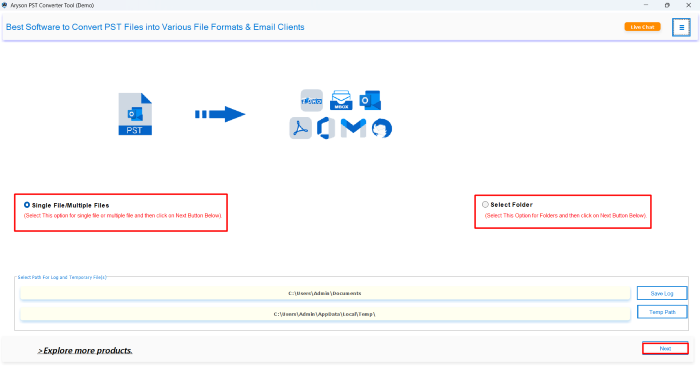
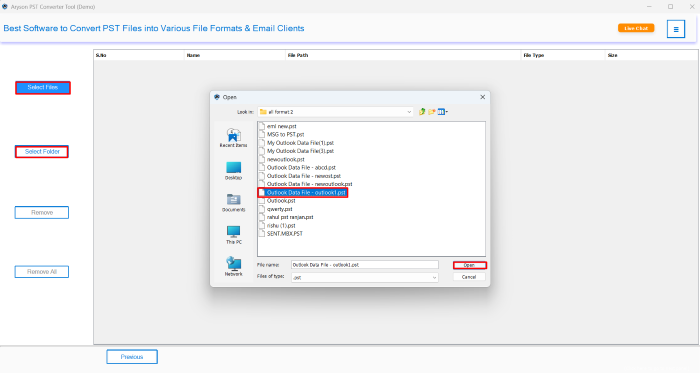
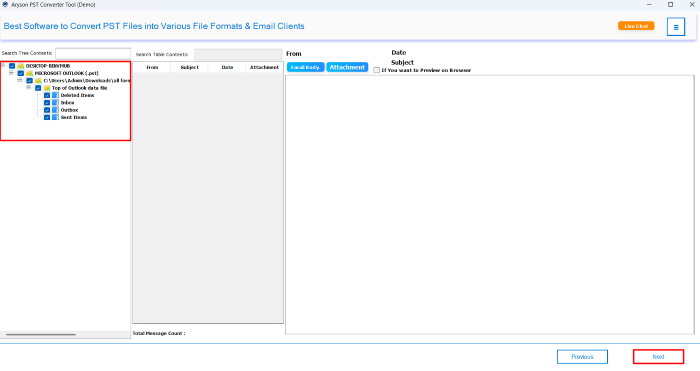
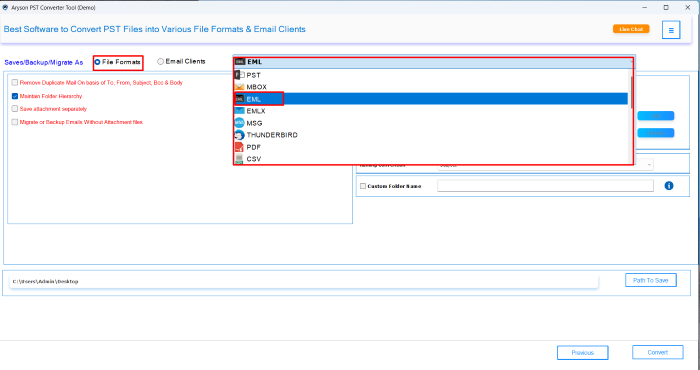
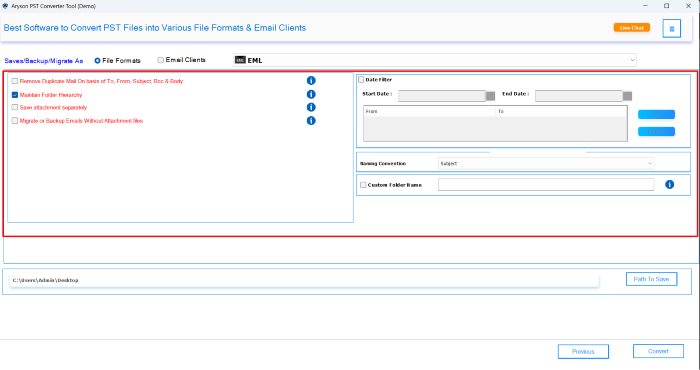
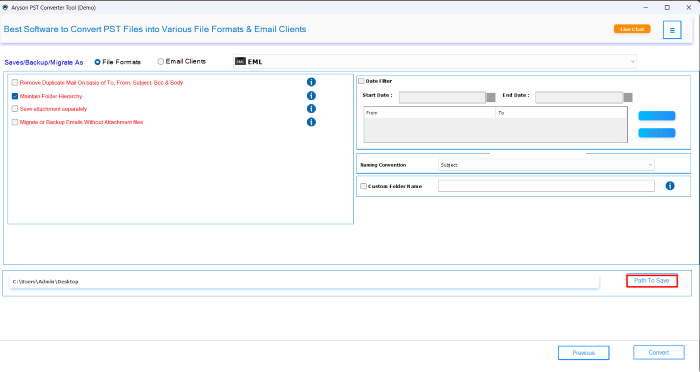
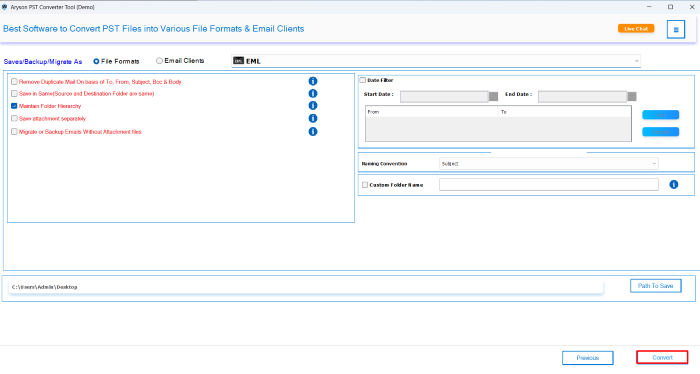
Note: Wait a few moments, and your PST file will be successfully converted to EML format.
Now, open Windows Live Mail, go to File > Import Messages, and choose the EML files to complete the import. If your PST file is corrupted, use the Outlook PST Repair Tool to fix it.
Method 02: Import Outlook Emails to Windows Live Mail Manually
Although there’s no built-in option to move Outlook emails into Windows Live Mail directly. You can still complete the process with some additional steps. By using the Thunderbird email client, you can first extract your Outlook emails and then bring them into Windows Live Mail.
Phase 1: Convert Outlook Emails to EML Using Thunderbird
- First, open Thunderbird and click on the Tools menu.
- Next, select the Import option from the list.
- Thereafter, choose “Import from Outlook” and hit Continue.
- Now, select the items you want to import (emails, contacts, etc.).
- Once done, click Start Import and wait for the process to complete.
- Finally, click Finish and restart Thunderbird to load the imported emails.
- Now, open the folder with your imported emails in Thunderbird.
- Then, press Ctrl+A to select all emails at once.
- Afterward, right-click the selection and choose Save As.
- Next, choose a folder location and click Save to export the emails.
- Soon, all emails will be saved as separate .eml files.
Phase 2: Import EML Files into Windows Live Mail
- Now, open Windows Live Mail on your computer.
- Then, go to File >> Import Messages from the top menu.
- Next, select Windows Live Mail as the message format.
- After that, click “Browse” and locate the folder containing the EML files.
- Finally, click Next to start importing the emails.
- Now, your Outlook emails will appear inside Windows Live Mail.
Drawbacks of Using the Manual Approach
This manual method can work, but it also comes with several disadvantages that you should be aware of:
- It requires both Outlook and Thunderbird to be installed on the same system.
- Moreover, the process is lengthy and involves multiple steps across two different email clients.
- In some cases, folder structure and metadata may not be preserved accurately.
- Also, it doesn’t work if your PST file is damaged or orphaned.
- Additionally, users without technical knowledge may find it confusing or complicated to follow.
- There’s no guarantee of 100% data integrity, especially for large or complex PST files.
Important Considerations & Best Practices
Before you begin the transfer, it’s a good idea to keep a few important tips in mind to avoid common mistakes and ensure a smooth process:
- First, always create a backup of your Outlook PST file before starting any conversion.
- Ensure that all required email clients (Outlook, Thunderbird, and WLM) are properly installed and functioning correctly.
- Also, keep your system updated to avoid compatibility or performance issues.
- Test the process with a small batch of emails before moving everything at once.
- Additionally, avoid interrupting the process once it begins.
- For optimal results, maintain a well-organized folder structure both during and after migration.
- Lastly, consider using an automated tool if you’re dealing with large files, limited time, or need error-free results.
Conclusion
Every email holds value, whether it’s a work update or a personal memory. That’s why moving them from Outlook to Windows Live Mail deserves a smooth and reliable process. If you prefer a step-by-step approach, the manual method can be effective with patience and persistence. However, if you’re short on time or simply want a quicker process, use the recommended utility tool to import Outlook Emails to Windows Live Mail in minutes. Either way, your emails don’t have to stay stuck. Now you know exactly how to bring them over safely and stress-free.
Frequently Asked Questions:-
Q1. Can I directly import a PST file into Windows Live Mail?
Ans: No, Windows Live Mail does not support PST files directly. You need to convert the PST file into EML format using a tool or an indirect method, such as Thunderbird as an intermediary.
Q2. What is the easiest way to transfer Outlook emails to Windows Live Mail?
Ans: The easiest way is to use a professional Aryson PST Converter Tool, which can convert PST files into EML format, allowing them to be easily imported into Windows Live Mail.
Q3. Is it possible to import Outlook emails without having Outlook?
Ans: Yes, Aryson PST Converter allows you to convert PST files to EML even if Outlook is not installed on your system.
Q5. Can I import only selected emails from Outlook to Windows Live Mail?
Yes, many tools offer filter options that allow you to select specific folders, date ranges, or email types before converting and importing them.
About The Author:

Rohan Wiese is a Technical Writer at Aryson Technologies. He is an expert Email Forensic, Cloud Computing, and a passionate nerd with over 10 years of experience in technical content writing. He writes about Cloud Migration, Database Recovery, Email Backup, Windows, Mac, and Tech.
Related Post