-

Written By Rohan Wiese
-
Approved By
Shivam Rathore -
Updated on June 18th, 2025
Restore or Recover Deleted Outlook Contacts & Calendar: Easy Steps & Tips
Fact-checked and reviewed in accordance with our
Editorial Policy
Summary: Losing your Outlook contacts and calendar can be a major headache, whether it’s for personal plans or critical business operations. Accidental deletions, syncing problems, or even software glitches can cause this disruption.
Fortunately, getting your crucial Outlook data back is often simpler than you think! This guide will walk you through effective ways to recover your deleted contacts and calendar entries with minimal fuss. We’ll cover both easy-to-follow manual methods built into Outlook and highlight a powerful professional Outlook PST Recovery Software for more challenging situations. Download Now Purchase Now
Common Reasons You Might Lose Outlook Contacts & Calendar
If you haven’t yet figured out why Outlook Contacts disappeared. Below are the common reasons for deleting Outlook contacts and calendars:
|
Causes |
Description |
|
Accidental deletion |
It’s a common thing when cleaning the inbox or managing folders manually |
|
Sync errors with devices |
Sometimes, device or server sync glitches can overwrite or remove data. |
|
PST file corruption |
Also, damaged PST files may result in missing calendar or contacts. |
|
Moreover, Account misconfiguration |
Settings or changes in the profile can cause loss of linked data. |
|
Server disconnection or data overwrite |
Also, a lost connection may fail to save changes. |
The Truth About Permanently Deleted Outlook Contacts & Calendars
So, what happens when you “permanently” delete contacts or calendar items in Outlook? The straightforward answer is: you generally can’t recover them using just Outlook’s standard features. Once data is deleted from the “Recoverable Items” folder (or if that retention period expires), it’s typically gone for good from the Outlook application itself. If you haven’t made a backup, those items become virtually impossible to restore through conventional means.
However, there’s a crucial exception: if you have a backup of your Outlook PST file, you absolutely can recover deleted calendar items and contacts. This can be done either by using Outlook’s built-in import/export functions with your backup file, or, especially if the backup file itself is damaged or corrupted, by using professional recovery software. These tools are designed to extract data even from problematic PST files.
This highlights just how important it is to keep regular backups of your Outlook data. Backups are your ultimate safeguard against permanent data loss, whether it’s due to accidental deletions, file corruption, or other unforeseen issues. Without them, “permanently deleted” truly means gone forever.
Manual Methods to Recover Deleted Outlook Contacts & Calendars
If you’ve accidentally deleted contacts or calendar items from Outlook, there are several straightforward manual methods you can try before resorting to advanced tools. These built-in options leverage Outlook’s native features to help you get your data back:
- Recovery From Deleted Item Folder
- Recently Removed From Deleted Item Folder
- Restore From Backup PST Files
Method 01: Restore Outlook Contacts from the Deleted Items Folder
If you accidentally delete a contact in Outlook, don’t panic! It usually goes straight to your “Deleted Items” folder, just like a deleted email.
Here’s how to get it back:
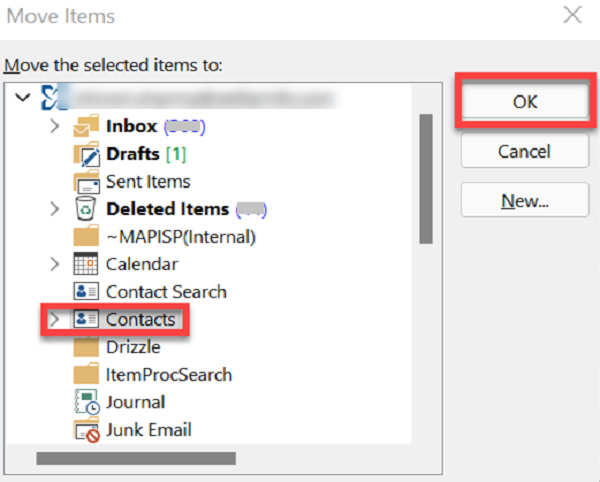
- Open Outlook and go to your “Deleted Items” folder (you’ll find it in your email folders list).
- Look for the contact you want to restore. You can use the search bar or sort the items by “Icon” to easily find contacts.
- Right-click on the contact you found.
- Choose “Move” > “Other Folder.”
- Select “Contacts” from the list, then click “OK.”
Method 02: Recover Outlook Calendar From Deleted Items Folder
Accidentally deleted a calendar appointment or meeting in Outlook? Don’t worry, it’s usually easy to get back!
Just like emails, deleted calendar items go to your “Deleted Items” folder.
Here’s how to recover them:
- Open Outlook.
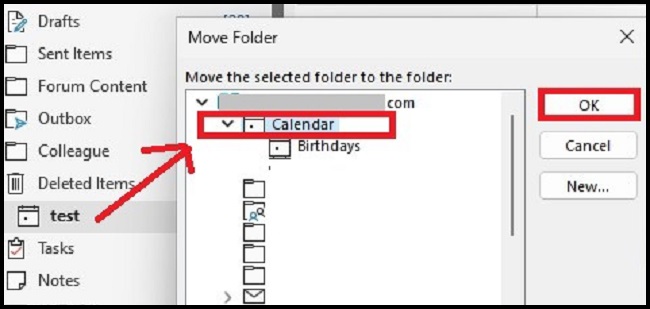
- Go to your “Deleted Items” folder (you’ll find it in your email folders list).
- Find the calendar item you want to restore. (Tip: Look for the calendar icon next to it, or use the search bar.)
- Right-click on the item.
- Select “Move” > “Other Folder.”
- Choose “Calendar” from the list, then click “OK.”
Read Also: Learn How to Recover Deleted Emails from PST File?
Method 03: Recover Deleted (Contacts or Calendar) Items in Outlook From Backup Files
If you’ve lost contacts or calendar entries and happen to have a backup of your Outlook data (a PST file), getting them back is pretty straightforward. Think of your PST backup as a snapshot of your Outlook from an earlier time.
Here’s how you can restore those missing contacts or calendar items:
- Open Outlook.
- Go to the “File” tab at the top left.
- Click on “Open & Export” in the menu that appears.
- Then, select “Import/Export.”
- Choose “Import from another program or file” and click “Next.”
- Select “Outlook Data File (.pst)” from the list and click “Next.”
- Click “Browse” to find and select your backup PST file on your computer, then click “Next.”
- Now, you’ll see options to choose which folders to restore. Make sure to select your “Contacts” or “Calendar” folders (or both, if needed).
- Follow any final prompts, and your deleted items should reappear in your Outlook.
Advanced Solutions for Lost Outlook Contacts & Calendars
When facing a tricky situation with lost Outlook contacts or calendars, especially if your PST file is corrupted or won’t open, specialized Aryson Outlook PST Recovery Software can be a lifesaver. This advanced tool offers a quick and hassle-free way to retrieve your valuable data.
It’s designed to efficiently repair damaged PST files, no matter how large they are, thanks to its smart technology that bypasses typical file size limitations during recovery. A key benefit is the ability to preview recovered contacts and calendar items before you save them, ensuring you get exactly what you need. Plus, you’ll have the flexibility to save your recovered data in various file formats or even directly to other email clients.
For those who want to explore its capabilities first, a free demo version of the software is usually available. You can download and use this tool on any Windows operating system, and best of all, it doesn’t even require Microsoft Outlook to be installed on your system to work its magic.
Step-by-Step: Recovering Contacts from the Recoverable Items Folder
- Primarily, launch the Outlook PST Repair Tool on your system.
- Next, click on Open and add the PST file to recover lost data.
- Then, choose Recovery Mode according to your needs.
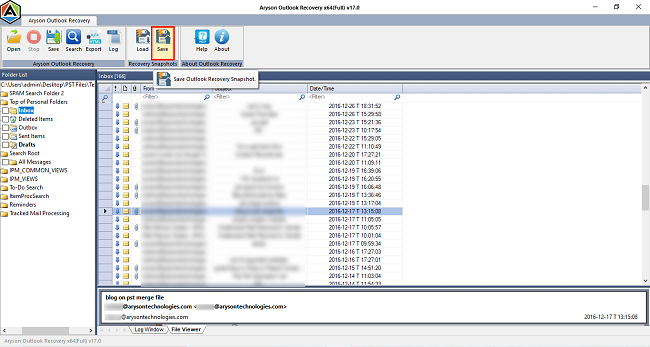
- After that, you can view all recovered emails from the PST file.
- Further, you can download all the recovered items by clicking on Save.

Precautions to Avoid Losing Outlook Contacts & Calendar Again
It is necessary to retrieve deleted Outlook contacts to get back important data. But, understand the precautions to avoid this:
- You need to create a backup of Outlook PST files frequently.
- There is a need to use cloud sync safely
- Make sure you can archive old data or emails.
- Moreover, exporting the calendar regularly is necessary.
Conclusion
Losing important Outlook contacts or calendar entries can definitely be a headache. The good news is, getting them back is often quite possible!
If you’ve been proactive and have backup PST files, recovering your data is usually straightforward. However, even without a backup, you’re not out of luck. You can first try the manual methods Outlook provides, like checking the “Deleted Items” folder or the “Recoverable Items” folder.
For situations where manual methods fall short, especially if your Outlook data file (PST) is corrupted or damaged, a professional Aryson PST Recovery Software is highly recommended. Experts often suggest these tools for their ability to offer a quick and hassle-free recovery, ensuring your important contacts and calendar details are safely restored.
Frequently Asked Questions (FAQs):-
Q1. How do I recover recently deleted contacts in Outlook?
Ans: If your contacts are still in the Deleted Items folder, you can easily recover them. Outlook stores deleted items here for a limited time, usually up to 30 days. If they are removed from the Deleted Folder, or if you have no backup. Then, it becomes unrecoverable.
Q2. What happens to deleted Outlook items (contacts/calendar) after a certain period?
Ans: Deleted Outlook items are first moved to the Deleted Items folder. If they are removed from there, they may still be available in the Recover Deleted Items section for up to 14–30 days (Exchange/IMAP accounts only). After this retention period, the items are permanently deleted and cannot be recovered without a backup.
Q3. How to recover permanently deleted Outlook contacts?
Ans: Permanently deleted contacts cannot be recovered using Outlook features. However, if you have a backup of your PST file, you can import it into Outlook to restore the missing contacts. If the PST file is corrupted, you can use a professional Aryson PST Recovery Tool to extract and recover lost data.
Q4. What are the best practices to avoid losing Outlook contacts/calendar?
Ans: To prevent future data loss, follow these practices:
Back up your Outlook PST files regularly.
Export your contacts periodically.
Using sync services effectively.
Enable AutoArchive.
Avoid accidental deletions.
Q5. Best Software to Recover Lost Outlook Contacts/Calendar?
Ans: For recovering lost Outlook contacts and calendar, especially from corrupted PST files, Aryson Outlook PST Recovery is a highly regarded option. It’s designed to repair damaged PSTs and retrieve all mailbox items, including contacts and calendars, often from severely corrupted files.
About The Author:

Rohan Wiese is a Technical Writer at Aryson Technologies. He is an expert Email Forensic, Cloud Computing, and a passionate nerd with over 10 years of experience in technical content writing. He writes about Cloud Migration, Database Recovery, Email Backup, Windows, Mac, and Tech.
Related Post