-

Written By Rohan Wiese
-
Updated on August 1st, 2025
How to Remove Gmail Attachments Without Deleting Emails
If you have been using Gmail for a long time, you might have seen how fast your storage fills up. Mostly because of big email attachments. The problem is, you want to clear some space. But you do not want to lose the emails. If you are deleting the whole message just to remove one file, it does not seem like a good idea, right? Well, the good news is that there are ways to remove Gmail attachments without deleting the important emails. It is not super simple, but with the right steps or the Aryson Gmail Backup Tool, you can do it easily. Now, it’s time to walk through your options.
Some Major Reasons to Remove Attachments from Gmail without Deleting Email
There are many reasons to remove attachments but still keep the original email. Here, we will take a look at the most common reasons:
- Gmail gives you 15GB of free storage, which is shared with Google Drive and Google Photos. Attachments can quickly use up a big part of that space.
- Even if the attachment is no longer needed, the email itself might contain important details that you want to save.
- After removing large files, you can stay within the free storage limit and avoid upgrading your Google account.
- Big attachments can make your inbox messy. Once removed, your Gmail looks cleaner and becomes easier to manage.
- You might want to delete old or sensitive attachments, but still hold on to the conversation for reference.
So, when you delete attachments in Gmail without deleting emails, it helps you free up space and stay organised. As an outcome, it avoids losing valuable information.
Explore the Methods to Remove Gmail Attachments without Deleting Emails
So, you want to delete attachments in Gmail without deleting the email that makes sense. Gmail doesn’t have a simple button to remove attachments, but do not worry. There are some easy tricks and tools that can help. You can do it manually or use a professional software. Either way, there is a method that will work for you. Proceed and pick the best options for Gmail delete attachments but keep email one by one.
Method 01: Manual Procedure to Delete Only Attachments in Gmail Account
Currently, there is no direct manual option in Gmail which can remove attachments from sent email Gmail. So, if you want to skip the large attachments, you will need to remove Gmail attachments without deleting emails. However, the steps below provide an easy way to manage this process yourself.
Here’s what you can do to Delete only Attachments in Gmail:
- The first step is to log in to your Gmail account.
- Click the gear icon (Settings) at the top-right corner and choose See All Settings.
- To Gmail delete attachments but keep the email, go to the Accounts and Import tab.
- Scroll down and check how much storage space you have left.
Next, Remove Gmail attachments without Deleting Emails:
- Go back to your Gmail inbox.
- In the search bar, type: has: attachment.
- To find only large attachments, type something like: has: attachment larger:25M.
- It shows emails with attachments larger than 25 MB.
- When the results appear, select the emails you want to delete.
- Click the trash bin icon to move them to the Trash folder.
- Now, all steps are done to delete an attachment from an email that was sent.
Note: These emails will stay in the Trash for 30 days before being deleted automatically. If you want, you can go to the Trash and delete them permanently right away.
Limitations of the Manual Methods
Manual tricks can help in some cases, but let’s be honest, they come with a few cons. Here is what you should know before you initiate this process:
- Doing this for one or two emails? Fine. But if you have dozens (or hundreds), going one by one is going to eat up your day.
- If you are not careful, you might delete an email thinking it is junk, only to realise later it had something useful in it.
- Since you are doing everything manually, there is no automatic backup. If you accidentally delete something, it’s gone for good unless you have saved a copy somewhere.
- There is no easy way to remove attachments from multiple emails at once. You will be repeating the same steps over and over.
Now, the bottom line is that manual methods work, but only if you are dealing with a small number of emails and have the time and patience to do it. For anything bigger, an automated tool is the choice.
Method 02: Best Procedure to Remove Gmail Attachments without Deleting Emails
Using the Aryson Gmail Backup Tool to remove Gmail attachments makes things much quicker and easier. You don’t have to spend hours going through emails one by one. This utility can delete attachments from many emails at once, without removing the emails themselves. Also, you can filter emails by size, date, or sender to clean up only the ones you choose. Some tools even let you save the attachments before deleting them, in case you need them later. So, if you want to free up space or keep your inbox neat, this way you can do it in just a few clicks.
Follow these Steps to Remove Gmail Attachments without Deleting Emails:-
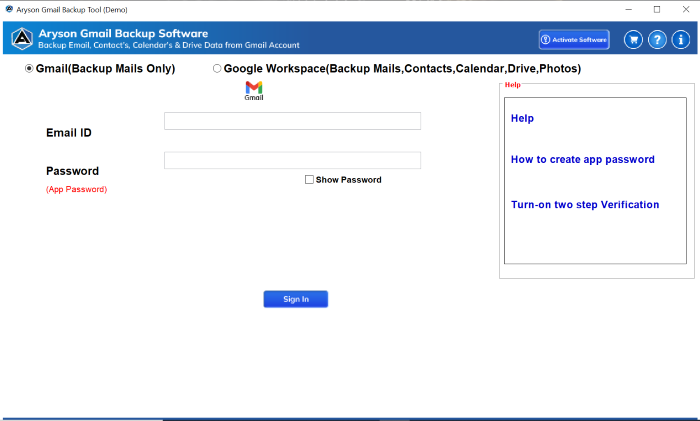
- Install the Aryson Gmail Backup Tool on your system and open it on your PC.
- After that, log in securely with your correct credentials in your Gmail account.
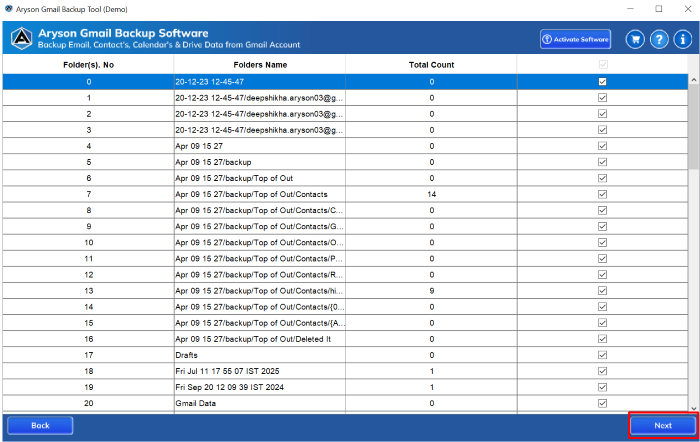
- Now, preview and select the emails whose attachments you want to remove.
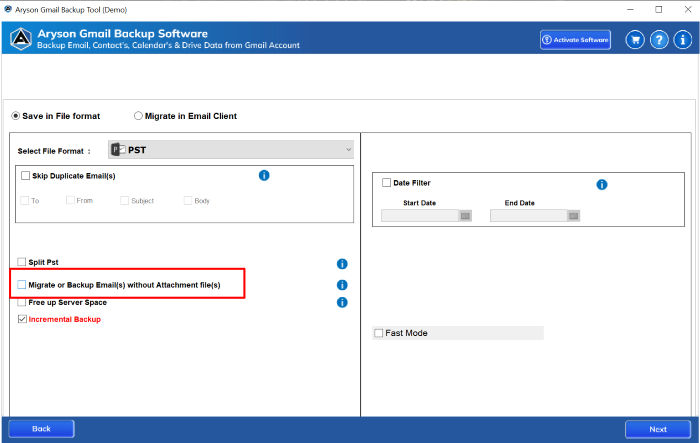
- From the given feature, pick migrate or backup without Attachment file >>Next.
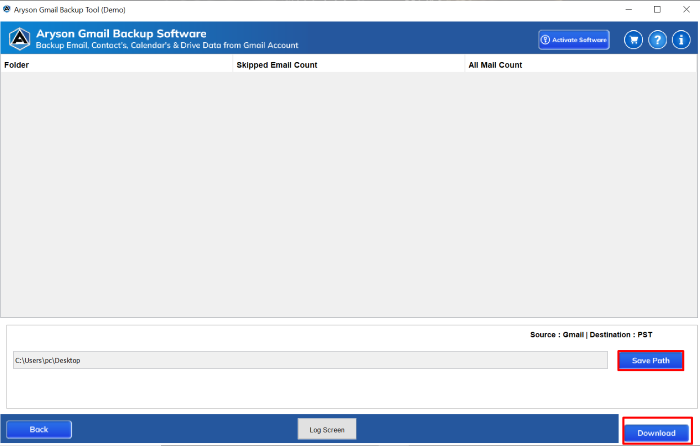
- Provide a path to save, and click on the download button to save the Gmail email.

Conclusion
Just remember always to back up your data first if you’re trying any method for the first time. You do not have to delete important emails just to clean up your Gmail inbox. If big attachments are using too much space, there are ways to remove Gmail attachments without deleting emails. For a few emails, you can use the manual method. However, it takes time and effort too. If you want a faster and easier way, the recommended Tool is the better alternative. It removes the attachments but keeps your emails safe. In the end, it is all about to keep what is important and what is not. The best part is now you know how to do it.
Frequently Asked Questions (FAQs)
Q1. Does Gmail allow attachment deletion without deleting the email?
Ans: No, Gmail does not support this directly. You need to use manual workarounds or the automated Gmail Backup Tool to accomplish the task.
Q2. Can I bulk remove attachments in Gmail?
Ans: Not manually. You will need the Aryson Gmail Backup Tool or script for bulk operations.
Q3. Will deleting attachments affect my email labels or threads?
Ans: If done manually and carefully, it probably can. On the other hand, an Automated tool can preserve the structure because it is designed well.
Q4. Is it safe to use third-party Gmail cleaners?
Ans: Yes, if you choose trusted, verified apps and always check their privacy permissions.
Q5. What is the best way to free up Gmail space quickly?
Ans: The best is to use the advanced filter “Free Up Server Space” of the Aryson Gmail Backup Tool. So that you can free up Gmail space quickly
About The Author:

Rohan Wiese is a Technical Writer at Aryson Technologies. He is an expert Email Forensic, Cloud Computing, and a passionate nerd with over 10 years of experience in technical content writing. He writes about Cloud Migration, Database Recovery, Email Backup, Windows, Mac, and Tech.
Related Post



