-

Written By Rohan Wiese
-
Updated on February 16th, 2026
How to Fix OLMAPI32.DLL Error in MS Outlook: A Complete Guide
Microsoft Outlook is the most trending email client that helps millions of professionals manage emails, calendars, tasks, and contacts. However, sometimes technical issues can stop Outlook. As a result, it cannot work smoothly. One such common issue is the OLMAPI32.DLL error. If you are struggling with this error, don’t worry. In this complete blog, we will explain what OLMAPI32.DLL is, why the error occurs. Along with that, we will discuss the most effective methods to fix OLMAPI32.DLL Error in MS Outlook. If this error occurs due to a corrupt Outlook data file, the user can directly use the Aryson PST Repair Tool to recover your PST file without any hassle. Download Now Purchase Now
When this error appears, Outlook may fail to start or crash unexpectedly. In many cases, users see messages like “Cannot start Microsoft Outlook. OLMAPI32.DLL is missing or corrupt.” These kinds of problems not only affect daily communication but also lead to the risk of losing important data.
What is OLMAPI32.DLL in Outlook?
To understand the error, it is important to know the role of the OLMAPI32.DLL file within the Outlook account.
- Basically, DLL stands for Dynamic Link Library.
- It contains essential instructions that help Outlook communicate with other applications and services with the help of MAPI (Messaging Application Programming Interface).
- Without this file, Outlook cannot perform tasks to send or receive emails properly.
When this DLL file goes missing, it becomes corrupt. Hence, it creates conflicts with another version of Outlook. In that case, the application fails to launch and shows the OLMAPI32.DLL Error message.
Some of the Common Reasons Behind OLMAPI32.DLL Error
There are several underlying factors that can cause this error in MS Outlook. Below are the most frequent reasons which can be a reason for this problem:
- Incomplete installation of Outlook or Office: If the setup is interrupted, some DLL files may not install correctly.
- Corrupted program files: Malware infections, improper shutdowns, or file corruption can damage OLMAPI32.DLL.
- Issues with old versions of Outlook: If you have multiple versions of Outlook on the same computer, it often causes of olmapi32.dll error.
- Accidental deletion of DLL file: System cleanup tools or manual actions may remove the file.
- Windows registry errors: Invalid registry entries linked to Outlook can also trigger this Outlook olmapi32.dll error.
- System crashes or failed updates: Your incomplete Windows or Office updates may damage your Outlook DLL dependencies.
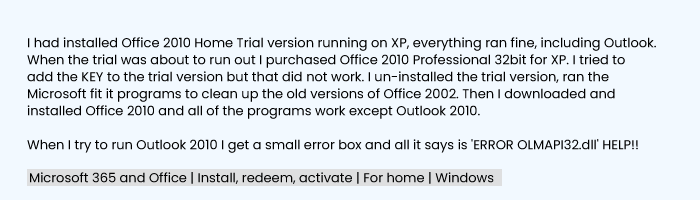
How Does the OLMAPI32.DLL Error Appear in Outlook?
The error may be shown in different ways. Although it completely depends on your Outlook version. Some common error messages are mentioned here:
- “OLMAPI32.DLL is missing.”
- “Outlook failed to launch because OLMAPI32.DLL was not found.”
- “Cannot start Microsoft Outlook. OLMAPI32.DLL is corrupt.”
- “This application failed to start because OLMAPI32.DLL was not found. Reinstalling the application may fix this problem.”
Other symptoms users may face:
- The Outlook crashes shortly after opening.
- Emails and other data files fail to load.
- Certain add-ins stop working.
- Windows shows repeated DLL error pop-ups.
Step-by-Step Solutions to Fix OLMAPI32.DLL Error
There are several ways to resolve this Outlook error. Let’s look at the most effective solutions.
Method 1: Restart Outlook and Your PC
A temporary glitch may sometimes cause the DLL error.
- To fix this, close Outlook completely.
- Then, restart your computer.
- Open Outlook again and check if the error is resolved or not.
This is a simple and quick way to repair Outlook olmapi32.dll. If the problem still exists, you should navigate to the advanced methods.
Method 2: Run the Microsoft Office Repair Tool
Microsoft Office has a built-in repair feature that can fix OLMAPI32.DLL Error in MS Outlook.
- Simply, go to Control Panel and click Programs and Features.
- After that, locate Microsoft Office/Outlook in the list.
- To perform the next step, right-click and choose Change.
- At last, select Repair and follow the on-screen instructions.
It will scan and repair all the damaged DLL files, including OLMAPI32.DLL.
Method 3: Update the MS Outlook to the Latest Version
Sometimes, Outdated Outlook versions are compatible with certain system files. Updating can replace missing or broken DLLs.
- Again, navigate to the Outlook screen.
- Go to File>> Office Account>>Update Options>>Update Now.
- Now, you should wait until the updates finish and restart Outlook.
Method 4: Re-register the Outlook’s OLMAPI32.DLL File
If the DLL file is present but not registered properly, then you can re-register it manually to repair the olmapi32.dll Outlook error.
- First, press Windows + R, type cmd, and then press Ctrl + Shift + Enter.
- It will open Command Prompt as administrator.
- Now, type the following command: regsvr32.exe OLMAPI32.DLL
- Lastly, you should press Enter and restart your system.
This command will re-register the DLL file. So that Outlook can access it properly. As an outcome, it will be helpful to fix OLMAPI32.DLL Error in MS Outlook.
Method 5: Delete and Reinstall Outlook
When you tried all the above solutions, the error is still showing. Next, what can you do? The left option is that you can reinstall Outlook to repair Outlook olmapi32.dll
- Uninstall Outlook or Microsoft Office completely from your system.
- After that, restart your computer.
- Delete any leftover Outlook folders from C:\Program Files or C:\Program Files (x86).
- Download the latest setup and reinstall Outlook.
After performing the above-mentioned steps, you can make sure a fresh installation with all necessary DLL files.
Limitations Associated with the Manual Fixes
Although manual methods can fix minor issues without any cost, they also come with some limitations:
- All the manual fixes have complex steps that may confuse non-technical users.
- There is a risk of data loss if errors occur during repair or reinstallation.
- These methods are quite time-consuming, especially when reinstalling Outlook.
- None of the given manual methods can resolve deep corruption in PST/OST files.
Note: If the error is linked to corruption in Outlook data files (PST/OST), manual methods will not help you to overcome this. In that case, an individual should use the professional solution to repair the Outlook PST file.
Best Solution Repair PST File & Fix OLMAPI32.DLL Error
The most effective way to deal with DLL errors is with Aryson Outlook PST Repair Tool. This software helps you repair corrupt PST files, which are often the root cause of Outlook errors. It ensures 100% data safety and allows you to recover emails, attachments, contacts, tasks, and journals in just a few clicks. Also, it supports recovery of Encrypted & Password-Protected PST files as well. Along with that, it works even with large or severely damaged PST files.
- Repair Corrupt PST Files Without ScanPST
- Restore emails, contacts, calendars, and attachments.
- Fix issues that indirectly cause DLL errors.
- Restore Deleted Calendar Items in Outlook
- Export data into different formats with a few clicks.
Now, proceed with the given steps to easily fix the olmapi32.dll Outlook.
Simple Steps to Use the Aryson PST Repair Tool
- Download and install the Aryson PST Repair Tool.
- After that, click on Open File to load the corrupted PST.
- Now, you can preview all recoverable Outlook data items.
- Select the desired format to save the recovered PST file.
- Lastly, choose a location and click on the Save button.
Additional Note: You can import the recovered PST file into MS Outlook. So that it can
Fully functional without OLMAPI32.DLL errors. Along with OLMAPI32.DLL errors, it also fix PST File is Not an Outlook Data File Error with ease.
Conclusion
Hopefully, this guide will be helpful for you to fix OLMAPI32.DLL Error in MS Outlook. With the above recommended solution, you can access emails and important data with ease. Basically, it occurs due to missing, corrupt, or outdated DLL files. So, first, you should go through the manual fixes. In case the PST file is corrupted, then these methods do not work well. That’s why experts recommend to use the professional PST Repair Tool to fix DLL-related issues and restore your entire Outlook data safely.
About The Author:

Rohan Wiese is a Technical Writer at Aryson Technologies. He is an expert Email Forensic, Cloud Computing, and a passionate nerd with over 10 years of experience in technical content writing. He writes about Cloud Migration, Database Recovery, Email Backup, Windows, Mac, and Tech.
Related Post