-

Written By Rohan Wiese
-
Updated on June 27th, 2025
How to Fix Outlook Error 0x800CCC0B: The Complete Guide
Summary: Outlook error 0x800CCC0B indicates a connection problem between your Outlook application and your email server. This error prevents you from sending or receiving emails, significantly disrupting your daily tasks and workflow. If you encounter this message, it’s crucial to address it promptly to restore your email functionality. This guide will explain the causes behind Outlook error 0x800CCC0B and provide step-by-step methods to fix it. Additionally, we’ll introduce the Outlook PST Repair Tool as a hassle-free solution for more severe issues.
What is Outlook Error 0x800CCC0B?
Error 0x800CCC0B in Outlook typically appears with a message similar to:
“Sending reported error (0x800CCC0B): The operation timed out waiting for a response from the receiving (POP) server.”
This message signifies that Outlook anticipated a timely response from your email server but did not receive it. It frequently occurs when the connection to your mail server is slow, unstable, or interrupted.
Common Reasons for Outlook SMTP Error 0x800CCC0B
Several factors can cause this Outlook timeout error. Understanding these can help you pinpoint the solution:
|
Causes |
What It Means |
|
Slow or unstable internet |
Because of slow internet, Outlook waits too long and times out. |
|
Incorrect email server settings |
If your server address, port, or encryption is wrong, Outlook can’t connect properly. |
|
Firewall or antivirus interference |
Sometimes, security software blocks Outlook’s connection, which causes errors. |
|
Large email attachments |
Since big emails take more time, they may cause delays or errors when sending. |
|
Corrupted Outlook data file (PST) |
When the data file is damaged, Outlook can’t send or receive emails correctly. |
How to Fix Outlook Error 0x800CCC0B?
There are several effective methods to resolve Outlook error 0x800CCC0B. You can try these solutions one by one to fix your error. Let’s explore each process in detail.
Method 01: Check Your Internet Connection
A slow or unstable internet connection is a common cause of Outlook timeouts. Ensure your connection is stable to fix Outlook error 0x800CCC0B:
- Restart your router: Power cycling your router can resolve temporary network glitches.
- Test internet speed: Open various websites to confirm your internet speed and stability.
- Switch to a wired connection: If possible, try a wired Ethernet connection for a more stable link.
Method 02: Verify Outlook SMTP Settings
Incorrect incoming and outgoing server details are a frequent culprit. Double-check your Outlook SMTP settings:
|
Setting |
Example for Gmail |
Example for Outlook.com |
|
Incoming Server (POP) |
pop.gmail.com (Port 995, SSL) |
pop-mail.outlook.com (Port 995, SSL) |
|
Outgoing Server (SMTP) |
smtp.gmail.com (Port 587, TLS) |
smtp-mail.outlook.com (Port 587, TLS) |
Note: Always refer to your email provider’s official website for the exact and most up-to-date server details.
Steps to Resolve 0x800CCC0B Outlook SMTP Settings:
- Open Outlook on your system.
- Go to File > Account Settings > Account Settings.
- Choose your email account and click Change.
- Verify the server names, port numbers, and encryption methods carefully.
Method 03: Increase Server Timeout Setting in Outlook
Increasing the server timeout period can give Outlook more time to connect and receive a response from the mail server, which can help fix Outlook error 0x800CCC0B, especially with slower connections or large emails.
- Open Outlook on your PC.
- Click File > Account Settings > Account Settings.
- Select your email account and click Change.
- Click More Settings > Advanced tab.
- Under Server Timeouts, increase the slider to 1-2 minutes (or more if needed).
- Click OK and restart Outlook.
Method 04: Disable Firewall and Antivirus Temporarily
Sometimes, security software can interfere with Outlook’s ability to connect to email servers, causing connection timeout errors.
- Temporarily disable your firewall or antivirus software.
- Try sending or receiving emails again in Outlook.
- If the issue is resolved, add Outlook to your firewall or antivirus exceptions list.
- Important: Remember to re-enable your security software immediately after testing to protect your system.
Method 05: Use Inbox Repair Tool (Scanpst.exe) for Outlook Errors
If your Outlook PST file has minor corruption, you can use Microsoft’s built-in Inbox Repair Tool (ScanPST.exe). This tool is designed for small corruptions and can often help resolve errors stemming from a damaged data file.
- Firstly, close Outlook from your system.
- Search for Scanpst.exe on your PC. The location typically varies by Outlook version and Windows installation (e.g., C:\Program Files (x86)\Microsoft Office\root\Office16 for Outlook 2016/2019/365).
- Open the tool and Browse to select your PST file.
- Click Start to scan and repair the file.
Important Note: If your Outlook profile is severely corrupted, ScanPST.exe may not be sufficient. In such cases, consider the alternative method mentioned below.
Error 0x800CCC0B Outlook Solution – Hassle-Free Recovery
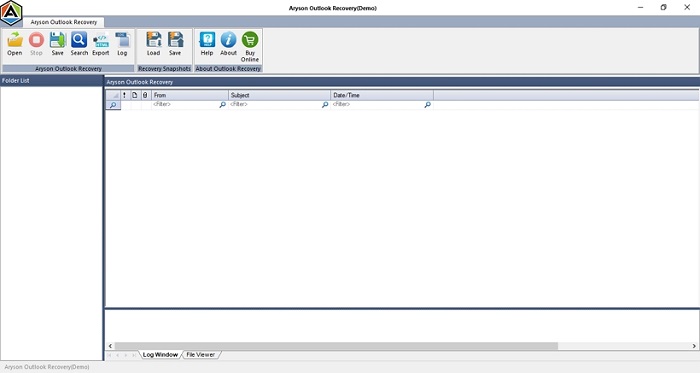
For severe PST file corruption, the Aryson Outlook PST Repair Tool offers a more robust and hassle-free solution. This tool is specifically designed with a smart algorithm to provide quick and comprehensive recovery from damaged or corrupted Outlook files with ease. You don’t need technical expertise to use it, thanks to its simple interface. Additionally, this tool supports recovery from encrypted and password-protected PST files without any data loss. Download Now Purchase Now
Why Choose Aryson Outlook PST Repair Tool?
This tool helps you to fix Outlook error 0x800CCC0B with minimal disruption, especially if the root cause of the error is PST file corruption. It quickly repairs damaged PST files without affecting your existing data. Plus, it supports all Outlook versions and efficiently recovers emails, contacts, calendars, and more.
Demo Version: A free demo version of this software is available for you to explore its features and functions without any restrictions before purchasing.
How to Repair Damaged Outlook Profile:
- Firstly, download and install the Outlook PST Repair Tool on your system.
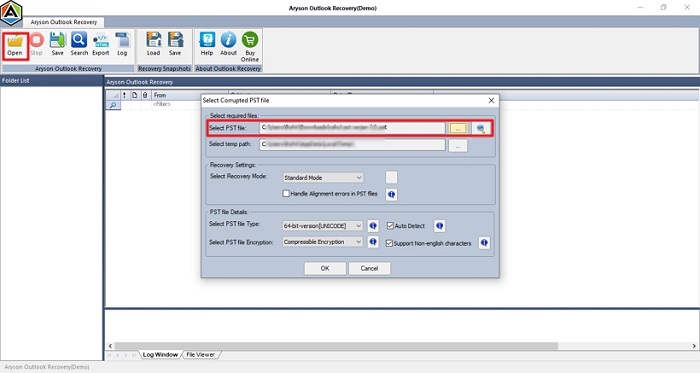
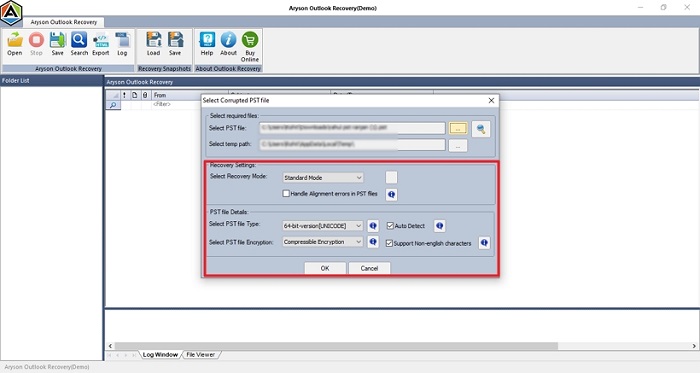
- Next, select the Open option and Browse to the corrupted PST file.
- Then, choose the Recovery Mode based on your file corruption level.
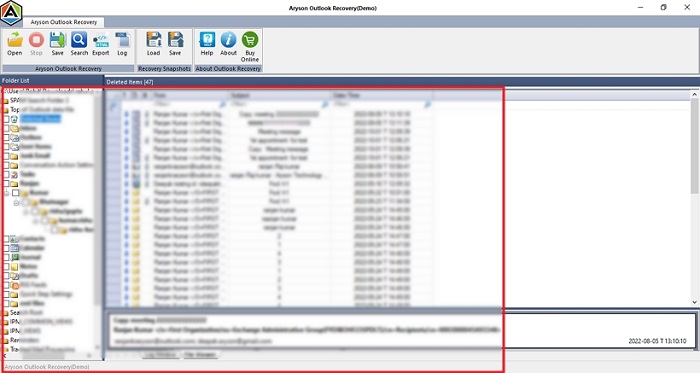
- After that, you can cross-verify the recovered data in the preview window.
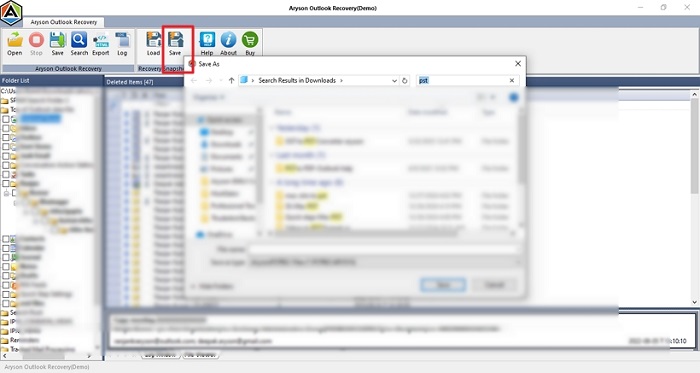
- Finally, click Save and choose a different saving format or location for the recovered data.
Conclusion
To sum up, fixing Outlook error 0x800CCC0B involves addressing potential connection issues. Start by checking your internet connection and meticulously verifying your Outlook SMTP settings. If the error persists and you suspect Outlook data file corruption, the Inbox Repair Tool (ScanPST.exe) can be helpful for minor issues. However, for major corruption or a more reliable solution, a professional Outlook PST Repair Tool is strongly suggested.
We are here to assist you. If you have any further queries related to this recovery process or the tool, feel free to ask. Our 24/7 technical support is available to resolve your query instantly and without hassle.
Frequently Asked Questions (FAQs):-
Q1. Can incorrect SMTP settings cause Outlook error 0x800CCC0B?
Ans: Yes. Wrong server names, incorrect port numbers, or improper encryption settings for your outgoing (SMTP) server frequently cause Outlook error 0x800CCC0B.
Q2: What should I do if Outlook error 0x800CCC0B persists after trying all solutions?
Ans: If the error persists despite trying all the troubleshooting steps, the Outlook data file (PST) itself is likely corrupted. In such a scenario, you must repair and recover data from the file. For a quick, precise, and highly accurate recovery, we recommend using the Aryson Outlook PST Repair Tool.
About The Author:

Rohan Wiese is a Technical Writer at Aryson Technologies. He is an expert Email Forensic, Cloud Computing, and a passionate nerd with over 10 years of experience in technical content writing. He writes about Cloud Migration, Database Recovery, Email Backup, Windows, Mac, and Tech.
Related Post