-

Written By Rohan Wiese
-
Updated on May 28th, 2025
How to Archive Old Emails in Outlook to a PST File? Expert Solutions
Summary:- If your Outlook inbox is full and slowing down performance, there is a need to archive your old emails. Archiving your old emails helps you move older messages out of your main inbox and store them safely in a PST file. It keeps Outlook running smoothly and makes it easier to manage your emails. In this blog, we’ll explain to you the effective methods to move old emails to PST in Outlook. Additionally, use the Best OST to PST Converter Tool to easily convert and save your emails in PST format without any hassle
Why Import Old Archived Mail to a PST File?
There are several reasons to export old emails to PST format, including:
- It helps you to keep a free storage space.
- Also, to improve Outlook’s performance.
- You can backup your important emails for long-term use.
- This can help you keep the records for business or personal purposes.
How to Import Archived Mail using Outlook PST?
You can use different methods to move your old emails to Outlook, including:
- By Using the Manual Method
- With the help of a Professional Tool
Let’s explore all the methods one by one for better email management and results.
Method 01: Manual Method to Archive Old Emails in Outlook
This method is only valid for the Outlook 2016, 2019, 2021, and Microsoft 365 versions. Follow these steps to perform it:
- Start by opening Microsoft Outlook and navigating to the File tab.
- Then, choose the Open & Export option and select Import/Export.
- Click on Export to a File to continue. Click Next.
- After that, choose Outlook Data File (.PST) from the given list and click Next.
- Now, choose the file that you want to import and press Next.
- Finally, choose where you want to save the PST file, give it a name, and click Finish to complete the process.
Alternative Manual Method to Archive Old Emails in Outlook
- Again, open Outlook and click on File.
- Next, choose Options and the Advanced tab.
- Then, click on Auto-Archive Settings.
- Now, mark Run AutoArchive every n days.
- Lastly, apply the advanced option as per your needs.
Important Note: The manual methods are free to use. However, it has some limitations.
Shortcomings of the Manual Method
Here are reasons why you should not move old emails to PST in Outlook with manual steps:
- If you have large emails to export, this method is not applicable.
- They are time-consuming and increase the chance of data loss.
- Not applicable for handling multiple accounts at once.
- There is a need for technical expertise to configure correctly.
- In addition, it fails to preserve the original folder structure during the export process.
To overcome these limitations, you can use the alternative professional method.
Method 02: Bulk Archive Old Emails in Outlook PST Via Professional Tool
If you want a quick and hassle-free conversion process, the Aryson OST to PST Converter Tool is the best option. It converts all your contacts, emails, calendar, and attachments to a PST file without data loss. Also, this tool offers a Date Range filter to export only selective emails based on the Start & End dates. With this utility, you can transfer bulk emails to PST without Outlook. Furthermore, it offers several advanced features to keep your email more manageable.
Easy Steps to Move Old Emails to PST in Outlook:
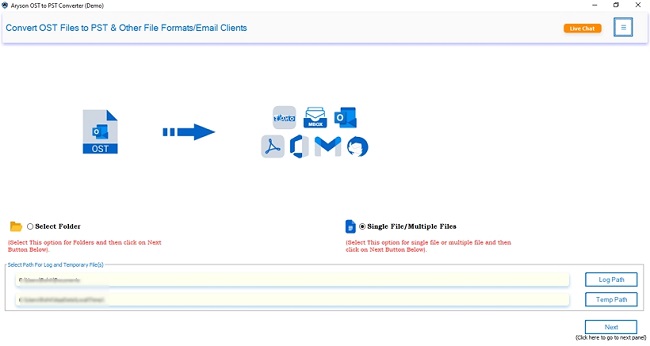
- Firstly, download the OST to PST Converter Tool on your system.
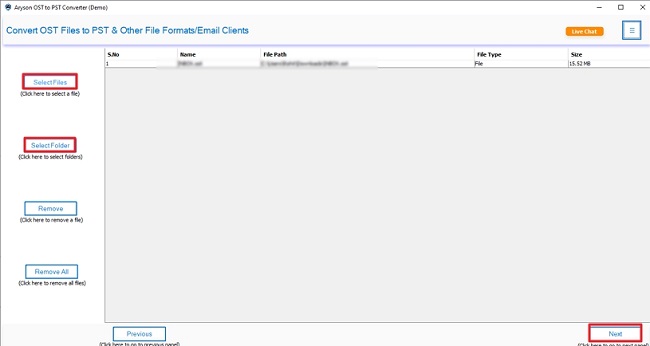
- Now, choose either Select File or Select Folder to add your OST file, then click Next to proceed.
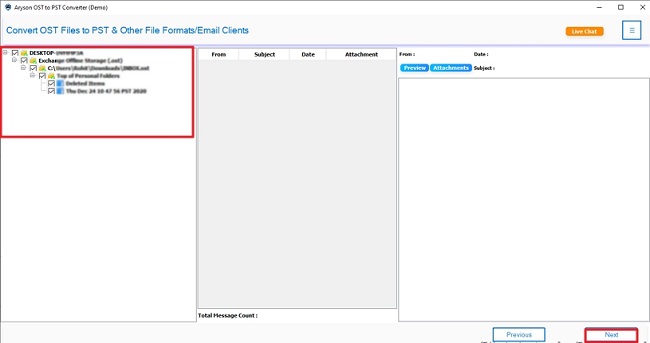
- Then, cross-verify & select the file that you want to convert. Hit Next.
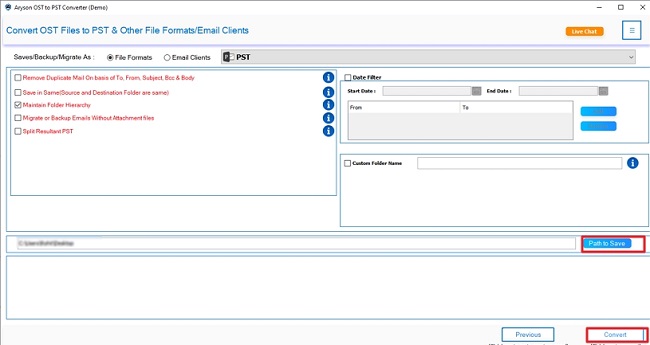
- Choose Save/Backup/migrate as File Format and PST from the given list.
- Further, apply advanced features according to your specific requirements.
- In the end, provide a Destination Path to Save and click Convert.


Benefits of This Utility
- Convert your OST file data to PST and other file formats like MBOX, MSG, etc.
- Helps you migrate OST files to IMAP, Office 365, Exchange, and Gmail.
- Preview feature to cross-verify the OST file before performing conversion.
- Eliminate duplicate emails by applying the Remove Duplicate feature.
- Moreover, you don’t need to have Outlook installed on your system to use it.
- Fast processing speed and highly compatible with all Windows OS.
Conclusion
To manage your old emails, move old emails to PST in Outlook is the best option. Above, we covered all the necessary methods to convert your OST file to PST. You can choose one from the given methods according to your needs and requirements. If you want to archive a few emails, you can do it with the manual methods. However, for the bulk conversion, using the professional tool is suggested. Also, you can use the demo version of this utility to evaluate its functionality and performance. Furthermore, if you have any queries, 24/7 technical support is available to solve your queries.
Frequently Asked Questions:-
Q1. How can I bulk archive old emails in Outlook PST?
Ans: You can archive bulk old emails into PST with the help of a professional OST to PST Converter Tool. Here is how you can do it:
✅ Launch the OST to PST Converter Tool on your system.
✅ Now, add the OST file from your system and click Next.
✅ Preview & select the added file to convert. Hit Next.
✅ After that, choose Save as File Format and PST.
✅ Apply advanced filters and define the Path to Save.
✅ Lastly, click Convert to initiate the conversion.
Q2. Can I move only selected emails to a PST file?
Ans: Yes, the OST to PST Converter Tool offers to choose mailbox folders from the preview for specific conversion. Also, it has a Date Filter for migration based on Start and End dates.
Q3. What if I don’t have access to my Outlook profile anymore?
Ans: If you still have the OST file, you can use the OST to PST Converter to extract emails without needing Outlook access.
Q4. Can I use Aryson OST to PST Converter with Microsoft 365 Outlook?
Ans: Yes, this professional software is fully compatible with Microsoft 365 and works seamlessly with all versions of Outlook and Windows.
About The Author:

Rohan Wiese is a Technical Writer at Aryson Technologies. He is an expert Email Forensic, Cloud Computing, and a passionate nerd with over 10 years of experience in technical content writing. He writes about Cloud Migration, Database Recovery, Email Backup, Windows, Mac, and Tech.
Related Post



