-

Written By Rohan Wiese
-
Updated on July 16th, 2025
Convert Password-Protected PDF to Normal PDF Using 5 Different Ways
Summary:- Password-protected PDFs are commonly used to secure sensitive information. However, they can also limit access when you need to view, print, or share the file without restrictions. It’s a situation that happens more often than you’d think and can instantly disrupt your workflow. Sometimes, users may forget their password or want to remove protection for easier use. In that case, it becomes necessary to convert password protected PDF to PDF regular.
In this guide, we’ll explore 5 easy ways to convert a password-protected PDF to a standard PDF. So that you can work with your documents more freely and efficiently. From using built-in tools to the PDF Password Remover, you’ll find a method that suits your needs without compromising file quality or content.
In this guide, we’ll explore 5 easy ways to convert a password-protected PDF to a standard PDF. So that you can work with your documents more freely and efficiently. From using built-in tools to the PDF Password Remover, you’ll find a method that suits your needs without compromising file quality or content.
Why Should You Remove Restrictions from PDF File
If you’re unable to remember the password, that protection quickly becomes a hassle. Here are a few common reasons why users look to convert a password-protected PDF into a normal one:
- Once the password is removed, you can easily print, edit, or copy text from the PDF.
- You can send the PDF to others without sharing the password along with it.
- Unlocked PDFs work smoothly with other software, helping you get tasks done faster.
- Along with that, you don’t need to type the password every time you open the file.
- It’s easier to save and open the PDF later without worry about forgetting the password.
Now, you know that an unlocked PDF file can be easily opened, shared, and edit the file whenever you need.
Top 5 Ways to Convert Password-Protected PDF to PDF
If you’re looking for simple and effective solutions, proceed with the next section. Below are the top 5 easy and reliable methods to remove password from PDF. As a result, you can utilize your documents with ease.
Method 1: Use Adobe Acrobat Pro DC to Unlock Secured PDF
Adobe Acrobat Pro DC is one of the most reliable and professional tools for working with secure PDF documents. If you know the password to the PDF file, you can easily remove the restrictions using the steps below.
Requirements:
- You must know the password to open the file.
- Adobe Acrobat Pro DC (not the free Reader version).
Steps to Use Adobe Acrobat to Convert Locked PDF to Normal PDF
- Make sure you’re using Adobe Acrobat Pro DC, not just Adobe Reader.
- Open Adobe Acrobat Pro DC on your system.
- Next, click on File >> Open and select your password-protected PDF.
- Enter the correct password to view the file.
- Then, go to File > Properties.
- In the pop-up window, click the Security tab.
- Under Security Method, choose No Security from the dropdown.
- Now, click OK to apply the change.
- After that, go to File >> Save As to save your PDF as an unprotected file.
Note: Adobe Acrobat Pro DC is a paid tool, and this method only works if you already know the password.
Things to Keep in Mind:
- It won’t work on encrypted files without proper access rights.
- Adobe Acrobat Pro DC is a paid tool, but it offers a free 7-day trial.
Method 2: Print to PDF Removes Password Using a Web Browser(Chrome/Edge)
Using a web browser like Google Chrome or Microsoft Edge is another way to convert password-protected PDF to PDF:
- First, right-click on the locked PDF file and select Open with>> Google Chrome.
- Then, when the browser prompts you, enter the correct password to unlock the file.
- Once the file opens, press Ctrl + P (Windows) or Cmd + P (Mac) to open the print window.
- Under the Destination or Printer section, select Save as PDF (or Microsoft Print to PDF).
- After that, click the Save button.
- Finally, choose the folder where you want to save the new file. Give it a name and click Save again.
Limitations:
- It can’t remove encryption if the password is forgotten.
- Also, this method is not suitable for batch file unlocking.
Method 3: How to Unlock Secured PDF Online PDF Password Remover
Websites like Smallpdf, iLovePDF, or PDF2Go allow you to unlock PDFs easily, as long as the file is not highly confidential. These tools allow you to quickly unlock secured PDFs right from your web browser.
- Go to a trusted online PDF unlock tool like iLovePDF, SmallPDF, or PDF2Go.
- After that, click “Select PDF file” and upload your secured document.
- If prompted, enter the correct password to access the file.
- Now, hit the “Unlock PDF” or “Start” button to begin the unlocking process.
- Once done, download the unlocked PDF to your device.
After performing these steps, you will get the unlocked PDF file. So, you can unlock secured PDFs for editing & printing easily.
Note: Avoid using online tools for private, sensitive, or legal documents due to potential privacy risks.
Method 4: Convert Locked PDF to Normal PDF via Mac Preview
If you’re a Mac user and know the password to your PDF, the built-in Preview app can help. It can remove the password and save it as a normal, unprotected PDF.
- Locate the encrypted PDF file on your Mac.
- Right-click on the file and choose Open With >> Preview.
- When prompted, enter the password to unlock the PDF.
- Once the file is open in Preview, go to the File menu at the top.
- After that, select Export from the dropdown list.
- In the export window, choose the destination folder and make sure “Encrypt” is unchecked.
- Lastly, click Save to export the file as a new, password-free PDF.
Note: The built-in preview cannot remove passwords from PDFs that you cannot open.
Method 5: Best PDF Unlocker to Convert Password Protected PDF to PDF
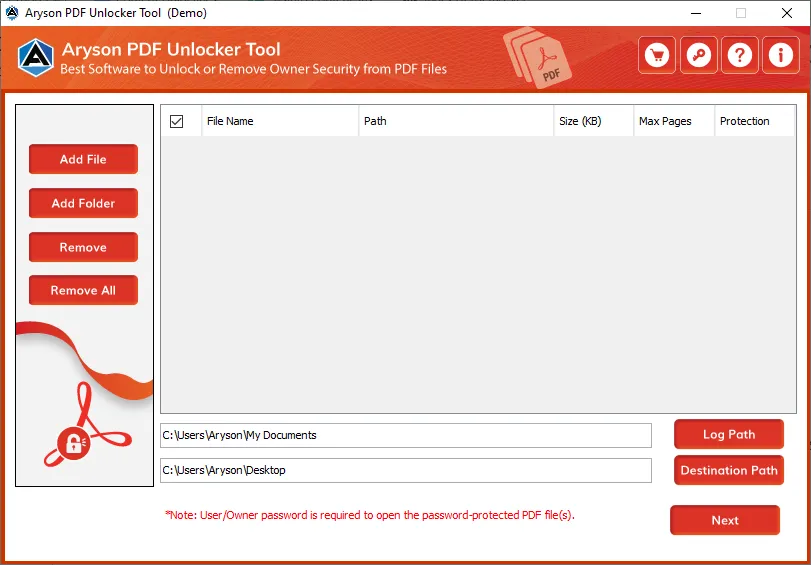
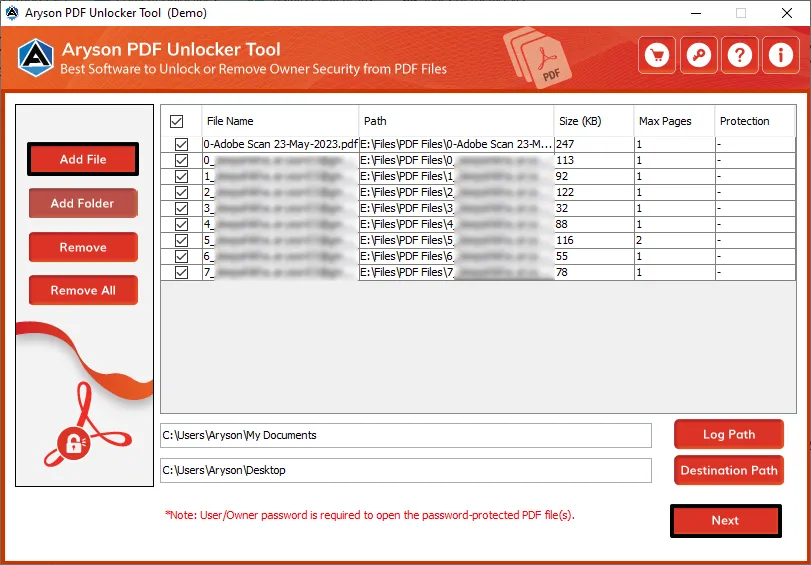
When it comes to unlock password-protected PDF files safely, the Aryson PDF Unlocker Tool stands out as one of the best solutions available. This utility can remove both user and owner-level passwords from PDF documents. So, you can access, print, copy, and edit content without restrictions. It supports unlocking multiple PDF files at once and works smoothly across all versions of PDF. The best part is that it preserves the original formatting and structure of your files during the process. With its simple interface and strong performance, it is a trusted choice for users. Also, it provides a secure way to remove password protections from PDF file.
Quick and Easy Steps to Convert Password-Protected PDF to PDF
- First, download the Aryson PDF Unlocker Tool and install it on your Windows system.
- Click on Add Files or Add Folder to browse password-protected PDF files to unlock.
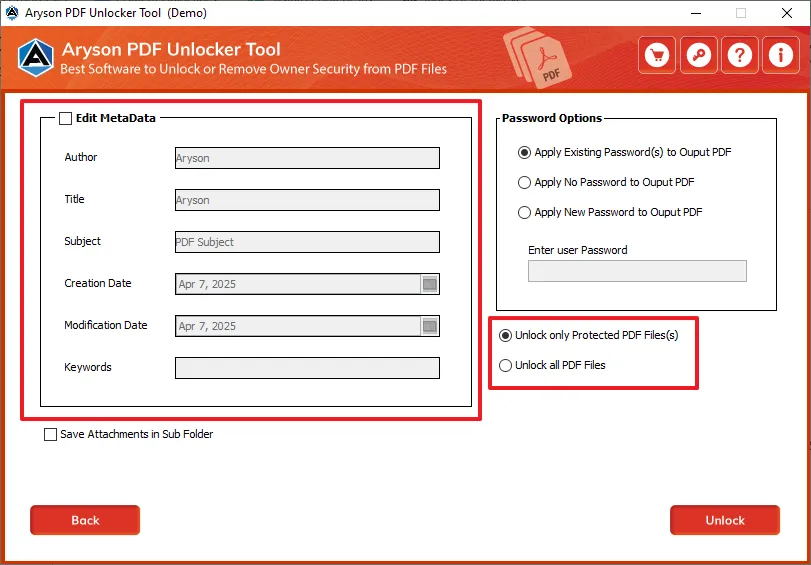
- If needed, check the Edit Metadata box and select to unlock only protected PDFs.
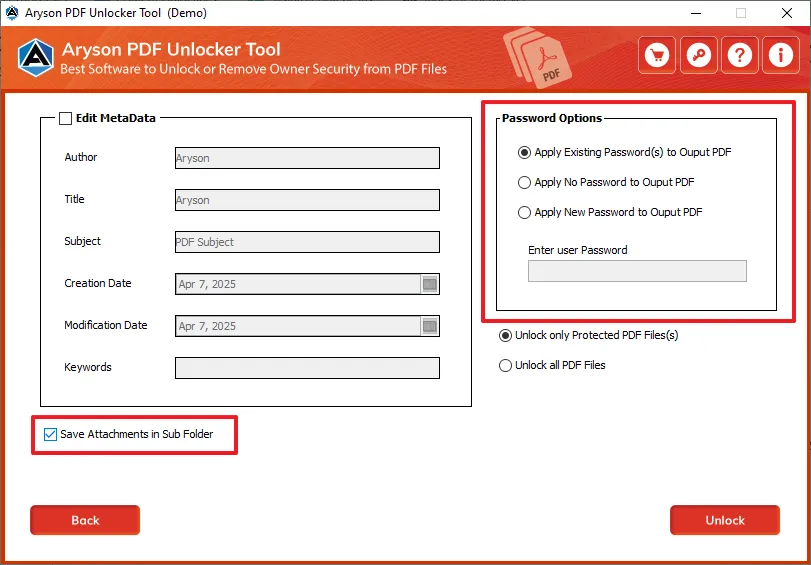
- Now, you can choose the password options along with the attachment saving option.
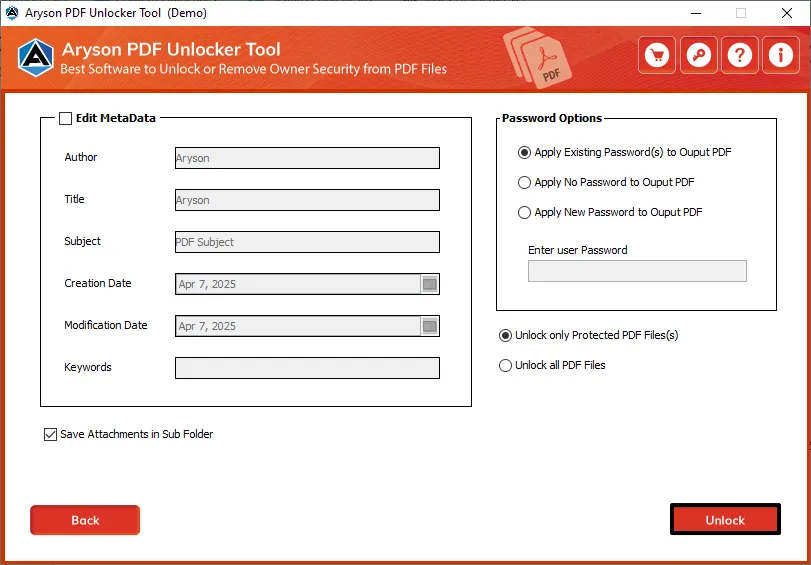
- Once everything is configured, click the Unlock button to begin the process.
Conclusion
Throughout this blog, we discussed several practical methods to help you convert password-protected PDF to PDF which is fully accessible. Whether you prefer using built-in options like web browsers or Mac Preview, or need advanced features offered by Adobe Acrobat Pro DC, there’s a solution for every user type. And if you want a faster and more reliable way use the PDF Password Remover to remove passwords without losing formatting.
Frequently Asked Questions:-
Q.1 Can I unlock multiple PDFs at once?
Ans: Yes, Aryson PDF Unlocker supports batch unlocking, allowing you to remove passwords from several PDF files at once.
Q.2 Is it safe to use online tools to unlock PDF files?
Ans: Online tools can be convenient, but they may not be secure for confidential or sensitive files. It’s better to use offline software like Aryson PDF Unlocker for better privacy and data protection.
Q.3 What happens if I forget the password of a PDF and don’t have any backup?
Ans: If it’s an owner-level password (restricts editing or printing), some tools can still unlock the PDF. But if it’s a user-level password (needed to open the file), you’ll need the correct password to access it.
About The Author:

Rohan Wiese is a Technical Writer at Aryson Technologies. He is an expert Email Forensic, Cloud Computing, and a passionate nerd with over 10 years of experience in technical content writing. He writes about Cloud Migration, Database Recovery, Email Backup, Windows, Mac, and Tech.
Related Post