-

Written By Rohan Wiese
-
Updated on July 7th, 2025
How to Convert PST Files to DOC, DOCX, DOCM (Step-by-Step Guide)
Summary:- Outlook PST files often contain important emails, reports, or business information. However, when you need to edit and share email content outside of Outlook, converting PST to Word formats like DOC, DOCX, or DOCM becomes extremely useful. Compared to PST files, Word documents are easier to edit, share, and access on different devices. In this guide, we’ll show you how to convert PST to Word using both manual steps and an automated tool. If you want a quick and accurate solution, the Aryson PST Converter Tool can help you convert your files without any hassle. Let’s begin by understanding why such a conversion is even needed.
Top Reasons to Export PST Emails into Word Format
A PST file is used by Microsoft Outlook to store mailbox items like emails, contacts, calendars, etc. Although it’s a powerful format for email archiving, it’s not user-friendly for non-Outlook environments.
Here’s why users often want to convert PST files into Word formats like DOC, DOCX, or DOCM:
- Word documents can be opened with Microsoft Word, Google Docs, or any other word processor.
- Once the data is in Word format, there’s no need for Microsoft Outlook or any email client to access the information.
- Moreover, Word documents are universally accepted across platforms. Hence, it is too easy to share content over email, cloud drives, or hard copies.
- Word documents are fully editable. You can modify email content, add annotations, or format the text as per your needs.
- Also, Word format is good for documentation or case filing, for legal professionals to review or present content.
Having seen why this matters, it’s time to explore how to make the PST to Word conversion process simple and effective.
Different Solutions to Convert PST to Word
Depending on your needs, whether it’s a single email or a full PST archive, there are several ways to turn your Outlook data into editable Word documents. Below are the methods you can choose from, based on convenience, volume, and formatting accuracy.
Method 01: All-in-One Solution to Convert PST to Word Document
The Aryson PST Converter Tool is a powerful and user-friendly solution designed to convert PST files into multiple formats, including DOC, DOCX, and DOCM. From a few important emails to an entire Outlook archive, this tool ensures a smooth and accurate conversion. It preserves the original formatting, folder structure, and metadata like sender, receiver, and timestamps. You can preview your emails before conversion and selectively export specific items. Also, it supports password-protected PST files and works without requiring Outlook. With its clean interface and advanced features, this utility is an all-in-one solution for professionals and individuals who want to make their Outlook data accessible and editable in Word format.
Steps to Convert PST File to Word Document (DOC, DOCX, or DOCM)
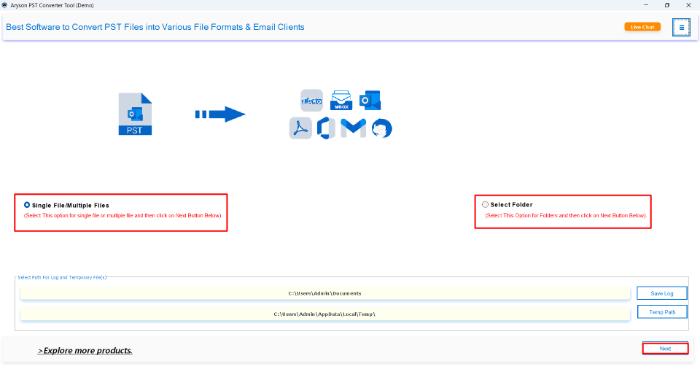
- Download and install the Aryson PST Converter Tool and click next.
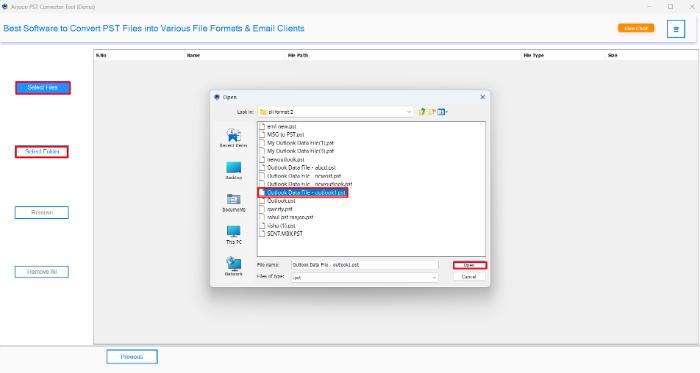
- Click “Select Files/Select Folder”, choose your PST file, and hit “Open”.
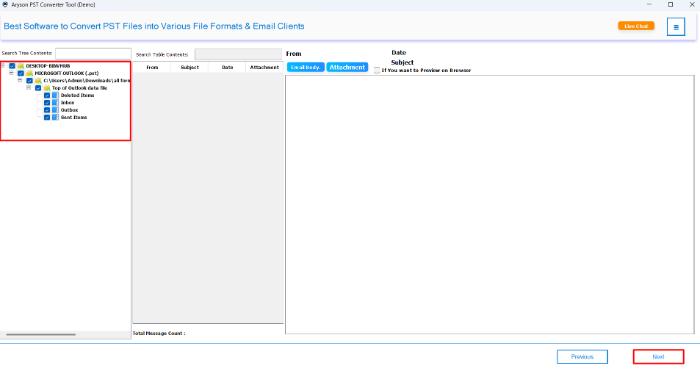
- You can expand and preview email content and click the “Next” button.
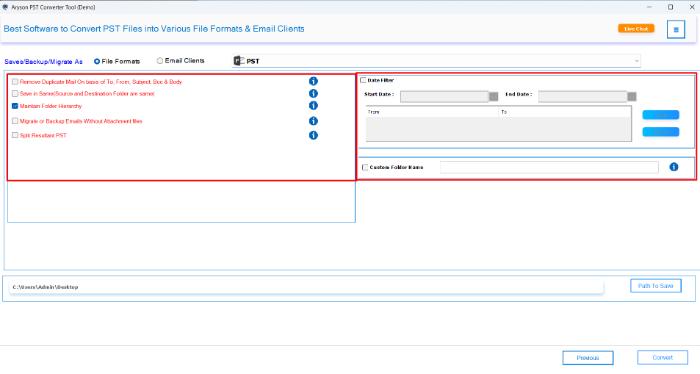
- Mark File Format, then select DOC, DOCX, or DOCM from the list to export.
- Also, you can apply the software features according to your requirements.
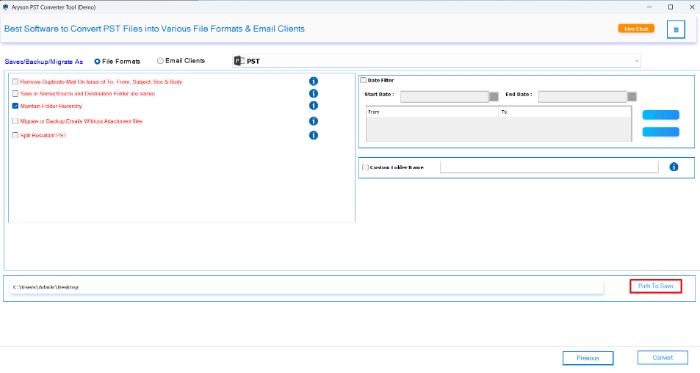
- Now, click the “Path to Save” button to select a folder to save the Word file.
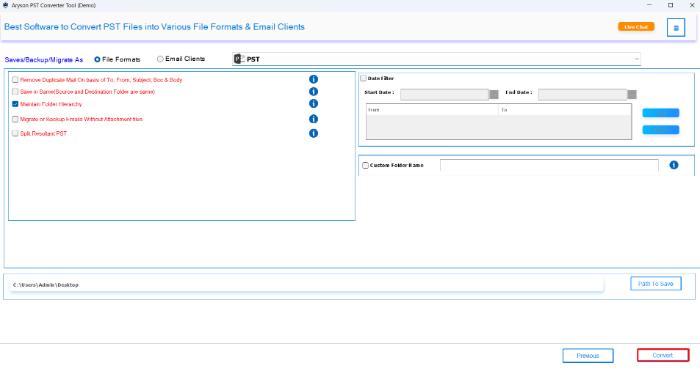
- Lastly, click the “Convert” button to export PST emails to Word documents.

Additional Tips: If you’re looking for other use cases, such as transferring data across platforms. Then, check out our detailed guides on how to import Outlook PST files to IMAP.
Method 02: Copy-Paste Email Content from Outlook to Word
This is the most basic method to save Outlook Emails as Word Documents. It’s suitable when you only need to convert a small number of emails.
- Open Microsoft Outlook on your system and locate the email you want to export.
- Next, double-click the email to open it in a new window for full content access.
- Then, press Ctrl + A to select the entire email body and Ctrl + C to copy it.
- After that, open Microsoft Word and paste the content using Ctrl + V.
- Now, make any formatting adjustments if needed to improve readability.
- Finally, go to File>> Save As and choose DOC or DOCX as the file format.
- Lastly, click “Save” to backup the Outlook emails on your system as Word.
Method 03: Another Manual Method Using Outlook and Word
To convert PST to Word, save your Outlook emails as plain text files. And then open them in Microsoft Word. It’s a simple process, though it won’t retain rich formatting or attachments.
Step 1: Save the Email from Outlook as a Text File
- Launch Microsoft Outlook and select the email you want to work with.
- After that, navigate to the File menu and click Save As.
- In the save window, change the file type to Text Only (.txt).
- Pick a folder where you’d like to save the email and hit Save.
Step 2: Open the Text File in Word and Save It in DOC or DOCX Format
- Head to the folder where you just saved the text file.
- Right-click on the file and choose Open with>>Microsoft Word.
- Once the content loads in Word, make any edits or changes you need.
- Then, go to File>>Save As and pick either .doc or .docx from the list of file types.
- Click Save, and your email is now converted into a Word document.
Keep in mind: This method is text-only. It won’t retain formatting, images, or email attachments.
Method 04: Use “Print to PDF” Option and Convert PST to Word
Along with the above method, you can also use the Print to PDF” Option from Outlook to convert PST Files to Word. In this method, you should convert PST Emails to PDF first and convert to Word (DOCX):
- Begin by opening the target email in Microsoft Outlook.
- Next, press Ctrl + P or navigate to File >> Print.
From the printer list, select Microsoft Print to PDF. - Click Print, choose the location, and save the file as PDF.
- Then, open Microsoft Word and go to File>> Open.
- Select the PDF file, and Word will auto-convert it into an editable DOCX file.
- Finally, save the file using File > Save As and choose your desired Word format.
Challenges You’ll Face with Manual Conversion
Manual methods may seem easy at first, but they come with several drawbacks:
- No Bulk Support: You have to convert emails one by one—no batch export.
- Formatting Issues: Original layout, fonts, and images often get lost.
- No Metadata: Sender, subject, and timestamps may be missing.
- Attachments Not Included: None of the manual ways export attached files.
- Needs Outlook & Word Installed: Can’t proceed without both apps.
- No Filters: You can’t sort or filter emails by date or folder.
- Not for Encrypted Files: Manual steps don’t work on password-protected PSTs.
These limitations make manual methods suitable only for basic, one-time tasks, not for full or professional conversions.
Conclusion
Each method has its pros and cons, but for large files or business use, the automated method is more reliable. In short, while manual tricks might work for quick, one-time tasks, they’re not practical or safe for professional needs. If you want to convert PST to Word with formatting, attachments, and folder structure intact, using a reliable tool like the Aryson Outlook PST Converter is a smarter and more efficient choice.
Frequently Asked Questions:-
Q1. Can I convert a PST file to Word without installing Outlook?
Ans: No, manual methods require Microsoft Outlook to access and open the PST file. However, you can use Aryson PST Converter, which works without Outlook and directly converts PST files to Word formats.
Q2. Will my email attachments be included in the Word file after conversion?
Ans: Manual methods do not support attachments. If you want to save emails with their attachments, it’s best to use Aryson PST Converter, which extracts attachments separately and links them to the email content.
Q3. What’s the best format to save Outlook emails for editing DOC, DOCX, or DOCM?
Ans: DOCX is the most recommended format as it’s widely supported, lightweight, and ideal for editing. DOC is older and compatible with legacy systems, while DOCM is used when your document includes macros.
About The Author:

Rohan Wiese is a Technical Writer at Aryson Technologies. He is an expert Email Forensic, Cloud Computing, and a passionate nerd with over 10 years of experience in technical content writing. He writes about Cloud Migration, Database Recovery, Email Backup, Windows, Mac, and Tech.
Related Post