-

Written By Rohan Wiese
-
Updated on August 28th, 2025
Free Ways to Import EML Files to Mozilla Thunderbird in 7 Easy Steps
EML files store individual email messages, including text, sender details, and attachments. They are widely used to save or transfer emails. But still, many users struggle to access EML files without a compatible email client. Mozilla Thunderbird, a free and open-source platform, makes it simple to open and manage EML files. With the help of an add-on, you can import EML Files to Thunderbird. If it does not work, simply use the Aryson EML Converter to directly import all your required EML files into Thunderbird at once. Just go through the complete blog and navigate to the given solutions one by one separately.
Basic Key Reasons to Import EML File to Thunderbird
There are several situations where users need to bring their EML files into Mozilla Thunderbird. Some of the most common reasons to import EML to Thunderbird:
- Email Backup Access: EML files are basically used to save important emails. And Thunderbird helps users read and manage these EML backups easily.
- To Switch Email Clients: Users generally move from clients like Windows Live Mail, Outlook Express, or Outlook. Then, they may import EML files to Thunderbird for continued access.
- Centralized Management: Thunderbird can organize emails, apply filters, and search messages more efficiently as compared to EML files.
- Restore Old Messages: If you archive or store the old emails as EML files, in that case, you can quickly restore and view them in Thunderbird.
- Free & Open Source Support: Since Thunderbird is free. Hence, users avoid the cost of premium tools just to access EML files.
Because Thunderbird is free and open-source, it is one of the most preferred choices for handling EML files.
How to Import EML Files to Thunderbird
To make EML files accessible in Mozilla Thunderbird, you can use different approaches. Although it completely depends on your specific needs. Further, we will explore the given methods that allow you to import EML files into Thunderbird with ease.
Method 1: Drag and Drop EML Files into Thunderbird
If you have a few of emails, you can proceed with the free manual methods to open EML in Thunderbird. It is the simplest way if you only have a few EML files.
- Just open Mozilla Thunderbird on your system.
- Create or select the folder where you want to add your emails.
- Now, open the folder on your computer system that contains the EML files.
- Next, pick the EML files and drag them into the Thunderbird folder accordingly.
- After that, drop the files, and your Thunderbird will import them within these steps.
Note: The above-mentioned method works best for small import processes. But it can be time-consuming for bulk files.
Method 2: Using the ImportExportTools NG Add-on
Thunderbird users mostly prefer this method for larger imports because it provides more control.
- Open Thunderbird and click on the menu (≡) in the top right corner.
- After that, just navigate to the Add-ons and Themes.
- Now, search for ImportExportTools NG and install it.
- Next, restart Thunderbird to activate the add-on.
- Right-click on the folder where you want to import emails.
- Further, select ImportExportTools NG >> Import Messages.
- Browse and select your EML files, then click Open.
- All selected emails will now appear in your chosen folder.
Limitations Associated with the Manual Method
Although the manual process works well for small import processes. But it does have some limitations that you should be aware of:
- Requires add-on installation: Without ImportExportTools NG, Thunderbird cannot directly import EML files.
- Not ideal for bulk imports: If you handle thousands of EML files, it can be slow and may cause Thunderbird to freeze.
- Not Support Attachment Always: In some cases, large attachments may not get imported properly.
- Time-consuming for Users: If you are not familiar with Thunderbird, the process may take longer.
For small sets of EML files, this method is the option where you can proceed. However, if you want to import a large EML file, then many of you prefer the EML to Thunderbird Converter Tool to import EML to Thunderbird.
Method 3: Utilize Realible Solution to Import EML Files to Thunderbird without add-ons
The Aryson EML Converter Tool is the reliable and multi-purpose solution for users to import and convert EML files. Hence, you do not have to depend on add-ons or complex manual methods. Moreover, it supports the direct import process of EML files into email clients like Thunderbird, Outlook, Gmail, Yahoo, and Office 365. Additionally, it provides multiple export options. So, you can convert EML to PST, MBOX, PDF, MSG, and HTML. With the simple and easy-to-use GUI, you can perform the import process with ease. Along with that, it supports bulk conversion and maintains folder hierarchy and attachments. In the form of this software, users get a secure and efficient way to manage EML files.
Simple Steps to Import EML Files to Thunderbird without Add-Ons
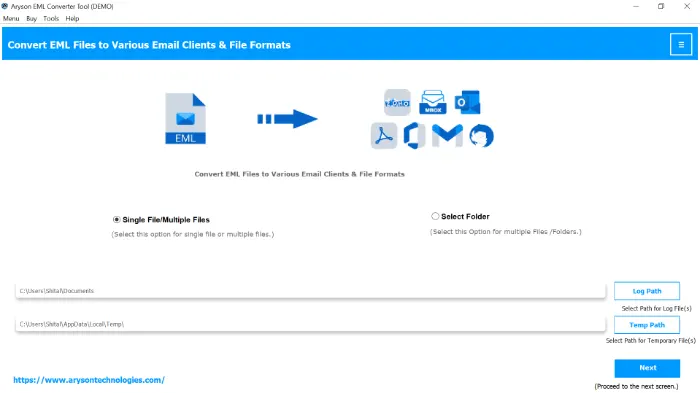
- Step 01: Firstly, download and install the Aryson EML Converter Tool on your system. Click Next.
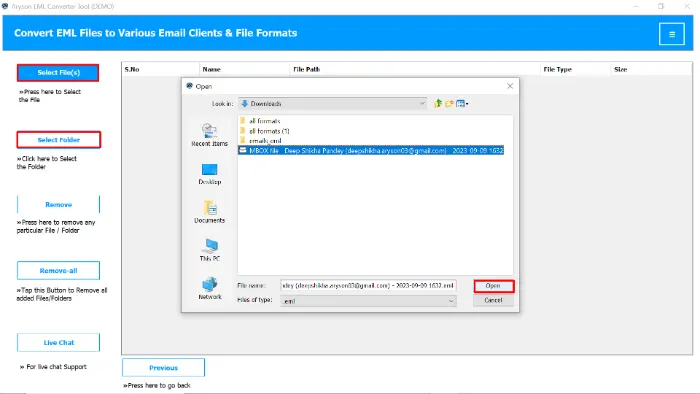
- Step 02: Tap on the Select File or Select Folder button, pick the specific EML file, and click on the Open button to add them.
- Step 03: From the preview panel, search for any specific EML file which you want to import>>Click Next.
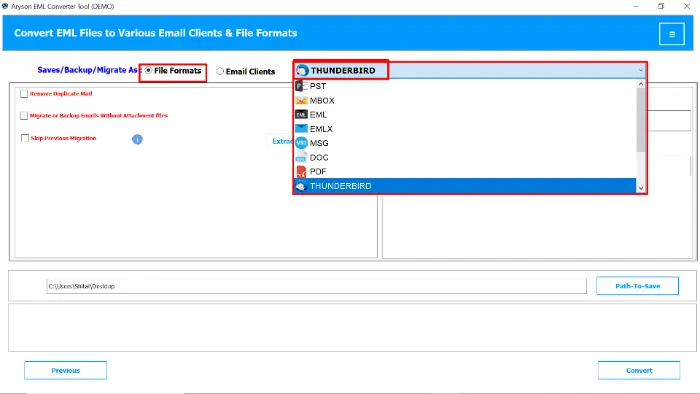
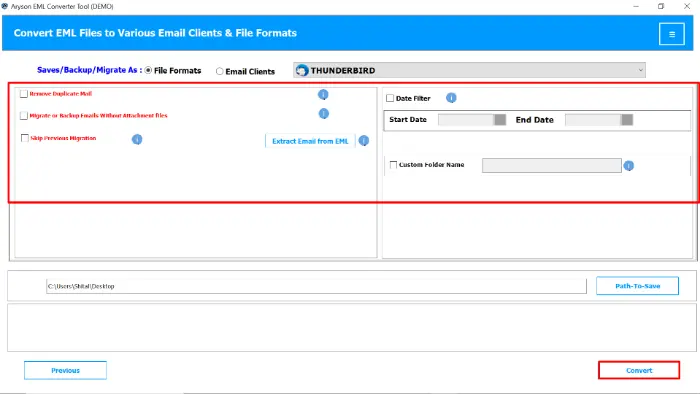
- Step 04: To proceed with the next step, pick the Thunderbird option from the file format panel.
- Step 05: Proceed with the built-in feature and click the Convert button to import EML files to Thunderbird.

Additional Tips: As EML file is compatible with different email clients. One of them is Windows Live Mail. So, you can export Windows Live Mail to Outlook 365 smoothly.
Conclusion
Users can import EML files into Mozilla Thunderbird using several methods. Manual methods are drag-and-drop and the ImportExportTools NG add-on to import EML Files to Thunderbird. These approaches work for small sets of emails but often fall short when handling bulk files or maintaining attachments properly. For accuracy, Aryson EML Converter Tool provides a simple and reliable way to import EML files directly into Thunderbird. If you face any issues, you can frequently connect with us for further assistance.
Frequently Asked Questions:
Q1. Can Thunderbird open EML files directly?
Ans: Yes, you can open an EML file directly in Thunderbird with the following steps:
✅ Install and launch the Aryson EML Converter Tool.
✅ Select the required EML files by clicking Add Files/Folders.
✅ Preview the emails and choose the ones you want to import.
✅ After that, pick Thunderbird as the saving option.
✅ Hit Convert to import EML files into Thunderbird.
Q2. Is ImportExportTools NG safe to use?
Ans: Yes, it is a used and trusted add-on in the Thunderbird community. Although there is no guarantee of data accuracy.
Q3. How many EML files can I import at once?
Ans: You can select and import multiple EML files with the recommended professional solution. Because it supports the batch conversion feature.
Q4. Do attachments also get imported along with EML files?
Ans: Yes, with the help of the Aryson EML Converter Tool, you can easily import attachments along with all data of EML files.
Q5. What if ImportExportTools NG doesn’t work properly?
Ans: You can reinstall the add-on or update Thunderbird. If the issue continues, using the Aryson EML Converter Tool is the best solution.
About The Author:

Rohan Wiese is a Technical Writer at Aryson Technologies. He is an expert Email Forensic, Cloud Computing, and a passionate nerd with over 10 years of experience in technical content writing. He writes about Cloud Migration, Database Recovery, Email Backup, Windows, Mac, and Tech.
Related Post