-

Written By Rohan Wiese
-
Approved By
Shivam Rathore -
Updated on May 6th, 2026
How to Migrate Greatmail Emails to Office 365 Mailbox Easily
Greatmail is a US-based email hosting service that is widely used by small as well as medium-sized businesses to get reliable email, SMTP hosting, and IMAP/POP3 support. Whereas, Office 365 is Microsoft’s cloud-based productivity suite that keeps platforms like Outlook, OneDrive, Teams, & advanced security together. Users prefer to move from Greatmail to Office 365 because of its scalability, collaboration features, & cloud infrastructure. Therefore, to help such users, this blog covers multiple ways to migrate Greatmail to Office 365 mailbox. Along with that, here you will know how to use the Aryson IMAP Backup Tool to quickly migrate data in bulk.
Why Export Greatmail Emails to Office 365?
The Greatmail to Office 365 migration is useful for businesses and individuals who are looking for improved productivity, security, and flexibility. Other important reasons include:
- Office 365 provides users with a 50 GB mailbox, unlike Greatmail limits.
- Moreover, users get advanced security features like multi-factor authentication.
- IT experts can efficiently collaborate via Teams, SharePoint & co-authoring in real time.
- Additionally, you can access your mailbox from any device with an internet connection.
- Users can take advantage of built-in backup with a 14-day retention period.
- Likewise, you can manage emails, calendars, and contacts within a single integrated Microsoft environment.
Top Approaches to Migrate Greatmail to Office 365
There are different ways for migration, but users generally rely on two reliable methods based on their technical expertise and volume of data.
- Automated Solution
- Manual Method (IMAP Migration via Exchange Admin Center)
Method 1: Best Solution to Migrate GreatMail Emails to Office 365
Aryson IMAP Backup Tool is a powerful and reliable solution designed to migrate your Greatmail emails directly to Office 365 with complete data integrity. Moreover, this software can migrate data from multiple Greatmail accounts simultaneously without affecting the data integrity. Users can apply the additional filters of the software as per their requirements. This utility keeps the folder structure, attachments, and email metadata intact throughout the migration process. Also, its free demo version allows you to get a hands-on experience with the software. With the help of the same utility, users can migrate IMAP emails to Google Workspace efficiently.
Steps to Migrate Greatmail to Microsoft 365 Using this Software
- Firstly, download and install the Aryson IMAP Backup Tool on your Windows system.
- After that, click Continue and select either Single or Bulk Mode for data transfer.
- Thereafter, provide the valid Greatmail credentials & click Login to connect.
- Select the required data from the J-table displayed on the software and click Next.
- After that, choose Office 365 as the destination email client & log in via credentials.
- Use the date or other folder filters according to your requirement.
- At last, click the Next button to start the Greatmail to Office 365 migration process.
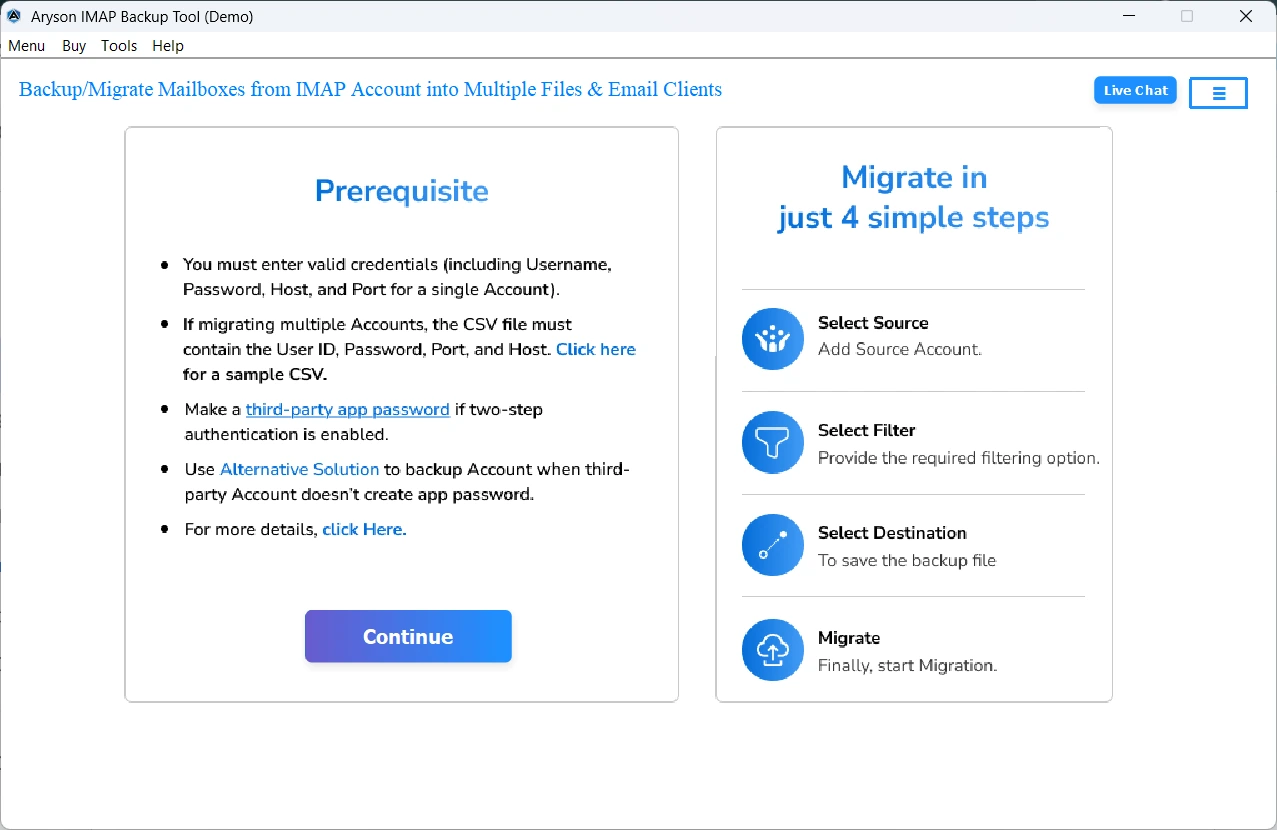
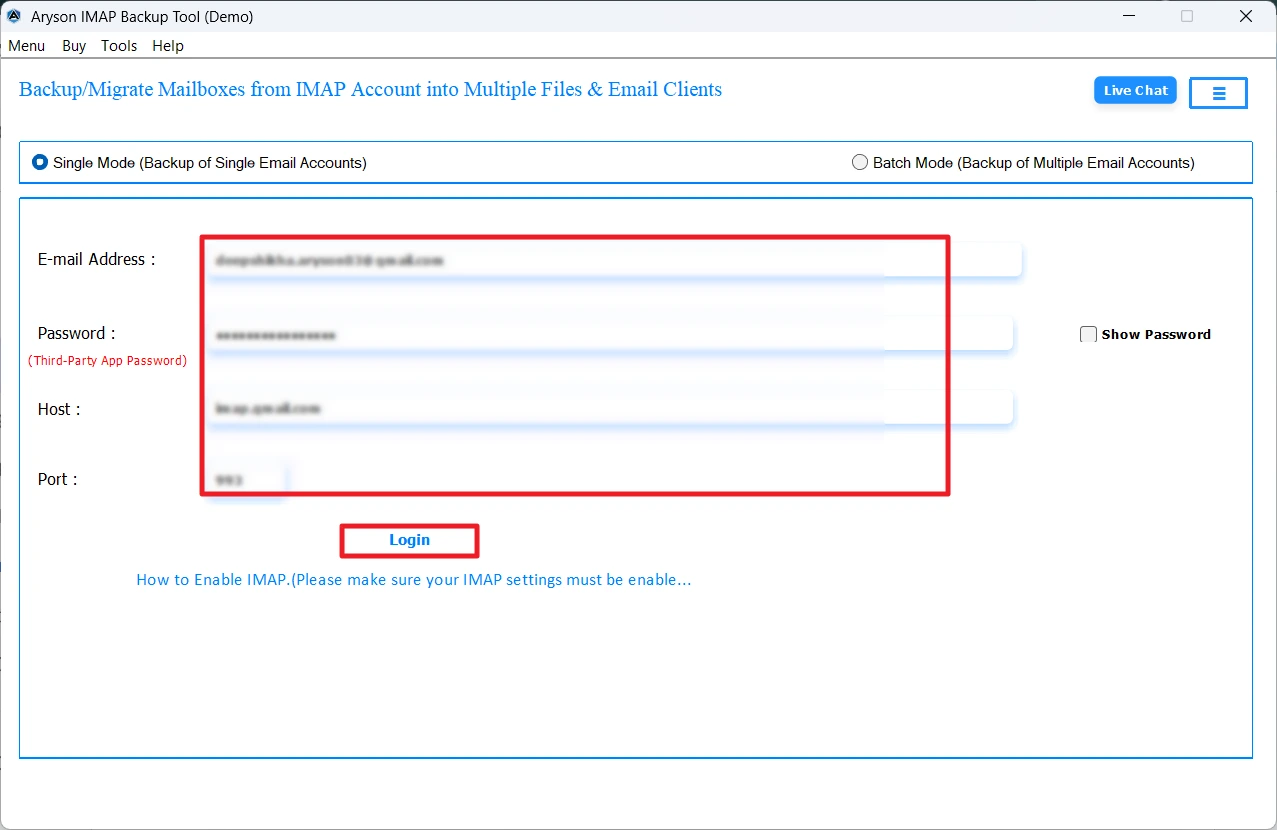
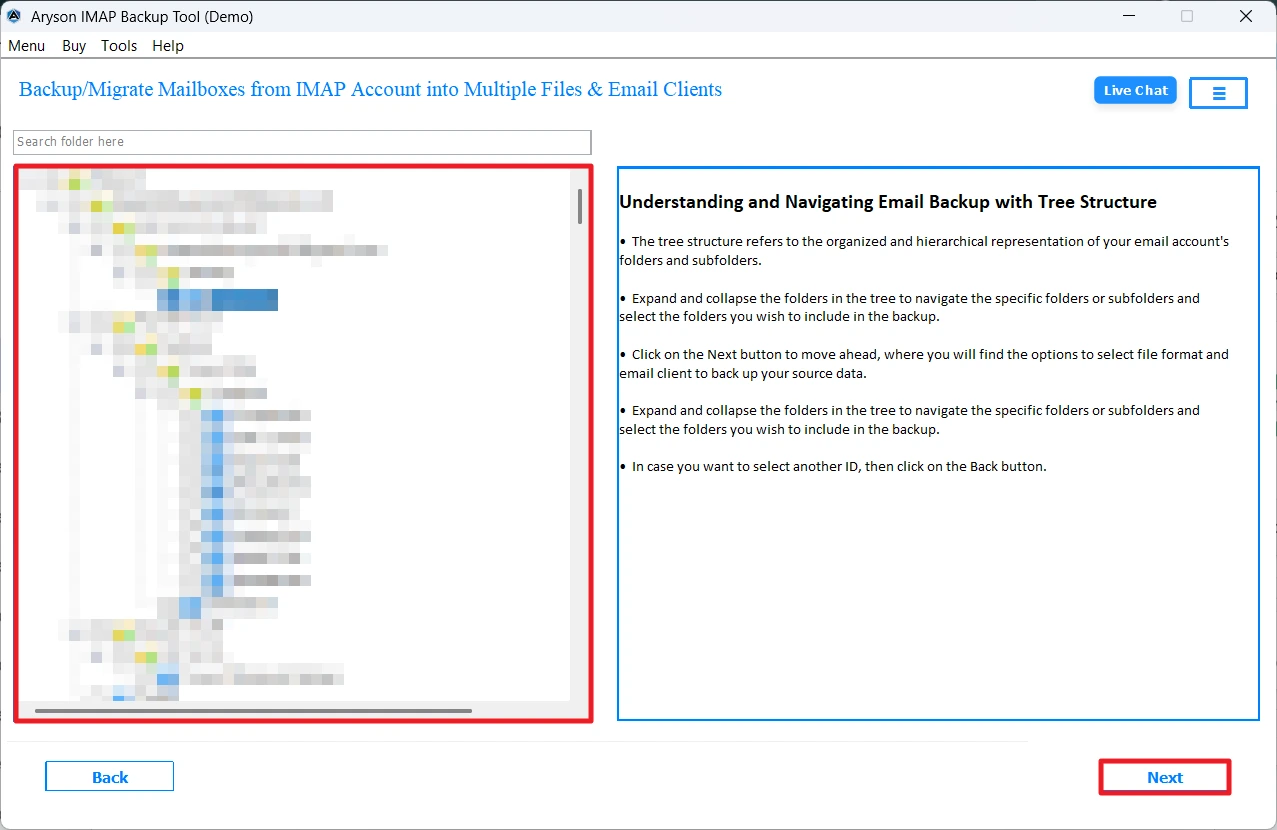
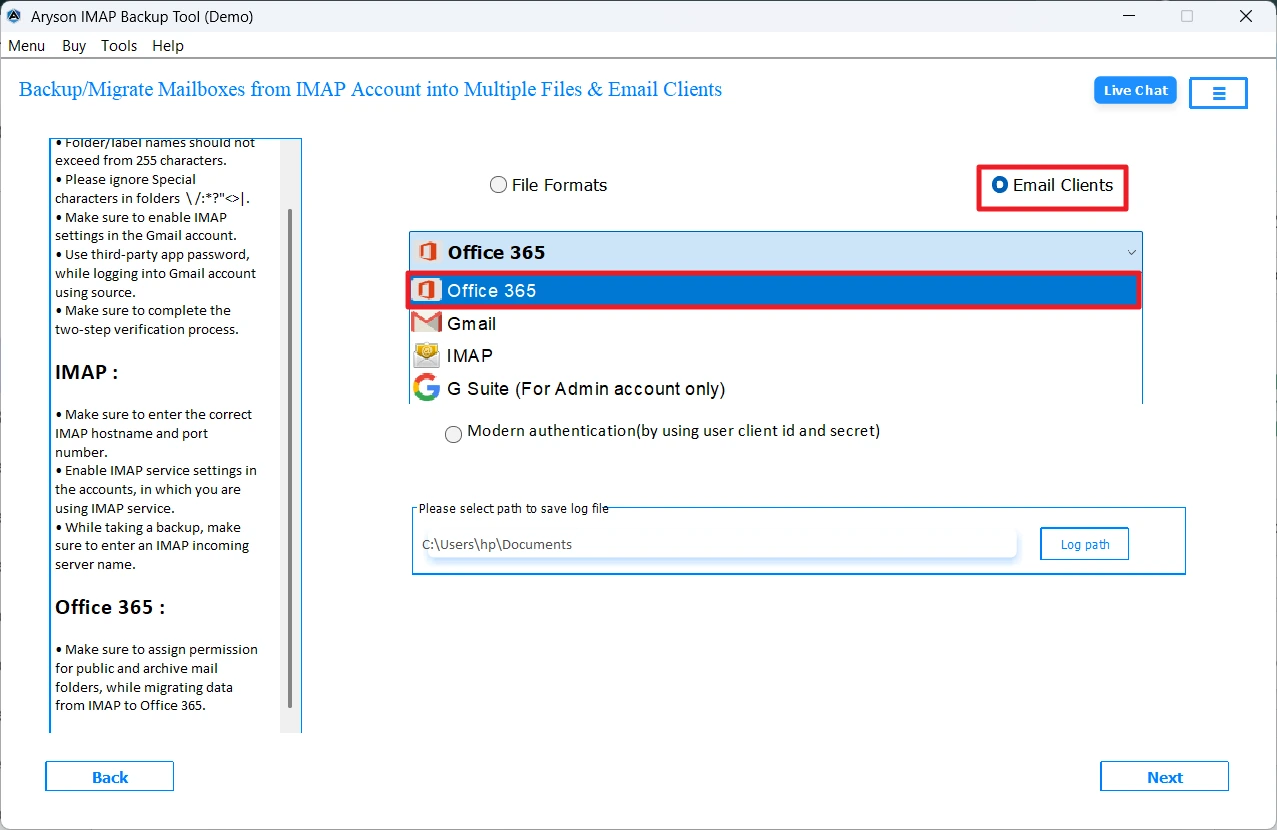
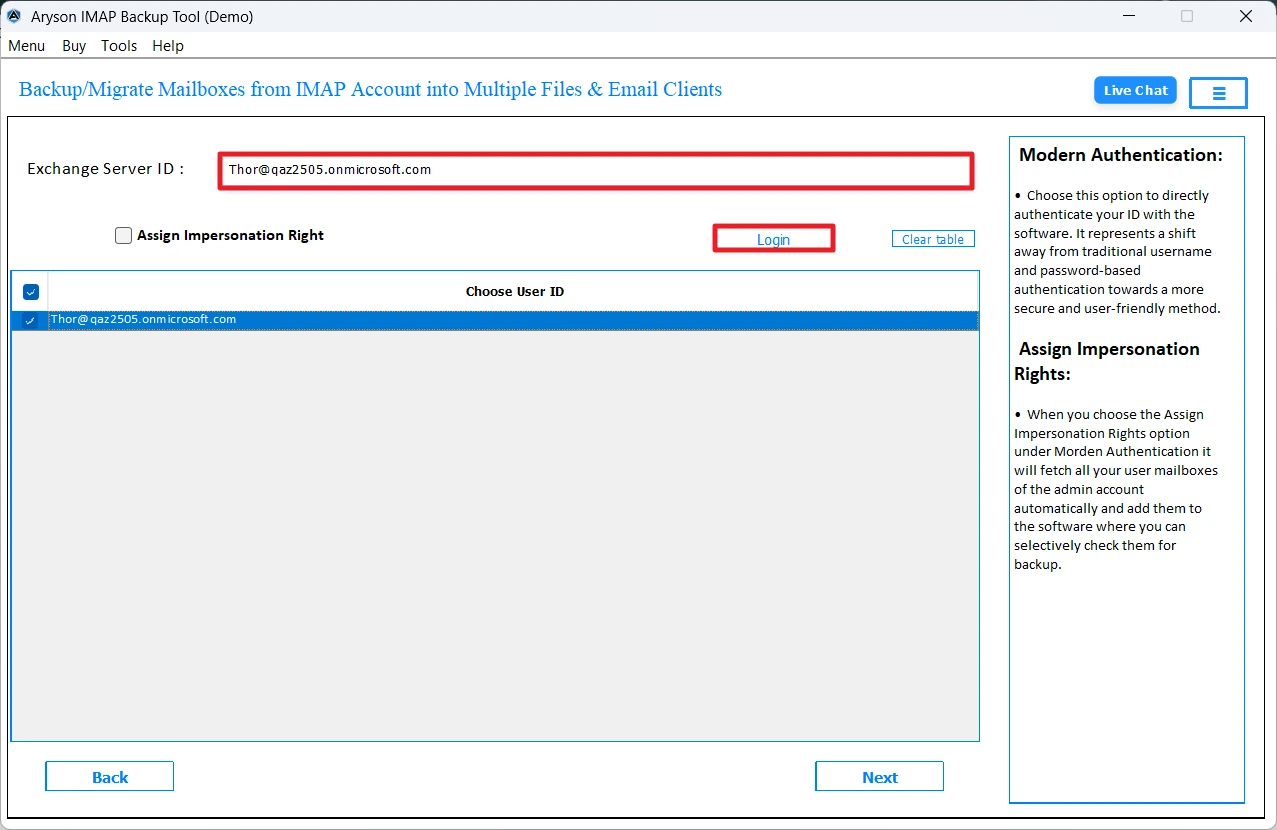
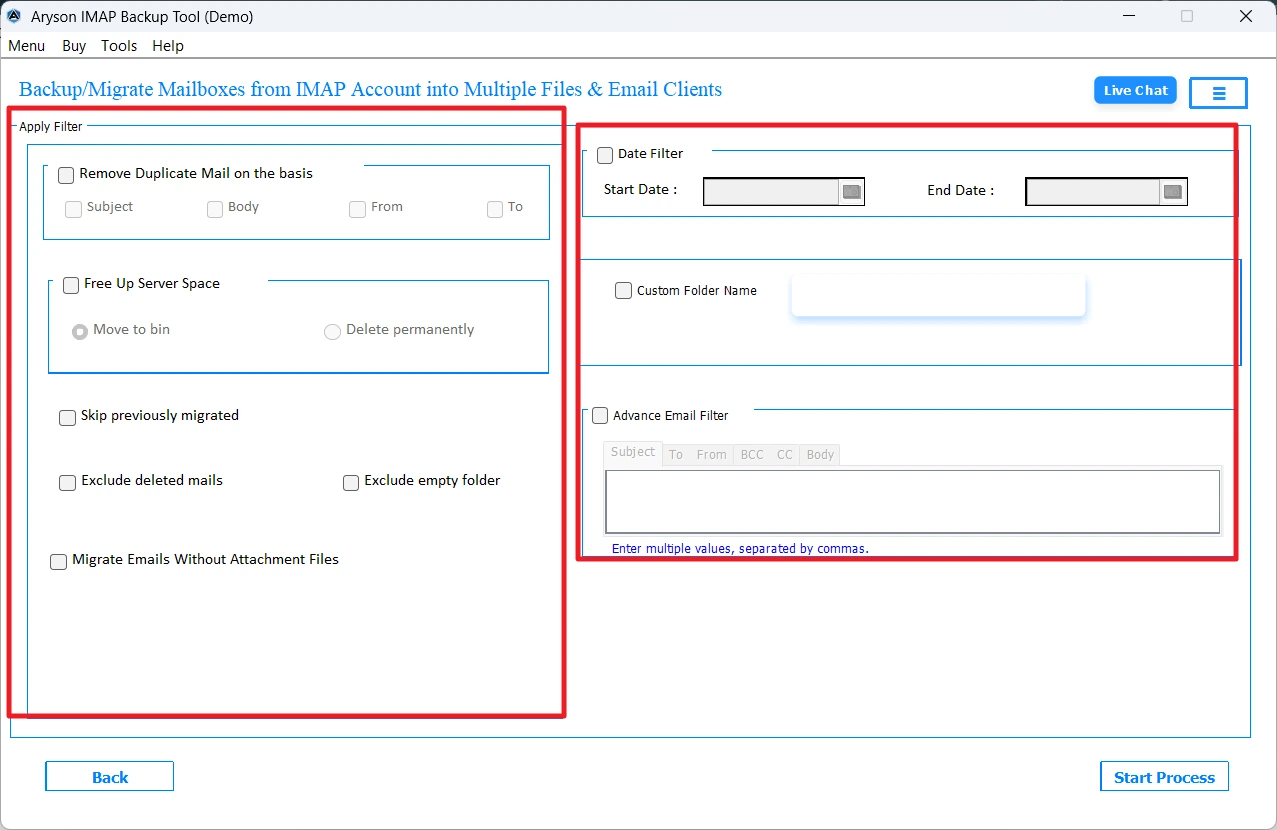
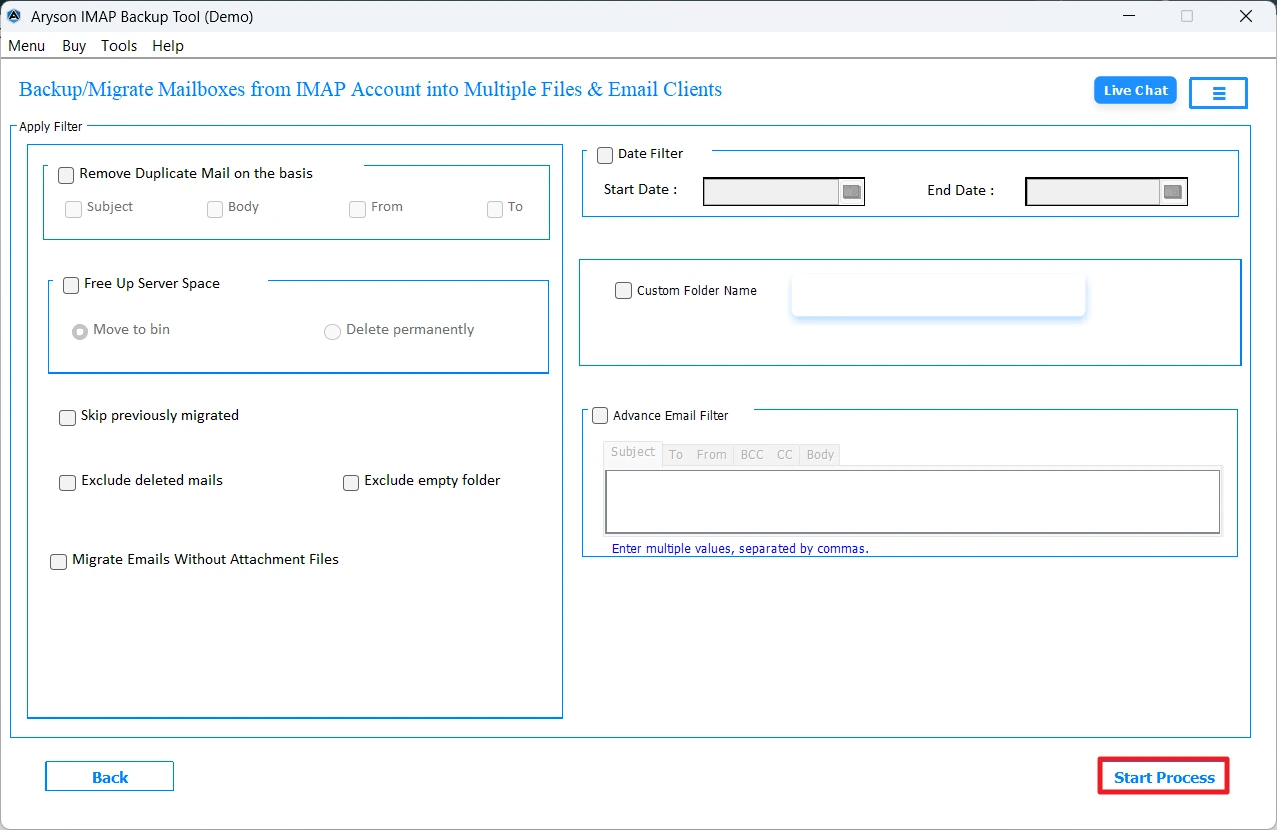
Note: However, the above software can efficiently perform the entire migration process if you are an IT expert and possess great technical skills. Opt for the upcoming method.
Method 2: Manual Method to Migrate Greatmail to Office 365 via IMAP
Microsoft provides the users with a built-in IMAP migration feature via the Exchange Admin Center. This feature can be used to transfer Greatmail emails to Office 365. The most appropriate roles for this method are the technical experts who are comfortable with DNS settings, CSV file creation, and admin center configurations. To perform this method, you must follow the step-by-step approach, which can be time-consuming while handling multiple user mailboxes across a business domain.
Simplified Steps to Import Greatmail Emails to Office 365
- To begin, create a new O365 account for all Greatmail users & assign licenses.
- After that, log in to the O365 admin center & add the domain linked to your Greatmail mailboxes.
- Now, set up your Greatmail account in Outlook & remember the IMAP server details.
- Next, create a CSV file that consists of the email addresses, usernames, & passwords.
- After that, upload the CSV file into the M365 admin center to prepare the user list.
- Now, go to the Exchange Admin Center & create a migration endpoint b/w accounts.
- Furthermore, create the required batches for migration from the endpoint.
- Then, update the DNS MX records to re-route incoming emails to Office 365.
- At last, start the migration process & delete the migration batches afterwards.
Drawbacks of the Manual Method
- This method requires the user to acquire technical knowledge of DNS settings.
- Moreover, this method is slow and might take long hours to migrate large datasets.
- Users can only migrate emails, and not contacts, calendars, or tasks, to Office 365.
- Also, this method requires users to repeat the same migration steps again & again.
Conclusion
In this blog, we have discussed various ways to migrate Greatmail to Office 365 mailbox. The manual IMAP method works best for small-scale migrations; on the other hand, the automated software is a quick and more feature-rich solution for bulk transfers across multiple accounts. This utility helps users keep the folder structure, attachments, & email metadata intact. Moreover, you can even evaluate the software for free via its demo version before making a decision.
FAQs
Q1. Can I migrate Greatmail emails to Office 365 without using the Exchange Admin Center?
Ans: Yes, the Aryson IMAP Backup Tool allows you to transfer Greatmail mailbox to Microsoft 365 without needing to configure the Exchange Admin Center manually.
Q2. Does the manual IMAP migration transfer contacts and calendars from Greatmail to Office 365?
Ans: No, IMAP migration only transfers emails and folder structure. To migrate contacts and calendars, you will need to use the Aryson IMAP Backup Tool.
Q3. Is it possible to migrate multiple Greatmail accounts to Office 365 at once?
Ans: Yes, the Aryson IMAP Backup Tool supports bulk migration by allowing you to import multiple user accounts simultaneously. This makes the software ideal for business-level migrations.
Q4. How long does it take to migrate Greatmail emails to Office 365?
Ans: The manual migration might take long hours to migrate the Greatmail mailbox to Microsoft 365. However, if you use the advanced software, it may take a few minutes to complete the migration.
About The Author:

Rohan Wiese is a Technical Writer at Aryson Technologies. He is an expert Email Forensic, Cloud Computing, and a passionate nerd with over 10 years of experience in technical content writing. He writes about Cloud Migration, Database Recovery, Email Backup, Windows, Mac, and Tech.
Related Post