-

Written By Rohan Wiese
-
Updated on June 30th, 2025
Fix: PST File Not Showing Emails in Outlook 365, 2024, 2021, 2019
Summary: Microsoft Outlook, a cornerstone for personal and professional communication, offers robust features beyond just email, including calendar management, task tracking, and contact organization. However, we understand that many users, including both personal and professional, can find it frustrating when their PST files aren’t displaying emails in Outlook. This comprehensive guide will help you understand why this happens and provide effective solutions to resolve the error across various Outlook versions, including Outlook 365, 2024, 2021, 2019, 2016, 2013, and 2010. For a 100% accurate and hassle-free solution, we recommend the reliable Advanced Outlook PST Repair Tool. Download Now Purchase Now
Why Your PST File Isn’t Showing Emails in Outlook
Several factors can lead to your PST file not displaying emails. Understanding these common causes is the first step toward a solution:
- Incorrect Email Archiving: If emails are archived into a PST file without proper knowledge or settings, it can lead to data visibility issues or error messages.
- Oversized PST File: PST files have a default size limit. For Outlook 2010 and later versions (including Outlook 365, 2024, 2021, 2019, 2016, and 2013), this limit is typically 50 GB. When a PST file exceeds its specified size limit, it becomes susceptible to corruption, preventing emails from being displayed.
- Virus Infection or Outlook Crashes: Receiving emails from untrustworthy sources can introduce viruses that attack and corrupt your PST file. Similarly, sudden Outlook crashes due to system errors or power failures can also damage PST files, making your emails inaccessible.
- Corrupted PST File: Beyond size limits and viruses, general corruption within the PST file structure can prevent Outlook from reading its contents and displaying your emails.
- Inappropriate Outlook Settings: Sometimes, the issue isn’t with the PST file itself but with Outlook’s display settings, such as incorrect view configurations or active filters.
How to Fix PST Emails Not Visible in Outlook
If you’re experiencing missing emails from your PST file, follow these methods, starting with simpler manual checks and progressing to more advanced solutions.
Manually Fix Outlook PST File Not Showing Emails Issue
Before assuming corruption, check your Outlook settings, as inappropriate configurations can often hide your emails.
Step 1: Check Outlook View Settings
- Open Microsoft Outlook.
- Navigate to the View tab in the ribbon.
- Click on the Change View option.
- Ensure that IMAP Messages (or a similar standard view) are selected and not a custom view that might be filtering out emails.
- Verify if your emails are now visible. If not, proceed to the next step.
Step 2: Clear All Filters in Outlook
Outlook’s filter settings can sometimes inadvertently hide emails. It’s crucial to remove any active filters.
- Go to the View tab in Outlook.
- Click on View Settings (or Customize Current View in older versions).
- In the “Advanced View Settings” dialogue box, click on the Filter button.
- In the “Filter” dialog box, click on Clear All.
- Click OK to close the filter window and then OK again to close the “Advanced View Settings” window.
- Check your PST file again to see if your emails have reappeared.
If these manual steps do not resolve the problem, your PST file will likely become corrupted.
Automated Tool to Fix PST File Emails Not Showing
When manual methods fail, especially with severe PST file corruption or an oversized PST, a professional PST repair tool becomes indispensable. The Aryson Outlook PST Repair Tool is a highly recommended solution for recovering emails from corrupted, large, or inaccessible PST files.
Why choose an automated tool?
- Comprehensive Recovery: Designed to repair severely corrupted PST files that Outlook’s built-in tools might miss.
- Handles Large PSTs: Efficiently repairs oversized PST files that often lead to data visibility issues.
- Data Integrity: Preserves the original folder structure, formatting, and metadata of your emails during the recovery process.
- User-Friendly: Offers a straightforward interface, making it accessible even for non-technical users.
- Preview Option: Allows you to preview recovered items (emails, contacts, calendars, etc.) before saving them, ensuring data consistency.
- Multiple Recovery Modes: Provides Standard, Advanced, and Deep recovery modes for varying levels of corruption.
Quick Steps to Fix PST File Not Showing Email Issue Using Aryson Software:
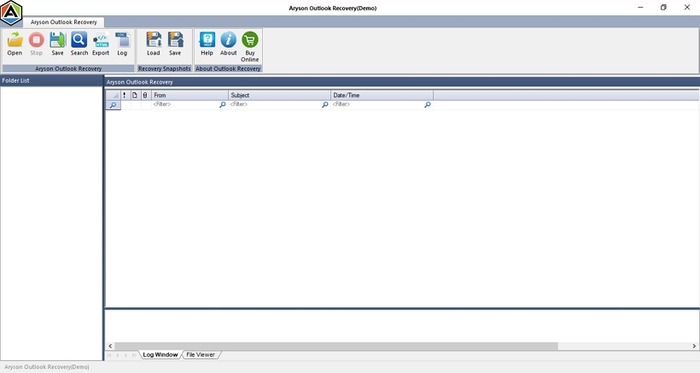
- Download and install the Outlook Recovery tool on your local machine.
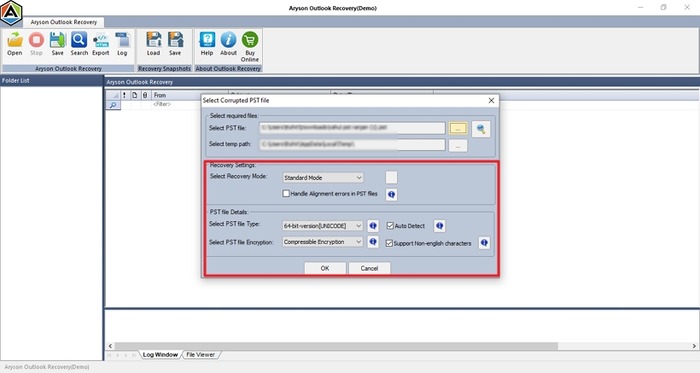
- Then, browse the Outlook PST file, choose it, and navigate to the Open button.
- Choose the Recovery Modes from the given options and click OK.
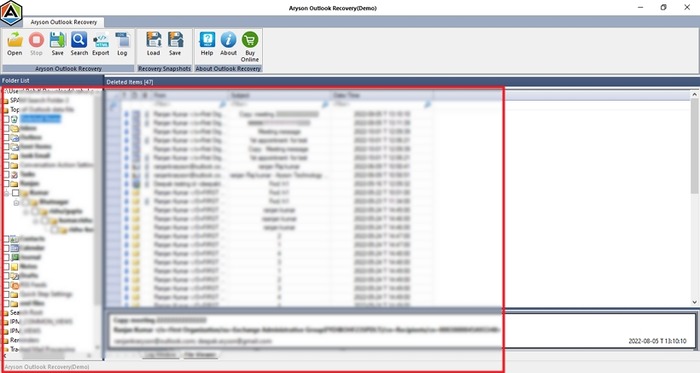
- After that, you can preview the Outlook items like emails, contacts, tasks, etc.
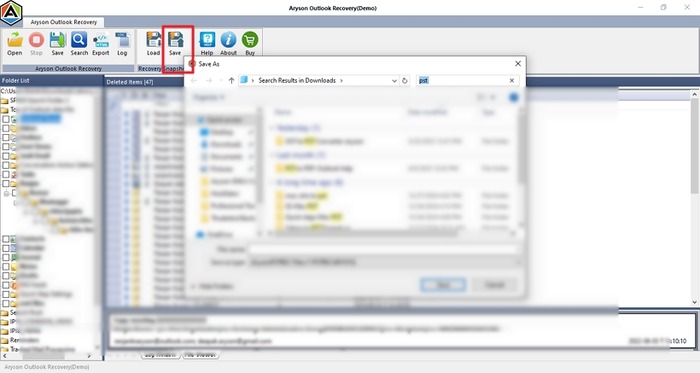
- Now, click the Save button and choose a saving format.

Conclusion
Encountering the “PST file not showing emails” error in Outlook 365, 2024, 2021, 2019, 2016, 2013, or 2010 can be disruptive. By understanding the common causes, such as incorrect archiving, oversized files, or corruption, you can effectively troubleshoot the issue. While manual checks for view and filter settings can resolve minor problems, severe PST file corruption often necessitates a dedicated repair solution. Tools like the Aryson Outlook PST Repair Tool offer a reliable, accurate, and hassle-free way to recover your valuable emails and restore full functionality to your Outlook environment.
Frequently Asked Questions (FAQs):-
Q1. Why are my PST file emails not showing in Outlook 2016, 2013, and 2010, or newer versions like Outlook 365, 2024, 2021, and 2019?
Ans: This issue commonly arises due to incorrect Outlook settings (e.g., view or filter configurations), a corrupted PST file, an oversized PST file exceeding its limit, virus infections, or sudden Outlook crashes.
Q2. How can I fix PST emails that are not visible in Outlook?
Ans: Begin by checking your Outlook’s view and filter settings to ensure no emails are inadvertently hidden. If the problem persists, it likely indicates PST file corruption. In such cases, using a professional PST repair tool like Aryson Outlook PST Repair Tool is recommended.
Q3. Can I recover lost emails from a corrupted PST file without losing data?
Ans: Yes, using a reputable and professional tool such as the Aryson Outlook PST Repair Tool is designed to recover emails and other data from corrupted PST files safely, without any data loss. It helps preserve the original folder structure, email properties, and metadata.
Q4. What is the maximum size limit for PST files in Outlook 2016, 2013, 2010, and newer versions?
Ans: For Outlook 2010 and all subsequent versions, including Outlook 2013, 2016, 2019, 2021, 2024, and Outlook 365, the default PST file size limit is 50 GB. Exceeding this limit can lead to PST file corruption and prevent emails from being displayed.
About The Author:

Rohan Wiese is a Technical Writer at Aryson Technologies. He is an expert Email Forensic, Cloud Computing, and a passionate nerd with over 10 years of experience in technical content writing. He writes about Cloud Migration, Database Recovery, Email Backup, Windows, Mac, and Tech.
Related Post