-

Written By Rohan Wiese
-
Updated on February 13th, 2026
Best Ways to Fix “Cannot Highlight Text in PDF” Issue Easily
Can’t highlight text in your PDF file no matter what you try? It’s a frequent issue that usually makes users puzzled when the text looks perfectly normal. Here, it becomes essential to highlight the PDF data to read, edit, and review the documents. Because when it stops working, it can disrupt your workflow. So, you should have awareness of the reasons behind the file restrictions to formatting problems. Also, you should know how to solve those issues with the different methods. With this blog, we will learn easy ways to resolve the “Cannot Highlight Text in PDF” problem. And use the Aryson PDF Unlocker Tool in terms of highlighting the text in secured PDF files.
Why Can’t I Highlight Text in a PDF?
If you can’t Highlight Text in a PDF File, it can be for several reasons. Next, we will proceed with the most common causes that stop users and they cannot highlight the content in a PDF:
- The first case is, your PDF is just a scanned image, then it doesn’t contain real text.
- If you enable the security settings, it can be the reason for blocking highlighting features.
- Also, if your PDF file is just marked as read-only. In that case, editing or highlighting the content is restricted.
- Another reason can be that your PDF viewer doesn’t support the highlight function.
- The PDF material has embedded fonts so that it becomes unselectable.
Now that you are aware of the primary reasons why you may be unable to highlight text in your PDF document.
How to Resolve “Cannot Highlight Text in PDF”
The following parts of this blog will take you through step-by-step solutions to resolve the problem of not being able to select text in a PDF with ease.
1. In PDF Properties, Turn Off Read-Only Mode
Your system limits editing capabilities when a PDF is in read-only mode. Editing tools remain active when this setting is disabled.
- Firstly, you should right-click on your PDF file and choose Properties.
- Next, examine the Attributes section under the General tab.
- Then, if Read-only is checked, uncheck the box next to it.
- To save the changes, click on Apply and then click on the OK button.
- Now, try to highlight the text when you open the PDF again.
2. Remove PDF Security Restrictions
Your PDF may contain security restrictions. As a result, they won’t allow you to use the highlight tool. Some PDFs are locked by their creators to disallow editing. Therefore, it’s preferable to unlock Secured PDFs
- Another way is, open the PDF in Adobe Acrobat Pro.
- Then, go to File and find Properties and move to the Security tab.
- Now, see if there are any restrictions mentioned in the Document Restrictions Summary.
- If password protected, tap on the Permissions and provide the password.
- Next, modify the Security Method to “No Security.”
- Then, save the file and re-open it to see if highlighting works.
3. Enable Highlighting Tool in Adobe Reader
In other instances, you might not be able to highlight because the tool hasn’t been turned on. It can easily fix the problem by turning it on.
- To start with, open the PDF in Adobe Reader on your PC.
- After that, click Comment and proceed with the Highlight Text Tool.
- In the next step, highlight and drag over the specific text.
- If it still fails, the text might not be selectable.
If the process does not respond, your file may still be restricted or being scanned. So, you should apply the above methods to unlock it first.
4. Update or Switch Your PDF Viewer
Sometimes the problem is not with the file. So, you should check the viewer that you usually use to check it. Old PDF viewers might not be compatible with newer PDF formats. Hence, they are not able to provide the highlighting feature. To resolve this issue, fix the update or switch the software:
- First, see if your existing PDF reader (such as Adobe Acrobat) has any updates.
- After that, restart the application and install any updates that are available.
- Download a different viewer, such as PDF-XChange Editor or Foxit Reader, if it still doesn’t work.
- Open your PDF after installing the new tool to see if the highlighting functions work.
5. Convert PDF to Editable Format
If all the above fail, you should convert the PDF to another file type, such as Word or Text. So that it will grant you complete access to the content
- To begin with, open your PDF using Adobe Acrobat or PDF Converter Software.
- Next, upload your file and opt to convert it into Word (.docx) or Text (.txt) format.
- After conversion, download the file and open it in MS Word or Notepad.
- Now, easily select and highlight any part of the content.
6. Fix PDF Corruption to Reclaim Highlighting Ability
The text layer might not work properly if your PDF is damaged or incorrectly encoded.
Damaged PDFs may have embedded fonts or unreadable text that prevents highlighting. To resolve the issue of not being able to highlight text in a PDF, follow these steps:
- You should try to use a different PDF reader to open the document.
- If the problem persists, print the file to PDF using your system’s Print dialog.
- Then, re-save the file under a new name.
- Alternatively, use a PDF repair tool, upload your file, and download the repaired version.
7. Use OCR on Scanned or Flattened PDFs
If your PDF is scanned or image-based, you can’t highlight text because it doesn’t technically exist. Scanned or flattened PDFs convert text into images, which makes them unselectable. OCR (Optical Character Recognition) converts image-based content into real, editable text.
- Open the PDF in Adobe Acrobat Pro first.
- Then navigate to Tools >> Scan & OCR and select Recognize Text.
- Then select the pages and the language and initiate the OCR.
- Once it is done, save the PDF.
- Lastly, attempt to highlight the converted text.
Alternatively, upload the PDF to Google Drive, then open it in Google Docs, and OCR will default convert it into editable text.
Best Alternative: Use Aryson PDF Unlocker Tool to Enable Text Highlighting Easily
Sometimes, the reason you can’t highlight text is simply that the PDF file is locked with certain restrictions. In such situations, the Aryson PDF Unlocker Tool can be the effective solution. This utility removes security settings. So, anyone can edit and highlight PDF text without changing the original formatting. Moreover, it can unlock files protected by owner or user-level passwords and restore full access. Additionally, it is embedded with a simple interface. Also, it provides wide compatibility with all PDF versions. So, download this easy-to-use software and unlock a PDF file to highlight the text in PDF within a few clicks.
Follow these Steps to Unlock & Fix “Cannot Highlight Text in PDF”
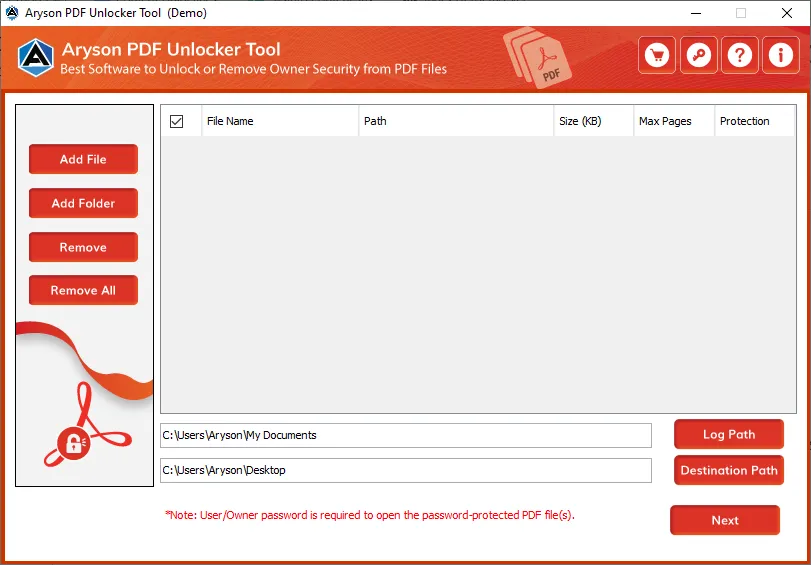
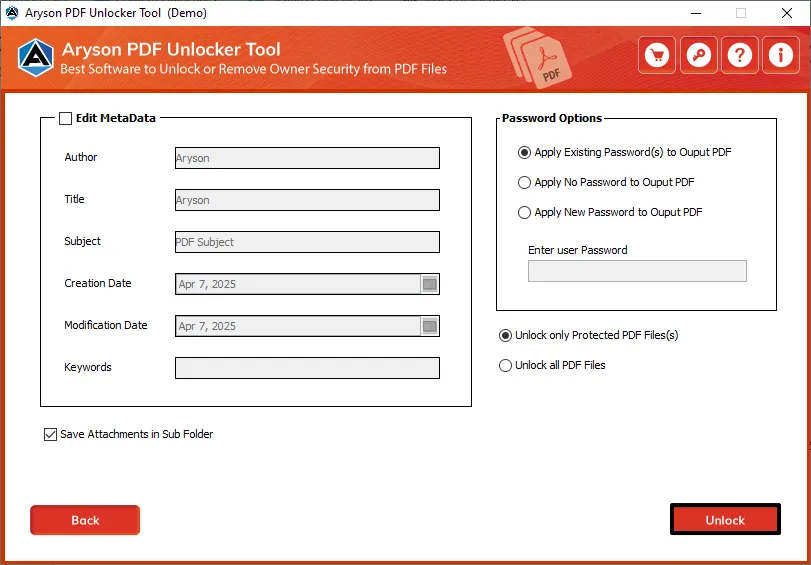
- Open the Aryson PDF Unlocker Tool on your system after installation.
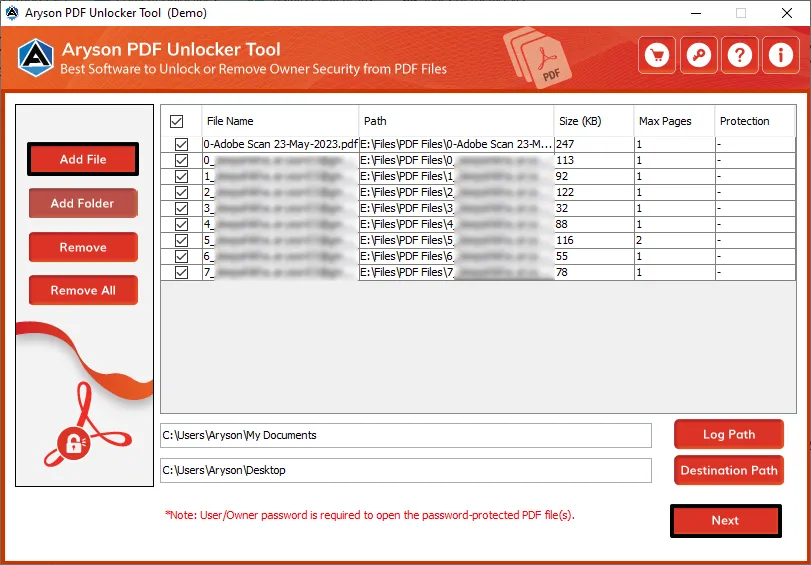
- Next, add the PDF file that you’re unable to highlight from the location.
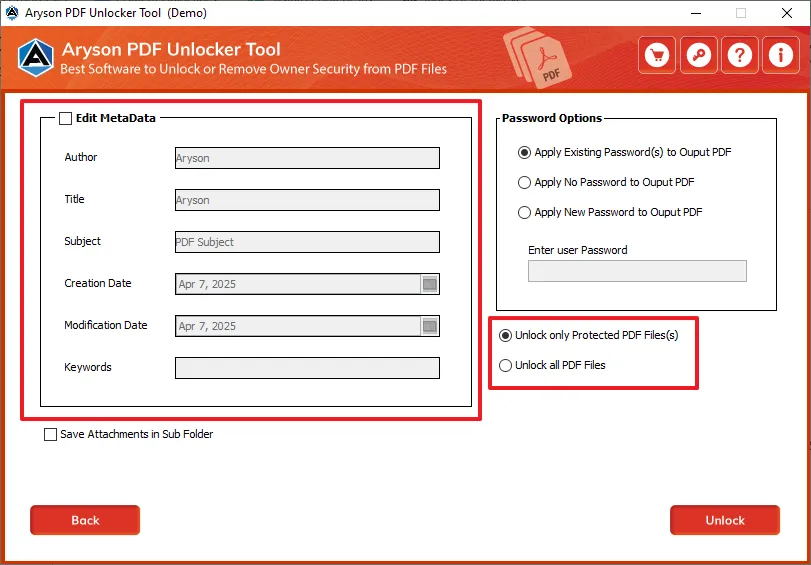
- Then, select the required function like unlock, repair, or edit as per your issue.
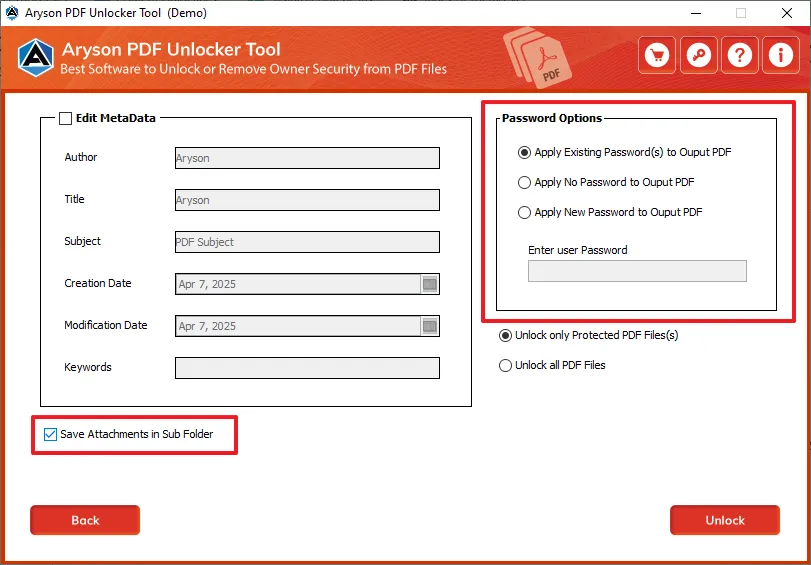
- Along with that, you can also pick the option to save attachment in Sub folder.
- Click on the Unlock button to begin the PDF unlocking process for further use.
Conclusion
If you are going through the ways to resolve “Cannot Highlight Text in PDF”, the above-mentioned steps would be quite helpful. As we discussed in this blog, it could be due to read-only settings, file restrictions, corruption, or even image-based content. Although there are multiple ways to fix the issue disabling read-only mode or enabling the highlight tool to using OCR tools or updating your PDF reader. And when the manual tricks don’t work, tools like Aryson PDF Unlocker offer a hassle-free way to remove restrictions and make your file fully editable.
Frequently Asked Questions (FAQs)
Q1. How can I made the highlight feature available in a protected PDF?
Ans: To remove restrictions and enable highlighting, you can use a program like Aryson PDF Unlocker to unlock the PDF.
Q2. Is it possible to highlight text in a PDF scan?
Ans: No, not directly. So, when you want to turn image-based text into selectable content, you must perform optical character recognition, or OCR, on the scanned PDF.
Q3. What should I do if I can’t highlight text in my PDF reader?
Ans: Upgrade to a more sophisticated PDF reader, such as Adobe Acrobat Reader, or try updating your current one.
About The Author:

Rohan Wiese is a Technical Writer at Aryson Technologies. He is an expert Email Forensic, Cloud Computing, and a passionate nerd with over 10 years of experience in technical content writing. He writes about Cloud Migration, Database Recovery, Email Backup, Windows, Mac, and Tech.
Related Post



