-

Written By Harshita Sachdeva
-
Approved By
Shivam Rathore -
Updated on July 3rd, 2026
Export Google Workspace to MSG: Expert Guide for Admin Users
Query: I need to export Google Workspace to MSG format for compliance and archival purposes. What is the fastest way to bulk export emails while preserving attachments, folder hierarchy, metadata, and allowing filters for selective user account exports?
Summary: Most enterprises and IT professionals prefer the MSG format due to its compatibility with MS Outlook and ease of storing individual emails. Google Workspace does not provide users with a default option to export emails to MSG format. Therefore, it is essential to pick a reliable method for the same. Thus, this blog provides users with the Aryson Google Workspace Backup Tool. As this software offers both Mac and Windows compatibility, it becomes an efficient software for this purpose.
Why Export Google Workspace Emails to MSG?
There are several practical reasons why users need to save Google Workspace emails in MSG format. A few of them are highlighted below.
- MSG files open directly in Microsoft Outlook without any internet connection.
- This format keeps the sender details, headers, and timestamps intact.
- Moreover, this format is suitable for legal eDiscovery, compliance audits, & official documentation requirements.
- It becomes easy to organize data via individual MSG files.
- MSG stores each email as a single unit with attachments, which makes it a reliable long-term archiving solution.
Manual Method to Export Google Workspace to MSG
In case you are searching for a hands-on approach to exporting Google Workspace (G Suite), you may use Microsoft Outlook for the same. Make sure to first enable IMAP access in your Google Workspace account. After enabling IMAP, follow the steps mentioned below.
- To initiate, run MS Outlook & navigate to File >> Add Account.
- Provide the valid Google Workspace email address >> click Connect.
- Complete the setup >> allow Outlook to sync the mailbox.
- After completion of the synchronization process, go to the folder containing your emails.
- Select the items required to export >> drag them to your desktop or a folder.
- As a workaround, you can select File>>Save As>>Outlook Message Format (*.msg).
- This will save the emails automatically in .msg format.
- Repeat the same process for each individual email.
Drawbacks of Manual Methods
- Users can not perform batch export via the manual method.
- Synchronization is the key factor for this approach, which can be complex.
- Moreover, even the incorrect configuration can lead to skipped emails.
- There is no filter offered by the manual method that would make it straightforward.
- Also, this process can be complicated for beginners and non-technical users.
Can I bulk-convert Google Workspace emails to MSG?
If you are using the manual method to export Google Workspace directly to MSG, you must export each email individually. Whereas, to export multiple Google Workspace data to MSG in one go, opt for the Aryson Google Workspace backup tool. The software provides users with a batch conversion capability that makes the entire conversion quick and even keeps the data intact.
Quick Solution to Export Google Workspace to MSG
IT teams prefer the Aryson Google Workspace Backup Tool to avoid all the above limitations of the manual method and export Google Workspace emails to Outlook MSG. It is the quickest and most reliable way to export Google Workspace emails in bulk; that too across multiple accounts, with zero data loss. With the help of the same software, you can transfer Google Workspace (G Suite) to another account. It keeps the attachments, metadata, and folder structure exactly as they were. It runs on all Windows versions and has a clean, easy-to-use interface.
Simple Steps to Export Google Workspace to MSG
- For initiating the export process, launch the Aryson Google Workspace Backup Tool.
- Choose Backup All Google Workspace Services >> click Continue.
- Enter the required admin credentials, such as root user email address,>> login.
- Thereafter, select the required user from the list >> Next.
- Pick the required Google service to move your data >> Next.
- Select the file format >> click Continue to proceed further.
- Furthermore, select MSG >> apply the desired filters.
- Specify the path to export and click Start Migration.
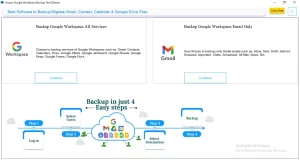
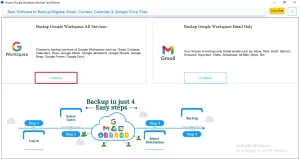
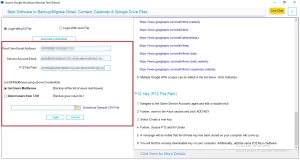
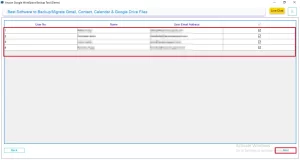
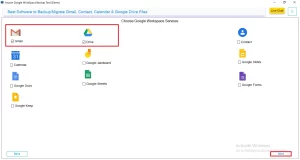
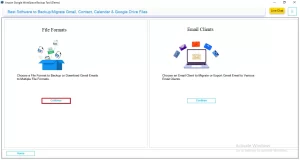
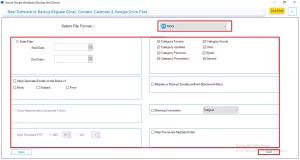
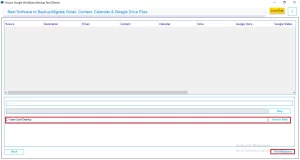
Note: Users can even backup Google Workspace data to External Hard Drive. The software makes sure to accurately perform the entire backup process without any issues.
Andrew’s Success Story
Andrew Mitchell, IT manager at a 75-person legal firm in New York, used the Aryson Google Workspace Backup Tool to export G Suite to MSG for a compliance audit. Within a few hours, the software migrated the entire data, and that too without any data loss. Every email, attachment, and folder migrated to exactly where it belonged—and the audit passed on the first review.
Conclusion
As discussed above, you can export Google Workspace to MSG using either the manual Outlook method or the Aryson professional tool. The manual way works fine for a few emails, but it becomes slow and complicated as volume grows. For bulk exports or multi-account tasks, the Aryson Google Workspace Backup Tool is an ideal choice we recommend over the manual method.
Frequently Asked Questions
Q.1 How do I export Google Workspace to MSG?
Ans: Install the Aryson Google Workspace Backup Tool, sign in with your Google Workspace account, select the required mailboxes, choose MSG as the output format, apply filters if needed, and start the export process.
Q.2 Can I export multiple Google Workspace user accounts to MSG in one run?
Ans: Yes, the software supports bulk backup of multiple Google Workspace user accounts. Administrators can export emails from numerous users to MSG format in a single operation, saving significant time and effort.
Q.3 Can I export only Gmail to MSG without backing up the full workspace?
Ans: Yes, the software allows selective backup. You can choose only Gmail data and export emails to MSG format without downloading other Google Workspace services, such as Drive, Contacts, or Calendar.
Q.4 How do I authenticate admin access to export Google Workspace to MSG?
Ans: The software supports secure OAuth and admin authentication methods. Google Workspace administrators can authorize the application and access multiple user mailboxes for bulk MSG export.
Q.5 Can I select specific users or services to export to MSG?
Ans: Yes, administrators can choose specific user accounts instead of exporting the entire domain. The software also allows you to select only Gmail data while excluding other Workspace services.
Q.6 Will the exported MSG files keep the original folder structure and metadata?
Ans: Yes, the software keeps the complete mailbox hierarchy intact. It also maintains email properties such as sender, recipient, subject, date, and attachments.
Q.7 Is it possible to skip unwanted Gmail folders during MSG export?
Ans: Yes, the software provides folder-level selection. You can exclude unnecessary folders, such as Spam, Trash, Promotions, or any custom folders, before starting the export.
Q.8 Does the software remove duplicate emails during MSG export?
Ans: Yes, the Aryson Google Workspace Backup Tool includes a duplicate email management feature. It helps prevent exporting identical messages multiple times, reducing storage usage and backup size.
Q.9 Can I apply date filters when exporting Google Workspace emails to MSG?
Ans: Yes, the software offers advanced mail filters. You can export emails from a specific date range, making it easier to back up only relevant messages.
Q.10 Does the tool support custom naming for MSG files?
Ans: Yes, users can apply custom naming conventions for exported MSG files. This feature helps organize emails and simplifies future search and management tasks.
Q.11 How does the tool ensure user data integrity during export?
Ans: The software performs a secure and non-destructive export process. It preserves email content, attachments, folder hierarchy, metadata, and formatting without modifying the original mailbox data.
Q.12 Is 24×7 chat support available if I face problems during export?
Ans: Yes, Aryson provides 24*7 dedicated technical support to assist users with installation, configuration, licensing, and export-related issues. Users can contact the support team whenever assistance is required.
About The Author:

Harshita Sachdeva, a professional technical writer at Aryson Technologies, specialize in delivering clear, hands-on documentation for data management, migration, and recovery solutions. With a meticulous, reader-first approach, I break down complex technical processes into simple, actionable content - helping IT professionals and decision-makers tackle challenges efficiently.
Related Post