-

Written By Harshita Sachdeva
-
Approved By
Shivam Rathore -
Updated on July 3rd, 2026
Convert IMAP Emails to DOC in 2026: Fast & Secure Guide
Fact-checked and reviewed in accordance with our
Editorial Policy
Daniel R., Chicago, Asked
I’ve got an old IMAP account full of client emails, and our legal team wants them handed over as Word documents for a case file. I don’t have time to open and save each one. Does anyone know a quick, reliable way to convert IMAP emails to DOC without losing formatting or attachments?
Summary: IMAP keeps your mailbox live on the server, syncing every folder across devices the moment something gets modified. That’s ideal for accessibility, but not for archiving. Compliance reviews, offline reading, or sharing records with someone lacking an email client push users toward DOC, since it’s portable and opens instantly. This guide covers the manual route and the Aryson IMAP Email Backup Tool to make sure that the user achieves a secure export process.
Why Export IMAP Emails to DOC?
- DOC files open on almost any computer without needing an active mail account.
- Legal and HR teams often need email records in an editable, printable format.
- Word documents are easier to annotate, redline, or share during audits.
- Archived DOC files stay readable long after an IMAP account gets deactivated.
IMAP doesn’t offer a direct, one-click DOC export option inside any webmail interface. Instead, users rely on Outlook after syncing the mailbox over IMAP, then save each message manually, one at a time. The process works, but it requires careful handling and real patience for larger mailboxes, especially once attachments and formatting come into play. Below, we break the manual workflow into a clear description and numbered stages so nothing gets missed along the way.
Hands-On Approach to Convert IMAP Emails to DOC
If you already have Outlook installed, you can sync your IMAP account and save messages locally as DOC files without using a third-party tool. This approach fetches mail into Outlook first, then utilizes Word’s own save function, so no additional software gets involved for a single account.
Step 1: Enable IMAP Option
- Firstly, log in to your webmail account through the browser.
- Go to Settings >> See all settings >> Forwarding and POP/IMAP.
- At last, select the Enable IMAP option and save changes.
Stage 2: Set Up Your Active Account in Outlook
- Next, open the MS Outlook application on your computer.
- Then, go over to the File menu and click Add Account.
- Enter the valid IMAP credentials >> follow the remaining setup steps.
Stage 3: Convert Emails to DOC Manually
- Once you run Outlook, open the email you want to convert to DOC.
- Then, click File >> Save As >> choose Word Document from the list.
- Alternatively, copy the email body and paste it into a blank Word file.
- Repeat this process carefully for every single message, since Outlook won’t batch-convert emails to DOC automatically.
- Finally, save each file with a desired name in your chosen folder.
Stage 4: Verify the Output
- Next, locate the saved .doc files at the chosen destination.
- Open a few in Word to carefully confirm that text, formatting, and attachments have carried over correctly.
Challenges Users Face When Users Convert IMAP Emails to Word DOC
- This method is only suitable for a small number of emails, as it is quite time-consuming.
- There is a lack of built-in filters to convert selective IMAP data.
- Moreover, this method might result in missing formatting or broken layouts.
- Also, users might lose their important data during repeated manual copy-pasting.
- Furthermore, this workflow needs an active Outlook license on every machine used.
- Besides that, large mailboxes often slow Outlook down mid-conversion without any warning.
How can I bulk-Convert IMAP Emails to DOC at once?
To convert your IMAP data to DOC format all at once, you must use a professional solution instead of repeating the manual steps for every account. The most recommended solution is explained below. Go through its details to know how to perform the entire conversion without any issues. Admins managing dozens of mailboxes especially benefit from a bulk-ready workflow that skips repetitive manual steps entirely.
Expert Solution to Extract Email from IMAP Server to DOC
The Aryson IMAP Backup Tool is an advanced software that helps users and organizations to convert IMAP mailboxes to DOC without any data loss. Even if you’re a complete beginner, you can rely on this software to convert IMAP emails to JSON, DOC, PST, and many more formats efficiently. The software works independently of Outlook, which means IT teams skip licensing, IMAP throttling, and desktop setup entirely while still producing a fully readable DOC output, complete with formatting, headers, and attachments intact.
Step-By-Step Guide to Convert IMAP Emails to DOC
These steps stay the same whether you’re converting one folder or an entire mailbox.
Even if the user needs to convert IMAP emails to PST, EML, JSON, or any other format, the steps will remain the same. Just modify the file format.
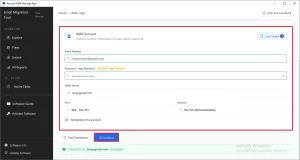
- Download and run the Aryson IMAP Backup Tool on Windows/Mac.
- Log in to your IMAP account using valid server credentials.
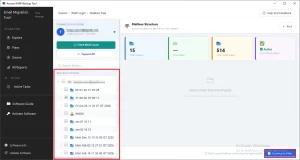
- From the detailed folder list, select the mailboxes you need to convert.
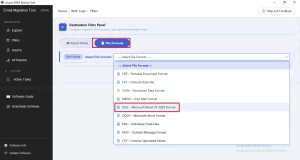
- Select DOC as the output format under File Formats.
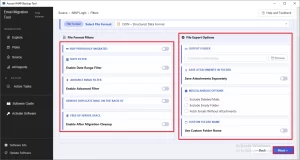
- Apply the required filters if needed >> click Next.
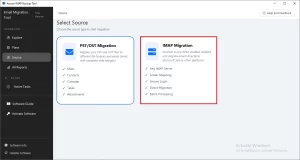
Even large organizations and IT admins are allowed to migrate 1000 mailboxes from IMAP to Office 365. The CSV Import feature helps them efficiently migrate data without any loss.
Daniel’s Success Story
Daniel, an IT administrator in Chicago, had 500+ emails stored in an old IMAP account that nobody had used in years. He tried the manual Outlook method first to save IMAP data as DOC, but after two hours, it didn’t work. Therefore, he started using the Aryson IMAP Backup Tool for extracting email from IMAP Server and converting it to DOC. The software converted his entire mailbox without any data loss, and he had the archive ready well before the compliance deadline his legal team had flagged earlier that week.
Conclusion
In the above article, we discussed that there are several users who convert IMAP emails to DOC to archive their data and ensure consistent access offline. To achieve an accurate conversion, it is important to choose the right approach between the manual method and the automated method. However, the manual method works well for a few emails; it is suggested that large-scale users use the expert solution, as it provides various advanced features for a quick and secure conversion without requiring any technical expertise or resulting in data loss.
Frequently Asked Questions
Q.1 How do I convert IMAP emails to DOC?
Ans. You can convert IMAP emails to DOC by using the Aryson IMAP Backup Tool. Simply add your IMAP account, select the required mailbox folders, choose DOC as the output format, apply any necessary filters, and start the export process.
Q.2 Does the tool help maintain data integrity during DOC migration?
Ans. Yes, the Aryson IMAP Backup Tool preserves email content, folder structure, metadata, attachments, and formatting throughout the conversion process to ensure data remains intact.
Q.3 Is there a free version available to test DOC conversion?
Ans. Yes, Aryson provides a free demo version of the Aryson IMAP Backup Tool to convert 100 items per folder. This allows users to evaluate the software’s functionality before purchasing the full version.
Q.4 Is the interface beginner-friendly for DOC conversion?
Ans. Absolutely, the Aryson IMAP Backup Tool features a simple and intuitive interface that helps both technical and non-technical users convert IMAP emails to DOC without complicated configurations.
Q.5 Does the tool support incremental migration?
Ans. Yes, the software includes options to skip previously migrated emails, ensuring that only new items are processed during subsequent backup or migration operations.
Q.6 Do IT admins get special export options?
Ans. Yes, the Aryson IMAP Backup Tool offers features such as bulk mailbox processing, CSV-based account import, advanced filters, and centralized mailbox management. This makes it suitable for IT administrators handling multiple accounts.
Q.7 Is it possible to rename output folders during DOC export?
Ans. Yes, the software provides naming convention options that help users organize exported data more efficiently and maintain a structured storage environment.
Q.8 Can duplicate emails be removed before converting IMAP mailboxes to DOC?
Ans. Yes, the Aryson IMAP Backup Tool includes a duplicate removal feature that identifies and excludes duplicate emails, helping create a cleaner and more organized DOC export.
Q.9 Can emails be searched before exporting them to DOC?
Ans. Yes, users can apply filters such as date range and folder selection to locate specific emails and export only the required data instead of the entire mailbox.
Q.10 How does the tool protect user data integrity during migration?
Ans. The Aryson IMAP Backup Tool maintains original email properties, folder hierarchy, timestamps, sender and recipient information, and message content. This eventually ensures that the exported DOC files accurately reflect the source mailbox data.
About The Author:

Harshita Sachdeva, a professional technical writer at Aryson Technologies, specialize in delivering clear, hands-on documentation for data management, migration, and recovery solutions. With a meticulous, reader-first approach, I break down complex technical processes into simple, actionable content - helping IT professionals and decision-makers tackle challenges efficiently.
Related Post