-

Written By Harshita Sachdeva
-
Approved By
Shivam Rathore -
Updated on July 3rd, 2026
Export Google Workspace Emails to EML for Enterprise Users
Query: We export EML files from Google Workspace with attachments for our system. Google Workspace can’t open local EML files directly, and Chrome loses formatting. Sending via email works but is not scalable. We need a simple way to open EML files locally without Outlook.
Summary: Many users work with Google Workspace for daily emails and business communication. Sometimes, they need to export Google Workspace emails to EML files for backup or use in other systems. These files often contain important attachments and full email structure. The problem is that Google Workspace does not directly open local EML files. Opening them in a browser can break formatting and attachments. Sending files to yourself works, but it is not practical for large data. This guide covers the manual method along with the Aryson Google Workspace Backup Tool for smooth migration.
Before You Start: Understand How Google Workspace Handles EML Files
Google Workspace does not actually “run” or “open” EML files as a file system app. It only reads emails inside its own web interface. That means an EML file is treated as an external file, not a native email object.
So when you save Google Workspace as EML, you are basically taking a full email snapshot outside Google Workspace. It includes body, headers, and attachments—but it is no longer controlled by Google’s interface.
This is why:
-
- A browser may only show partial content.
- Attachments may not behave like normal emails.
- Double-clicking the file doesn’t open it properly in Gmail.
Also, many users think EML files will behave like Gmail messages. That is not true. Gmail only understands EML when it is inside an email or imported through a client.
If you understand this difference early, the whole export process becomes much clearer, and you avoid wrong expectations later.
Manual Methods to Export Google Workspace Emails to EML
It is a simple and familiar way to access mailbox data. The idea is straightforward. You connect the Google Workspace account through IMAP in a desktop app, then access emails locally. From there, emails can be saved or exported as EML files. It is not the fastest method. But for enterprise users who want control and local access, it still works in many cases.
Steps to Convert Google Workspace Emails to EML
- Open your desktop email client, like Thunderbird or Outlook, on the system.
- Enable IMAP settings in your Google Workspace account before starting setup.
- Add your Google Workspace email account using the correct login credentials carefully.
- Wait for complete mailbox synchronization so all folders load properly inside.
- Select the required emails or folders that you want to export locally.
- Right-click selected emails and choose the save or export option from the menu.
- Choose EML format as output and select the destination folder on the computer.
- Verify exported EML files by opening them and checking the attachments properly.
Downsides of the Manual Method
- This manual method becomes very slow when handling large enterprise mailboxes.
- It requires a full email client setup, which takes extra configuration time.
- No proper bulk export option available, making the process repetitive and time-consuming.
- Folder structure may not always remain intact after exporting emails locally.
- High risk of human mistakes while selecting and saving multiple emails manually.
Advanced Solution to Export Google Workspace Emails to EML
Aryson Google Workspace Backup Tool helps users save and manage their Google Workspace emails in a simple way. It is designed for people who need a reliable method to secure mailbox data. The tool makes the export Google Workspace emails to EML format easy without any complex steps. It does not store user credentials, keeping the login process secure. It is commonly used by IT teams and businesses for safe email storage and easy access when needed.
|
Simple Steps to Backup G Suite Mailboxes to EML
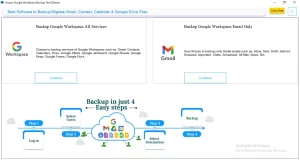
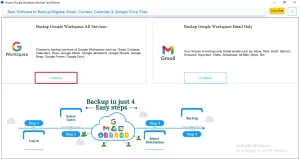
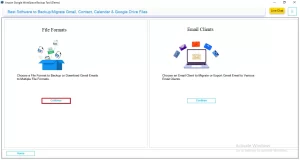
- Install & launch the Aryson Google Workspcace Backup Tool and run it on your system.
- You have to click on Continue under Backup Google Workspace All Services.
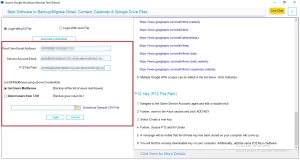
- Thereafter, provide the correct login credentials for secure login.
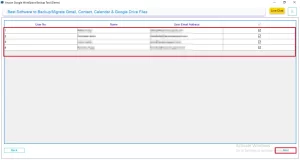
- Choose the user from where you want to migrate the data >> Next.
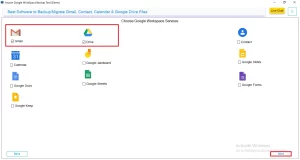
- Then, you have to choose Google Workspace services >> Next.
- Move further in the process, click on Continue under the File Format section.
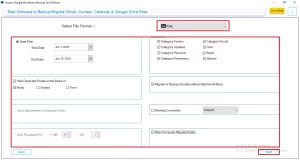
- Select EML as the output and apply the filters for the selective data export >> Next.
- In the end, click on the path to save the file and click Start Export to begin the process.
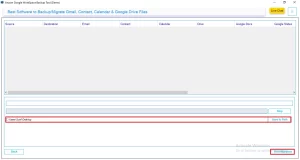
Note: After completion, a log file is generated that helps users to understand the conversion/migration process in detail.
IT Manager Success Story
Andree, an IT Manager at a mid-sized enterprise in California, needed to export large volumes of Google Workspace emails to EML format for a new document management system. The manual Outlook-based method was slow and created issues with missing attachments and inconsistent folder structure.
To make sure a smooth and reliable process, he used the Aryson Google Workspace Backup Tool for structured email export. It helped him complete the migration with preserved formatting, attachments, and folder hierarchy, delivering a clean and error-free EML backup on time. Later, the company wants to export Google Workspace to MSG, which was also done using the same software.
Final Overview
Exporting Google Workspace emails to EML is a common requirement for enterprise users who need offline access or system-based email storage. While manual methods via a desktop email client and IMAP setup can work, they are slow and not suitable for large mailboxes or bulk user migration. Because of this, manual methods are mostly useful only for small-scale or personal-level exports.
For enterprise environments, a professional solution like the Aryson Google Workspace Backup Tool provides a more stable & controlled approach to export Google Workspace emails to EML. It supports bulk user export, multiple formats like EML and PST, along with filters for date range and selective folder backup.
Overall, manual methods can handle basic export needs, but for accuracy and large-scale migration, a professional tool makes sure a smoother & more reliable process.
Frequently Asked Questions
Q.1 Which Google Workspace services can be backed up?
Ans. Most Google Workspace backup solutions support services such as Gmail, Google Drive, Contacts, Calendar, Shared Drives, and Google Photos (depending on the tool).
Q.2 How do I export Google Workspace emails to EML?
Ans. Connect your Google Workspace account to the backup tool using secure authentication, select the mailbox(es), choose EML as the export format, apply any desired filters, and start the export process.
Q.3 Can I export multiple Google Workspace user accounts at once?
Ans. Yes, multiple Google Workspace user accounts can be exported together using professional tool. It support bulk export using admin credentials or CSV-based user lists for multiple mailboxes. This approach saves time and preserves emails, folders, and metadata for all selected accounts.
Q.4 What login methods are supported for secure backup?
Ans. Common secure login methods include OAuth 2.0 authentication, which provides token-based access without sharing passwords. Another widely used option is Google Workspace Admin credentials, which allow controlled access for managing multiple user accounts.
Q.5 Can I skip unwanted Gmail folders during export?
Ans. Yes, the Aryson Google Workspace Backup Tool lets you choose specific folders or Gmail labels for export. You can also exclude unwanted folders to avoid backing up unnecessary data. This helps create a more controlled, selective, and efficient backup process.
Q.6 Does it detect duplicate emails before exporting?
Ans. The Aryson Google Workspace Backup Tool includes a duplicate detection feature to prevent repeated email exports. It automatically identifies identical emails during the backup process and skips them. This ensures a clean, organized backup without redundant or duplicate data.
Q.7 Will the exported EML files preserve the original email structure?
Ans. Yes, exported EML files usually preserve important email properties like sender, recipient, subject, and date information. They also retain attachments, message formatting, and embedded content to maintain the original email structure. In addition, internet headers are preserved, which helps keep full email traceability and authenticity.
Q.8 Can I use custom naming for exported emails?
Ans. Yes, Aryson Google Workspace Backup Tool provide custom file-naming options based on email attributes like subject, date, sender, or recipient. This helps users organize exported files in a structured and easy-to-identify format.
Q.9 Does it support date range filtering for email backup?
Ans. Yes, date-based filters ia available for selective email export. They allow you to choose a specific time range and export only required emails. This helps reduce backup size, save time, and improve migration efficiency.
Q.10 Is 24×7 chat support available if I face any issues?
Ans. Availability depends on the software provider. Many commercial backup solutions offer 24×7 chat, email, or technical support, while others may provide support only during business hours. Check the provider’s support policy for confirmation.
About The Author:

Harshita Sachdeva, a professional technical writer at Aryson Technologies, specialize in delivering clear, hands-on documentation for data management, migration, and recovery solutions. With a meticulous, reader-first approach, I break down complex technical processes into simple, actionable content - helping IT professionals and decision-makers tackle challenges efficiently.
Related Post