-

Written By Rohan Wiese
-
Approved By
Shivam Rathore -
Updated on December 15th, 2025
Quick Guide to Delete All Empty Folders in Outlook PST Easily
Many Outlook users often end up with hundreds of folders, some completely empty. These unused folders make it difficult to find important emails and create unnecessary clutter. Cleaning them one by one can take hours. To simplify this, you can either use Outlook’s built-in options, a quick VBA script, or Aryson Outlook Duplicate Remover which can automatically find and delete All Empty Folders in Outlook safely.
Why It’s Important to Delete Empty Folders Outlook 365
If you keep your Outlook clean and organized, it helps users to improve productivity and performance. Below are the key reasons why removing empty folders is important:
- A clutter-free folder pane makes it easier to locate important emails quickly.
- You won’t have to scroll through multiple unused folders while managing your mailbox.
- If you remove empty folders in Outlook, it can slightly improve loading and syncing speed.
- Also, it keeps your email structure neat and avoids mistakes during email management.
- Fewer folders mean less duplication or unnecessary subfolders during imports or backups.
- An organized mailbox helps you focus better and manage emails efficiently.
When you keep only the necessary folders ensures Outlook remains optimized and easy to use every day.
Queries Asked on Microsoft: How Can I Delete Many Empty Outlook Folders?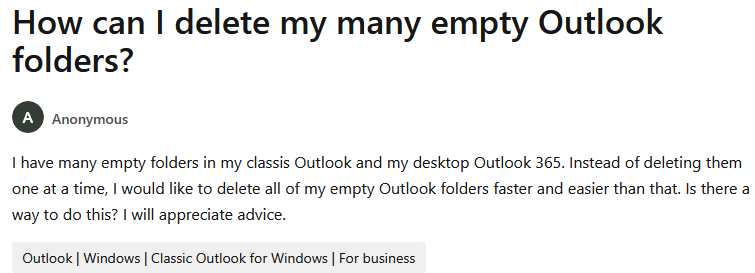
Different Ways to Delete All Empty Folders in Outlook
There’s no single way to clean up your mailbox. Outlook provides both manual and script-based options. However, not all are efficient for every user. You can delete empty folders manually, use a VBA script for automation, or opt for an advanced Outlook cleanup tool for a comprehensive scan. Let’s go through all three approaches in detail so you can pick the best one.
Method 01: Manually Delete Empty Folders in Outlook
This is the simplest approach for users with just a few folders. It requires no technical knowledge but can be time-consuming.
- Start the process and open Microsoft Outlook on your system.
- After that, expand your folder list from the left panel.
- Along with that, check for folders with no emails or items.
- Now, right-click each empty folder and select Delete Folder.
- At last, confirm the action and repeat for all empty subfolders.
Manual cleanup works fine for small mailboxes. However, if your account has hundreds of folders, this can take a long time. That’s when the next method becomes useful.
Method 02: Delete Empty Folders in Outlook Using VBA Script
If you’re comfortable using Outlook’s developer tools, VBA scripting is a faster option. It automatically detects and deletes empty folders within minutes. Here are the steps to use the VBA script to delete all empty folders in Outlook:
- Open Outlook and press Alt + F11 to launch the VBA editor.
- After that, click Insert >> Module.
- Copy and paste the following VBA code into the module window:
|
Sub DeleteEmptyFolders() Dim ns As Outlook.Namespace Dim Fldr As Outlook.Folder Set ns = Application.GetNamespace(“MAPI”) Set Fldr = ns.PickFolder DeleteSubFolders Fldr End Sub
Sub DeleteSubFolders(Fldr As Outlook.Folder) Dim SubFldr As Outlook.Folder For Each SubFldr In Fldr.Folders DeleteSubFolders SubFldr If SubFldr.Items.Count = 0 And SubFldr.Folders.Count = 0 Then SubFldr.Delete End If Next End Sub |
- Click Run (F5) to execute the script.
- Select the top-level folder where you want the scan to start.
Within seconds, Outlook deletes all folders that have no items or subfolders.
Note: This method requires caution. If you choose the wrong root folder, it may delete folders you didn’t intend to remove.
Limitations of Manual and Script Methods
Although manual and VBA approaches work, they come with several drawbacks.
- The manual method is slow and impractical for large mailboxes.
- VBA scripts require technical knowledge and are not beginner-friendly.
- High risk of accidental data deletion.
- Not compatible with Outlook for Mac.
- No option for automated scheduling or filter customization.
Due to these limitations, many professionals prefer using automated tools that make the process faster and safer.
Method 03: Delete Empty Folders Using the Expert-Recommended Solution
Aryson Outlook Duplicate Remover Tool can automatically find and delete all empty folders, duplicate items, or unnecessary data from PST and OST files. It works smoothly across all Outlook versions, including Outlook 365, 2021, 2019, 2016, and older ones. This software not only saves time but also ensures your data remains intact throughout the cleanup process. Also, it can remove duplicate email Items from your Outlook account. Using such a solution ensures that your mailbox stays optimized without manual effort. The user interface is quite easy for both technical and non-technical users. Users will get different advanced options to remove empty folders in Outlook and save their data in an organized way.
Simplified Steps to Delete All Empty Folders in Outlook
- Download and open the Aryson Outlook Duplicate Remover on your PC.
- Click the Browse button to select and upload your Outlook PST files.
- Choose the Outlook items like Mail, Calendar, Tasks, or Contacts to scan.
- Apply comparison filters such as Subject, Date, Body, Category, or Status.
- After that, select an action according to your preference from the given options.
- Set a destination path to save and click Next to remove duplicate Outlook files.
Expert Tips to Keep Outlook Clean and Organized
Maintaining a clean Outlook mailbox prevents issues in the long run. Here are a few tips to follow:
- Regularly archive old emails to reduce mailbox size.
- Use Outlook’s Clean Up feature to remove redundant conversations.
- Avoid creating unnecessary subfolders.
- Delete spam or junk emails frequently.
- Always backup PST files before performing major cleanups.
Following these habits will keep Outlook running smoothly and efficiently.
Conclusion
This blog provides a complete solution to delete all empty folders in Outlook quickly and safely. Whether you choose the manual method, use a VBA script, or rely on a dedicated cleanup tool, the steps above cover everything you need. For users who value time and accuracy, the recommended automated Outlook duplicate cleaner remains the best option. It not only delete multiple folders in Outlook but also ensures your mailbox stays perfectly organized without risking any data loss.
FAQs – Common User Questions
Q1. How do I delete all empty folders in Outlook automatically?
Ans: You can use a VBA script or Aryson Outlook Duplicate Remover to automate the process.
Q2. What’s the best way to clean Outlook folders quickly?
Ans: Using the Aryson Outlook Duplicate Remover is the fastest and safest method.
Q3. Why do empty folders appear in Outlook?
Ans: They usually appear due to sync errors, imported data, or when folders get created during rule setup.
Q4. Is it safe to delete empty folders from Outlook PST files?
Ans: Yes, it’s completely safe. Just make sure to back up your PST before running any cleanup tool.
About The Author:

Rohan Wiese is a Technical Writer at Aryson Technologies. He is an expert Email Forensic, Cloud Computing, and a passionate nerd with over 10 years of experience in technical content writing. He writes about Cloud Migration, Database Recovery, Email Backup, Windows, Mac, and Tech.
Related Post