-

Written By Rohan Wiese
-
Approved By
Shivam Rathore -
Updated on September 13th, 2025
Direct Solutions to Import EML Files into Apple Mail / Mac Mail
Fact-checked and reviewed in accordance with our
Editorial Policy
Many users have EML files saved from different email clients like Outlook, Thunderbird, or Windows Live Mail. If you are the one who recently move to the Mac system, then you have need to open these emails in Apple Mail. But the question is, how can you import EML files directly into Mac Mail along with attachments and email formatting? We are here with the answer. Proceed with this complete blog, we will share step-by-step methods. Both the manual and the Aryson EML Converter as direct solutions are mentioned to help you complete this task smoothly.
Understanding the Need to Import EML into Apple Mail
Before we move to the solutions, it is quite important to know why users want to import their EML files into Apple Mail. As you know, EML is a commonly used email file format. It is used by clients like Outlook Express, Thunderbird, Windows Live Mail, and others. However, Mac users prefer Apple Mail because it comes pre-installed. Along with that, it is secure and integrates well with macOS.
Here are some common reasons behind this need:
- Many users who shift to macOS want to access their old EML emails in Apple Mail.
- Importing EML files into Apple Mail keeps all messages in one place for easier access.
- If you store emails as EML inside Apple Mail, it provides a safe and long-term backup.
- Moreover, companies generally prefer Apple Mail for its reliability on Mac devices.
- Apple Mail supports advanced search and organization to manage imported emails.
No matter the reason, you have all your emails inside Apple Mail. It makes sure easy access and better management.
How to Import EML to Apple Mail
You can import EML files into Apple Mail in multiple ways. Either it can be done manually or with the help of automated software. Without wasting time, just proceed with the next section and explore both solutions one by one separately:
Procedure 01: Import EML files into Apple Mail Manually
To set up iCloud Mail and move your EML files into Apple Mail, you can proceed with the following step-by-step instructions.
- First, open System Settings or System Preferences on your Mac.
- Then, click on Apple ID and sign in with your credentials.
- From the sidebar, select the iCloud option.
- Now, under the iCloud settings, turn Mail on.
- Once it is enabled, iCloud Mail will automatically appear as an account in your Mail app.
- Next, open the Apple Mail application.
- Create a new mailbox folder or label.
- After that, locate the EML file stored on your computer.
- Simply drag and drop the selected EML file into the created mailbox.
Now, you can check the emails and make sure that all your email data has been successfully imported or not.
Some Drawbacks Associated With the Manual Method
The manual process to import EML files into Apple Mail is looking simple at first, but it is not always efficient. There are several limitations that make it less suitable for bulk or professional use. Here are the major drawbacks from which you should aware of:
- You need to import each file one by one, which is slow if you have many EML files.
- Moreover, you cannot move multiple files at once, so it’s not good for large transfers.
- Along with that, sometimes attachments or email formatting may not transfer properly.
- Apart from that, some steps are quite complex and hard to follow for beginner users.
- If you made a small mistake, it can lead to incomplete migration or even data loss.
Because of these issues, the manual method is best only if you have a few EML files. If you want to move a large number of files safely, using an automated tool is a better alternative.
Procedure 02: Best Alternative Solution to Import EML to Apple Mail
The Aryson EML Converter is the all-in-one solution to move EML files to Apple Mail within a few clicks. Users can select multiple EML files and add them to Apple Mail directly. You do not have to worry about the attachments, email properties, and folder structures as well. Along with icloud, you can import EML files to Gmail and other email clients accordingly. An individual with a non-technical background can also operate this software without any conflict. Moreover, it supports all EML-based email clients and works flawlessly on both Windows and macOS. As an outcome, this software is quite essential to perform secure and hassle-free email transfer.
Follow these Simple Steps to Import EML to Apple Mail
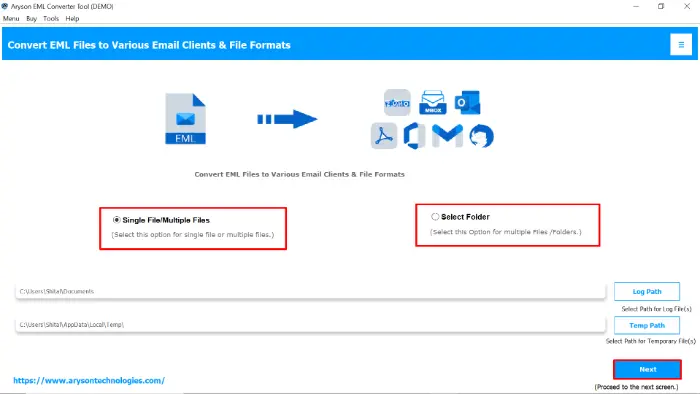
- Download and open the Aryson EML Converter on your PC>>Next.
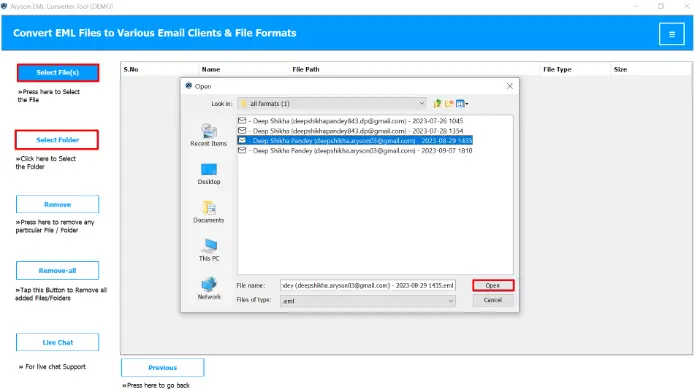
- After that, click on the Select Files/Folders to upload your EML files.
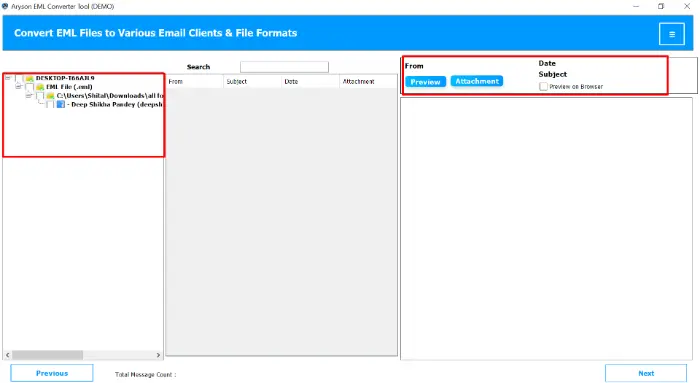
- Users can preview the emails and attachments before migration>>Next.
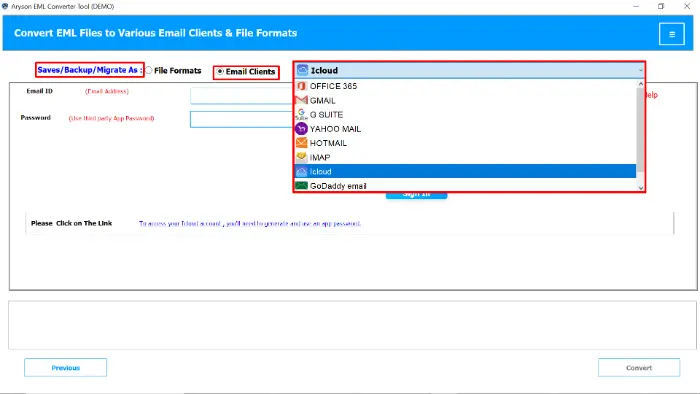
- Now, choose iCloud as the output email client from the given drop-down.
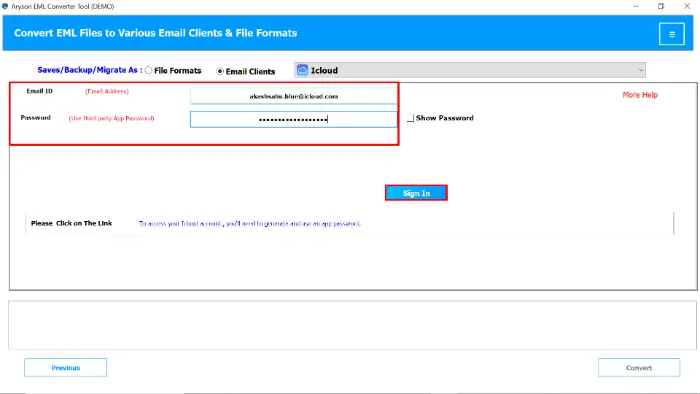
- Log in to your iCloud account with your proper user ID and other credentials.
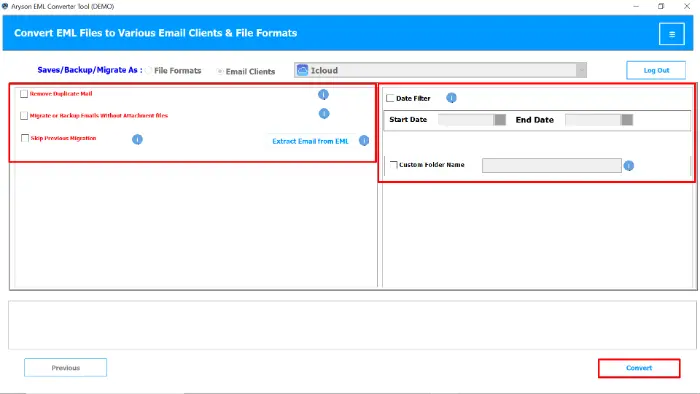
- Utilize the additional feature and click Convet to import .eml to Mac Mail.
Additional Note: In case you have an EML file and you want to open EML File in Outlook then you need to convert EML to PST and other formats also within the same software.
Conclusion
Importing EML files into Apple Mail can be challenging with manual methods, especially when you handle many emails. The manual option is often slow and may miss attachments. Hence, most of the users prefer the recommended Aryson EML Converter to import EML to Apple Mail. Because it preserves all email data and supports batch migration. Also, it works perfectly even for large email collections. If you want details, download the software and connect to our tech support team for further assistance.
Frequently Asked Questions:
Q1. Can Apple Mail open EML files directly?
Ans: No, Apple Mail does not natively support EML files. You need to drag them manually or convert them to MBOX first. For direct conversion, use the Aryson EML Converter.
Q2. How do I import multiple EML files into Mac Mail?
Ans: You can either use drag-and-drop for a few files or Aryson EML Converter for batch import.
Q3. Is there a free way to open EML files on Mac?
Ans: Yes, you can open single EML files by dragging them into Apple Mail, but it is not suitable for large-scale migration.
Q4. Does Apple Mail support attachments in EML files?
Ans: Yes, but manual methods may sometimes miss attachments. The Aryson EML Converter Tool ensures attachments are preserved.
Q5. Which is the easiest way to Import EML to Apple Mail for non-technical users?
Ans: Using the Aryson EML Converter Tool is the easiest and safest way for both non-technical and technical users.
About The Author:

Rohan Wiese is a Technical Writer at Aryson Technologies. He is an expert Email Forensic, Cloud Computing, and a passionate nerd with over 10 years of experience in technical content writing. He writes about Cloud Migration, Database Recovery, Email Backup, Windows, Mac, and Tech.
Related Post