-

Written By Rohan Wiese
-
Approved By
Shivam Rathore -
Updated on May 12th, 2026
How to Merge iCloud Email Accounts in 2026 – Easy Methods
iCloud users often need to merge iCloud email accounts whenever there are organizational changes, any device is getting upgraded, or there are situations where they have to restructure. If they properly plan the entire merger, there will be less risk of data loss, permission issues, & failure of email delivery. Thus, in this blog, we will discuss some of the most effective methods to perform iCloud account merging, including the Aryson iCloud Backup Tool for secure and efficient data transfer across multiple Apple ID accounts.
What is iCloud Account Merging?
iCloud account merging is the process of consolidating email, contacts, calendars, photos, and files from one iCloud account into another primary account. Each iCloud account is tied to a unique Apple ID with dedicated storage space, authentication credentials, and a separate user identity. Accounts maintain completely separate emails, app purchases, and subscription services.
Common Reasons to Merge iCloud Email Accounts
Listed below are the reasons why iCloud users prefer to combine iCloud email accounts.
- Users consolidate accounts when they switch to new primary Apple ID.
- Organizations merge accounts when the company restructure & identity changes.
- Users combine multiple accounts to manage shared calendars & contacts.
- Moreover, IT experts combine data from legacy or forgotten accounts.
- Users transition from outdated email domains to new Apple IDs.
Things to do Before Merging iCloud Accounts
Before proceeding with the merge process, it is important to follow the steps below carefully to achieve maximum accuracy.
- First, analyse the total size of Cloud data across all accounts.
- After that, identify which users and accounts require consolidation.
- Cross-verify whether there is any storage available in the destination iCloud account.
- Then, create a complete backup before you begin the merge operations.
- Cross-verify account access permissions for all iCloud accounts.
- Check whether you have given sharing permissions on contacts & calendars.
- Next, you must inform all the affected users before you begin the merging.
- Test the merge process on a small dataset first.
Best Methods to Merge iCloud Email Accounts
In this section, we will primarily focus on the two most effective methods to perform a merge of iCloud accounts. Carefully follow each step to ensure accurate data transfer.
Method 1: Switch Accounts at Device-Level
With the help of iPhone, iPad, or Mac settings, users can automatically merge iCloud data when they switch Apple IDs. The operating system first detects the changes in accounts and offers automatic consolidation, which is much faster than manual downloads.
Steps to Sync Multiple iCloud Email Accounts Using Device-Level Account Switching
- First, open Settings on iPhone or iPad & tap Apple ID profile banner.
- After that, scroll to the button & select Sign Out from the current iCloud account.
- Confirm the sign-out action whenever asked by the system security dialog.
- Then, tap the Sign In to Your Device option & enter the destination Apple ID.
- Provide the password for the primary account when requested.
- Select the Merge option when the “Merge?” pop-up appears on the screen.
- Now, allow the device to automatically sync local data with the destination account.
- Check the contacts, calendars, & photos that get displayed in the destination account.
- Repeat the process across all devices using the source account if needed.
Limitations of the Manual Methods
- Device-level merging may not keep all metadata & calendar event details.
- Moreover, the process may require manual repetition across each device.
- Additionally, automatic syncing may overwrite the existing destination account data.
- There is limited technical support available if synchronization errors occur during the merge.
- Also, there are chances that the complex permission structures may not transfer correctly between Apple IDs.
Method 2: Automated Solution to Merge iCloud Email Accounts
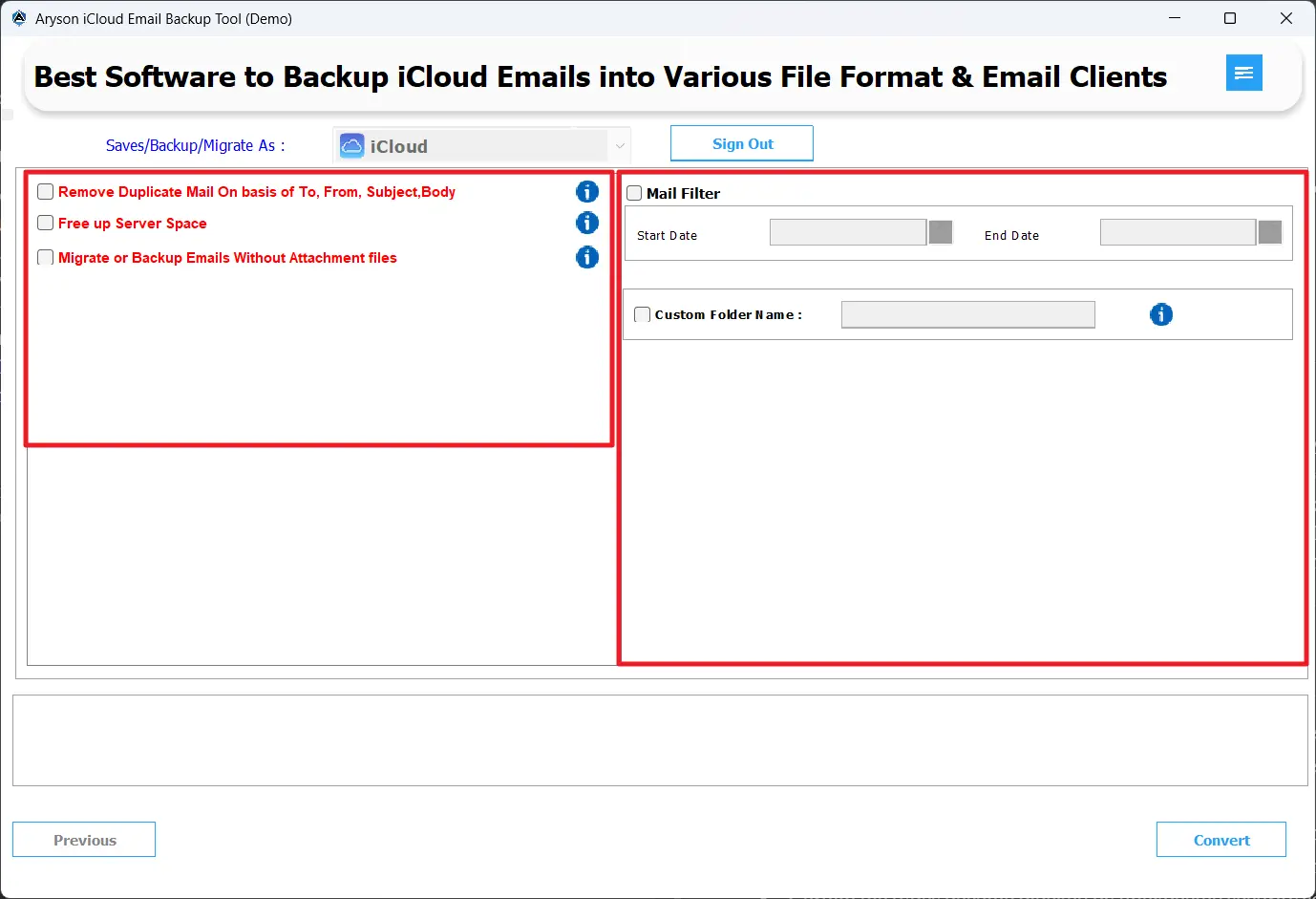
Aryson iCloud Backup Tool is one of the most reliable software tools that helps organisations and IT professionals to merge two different iCloud email accounts. This software provides secure authentication methods and a preview window to cross-verify the content of email data across different accounts. Along with that, the additional features like date range filter, skip previous emails, and the custom folder name, etc., make the entire process simple and error-free. Using the same software, users can even back up iCloud to an external hard drive without any data loss. Now, follow the steps below to achieve maximum accuracy during the merger.
Quick Steps to Transfer Emails Between iCloud Accounts Using Automated Software
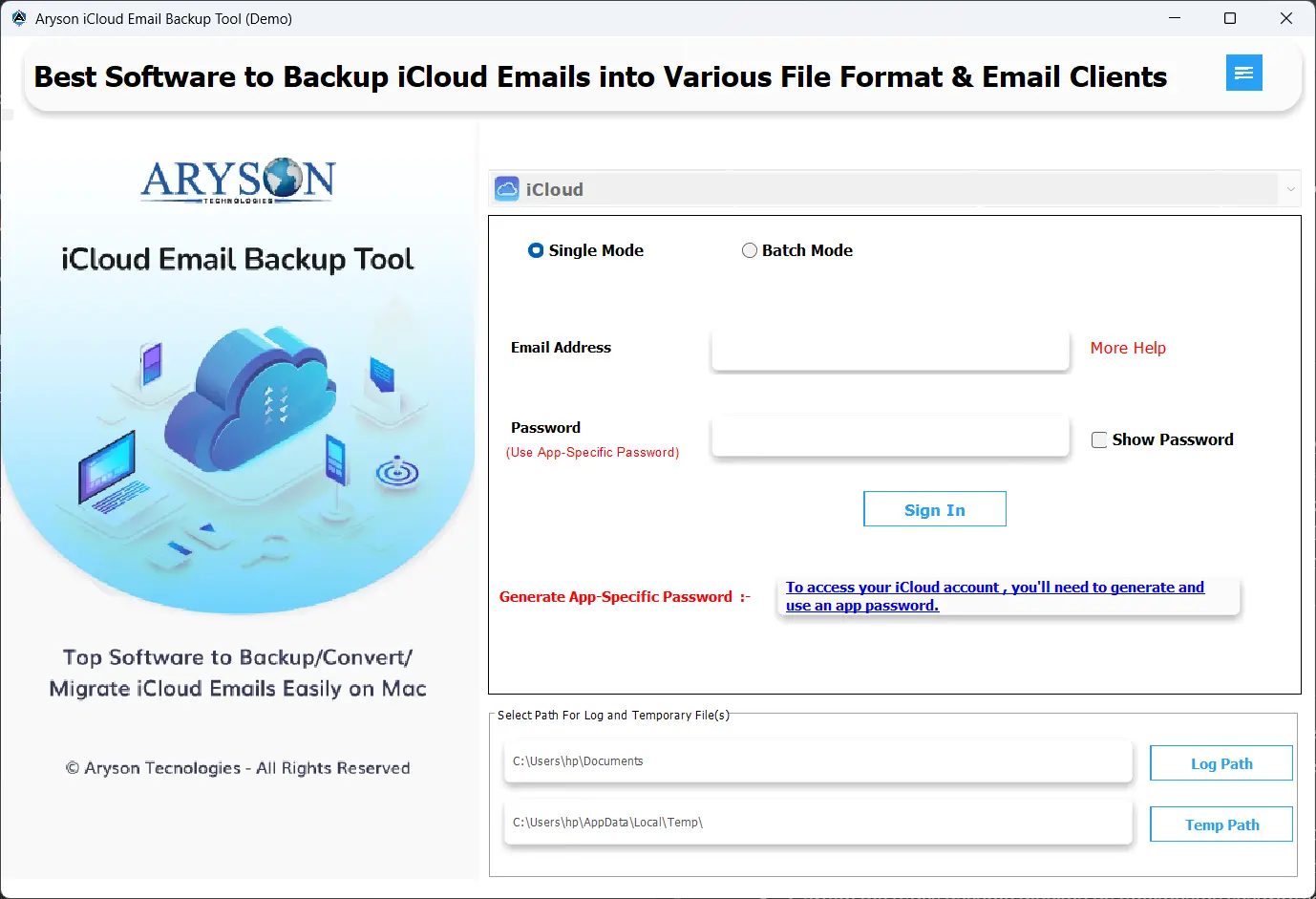
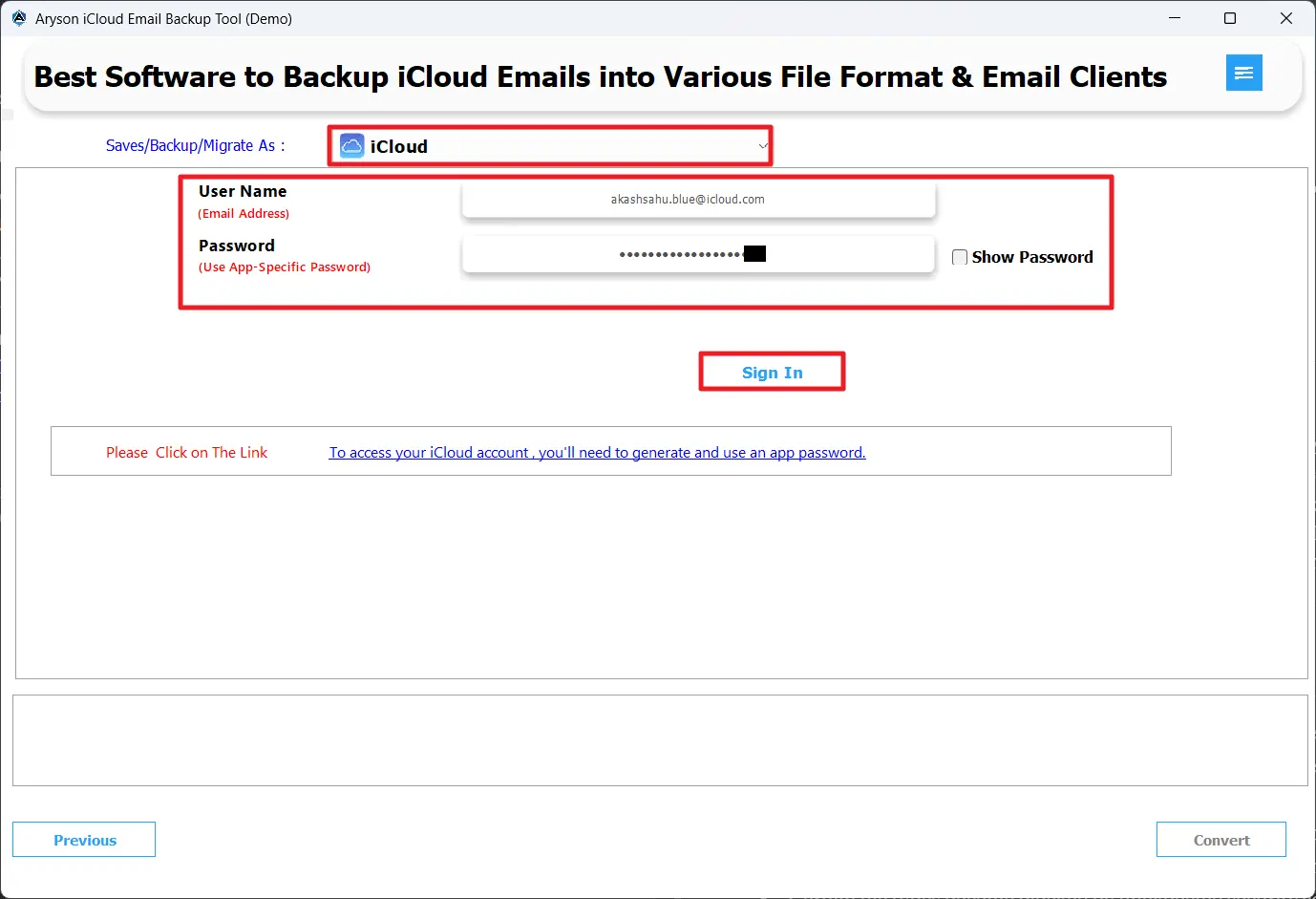
- First, download & run the Aryson iCloud Backup Tool on your system.
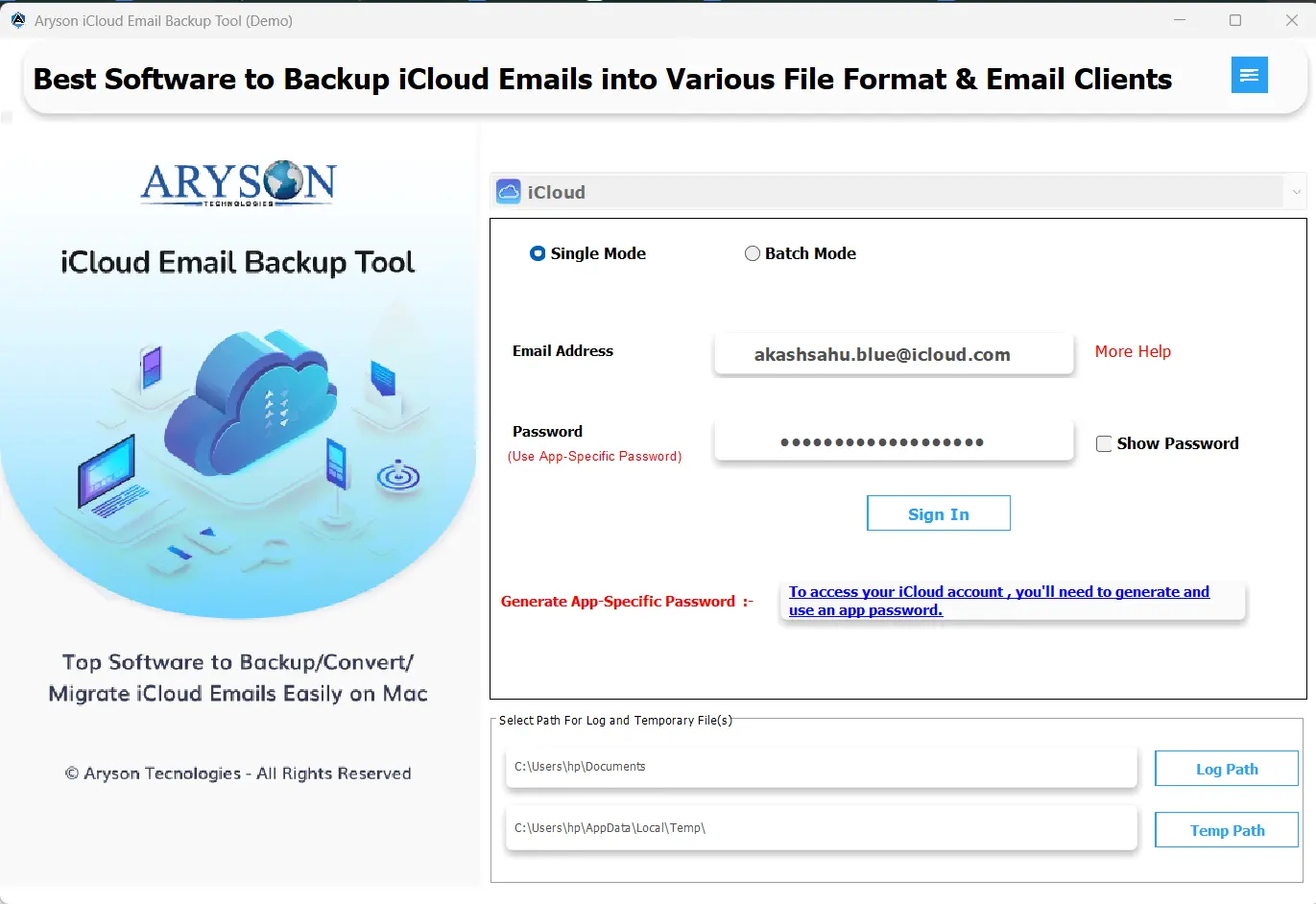
- After that, log in to the source iCloud Account with valid credentials.
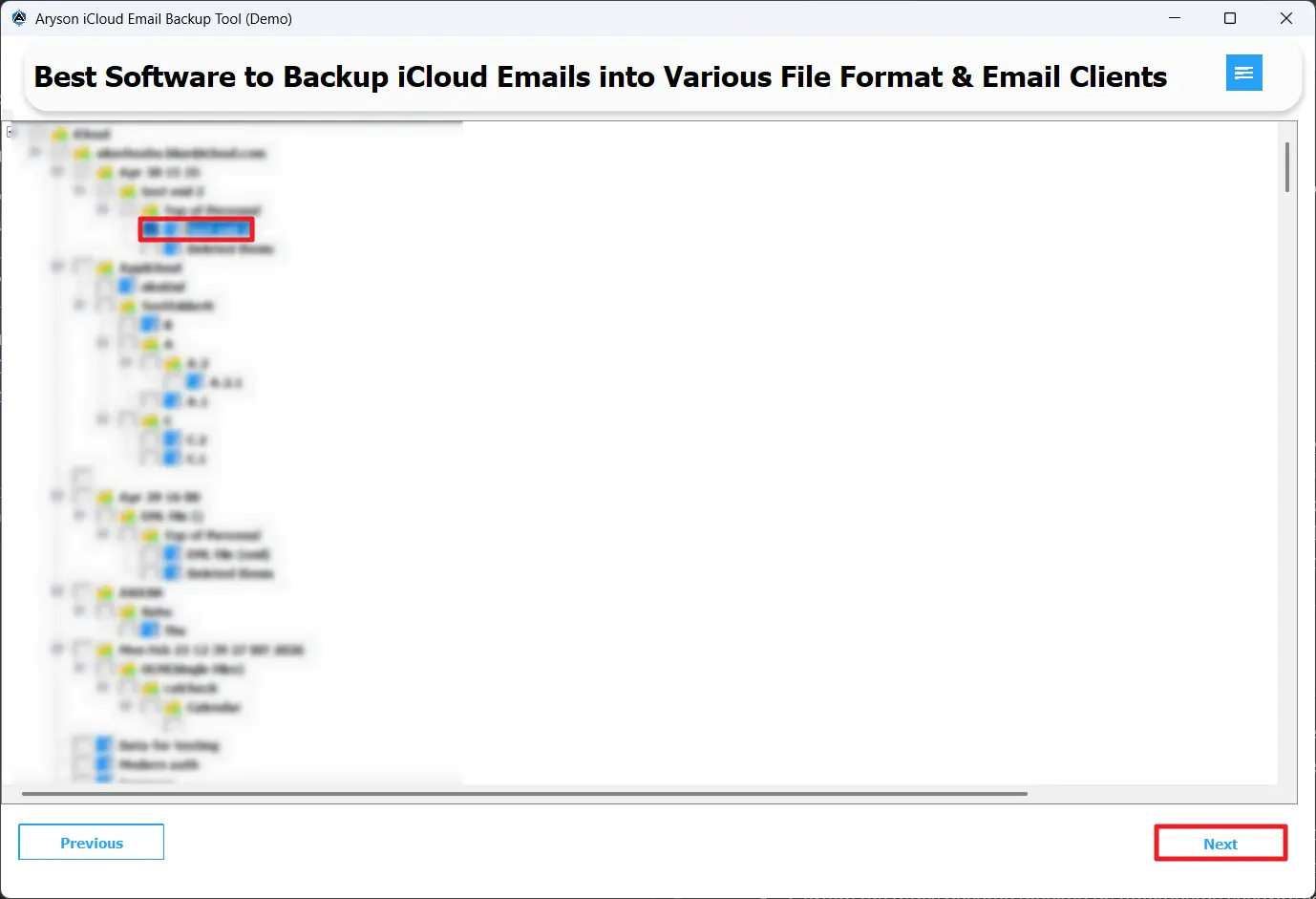
- Then, preview & select the required iCloud account data to merge.
- Select iCloud as the destination and log in with the required destination account.
- Use the additional filters of the software as per your requirement.
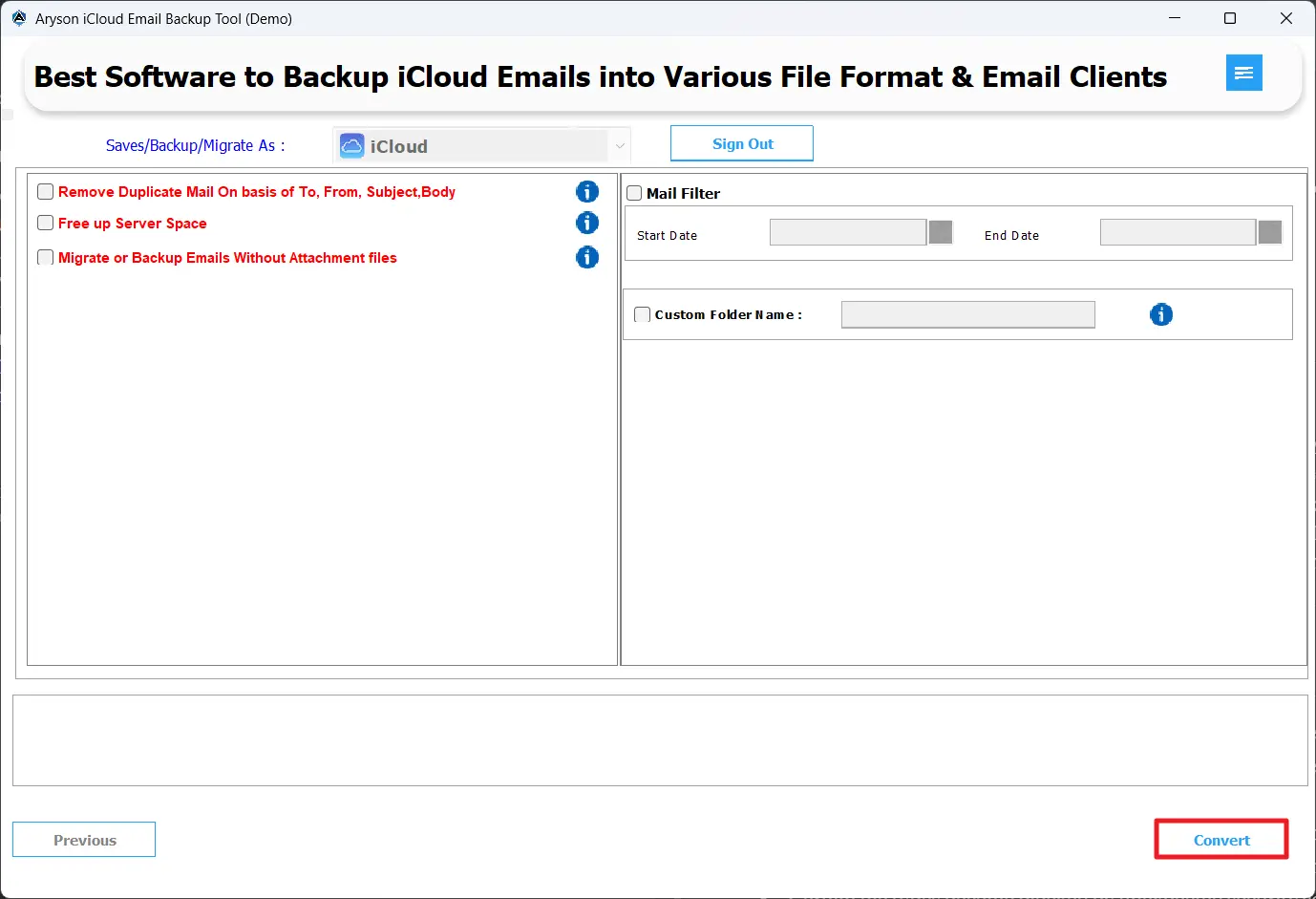
- At last, click on the Convert button to begin the migration process.
Conclusion
In this blog, we discussed a manual & an automated method to merge iCloud accounts effectively. Both methods have their advantages; the choice depends on individual circumstances. Manual methods suit small data volumes and technical users. Whereas professionals or beginners with large datasets must opt for the automated software to enhance efficiency, minimize errors, and ensure complete data consolidation successfully.
FAQs
Q1. Is it possible to merge iCloud accounts without losing emails and contacts?
Ans: Yes, the Aryson iCloud Backup software allows users to merge Apple ID email accounts while preserving emails, contacts, and calendar events.
Q2. Does iCloud account merging preserve photo metadata and calendar history?
Ans: Yes, the Aryson iCloud Backup software preserves photo metadata, creation dates, and complete calendar event history during the merge.
Q3. Can shared contacts and permissions be maintained during iCloud account merging?
Ans: Shared contacts can migrate, but sharing permissions may need reconfiguration. Administrators should verify access in the destination account.
Q4. How long does an iCloud account merging process usually take?
Ans: Time depends on the total data volume. Whereas the above automated software completes consolidation within minutes to hours based on file size.
Q5. Is it necessary to verify merged data after completing the iCloud account merge?
Ans: Yes, verify email access, contact availability, calendar completeness, and photo library integrity in the destination account.
About The Author:

Rohan Wiese is a Technical Writer at Aryson Technologies. He is an expert Email Forensic, Cloud Computing, and a passionate nerd with over 10 years of experience in technical content writing. He writes about Cloud Migration, Database Recovery, Email Backup, Windows, Mac, and Tech.
Related Post