

-

Written By Rohan Wiese
-
Updated on June 30th, 2026
Recover Data From Failed SSD: What Users Should Know 2026
Query: After a sudden system crash, my SSD is still detected in Windows, but I can no longer access the files stored on it. Some folders are missing, and the drive sometimes appears as RAW. I have important documents, photos, and project files on the SSD. Is there any reliable way to recover data from failed SSD without losing my existing files?
Summary: Solid State Drives offer speed, reliability, and quick boot performance. Because of these benefits, many users prefer SSDs over traditional hard drives. Yet, despite their advanced design, SSDs still face sudden failures, formatting mistakes, file system corruption, and system crashes. As a result, important data becomes inaccessible without warning. This blog explains every proven method to recover data from formatted SSD safely. Also, we will show how the Aryson Windows Data Recovery Tool helps in severe corruption or format cases.
Why SSD Data Recovery Becomes Necessary?
- Accidental file deletion removes important data instantly.
- SSD formatting can erase files without warning.
- Power failures may corrupt stored data.
- Malware attacks can damage or encrypt files.
- File system errors make data inaccessible.
- Firmware issues can prevent SSD detection.
- Bad sectors may affect file accessibility.
Common Causes of SSD Data Loss
SSD data loss does not happen without a reason. Several technical and non-technical factors play a role. Understanding them helps users to efficiently restore data from failed SSD.
- Users often format the wrong partition while installing Windows or cleaning up storage.
- System crashes, corrupt SSD partitions and break the link between files and file tables.
- Corrupt partition tables make the entire SSD appear as RAW or unallocated.
- A faulty firmware update can lock the SSD and make it unreadable.
- NTFS, exFAT, or FAT32 file systems break easily due to improper shutdowns.
- SSDs develop bad blocks because NAND memory has limited write cycles.
- Sudden power cuts interrupt ongoing data operations.
After knowing the causes, the next question is whether SSD data can actually be recovered.
Can Data Be Recovered From a RAW SSD?
Yes, if the SSD is detected by Windows but appears as RAW, recovery is often possible before formatting the drive. The solution below can scan the SSD, locate lost files, and restore accessible data without modifying the original drive contents.
Things to Do Immediately After SSD Failure
Quick response increases the recovery success rate. Here are the key steps you should follow to recover data from crash SSD.
- Stop using the SSD immediately and avoid writing new data to it until recovery is complete.
- Reinstalling Windows writes new data over lost sectors.
- Multiple formats reduce recovery chances drastically.
- A quick SMART check helps understand the health status without risking corruption.
- Physical failure needs expert-level tools and dust-free lab environments.
- Non-detection often means deep-level corruption or controller issues.
Now that the precautions are clear, let’s explore the actual recovery methods.
Proven Methods to Recover Data From Failed SSD
There are three major approaches to recovering SSD data:
- Using Windows backup utilities
- Using the Command Prompt for minor corruption
- Aryson Windows SSD recovery software
Manual methods offer limited help, while tool-based recovery handles deep-level corruption and formatted drives. We will start with built-in Windows features that work to recover deleted SSD data when backups are available.
Method 1: Restore SSD Files using File History / Backup
File History and Backup & Restore are helpful when you have enabled backup features earlier.
- Go to Control Panel >> File History and restore older versions of documents, images, or folders.
- Right-click the folder or drive >> Select Restore Previous Versions >> Choose the version you want to recover.
With this feature, you can perform SSD recovery after full system backups or partial files saved in earlier sessions. If backups are missing, CMD-based recovery may help fix minor file system issues.
Method 2: Recover Data from SSD Using CMD (CHKDSK & ATTRIB)
CMD commands repair logical errors and restore hidden or lost files.
- Open CMD>>Right-click>>Select Run as Administrator.
- Use this command: chkdsk X: /f
- It may repair minor NTFS file system errors and restore access to some files.
(Use it carefully because it modifies the file system structure.)
- Use this command to restore hidden files: attrib –h -r -s /s /d X:*.*
- It helps recover files hidden due to malware or system errors.
When both manual methods fail, the only reliable solution is a dedicated recovery tool.
Drawbacks of Manual Methods
Manual solutions may appear simple at first, but they work in only a few situations and fail in most real SSD failure cases.
- Manual methods cannot recover data from a formatted SSD, as the file structure gets wiped instantly.
- Moreover, the TRIM command clears deleted data blocks quickly, which leaves no trace for manual recovery.
- In addition, CMD tools can fix only small or minor errors, so deep corruption remains unresolved.
- Furthermore, a RAW or unrecognized SSD cannot be repaired manually, as it needs a full structural rebuild.
- Besides this, manual attempts increase the risk of overwriting files, which reduces the recovery success rate.
- Firmware corruption or partition damage is far beyond what manual steps can handle, so data remains inaccessible.
Method 3: Best Solution To Recover Data From Failed SSD
The Aryson Windows Data Recovery Tool is widely used by enterprises and IT administrators due to its batch recovery and advanced features. The main purpose of this utility is to restore lost data from formatted, corrupted, or crashed SSD drives. Moreover, it works on internal as well as external SSDs and supports all major file systems, including NTFS, FAT, and exFAT. Moreover, this software can be used to recovers data from corrupt internal Hard Disk. Follow the steps below to recover data from a failed SSD.
Simplified Steps to Recover Data From Failed SSD
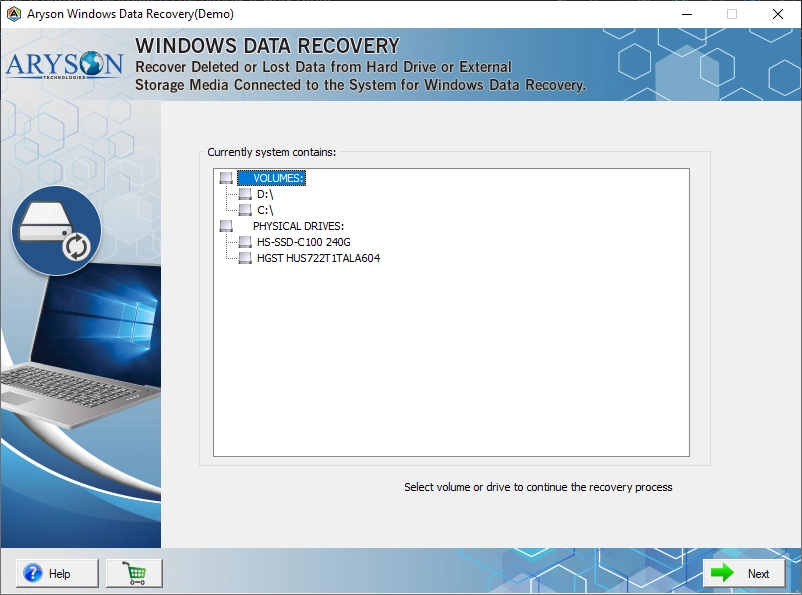
- Install and launch the Aryson Windows SSD Data Recovery Tool on your system.
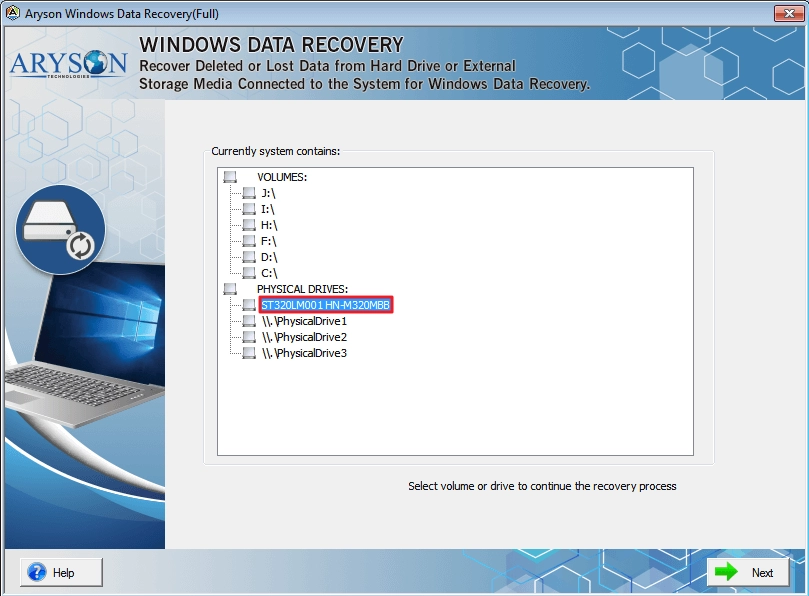
- Select the affected SSD drive and click Next to continue.
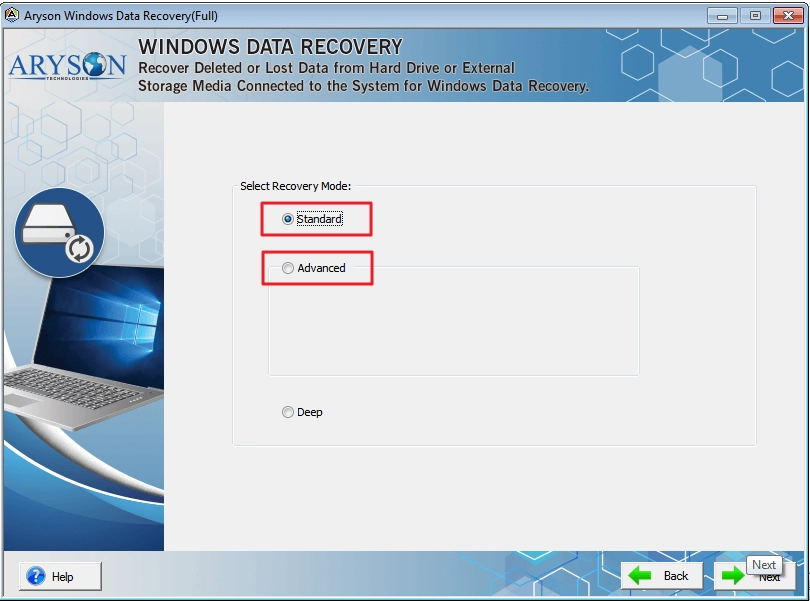
- Choose a recovery mode—Standard, Advanced, or Deep Scan—based on how badly the SSD is damaged.
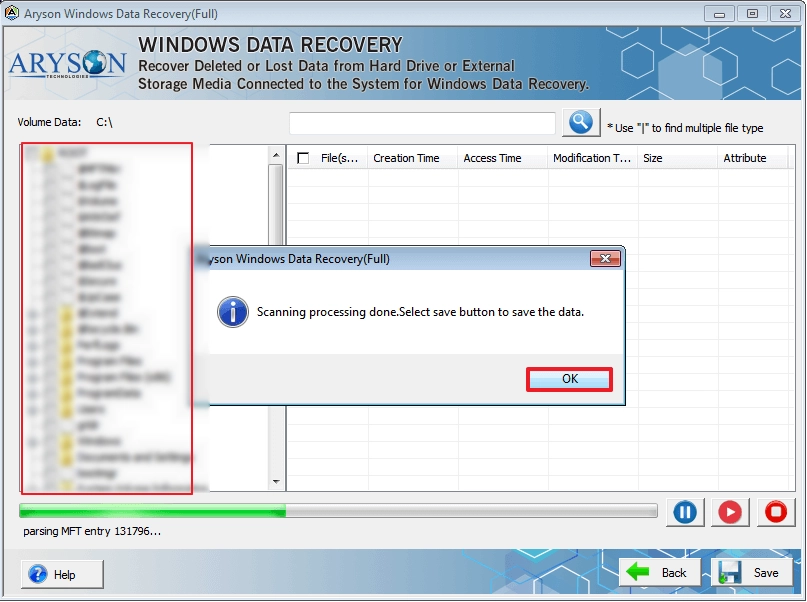
- After the scan completes, select the files or folders you want to restore >> Save.
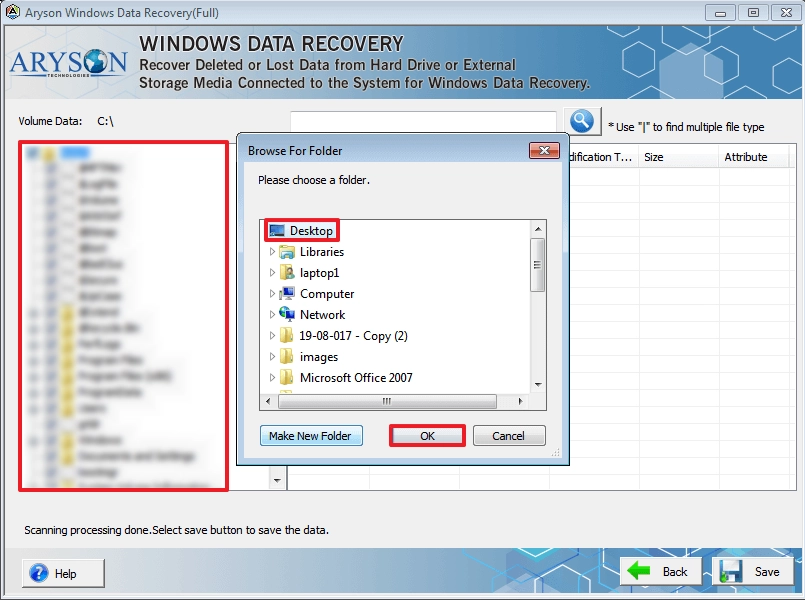
- Pick a secure location on your computer to store the recovered SSD data.
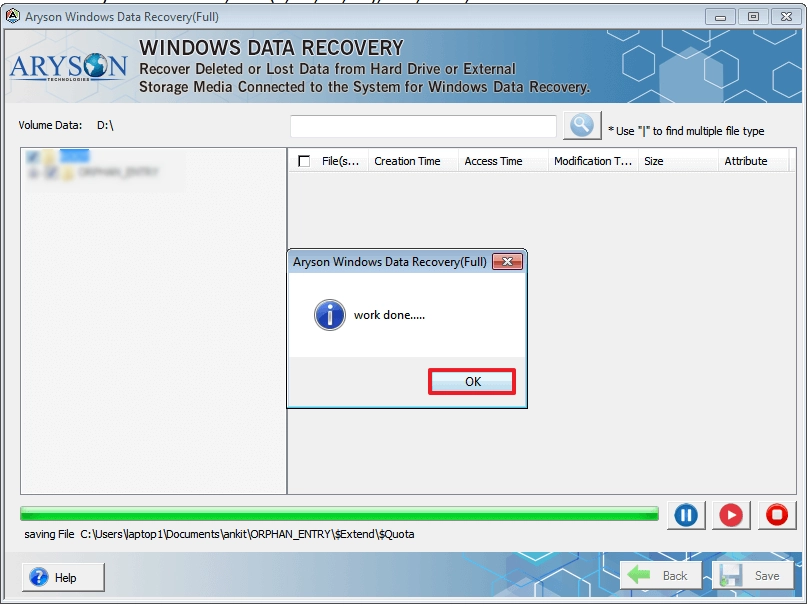
- Finally, click OK to complete the recovery and save your restored files safely.
Note: Apart from Aryson, there are the top 10 hard drive recovery software that an IT admin can explore to recover their hard drive. This eventually allows users to recover and restore the important and essential data.
Olivia’s Success Story
Olivia, a project coordinator from Ohio, faced a sudden system crash that made her SSD inaccessible and caused several folders to disappear. With important project files and personal photos at risk, she used the Aryson Windows Data Recovery Tool for recovering data from a SSD Drive not accessible in Windows. After running a deep scan, the software located her recoverable data. She successfully restored thousands of files and regained access to her critical information.
Conclusion
SSD data loss often feels complicated, yet it is possible to recover data from failed SSD in most cases when proper steps are followed. Manual methods help only when corruption is minor or when backups exist. Severe issues, such as formatting, RAW drives, partition corruption, and crashes, demand a reliable recovery solution. The powerful recovery approach helps recover important SSD data files safely, avoids overwriting, and guides users through an effective recovery process. Taking regular backups and checking SSD health ensures better data protection in the future.
Frequently Asked Questions
Q.1 How To Recover Data from a Dead SSD?
Ans: If the SSD is detected by Windows, you can use the Aryson Windows Data Recovery Tool to scan the drive and recover lost files.
Q.2 Is it possible to recover data from a failed SSD?
Ans: Yes, the Aryson Windows Data Recovery Tool can recover data from failed SSDs affected by corruption, formatting, RAW partitions, accidental deletion, or system crashes, provided the drive remains accessible to the operating system.
Q.3 Which file systems on an SSD are supported for recovery?
Ans: The Aryson Windows Data Recovery Tool supports recovery from major file systems, including NTFS, FAT, FAT32, and exFAT, allowing users to recover data from a wide range of SSD storage environments.
Q.4 Can I recover multimedia files (photos, videos, audio) from a failed SSD?
Ans: Yes, the software can recover various file types, including photos, videos, audio files, documents, spreadsheets, archives, and other important data stored on SSD drives.
Q.5 Does this recovery work on SSDs as well as other devices?
Ans: Yes, the Aryson Windows Data Recovery Tool supports SSDs, HDDs, USB flash drives, memory cards, external hard disks, and other storage devices affected by logical data loss issues.
Q.6 What precautions should I take to protect my data before starting SSD recovery?
Ans: Stop using the SSD immediately, avoid saving new data, do not format the drive, and save recovered files to a different storage location to prevent overwriting recoverable data.
Q.7 Will it recover data from an SSD that shows a RAW or an unrecognized file system?
Ans: Yes, the Aryson Windows Data Recovery Tool can scan RAW or inaccessible SSD partitions and recover available files before any repair or formatting process is performed.
Q.8 How does the recovery tool ensure my data integrity during SSD recovery?
Ans: The software performs a read-only scan of the SSD and recovers files without modifying the original data, helping preserve file structure and reducing the risk of further data loss.
Q.9 Is the recovery tool beginner-friendly for non-technical users?
Ans: Yes, the software features a simple graphical interface with guided recovery steps, making it easy for both single users and IT professionals to recover lost SSD data.
Q. 10 How do I start a 24×7 chat session for SSD recovery help?
Ans: Visit the Aryson support page and start a live chat session with the technical support team. They are available to assist with SSD recovery questions, software usage, and troubleshooting.
About The Author:

Rohan Wiese is a Technical Content Writer at Aryson Technologies, specializing in databases, e-mail recovery, and e-mail migration solutions. He enjoys conducting research and generating information that assists database administrators, businesses, and novices in resolving issues with MS SQL Server, MySQL databases, Cloud Computing, and Microsoft Exchange.
Realted Post



