

-

Written By Rohan Wiese
-
Updated on July 14th, 2026
Export Exchange Mailboxes to PST: Bulk Migration Guide
Pardon K., California, Asked
We have Exchange 2019 and want to export the PSTs of ex-employees. User mailbox size in Exchange is 2-3 GB, but after exporting, the .pst file shows 15-20 GB. Some mailboxes, while starting the export, show a status as in progress, but after 2 to 3 days, nothing happens. Does anyone know a reliable fix to export Exchange mailboxes to PST?
Overview: This is an era of IT enterprises, and most of the administrators rely on Microsoft Exchange Server to manage their business-critical email communication. Exchange 2019 stores mailbox data on-premises. This makes the regular backups essential for compliance, migration, and offboarding purposes. PST files are portable, easy to access offline, and widely supported by Outlook. Therefore, in this blog, we will cover the two most effective manual methods, along with the Aryson Exchange Server Backup & Restore Tool. Make sure to read through the complete blog carefully to avoid any kind of data loss.
Instant Way to Export Exchange Data to PST
- Download and install the Aryson Exchange Server Backup & Restore Tool.
- After that, click Backup >> Continue >> log in to an O365 active account to sign in.
- Then, select the Exchange Mailboxes >> select PST under the file formats.
- Configure the built-in filters of the software >> click Next.
- Provide the destination location and click Start Migration.
Why Does the Exported PST File Size Increase?
PST bloating happens because Exchange stores mailbox data compressed inside the database, while PST files store items uncompressed with extra metadata. Deleted items awaiting purge also get included, making the exported PST several times larger than the actual mailbox size.
How to Manually Export Exchange Mailboxes to PST?
If you possess strong technical expertise, you may use this manual method to manually export the Exchange mailboxes to PST. Manual methods rely on Outlook or Exchange Admin Center and work without third-party software, though each carries limitations for bulk or offboarding exports. Use either the end user method or the administrator’s method as per your convenience.
Method 1: For End-Users (Using Microsoft Outlook Desktop)
For end users without administrator privileges, this is the simplest method. Here, you do not require any administrator permissions. Rather, you can perform this process directly from your computer.
Simplified Steps to Export Exchange Mailbox Folder to PST
- First, open the Microsoft Outlook application >> go to the File tab.
- After that, click on the Open & Export >> Import/Export options.
- Now, choose the Export to a file option >> click Next
- Next, select the Outlook Data File (.pst) option >> Next.
- Select the Mailbox folder >> tick the Include subfolders checkbox.
- Click Next, choose a destination folder to save the file, and click Finish.
Method 2: For Administrators (Using Exchange Admin Center)
This method is specifically suitable for administrators with admin privileges. If you are an administrator and use a manual, GUI-driven method instead of using command lines, use the Exchange Admin Center (EAC).
Step-By-Step Process to Export Exchange Mailboxes to PST
Make sure that your account has the Mailbox Import Export role assigned.
- To initiate, log in to the Exchange Admin Center.
- After that, select the Recipients option >> Mailboxes.
- Click the More options (three dots) icon.
- Now, select Export to a PST file from the dropdown menu.
- Next, follow the on-screen wizard to select the target mailbox.
- Provide a UNC network path (e.g., \ServerName\ShareName\mailbox.pst).
- Furthermore, submit the export request and follow the required steps.
- At last, track the export process under the Mailbox Export Requests.
Why Do Users Face Issues With Manual PST Export?
- This method is not reliable for bulk exports.
- Moreover, it is observed that large mailboxes frequently crash midway, showing StalledDueToSource errors for days at a time.
- Furthermore, the exported PST file size increases beyond the original mailbox size.
- Network shares require correct permissions, or the entire export request fails silently.
- Oversized or corrupted PST files often cause Outlook to crash when reopened for review.
How can I export multiple Exchange mailboxes to PST without server downtime?
To migrate Exchange server mailboxes to Outlook PST without affecting server performance, you must use a professional solution. The most recommended solution is explained below. The Aryson Exchange Server Backup & Restore Tool helps administrators to load the required Exchange mailboxes and convert them into PST format. Not just PST, but administrators can also export Exchange mailboxes directly to MSG and EML formats. Go through the details below to know how to perform the entire export without any issues.
Expert Solution to Export Exchange Mailboxes to PST
To overcome the above limitations of the manual method, enterprises should opt for the Aryson Exchange Server Backup & Restore Tool. This software exports Exchange 2019 mailboxes to PST within a few clicks, without data loss, size bloating, or stalled requests. Moreover, the same utility can export Office 365 Mailbox to PST. Also, advanced features such as Date Filter, Selective Export, and Split PST enhance the productivity of administrators managing multiple accounts.
Steps For Exporting Exchange Data to PST for Backup or Migration
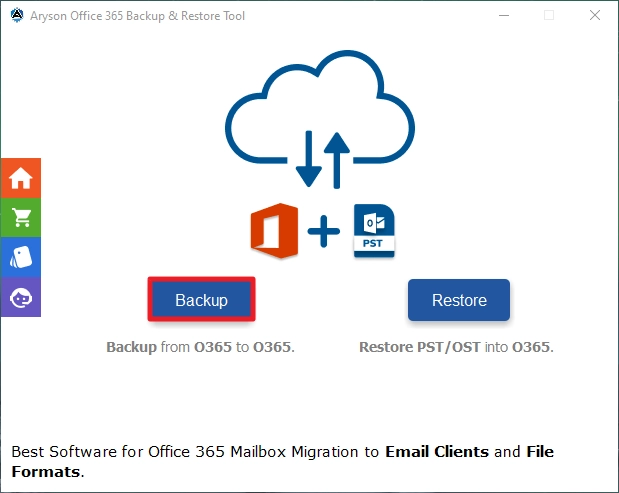
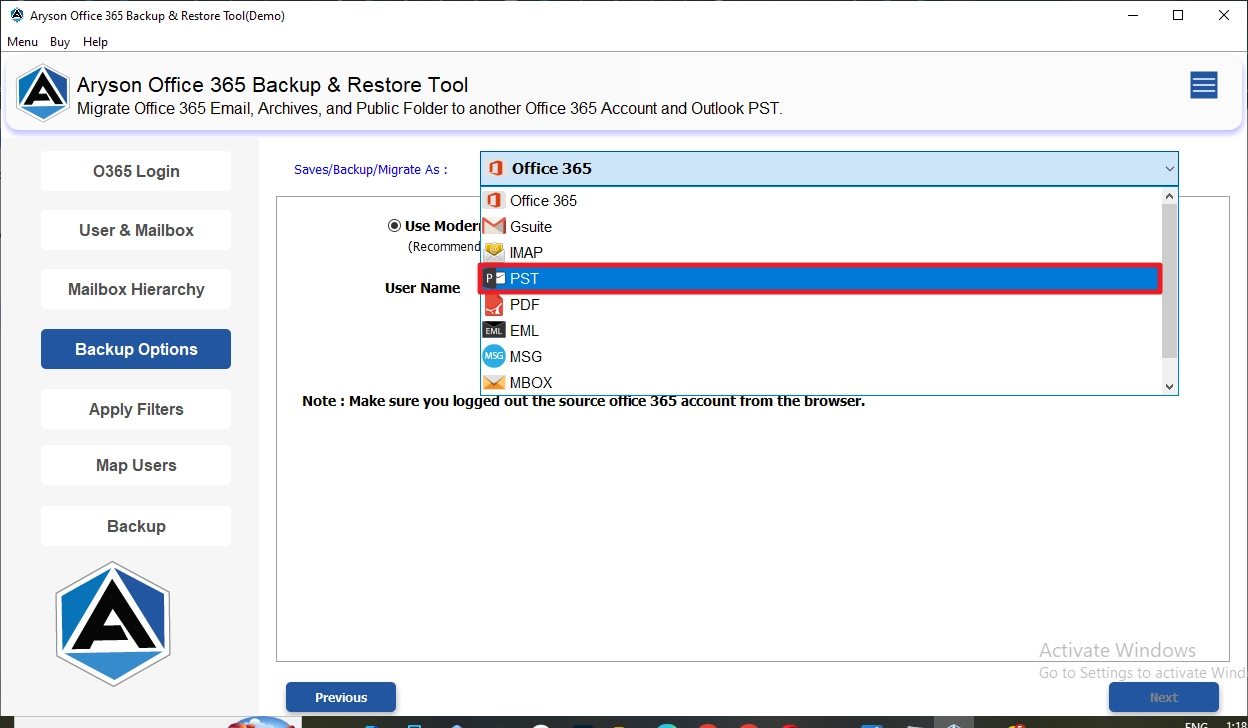
- Download and install the Aryson Exchange Server Backup & Restore Tool >> Backup.
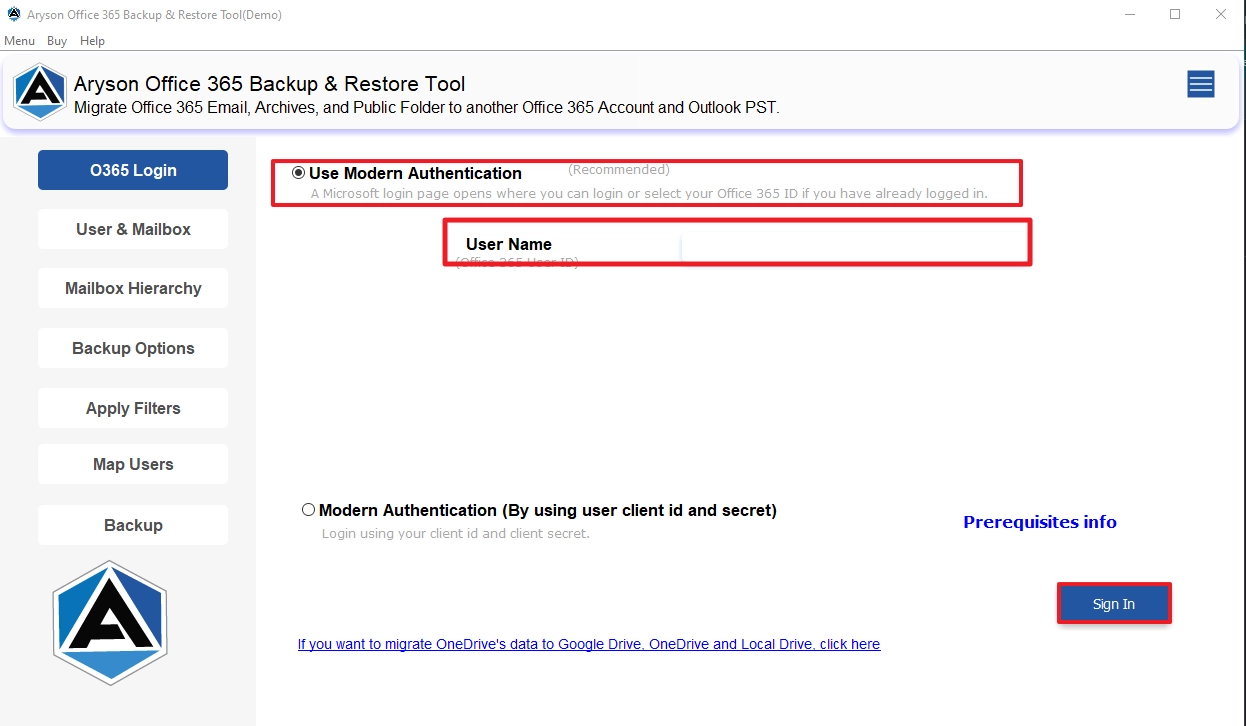
- After that, click Continue >> log in to an O365 active account to sign in.
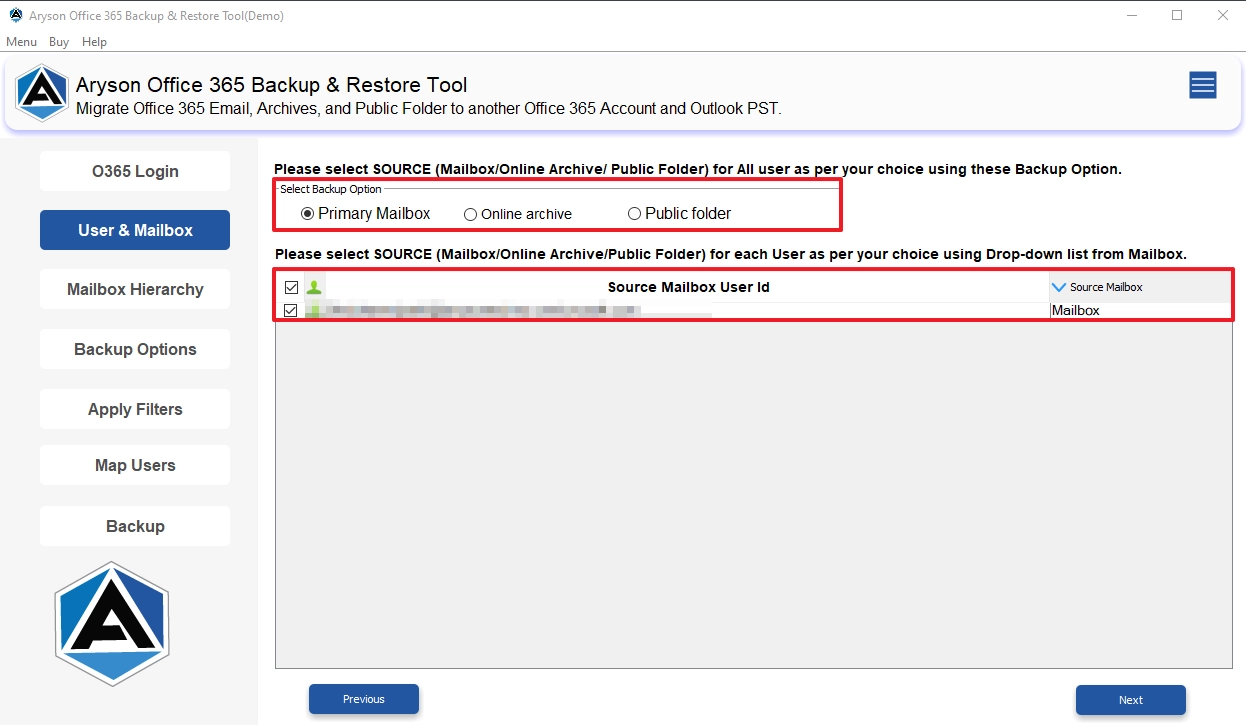
- Then, select the Exchange mailboxes to export.
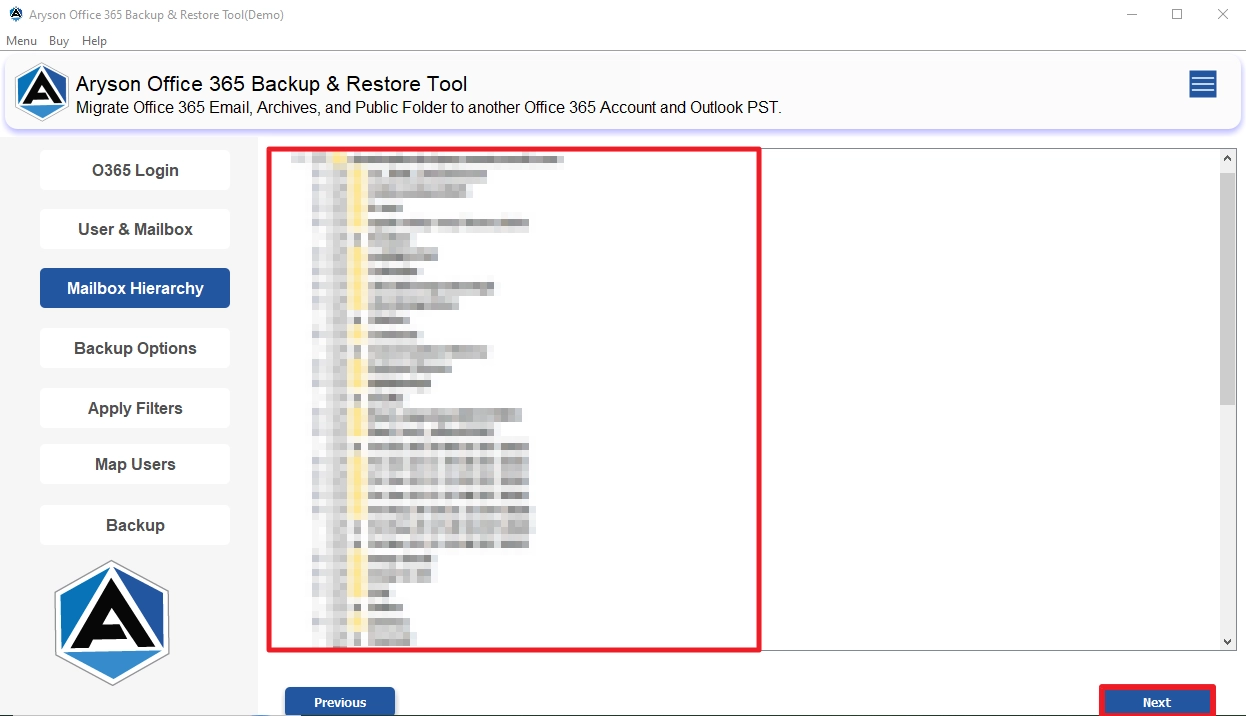
- Select the required folders from the hierarchy as per your requirement.
- After that, select the PST file format under the file formats drop-down.
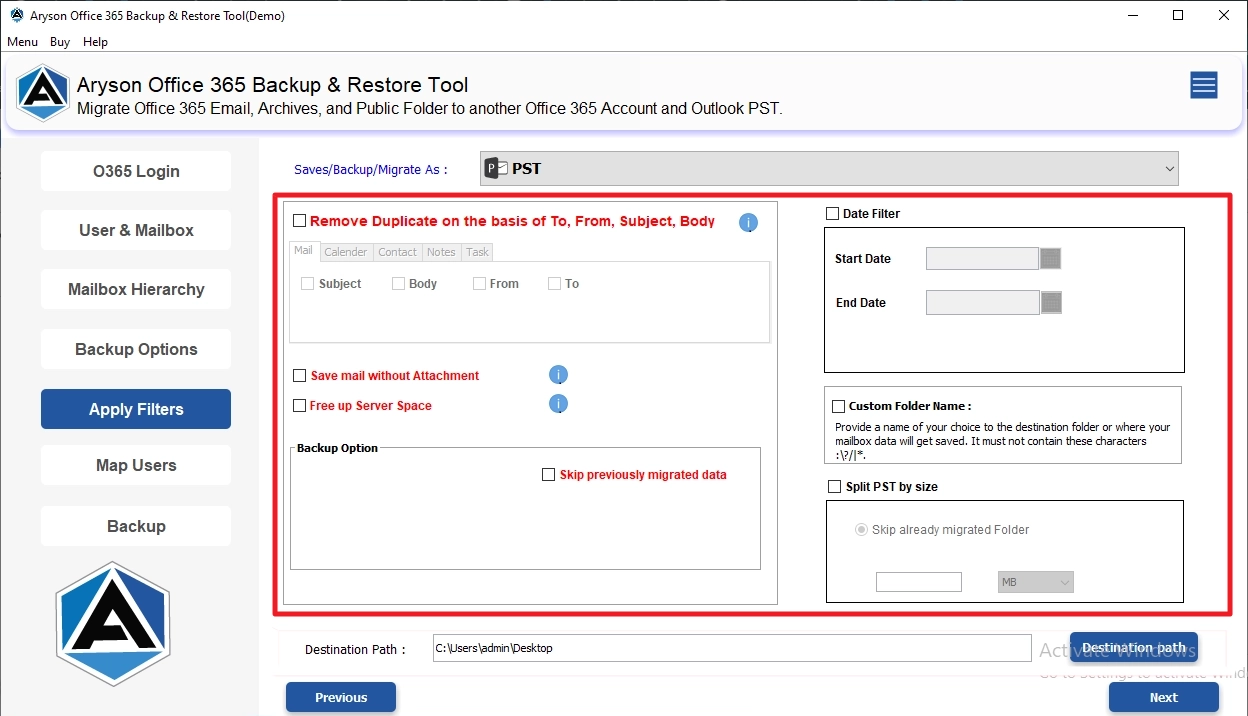
- Configure the built-in filters of the software.
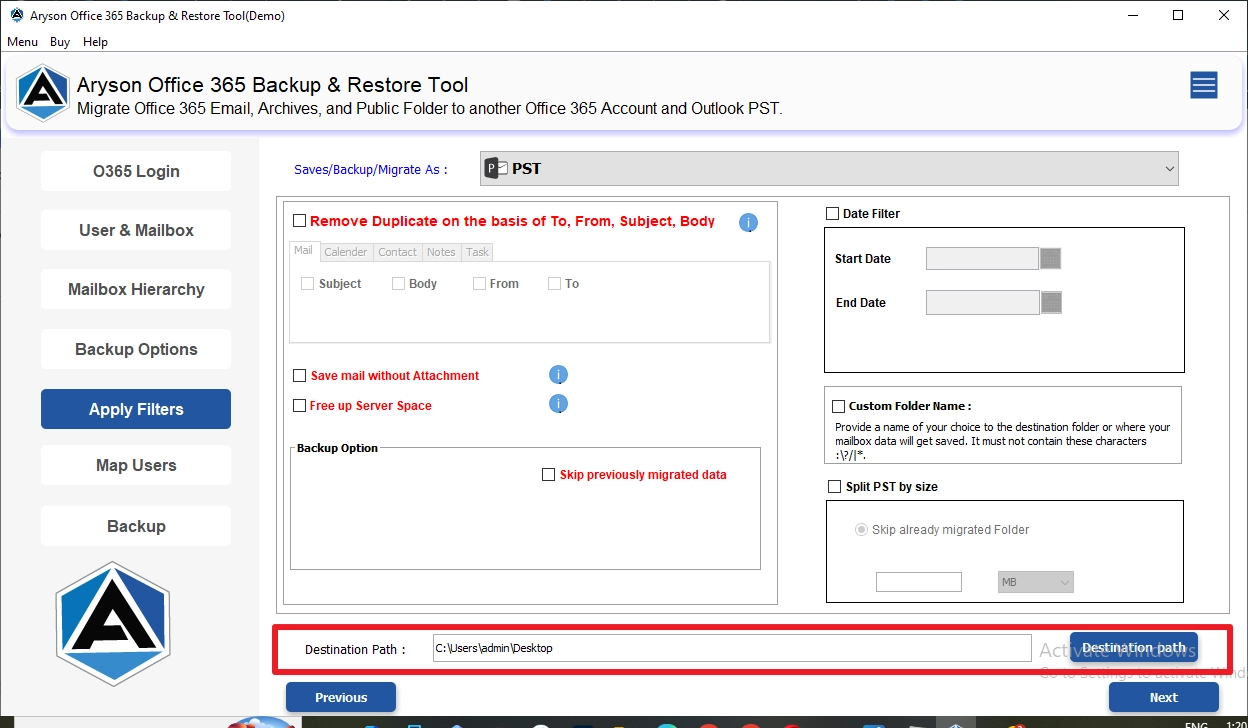
- Provide the destination location as needed and click Next.
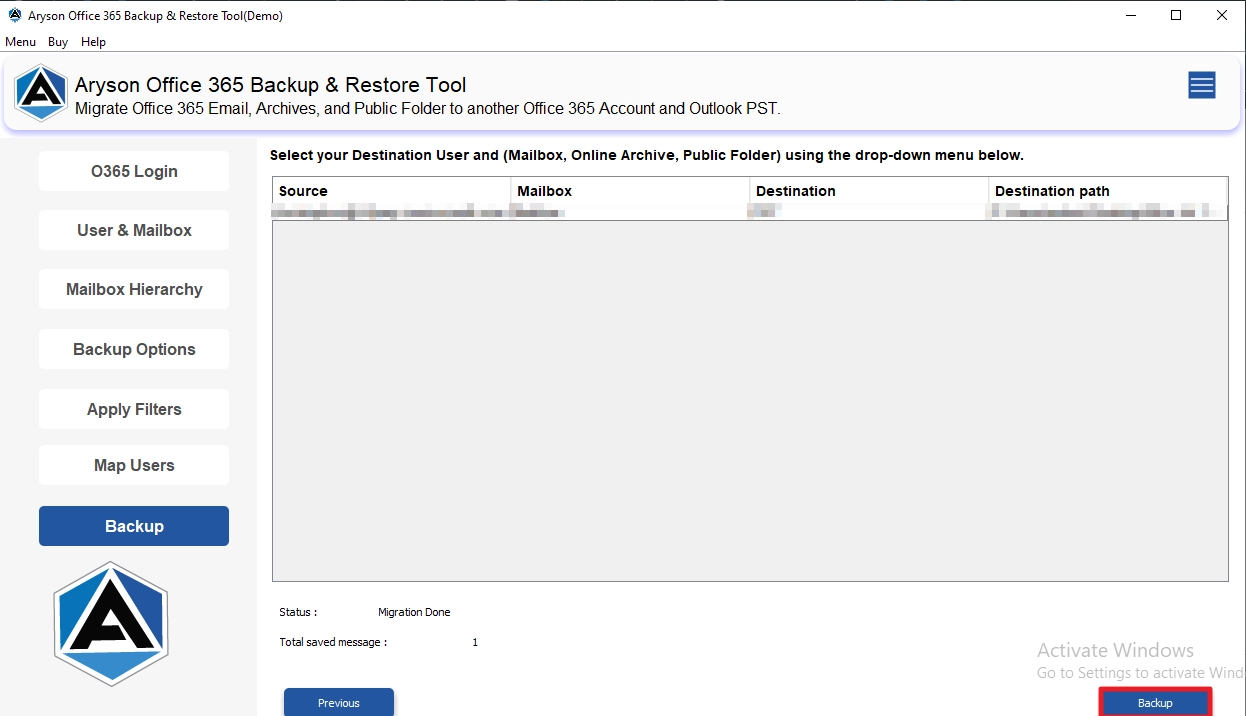
- At last, click Backup to begin migration.
Real-World Success Story
Denison, a system administrator in Pune, needed to export 45 ex-employee mailboxes from Exchange 2019 before a compliance audit. He tried the EAC method first, but several exports got stuck at StalledDueToSource for three days straight. Therefore, he switched to the Aryson Exchange Server Backup & Restore Tool that evening and applied a date filter. The software exported all 45 mailboxes overnight with correctly sized, standard PST files.
Conclusion
In the above article, we discussed that enterprises and administrators need to export Exchange mailboxes to PST to archive data or migrate accounts safely. To achieve an accurate export, it is important to choose the right approach between the manual method and the automated method. The manual method works well for a few mailboxes; large enterprises should use the automated solution since it handles bulk exports without corruption, stalling, or unexpected size issues.
Frequently Asked Questions
Q.1 How to export Exchange mailboxes to PST?
Ans: Download and launch the Aryson Exchange Server Backup & Restore Tool, click Backup, sign in to your active Exchange account, select Exchange Mailboxes, and choose PST as the output format. Apply the required filters, specify the destination location, and click Start Migration to export Exchange mailbox data to PST files.
Q.2 Can this tool back up entire Exchange mailboxes to PST?
Ans: Yes, the software exports complete Exchange mailboxes to PST, including emails, attachments, contacts, calendars, tasks, journals, notes, and other mailbox items without affecting original data.
Q.3 Does the export preserve contacts, calendars, and tasks when creating PST files?
Ans: Yes, the software preserves contacts, calendars, tasks, emails, and attachments while maintaining original structure, metadata, formatting, and mailbox hierarchy throughout the export process.
Q.4 Is it possible to export multiple Exchange user mailboxes to PST in one operation?
Ans: Yes, with the help of the Aryson Exchange Server Backup & Restore Tool, you can perform bulk mailbox exports via the CSV import feature. This allows administrators to process multiple Exchange mailboxes simultaneously, reducing manual effort and saving considerable migration time.
Q.5 How does authentication work when exporting mailboxes to PST?
Ans: The software supports secure authentication methods, including administrator credentials and modern authentication protocols, ensuring authorized mailbox access and secure data export operations.
Q.6 Is modern authentication used for exporting Exchange mailboxes to PST?
Ans: Yes, the software supports modern authentication methods, providing enhanced account security and secure token-based access. Also, it complies with current Microsoft authentication requirements.
Q.7 Can I choose specific folders (Inbox, Sent Items, Drafts) to export to PST?
Ans: Yes, users can select specific mailbox folders, including Inbox, Sent Items, Drafts, and custom folders, for targeted PST export requirements.
Q.8 Does the tool allow date and folder filters during PST mailbox export?
Ans: Yes, the date range filter and other options allow users to export mailbox data based on date ranges, folders, and other criteria for precise exports.
Q.9 Is there an option to exclude duplicate emails before exporting to PST?
Ans: Yes, the software includes duplicate email detection features that help users to reduce PST size and prevent unnecessary duplicate mailbox items.
Q.10 How does user mapping work when exporting to PST for migrations?
Ans: User mapping associates source mailboxes with designated export targets. This ensures accurate mailbox identification, organization, and streamlined migration management processes.
Q.11 How does modern authentication improve data security and integrity?
Ans: Modern authentication uses secure token-based verification, reducing password exposure risks. Moreover, it strengthens access control, data protection, and compliance during export operations.
Q.12 Do you provide 24×7 chat support for urgent data integrity issues?
Ans: Yes, the dedicated 24×7 chat support assists users with technical concerns, urgent export issues, troubleshooting requirements, and maintaining migration data integrity.
About The Author:

Rohan Wiese is a Technical Content Writer at Aryson Technologies, specializing in databases, e-mail recovery, and e-mail migration solutions. He enjoys conducting research and generating information that assists database administrators, businesses, and novices in resolving issues with MS SQL Server, MySQL databases, Cloud Computing, and Microsoft Exchange.
Realted Post


