A Complete Working Guide of Software to Backup or Migrate Google Emails to File Formats and Email Client
Following are the simple steps to Backup or Migrate Gmail Mailboxes into different File Formats & Email Clients
-
Table of Content
- Software Working Process
- Activation Guide
- Installation & Uninstallation
- User Interface
Software Working Process
Software Working Process
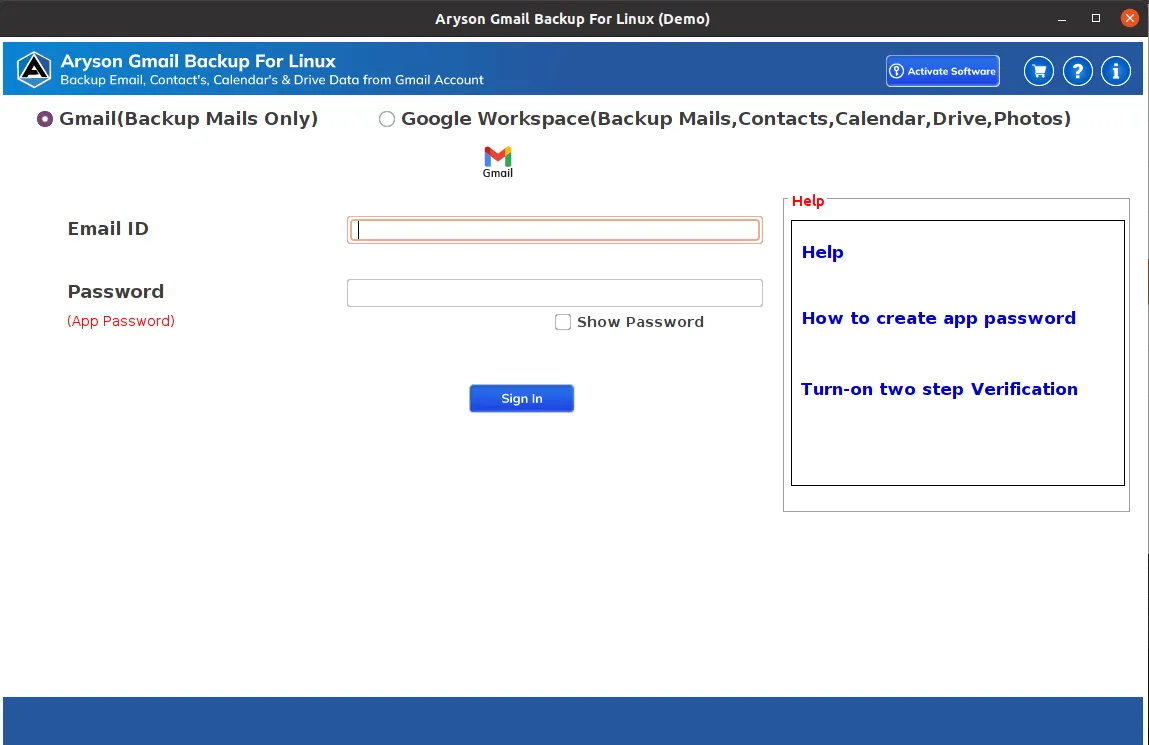
Step 1: First of all, Download, Install, and Run Linux Gmail Backup Tool on your computer.
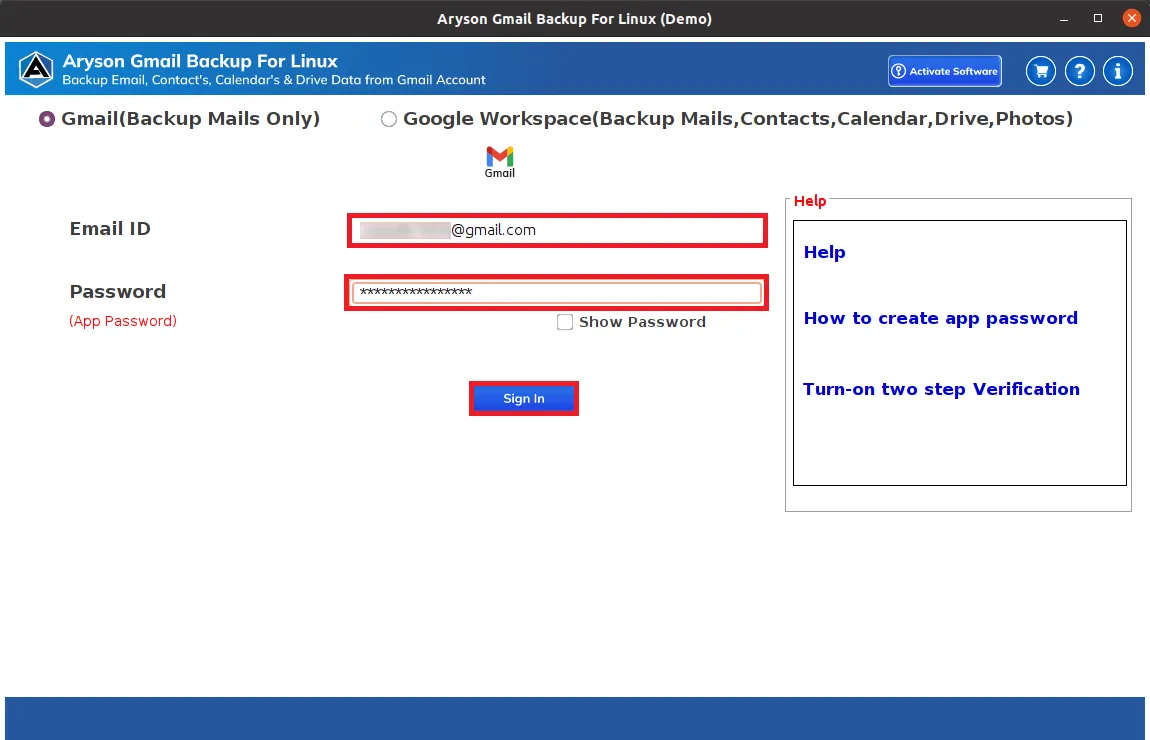
Step 2: Enter your Gmail email address and app password. Click the Sign In button.
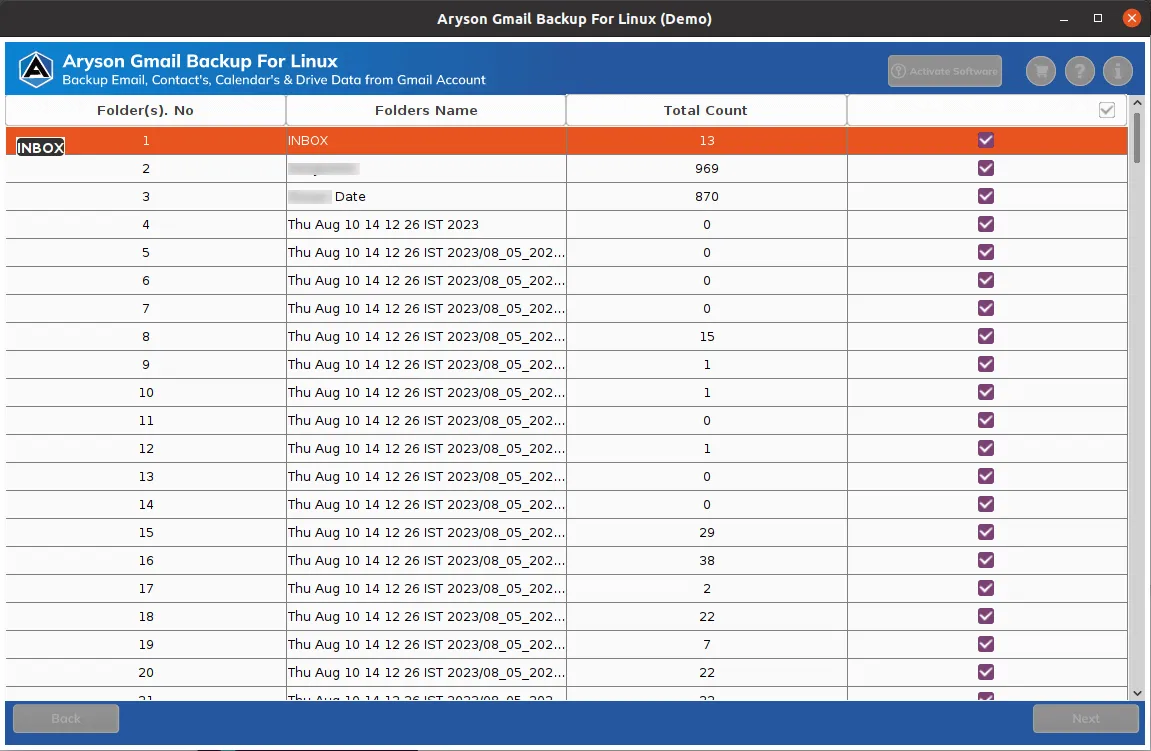
Step 3: Here, the software fetches all the mailboxes your Gmail account has. Select the folders you need to back up and click the Next button.
Step 4: Go with the Save in file format option and select PST from the drop-down list.
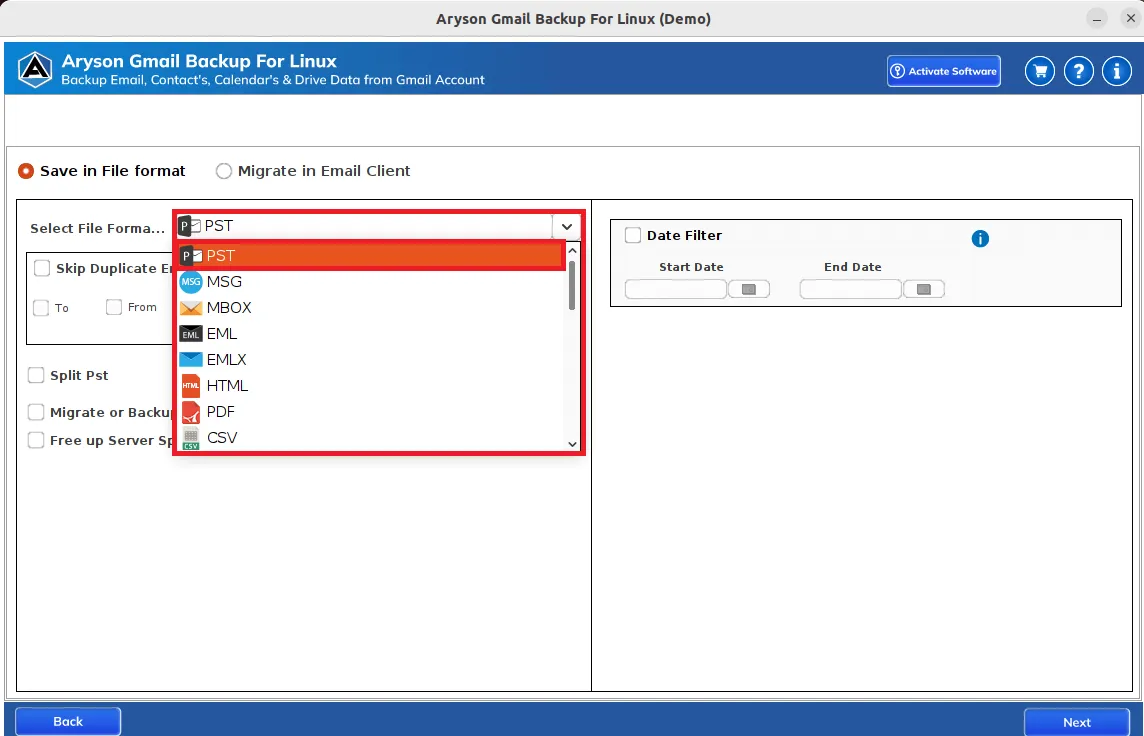
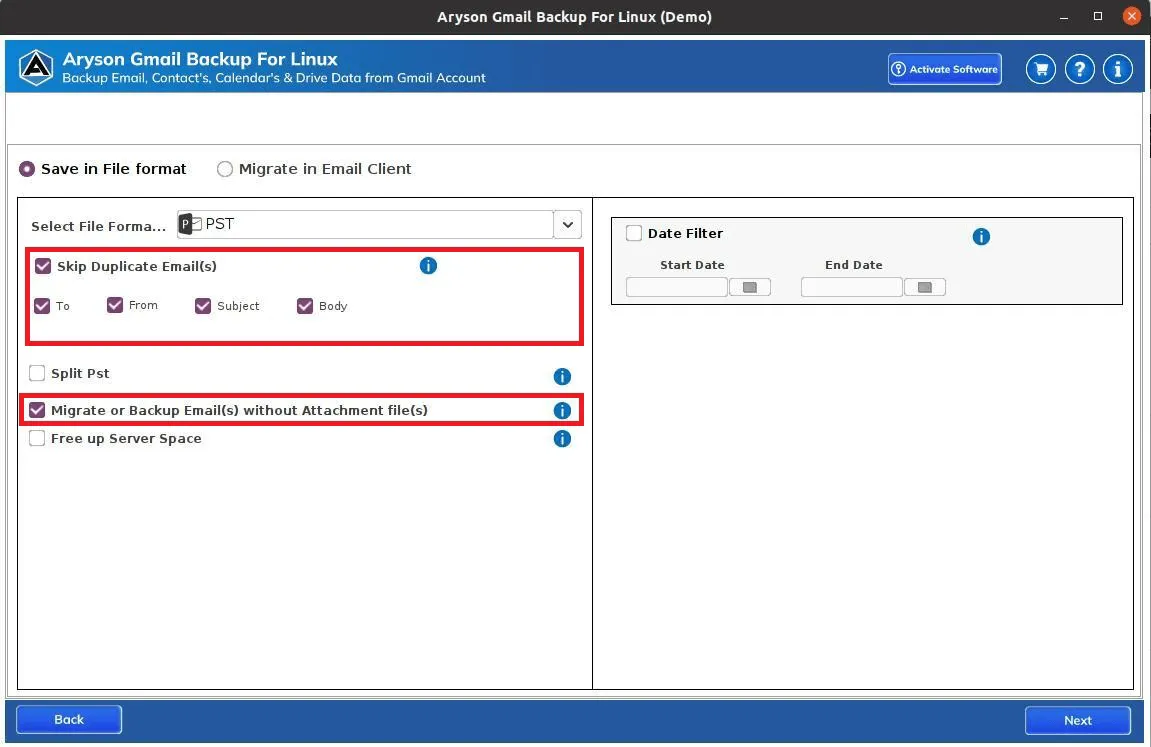
Step 5: You can Skip Duplicate Emails based on To, From, Subject, and Body and there is also a feature to migrate or backup emails without attachments files.
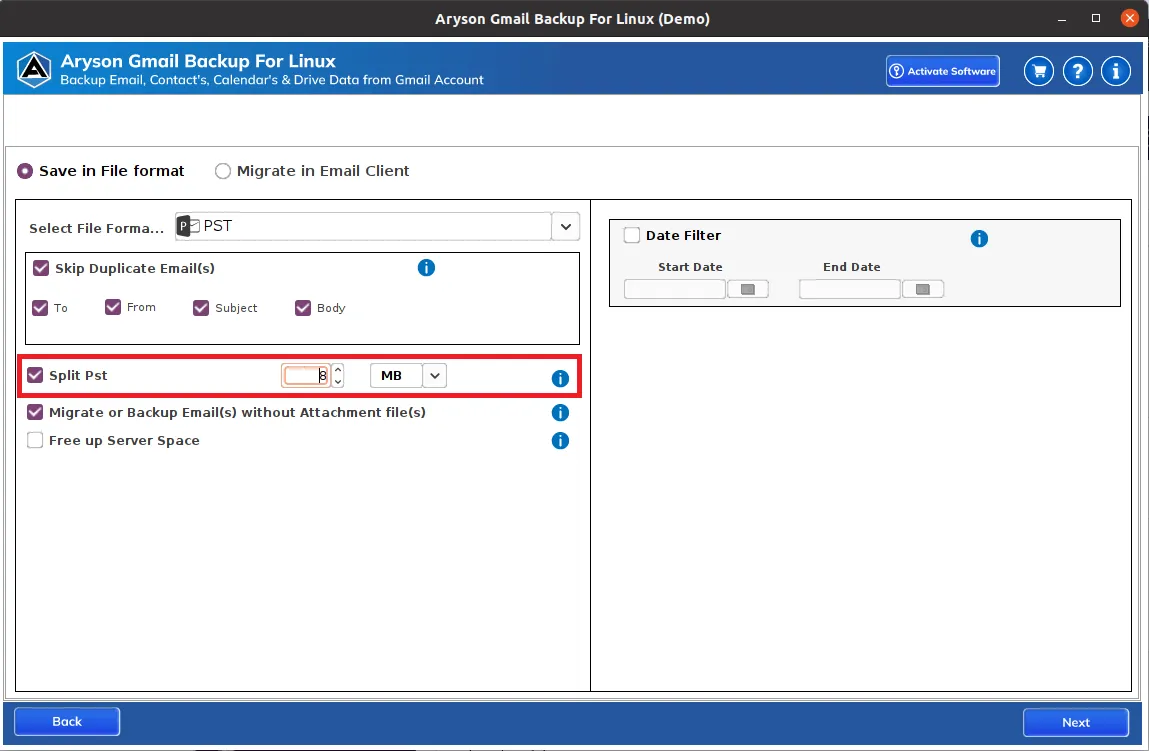
Step 6: The Split PST File option allows you to break the resultant PST file based on size(MB or GB).
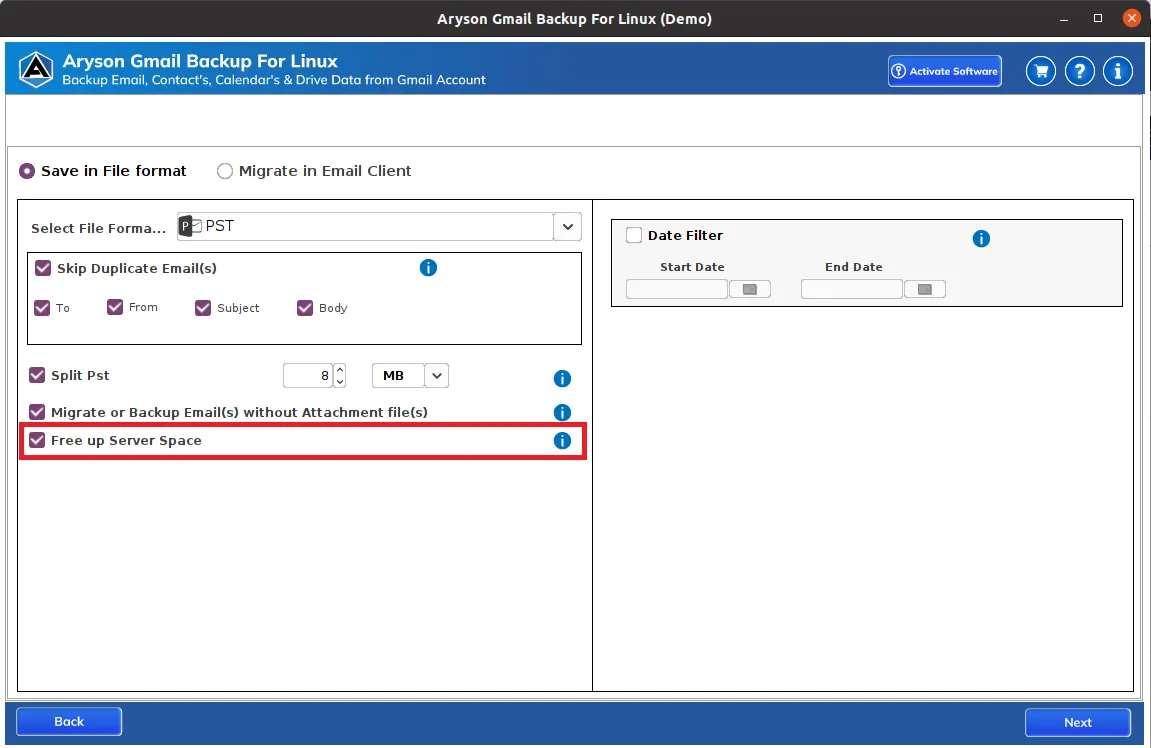
Step 7: The software also allows you to free up Gmail server space during the backup.
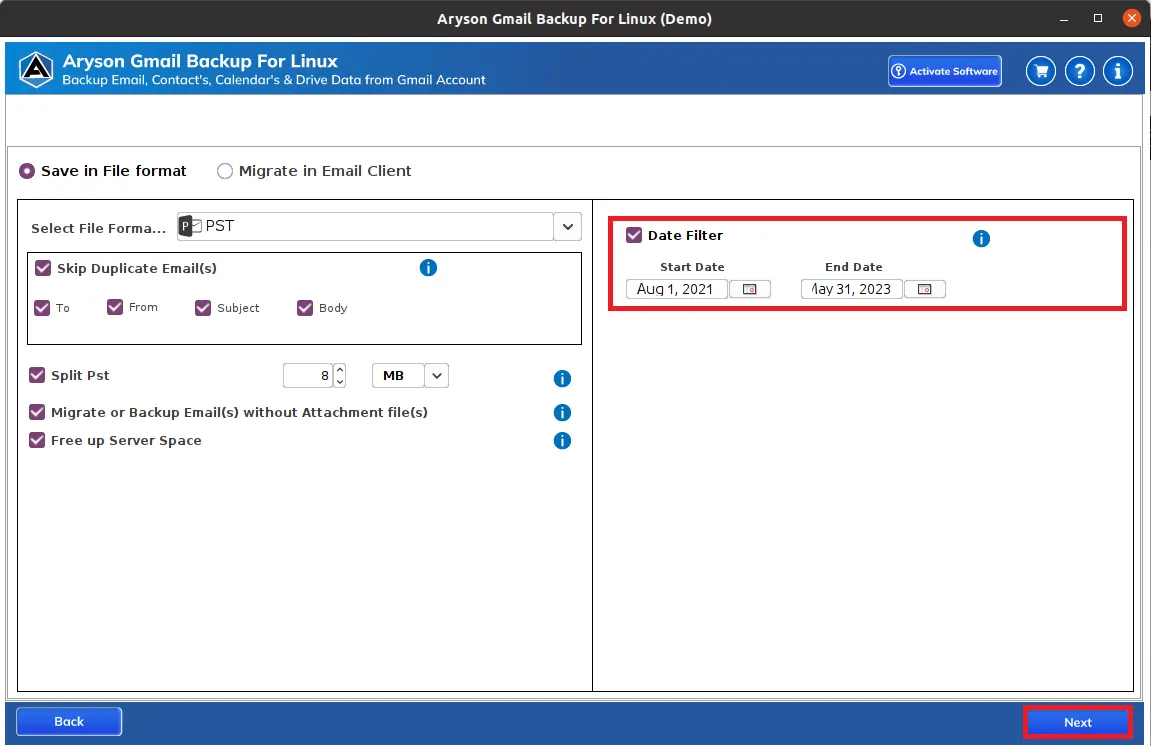
Step 8: Date Filter will let you perform the selective backup of Gmail mailbox data.
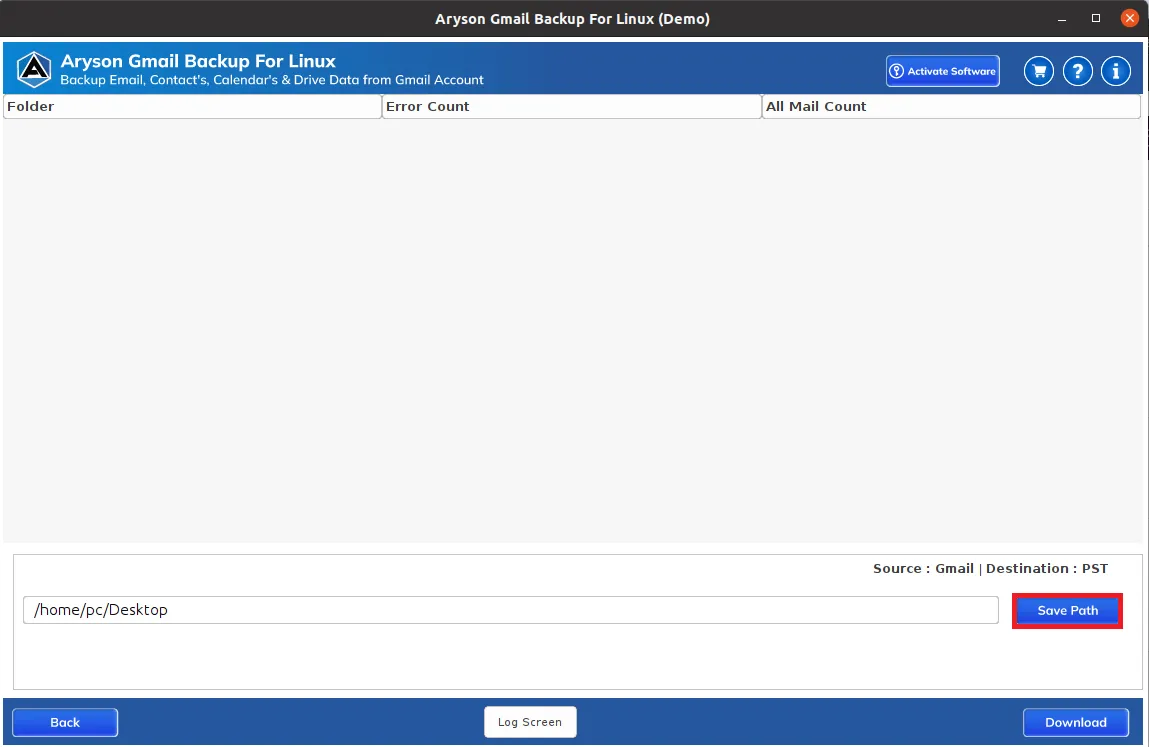
Step 9: The Save Path button helps you to set a saving location for the output folder.
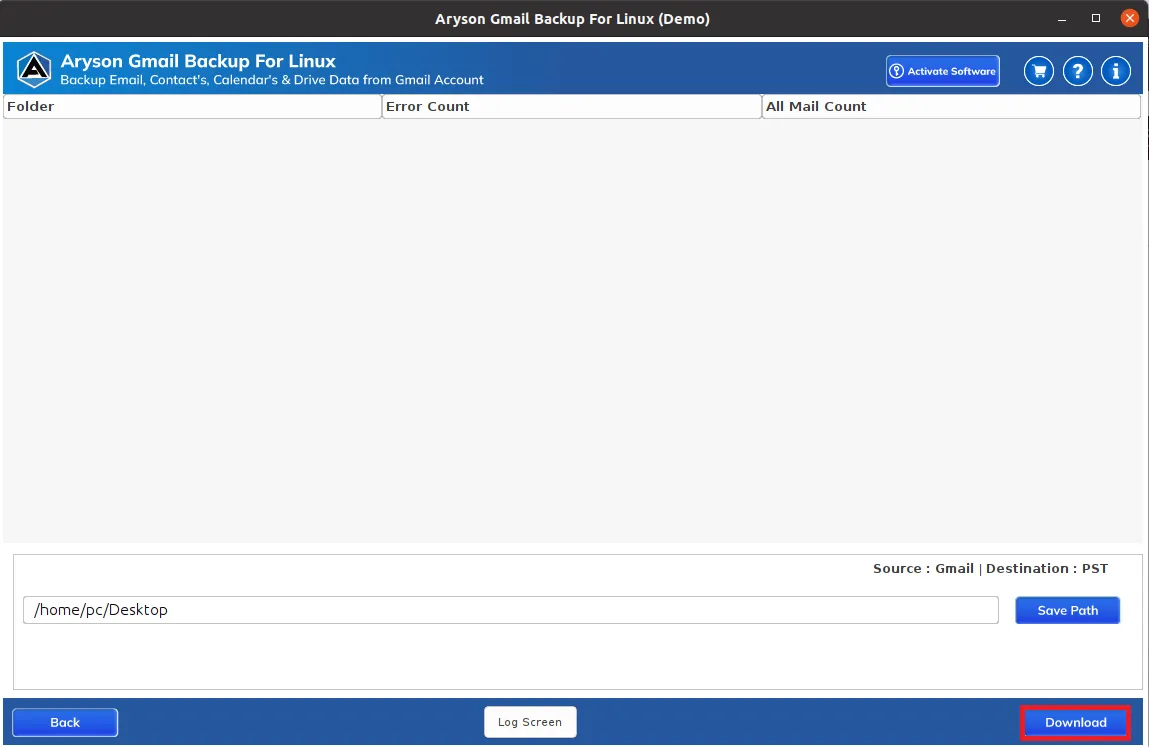
Step 10: Click the Download button to download Gmail mailbox emails locally in PST file format.
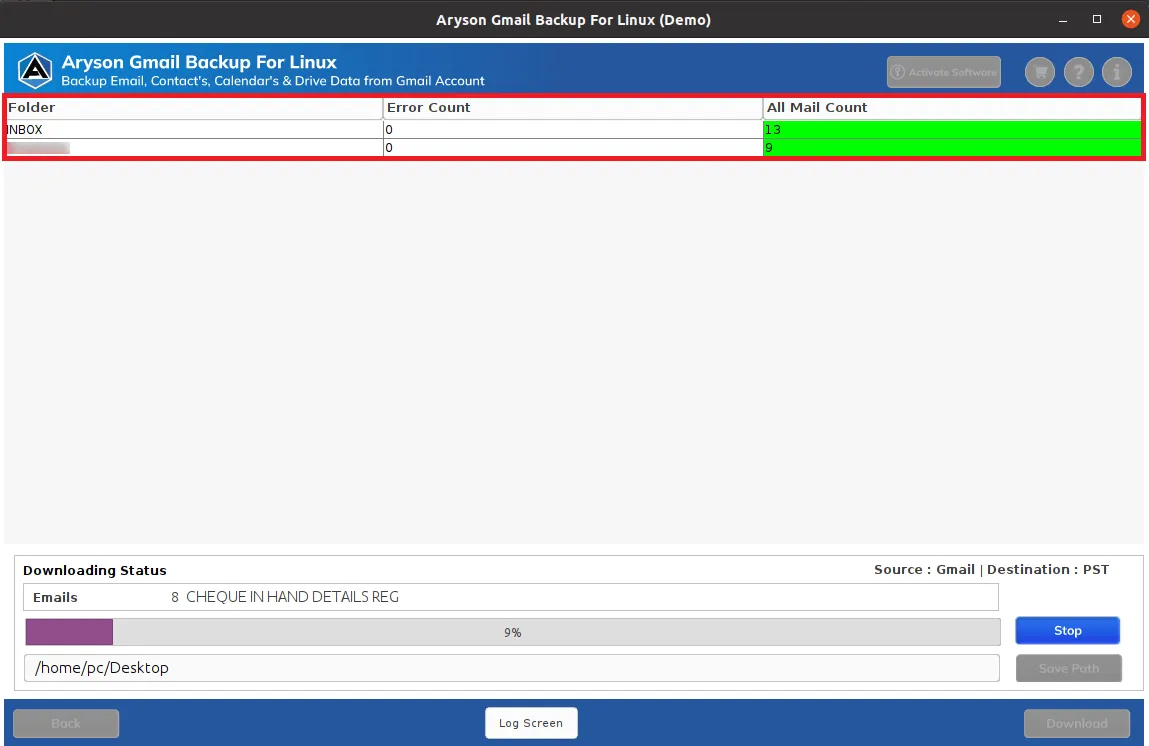
Step 11: The software will back up all Gmail emails into PST without data accuracy.
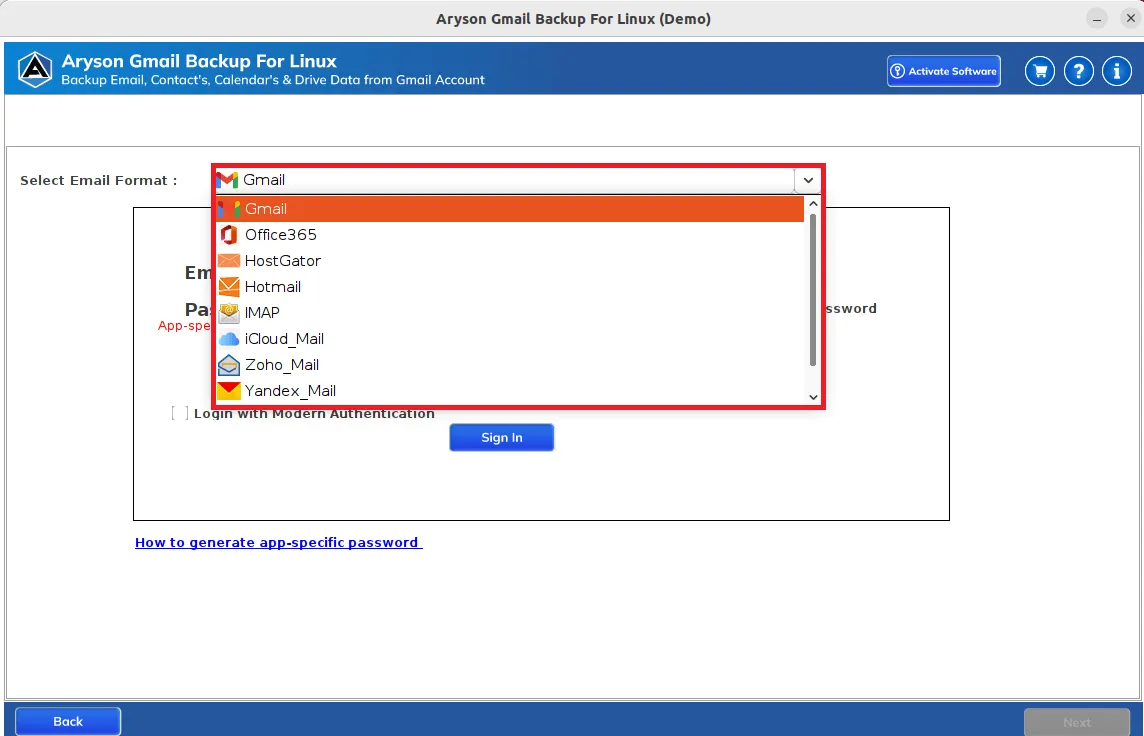
Step 4: Go with the Migrate in Email Client option and select Office 365 from the drop-down list.
Step 5: Enter your Office 365 credentials and click on the Sign In button.
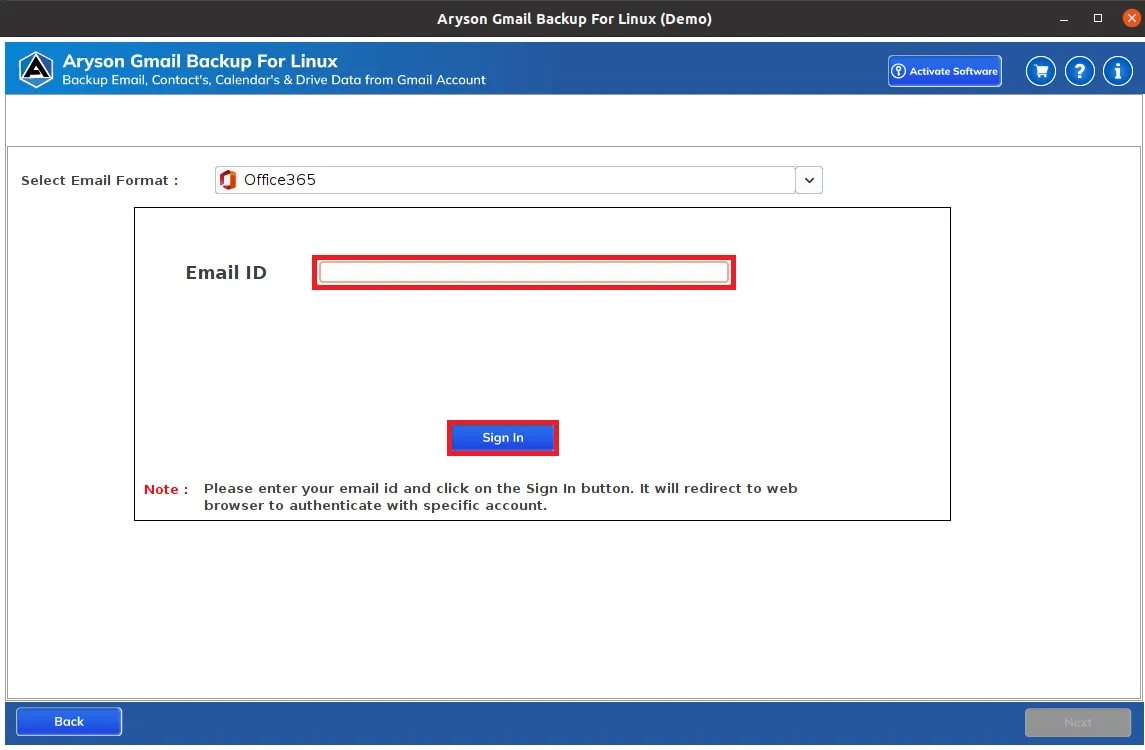
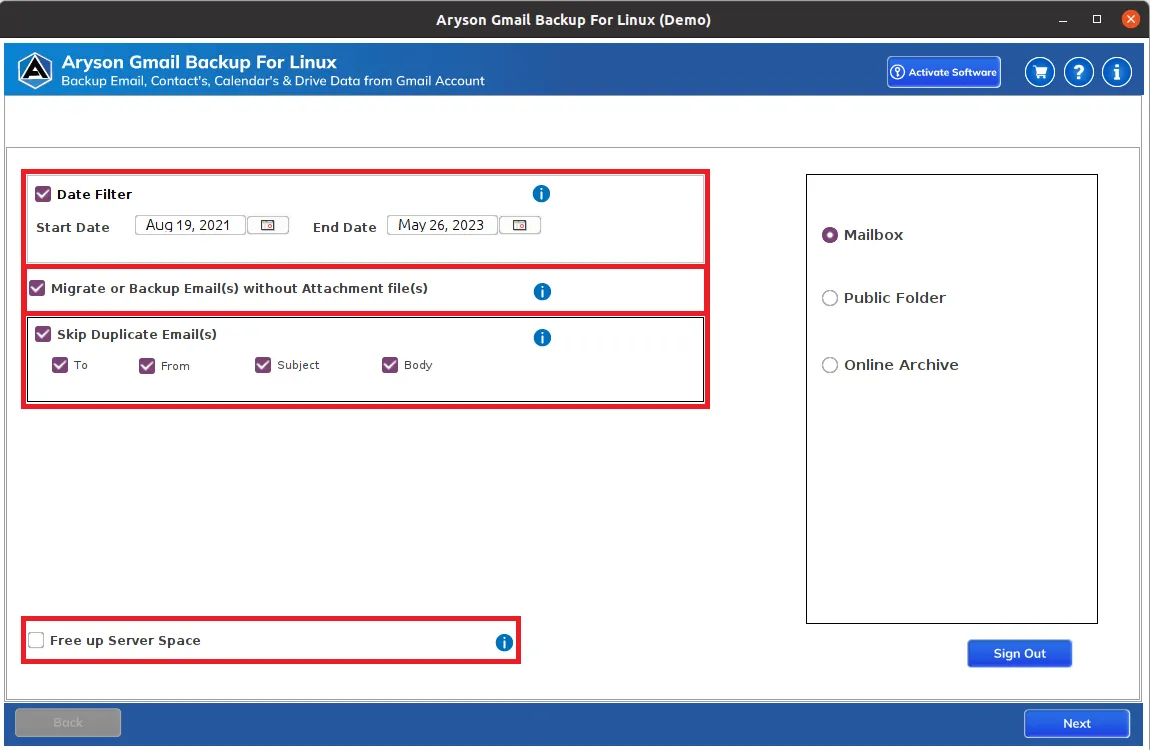
Step 6: Choose the Filter you need:
- Date Filter - will let you perform the selective backup of Gmail mailbox data.
- Skip Duplicate Emails - Skip Duplicate Emails based on To, From, Subject, and Body
- Migrate or Backup Emails without Attachments Files - you can save your Gmail emails without their attachment files.
- Free up Server Space - The software also allows you to free up Gmail server space during the backup.
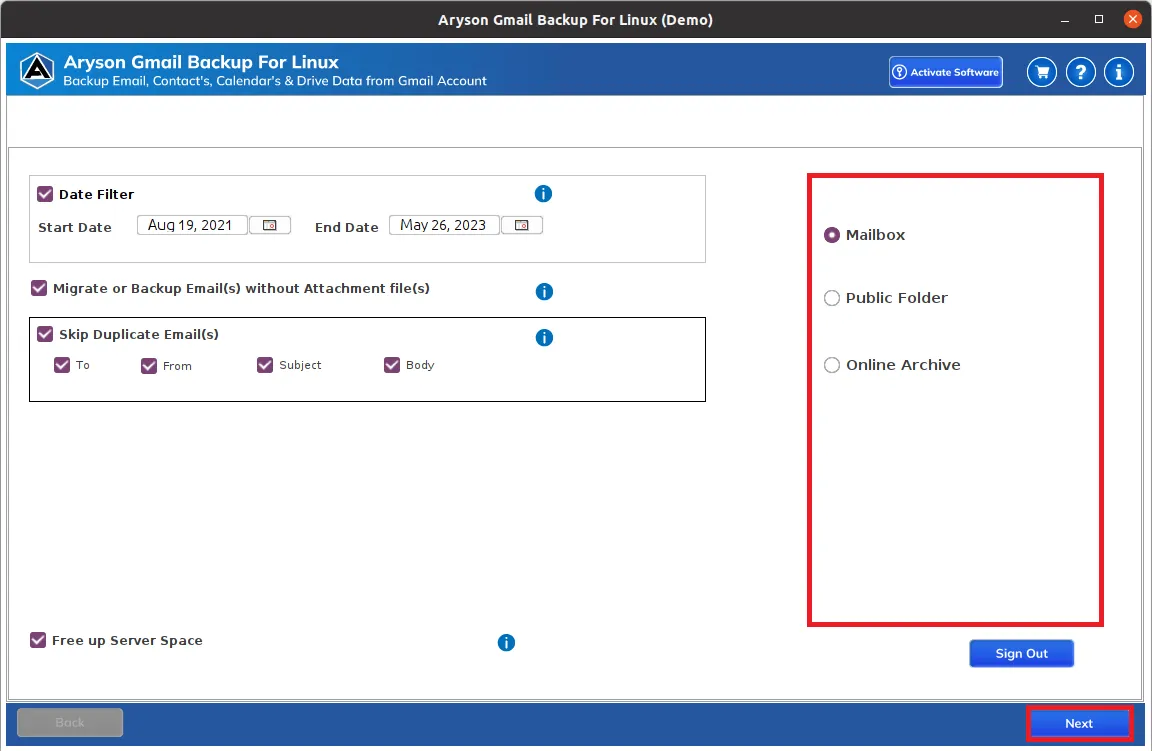
Step 7: Select Mailbox, Public Folder, or Online Archive to save your Gmail data and click the Next button.
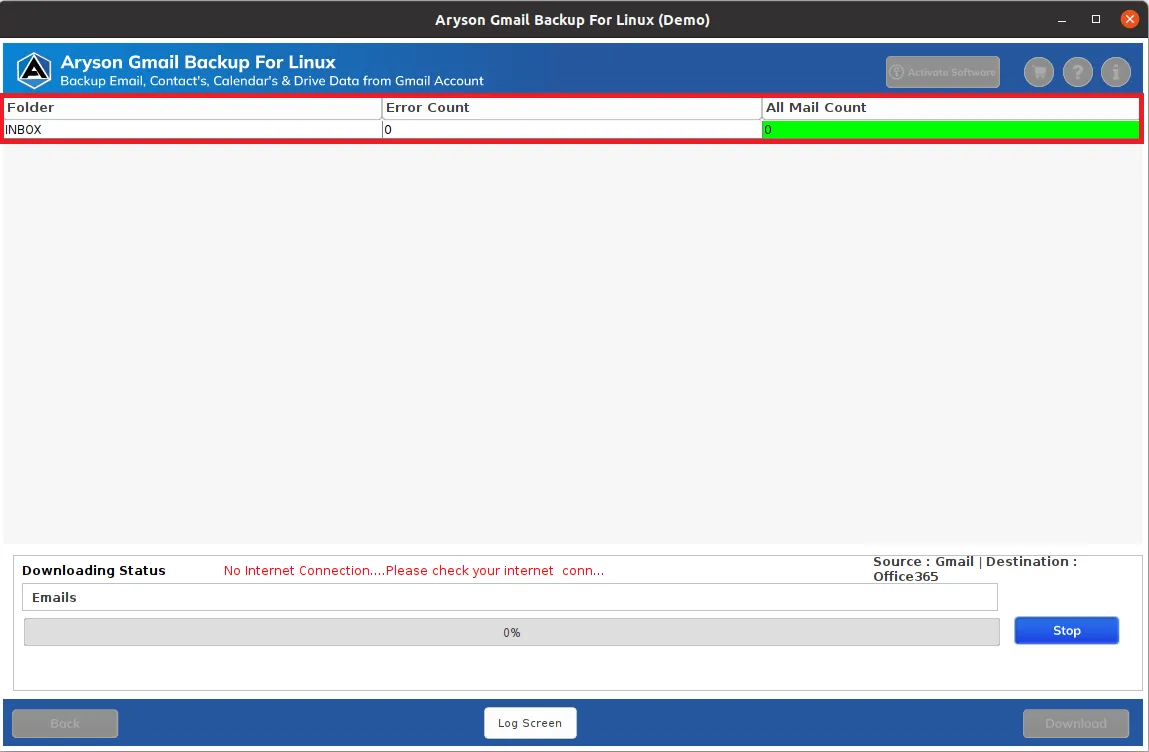
Step 8: Click on the Download button to initiate the migration process.
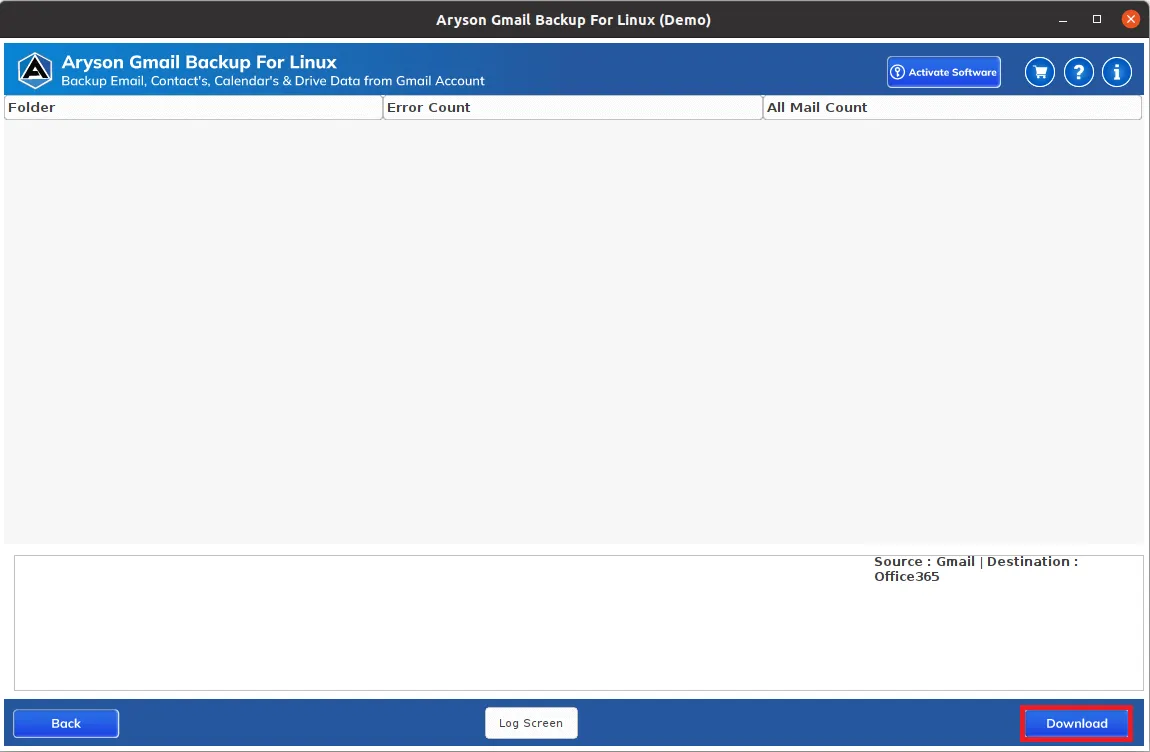
Step 9: The software will migrate all Gmail emails into Office 365 without data accuracy.
Activation Guide
Activate the Software
Installation & Uninstallation
Installation & Uninstallation of Software
User Interface
User Interface
After downloading the Aryson Linux Gmail Backup tool, you will find the welcome screen as played below.