-

Written By Rohan Wiese
-
Updated on March 13th, 2026
How to Migrate OneDrive Data from One Tenant to Another Securely
Enterprises and industry professionals often need to migrate OneDrive data from one tenant to another during mergers, restructuring, or domain changes. However, it is essential to carefully plan the migration to avoid data loss and permission issues. In this blog, we will discuss some effective methods to perform OneDrive tenant-to-tenant migration, including the use of the Aryson Microsoft 365 Migration tool to achieve a secure and efficient data transfer. Download Now Purchase Now
What is OneDrive Tenant to Tenant Migration?
The term “OneDrive tenant-to-tenant migration” is defined as the transfer of OneDrive files, folders, and user data from one Microsoft 365 tenant to another. In Microsoft 365, a tenant is defined as an organization’s dedicated cloud environment where services and user accounts are managed. Here, a personal OneDrive storage space is assigned to each user account, and it is linked with the associated specific tenant.
It is not a straightforward process to migrate between tenants, as OneDrive data is connected to user identities, permissions, and tenants’ directory structure. The authentication and security settings of each tenant are separate as well as independent. Therefore, it is necessary to properly map users and follow a structured migration method to achieve maximum data integrity.
Common Reasons to Migrate OneDrive Data Between Tenants
There are several reasons why enterprises prefer to migrate OneDrive data from one tenant to another. Some of them are given below.
- Company mergers require consolidating different Microsoft 365 tenants.
- Users and data shift to different tenants during organizational restructuring.
- A new Microsoft 365 tenant gets created due to the rebranding of the company or domain.
- Users can consolidate tenants to manage users, data, and services in one place.
- IT admins require moving data to another tenant for security or compliance requirements.
Challenges in OneDrive to OneDrive Migration
Listed below are the problems users often face when they migrate from one OneDrive tenant to another.
- The overall migration time gradually increases as the OneDrive data increases.
- It might be complex to map source tenant users to the destination accounts.
- Moreover, the file permissions and shared access settings may not migrate correctly.
- Furthermore, the differences in the tenant policies can create compatibility issues.
- Additionally, it can be difficult to maintain file metadata and version history.
- Also, the limited network bandwidth can slow down the transfer of large files.
Pre-Migration Checklist for OneDrive Tenant Migration
Before we proceed to the migration process, make sure to follow the migration checklist below to achieve maximum accuracy during migration.
- First, analyze the OneDrive data size.
- Identify the required users to migrate.
- Cross-verify the storage in the destination tenant.
- Make sure to create backups before migration.
- Review the admin permissions for both tenants.
- Cross-check the sharing permissions.
- Inform the required users before migration.
- Test migration on a small data set.
Manual Methods to Migrate OneDrive Data from One Tenant to Another
Now, let us proceed to the actual migration process. In this section, we will primarily focus on some of the manual troubleshooting methods to perform tenant-to-tenant migration.
- Use Microsoft Cross-Tenant Migration Setup
- The PowerShell Method
Go through the details of each of these methods and proceed with either one as per your convenience and the amount of data to be transferred.
Method 1: Using Microsoft Cross-Tenant Migration Setup
In this method, administrators set up a cross-tenant relationship between the source and destination Microsoft 365 tenants. This setup allows users to transfer OneDrive data without affecting the user mapping and identity relationships. This process requires administrative permissions and several configuration steps within Microsoft 365.
Steps to Perform Microsoft 365 Tenant Migration
- Firstly, sign in to both source and destination Microsoft 365 tenants with admin access.
- Then, configure a cross-tenant trust relationship between the two tenants.
- Next, verify that the relationship and permissions are configured correctly.
- After that, create or verify user accounts at the target tenant.
- Then, prepare user identity mapping between source and destination users.
- Use the Microsoft migration configuration tools to begin the migration process.
- Finally, cross-verify whether the OneDrive data has been migrated properly.
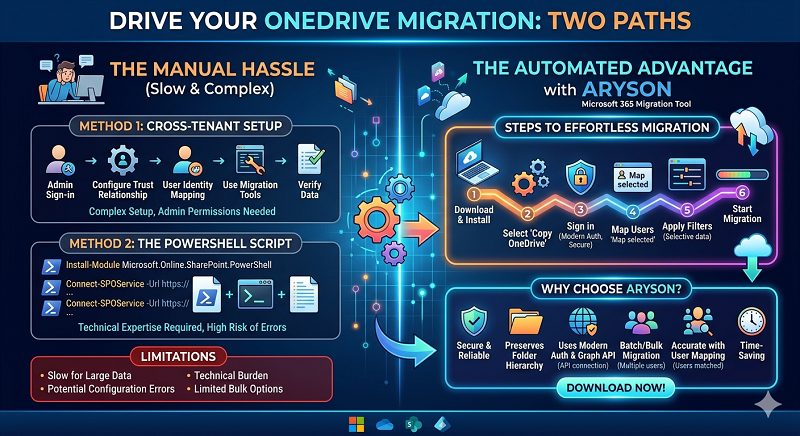
Method 2: Using PowerShell for OneDrive Migration
You can also use PowerShell to manage and automate parts of the migration process. PowerShell allows administrators to connect to Microsoft 365 tenants, set up the migration settings, and control migration tasks. However, users would require technical knowledge of Microsoft modules and command-line tools to perform the migration manually.
Steps to Migrate OneDrive Using PowerShell
- To begin, install the required SharePoint Online and Microsoft 365 PowerShell modules.
|
Install-Module Microsoft.Online.SharePoint.PowerShell Install-Module SharePointPnPPowerShellOnline |
- After that, connect to the source and destination Microsoft 365 tenants with the help of the administrator credentials.
|
Connect-SPOService -Url https://source-tenant-admin.sharepoint.com Connect-SPOService -Url https://destination-tenant-admin.sharepoint.com |
- Next, set up the migration settings & user mappings between both tenants.
- After that, begin the migration process using the supported migration commands or migration management tools.
- Finally, verify the migrated files, folders, and user access permissions in the destination OneDrive accounts.
Limitations of the Manual Methods
- These methods would require advanced administrative permissions.
- Moreover, the user needs to acquire technical expertise to set up the migration.
- Furthermore, these methods involve complex setup steps such as cross-tenant trust.
- Additionally, the command-line execution increases the chances of configuration errors.
- Also, the manual migration takes long hours to complete for large data sets.
- Limited options for automated, bulk, or selective migrations across multiple users.
Automated Solution to Migrate OneDrive Data Between Tenants
The Aryson Microsoft 365 Migration Tool is a reliable solution that helps users migrate OneDrive data from one Microsoft 365 tenant to another securely. It supports the migration of files, folders, and complete OneDrive accounts without affecting the original folder hierarchy. Moreover, it uses modern authentication and the Microsoft Graph API to provide data security to the end-user. Along with that, the same utility can be used to transfer lists from one SharePoint site to another. Additionally, it provides advanced filters and user mapping options that allow administrators to perform accurate tenant-to-tenant OneDrive migration without data loss. Now, follow the steps of migration given below.
Steps to Migrate OneDrive Data from One Tenant to Another
- First, download and install the Aryson Microsoft 365 Migration Tool.
- After that, select Copy OneDrive from the main panel.
- Then, select Modern Authentication >> enter admin credentials >> sign in.
- Now, view and select the required users and click Continue to proceed.
- Sign in to the destination Microsoft 365 tenant and grant the permissions.
- Thereafter, browse available destination users and select the required account >> Next.
- Next, map each source user to the destination user and click ‘Map selected.’ >>Next.
- Apply the filters for selective data migration, if required.
- Click on ‘Start migration‘ and confirm in the pop-up to begin the process.
Conclusion
In the above blog, we discussed how to migrate OneDrive data from one tenant to another securely using both manual and automated approaches. However, both the migration methods work well; the choice of method varies from user to user. Manual methods are suitable for a small amount of data and technical users. On the other hand, enterprise and industry professionals are advised to opt for the above automated software to enhance their efficiency at work. Now, based on your convenience and the amount of data, choose among the migration methods above.
FAQs
Q1. Is it possible to migrate OneDrive data between tenants without affecting existing users?
Ans- Yes, with the help of the above automated software, it is possible to migrate OneDrive data between tenants without affecting existing users.
Q2. Does OneDrive tenant migration preserve file versions and metadata?
Ans- Yes, if you are using the Aryson Microsoft 365 Migration Tool, OneDrive tenant migration will preserve file versions and metadata.
Q3. Can shared files and permissions be maintained during OneDrive tenant migration?
Ans- Shared files can be migrated, but sharing permissions may need to be reconfigured after migration. Since sharing links are associated with the original tenant, administrators often recreate or update permissions in the destination tenant.
Q4. How long does a OneDrive tenant-to-tenant migration usually take?
Ans- However, the overall migration time depends on the amount of data you have; the automated software completes the OneDrive data transfer within a few seconds.
Q5. Is it necessary to verify the migrated data after completing the OneDrive migration?
Ans- Yes, post-migration verification is an essential step. Administrators should check user access, folder structures, file counts, and permissions in the destination tenant to ensure that all OneDrive data has been migrated successfully and remains accessible to users.
About The Author:

Rohan Wiese is a Technical Writer at Aryson Technologies. He is an expert Email Forensic, Cloud Computing, and a passionate nerd with over 10 years of experience in technical content writing. He writes about Cloud Migration, Database Recovery, Email Backup, Windows, Mac, and Tech.
Related Post



