-

Written By Rohan Wiese
-
Updated on November 6th, 2025
How to Migrate Google Workspace to iCloud Safely – Step-by-Step
If you’ve been using Google Workspace for your email, files, and collaboration, you may now be thinking of a change. Perhaps you’ve moved deep into the Apple ecosystem and want more flawless integration with iCloud. Or maybe you prioritise privacy and feel iCloud suits you better. Whatever the reason, migrating your data from Google Workspace to iCloud can be done safely — if you follow the right steps. In this guide, I’ll walk you through everything from planning and backup, through to execution and verification. Whether you’re a small business owner, a Mac user, or someone who simply wants less complexity, you’ll find this guide easy to follow. Along with the manual, we will introduce the Aryson G Suite Backup Tool to migrate Google Workspace to iCloud in a hassle free way.
Understanding the Google Workspace & iCloud Platforms
Google Workspace is a powerful suite of tools: Gmail, Drive, Docs, Calendar, and more. It has broad compatibility across platforms.
In contrast, iCloud / iCloud+ is Apple’s cloud service that syncs deeply across iPhones, iPads, Macs, and integrates with Mail, Contacts, Calendar, Photos and more. It also supports custom email domains in iCloud+.
Because they are different ecosystems, you’ll face both opportunities (better Apple-integration) and challenges (migration of certain file types, ensuring full data transfer).
Quick Steps to migrate Google Workspace to iCloud
- Download and Install the Aryson G Suite Backup Tool on your system.
- After that, sign in using your Google Workspace admin credentials.
- Select the email categories (Mail, Drive, Contacts, Calendar) that you want to migrate.
- From the Email Client option, choose iCloud as the resultant email platform.
- Then, log in to your iCloud account within the tool to establish a secure connection.
- To migrate only specific emails, apply the additional feature of the software.
- Click on Start Migration to begin the Google Workspace to iCloud migration process.
Why Users Move Google Workspace to iCloud – Key Reasons
- iCloud offers seamless synchronization across all Apple devices, which ensures smooth data access anytime.
- Moreover, it provides stronger privacy controls and encryption compared to Google Workspace.
- Additionally, iCloud’s simple and minimal interface makes managing emails, files, and calendars easier for everyday users.
- Furthermore, with iCloud+, users can now use their own custom domains for email, which adds professionalism and flexibility.
- Besides that, Apple’s affordable storage plans make iCloud more budget-friendly for individuals and small teams.
- Also, automatic backups in iCloud protect photos, documents, and device data without any manual effort.
- Users who rely heavily on the Apple ecosystem find iCloud more reliable and integrated than Google Workspace.
Manual Ways to Transfer Google Workspace to iCloud
Google Workspace to iCloud migration manually can be done in a few ways. Although these methods require some technical effort, they are suitable for users who prefer a free approach without using third-party tools. Below are the detailed manual techniques you can follow step by step.
Method 01: Migrate G Suite to iCloud Using Google Takeout
Google Takeout is a free service by Google that lets you download your data from Gmail, Drive, Contacts, and Calendar. It’s a convenient way to export your Google Workspace information so you can later import it into iCloud. Here’s how you can migrate Google Workspace to iCloud:
- Open your web browser and visit Google Takeout.
- Log in with your Google Workspace credentials.
- By default, every Google service is selected—click Deselect All to pick only what you need.
- Choose Mail to export Gmail data (you can also include Drive, Contacts, or Calendar).
- Scroll to the bottom and click Next Step.
- Select the delivery method (for example, receive a download link via email).
- Pick the preferred file type and size for the export.
- Click Create Export to start the process.
- Depending on how much data you have, the export may take a few minutes or hours.
- Once complete, Google will email you a link to download the archive.
After downloading, follow these steps to move the files to iCloud:
- Sign in to your iCloud account.
- Open iCloud Drive, then go to the Browse section.
- Click the Upload button and select the exported Google Workspace data.
- Finally, click Open to start transferring your data to iCloud Drive.
Method 02: Another Way to Migrate Google Workspace to iCloud Mail
If you want to move your business emails from Google Workspace directly to iCloud, Apple provides a simple import option through iCloud Mail. Follow these easy steps:
- First, log in to your iCloud account using your Apple ID credentials.
- Then, navigate to Account Settings from the iCloud homepage.
- Next, click on Manage under the Custom Email Domain section.
- Now, enter or select the Google Workspace email address that you want to import.
- After that, scroll down and tap on the Import Mail button.
- Follow the on-screen prompts and sign in to your Google Workspace account when asked.
- Finally, the import process will start, and iCloud will begin transferring your emails from Google Workspace automatically.
Note: The process may take some time depending on the size of your mailbox and network speed. These manual methods are practical for small-scale migrations. However, if you have large volumes of data or need complete mailbox migration, using an automated solution can save time and prevent errors.
Migrate Google Workspace to iCloud With Aryson G Suite Backup Tool
To avoid such challenges, using the Aryson G Suite Backup Tool is a simple and secure choice. This software allows you to export Google Workspace data, including emails, contacts, calendars, and drives, directly into multiple formats or platforms such as iCloud, Outlook, Office 365, and others. With its advanced features, this utility ensures complete accuracy, preserves folder hierarchy, and maintains the original structure of your data during migration.
Additional Key Features Associated with this Advance Utility
- Allows migration of Google Workspace mailboxes to iCloud, Office 365, and other accounts.
- Maintains original email formatting and metadata throughout the process.
- Offers selective backup using filters like Date, Folder, and Subject.
- Supports bulk account migration for domain-level transfers.
- Provides options to save Google Workspace emails to PST and other formats like MBOX, EML, and PDF.
- Includes a simple and intuitive interface suitable for both technical and non-technical users.
Follow these Steps to Migrate Google Workspace to iCloud
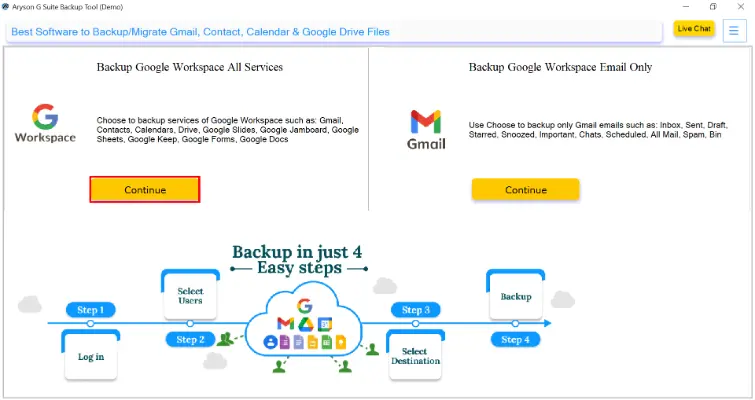
- Step 01: Download and install Aryson G Suite Backup Tool on your Windows or Mac computer. Once installed, tap on the Google Workspace button to proceed next.
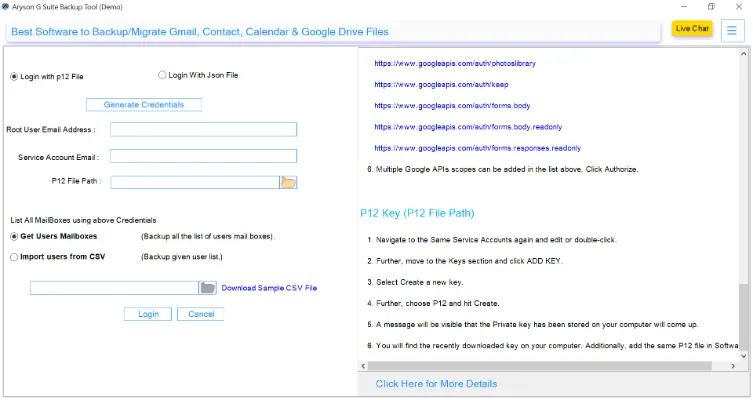
- Step 02: Next, enter your Google Workspace admin credentials to log in. This software uses a secure OAuth authentication method, ensuring your account data remains protected.
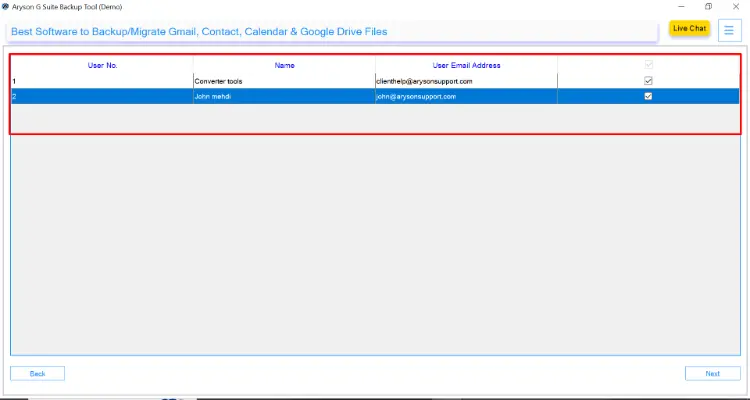
- Step 03: After successful login, you can see the list of all user accounts and data items linked with your Workspace domain. Choose accordingly and move Next.
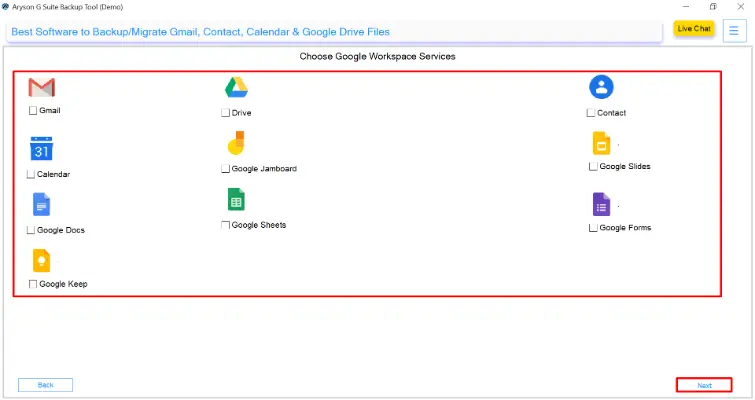
- Step 04: You’ll now need to choose which items you want to back up or migrate. The tool gives you the flexibility to select Emails, Contacts, Calendars, or Drive files.
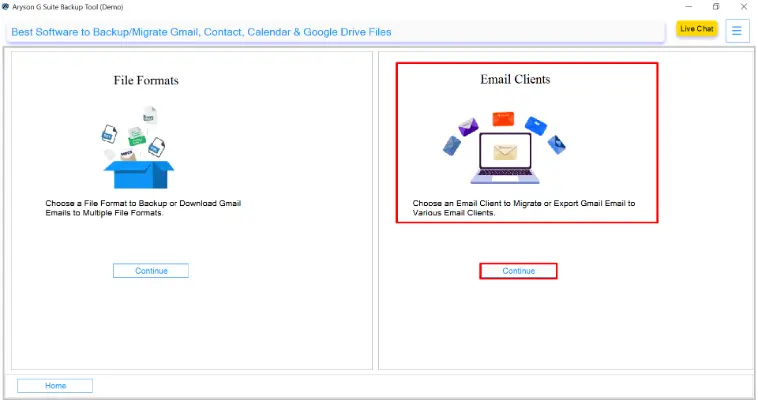
- Step 05: Here, you will get the two panels, navigate to the Email Client section and click on the Continue button.
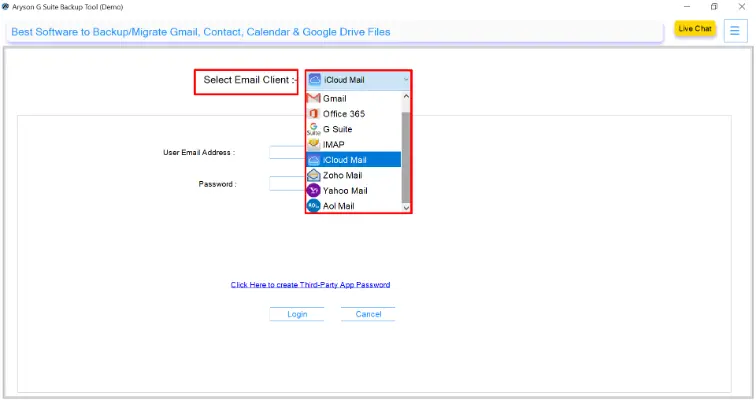
- Step 06: From the Export Options, select iCloud as your preferred destination. It allows direct integration, meaning you don’t have to manually upload files after exporting them.
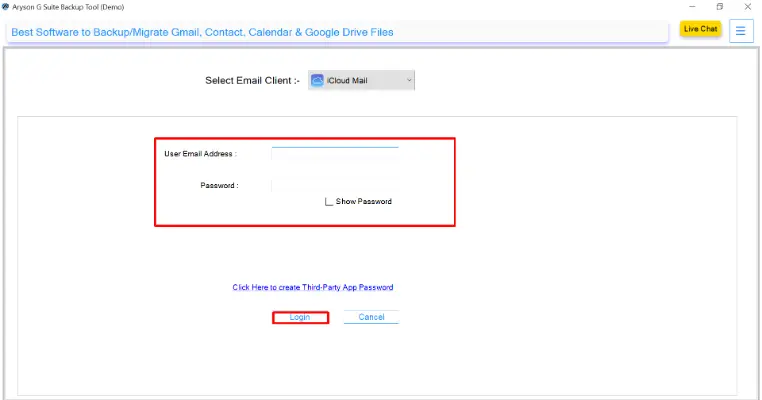
- Step 07: After selecting iCloud, you will be asked to enter your Apple ID and password. This establishes a secure connection between the two accounts.
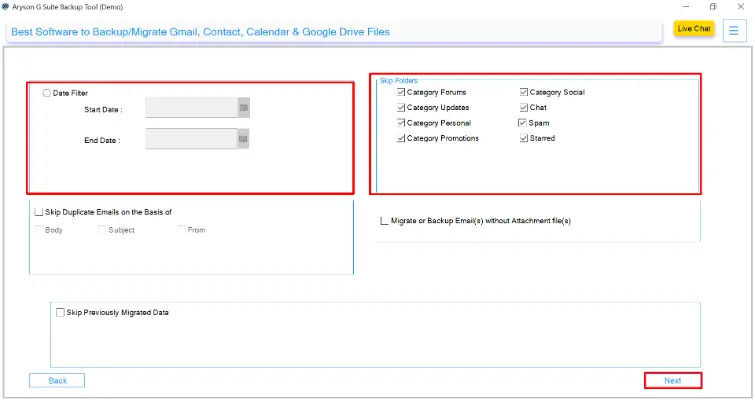
- Step 08: You can further refine the migration using built-in filters. For example:
- Date Filter: Transfer emails within a specific date range.
- Folder Filter: Choose particular folders like Inbox, Sent, or Custom folders.
- Duplicate Filter: Skip duplicate emails during migration.
- These options make the process more organized and precise.
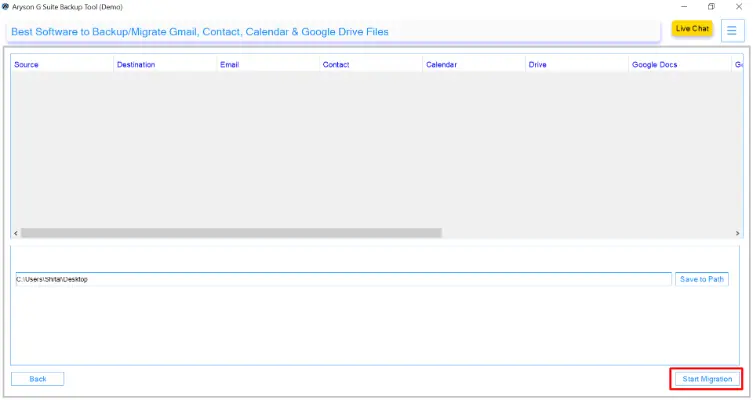
- Step 09: Finally, click the Start Backup button to initiate the migration process. The tool will begin transferring your selected data to iCloud. You can view the live progress bar showing the migration status and remaining time.
Conclusion
Switching from Google Workspace to iCloud can help users streamline their workflow and stay within Apple’s secure ecosystem. Although manual methods like Google Takeout and iCloud import settings are available, they can be time-consuming and require multiple steps. For users who want a faster and more reliable approach, the Aryson G Suite Backup Tool offers a professional way to migrate Google Workspace to iCloud safely. It ensures every email, contact, and file transfers smoothly without any data loss. Choosing the right method depends on your needs, but automation remains the best choice for efficient and error-free migration.
Frequently Asked Questions:
Q1. Should I switch from Google Drive to iCloud?
Ans: Switch if you use Apple devices, as iCloud integrates better with macOS and iOS. Google Drive is better for cross-platform use and collaboration.
Q2. Is it better to use Google Storage or iCloud?
Ans: Google Storage offers more flexibility and sharing tools, while iCloud excels in Apple’s ecosystem with seamless syncing and privacy-focused storage.
About The Author:

Rohan Wiese is a Technical Writer at Aryson Technologies. He is an expert Email Forensic, Cloud Computing, and a passionate nerd with over 10 years of experience in technical content writing. He writes about Cloud Migration, Database Recovery, Email Backup, Windows, Mac, and Tech.
Related Post