-

Written By Rohan Wiese
-
Updated on July 3rd, 2025
How to Migrate From Gmail to Proton Mail: A Step-by-Step Guide
Summary:-If you’re looking to move from Gmail to a more private and secure email service, Proton Mail is an excellent choice, as it’s built with features like end-to-end encryption and a zero-access architecture to keep your communications confidential. While Proton Mail offers an “Easy Switch” option, some users prefer more control over their data migration, and for this, the Aryson Gmail Backup Tool can securely transfer your Gmail emails, contacts, and calendars to your new Proton Mail account. This guide will walk you through the entire process, ensuring a smooth and complete transition to your new, privacy-focused inbox.
What Drives People to Switch from Gmail to Proton Mail
Here are the main reasons users are making the switch and why Proton Mail is gaining popularity as a secure Gmail alternative:
- Nowadays, privacy has become a significant concern, and Proton Mail ensures end-to-end encryption for all emails.
- Moreover, users appreciate that Proton Mail never tracks user behaviour or displays personalised ads, unlike Gmail.
- In addition, Proton Mail operates under Swiss privacy laws, with strong legal protection compared to US-based Gmail.
- Transparency is a key pillar of Proton Mail’s security. Its open-source code allows anyone to freely audit its security practices, instilling confidence in the platform’s robustness.Not only that, account creation is anonymous, meaning no phone number or personal data is required to sign up.
With all these advantages, it’s easy to see why more users are moving away from Gmail. Now, many users are choosing Proton Mail as a secure, privacy-first alternative for their everyday communication.
Best Solutions to Migrate Gmail to ProtonMail
Now, we will explore the best and most reliable way to migrate your Gmail data to Proton Mail without losing emails, contacts, or structure.
Method 01: Simple & Effective Solution to Migrate Gmail to ProtonMail
The Aryson Gmail Backup Tool is a reliable solution to migrate Gmail emails to Proton Mail using IMAP settings directly. It allows you to log in with your Gmail account and transfer all selected emails directly to your Proton Mail inbox by entering your Proton Mail credentials. Moreover, you can filter emails by date, folder, or subject to migrate only specific data, rather than the entire mailbox. Additionally, this utility preserves the email formatting, attachments, and folder structure during the migration process. As compared to manual methods, this process is more secure and doesn’t require additional steps. Overall, it’s an efficient way to move Gmail data to Proton Mail without hassle, especially for users who want a direct and reliable migration.
Follow the given Steps to Migrate Gmail to ProtonMail:
- Download and install the Aryson Gmail Backup Tool on your system.
- Next, log in with your Gmail credentials (use an App Password) and then sign in.
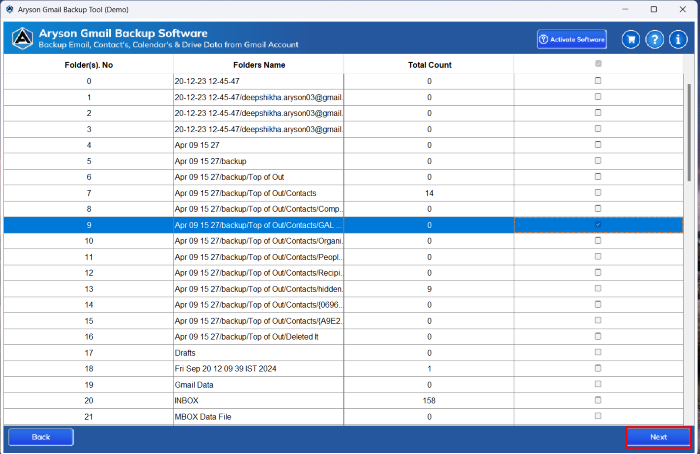
- Select the folders you want to migrate (Inbox, Sent Mail, custom labels, etc.).
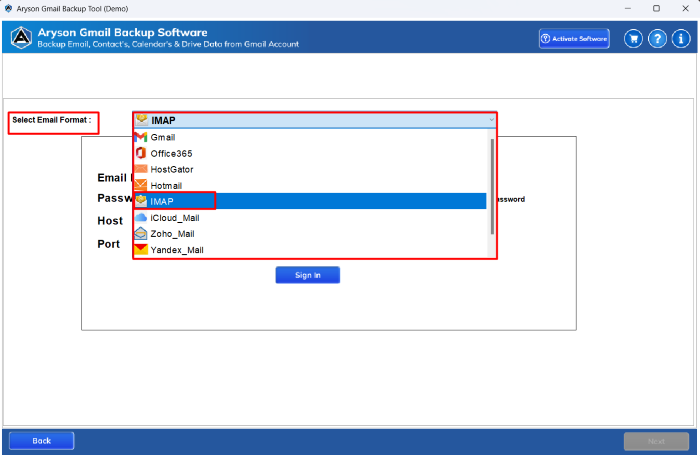
- Then, choose IMAP as the resultant email provider from the dropdown list.
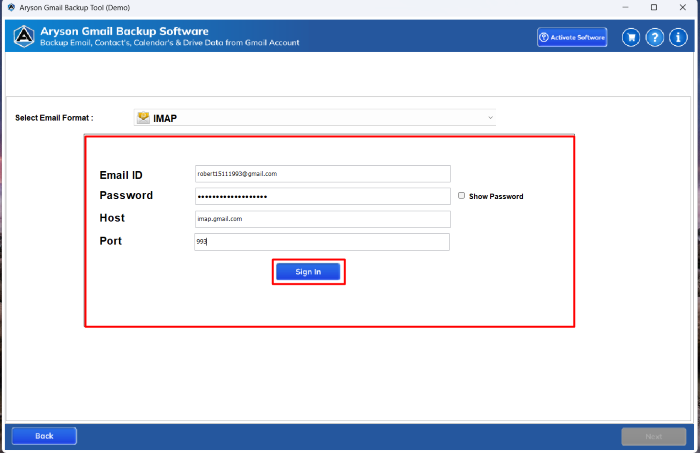
- In the next step, enter your Proton Mail IMAP details and click the Sign In button.
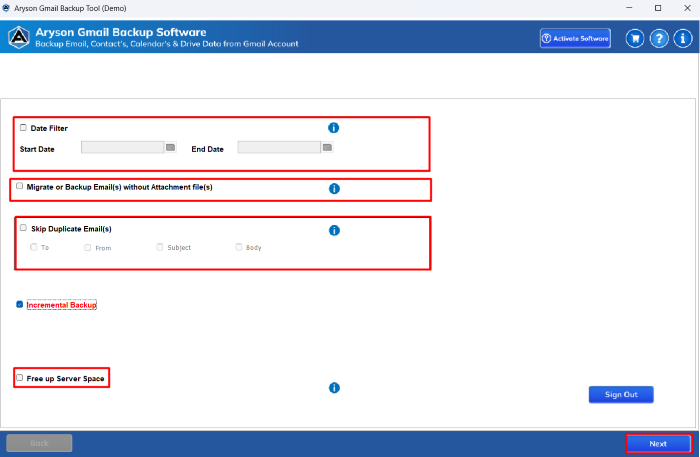
- After that, apply filters according to the requirement and click the Next button.
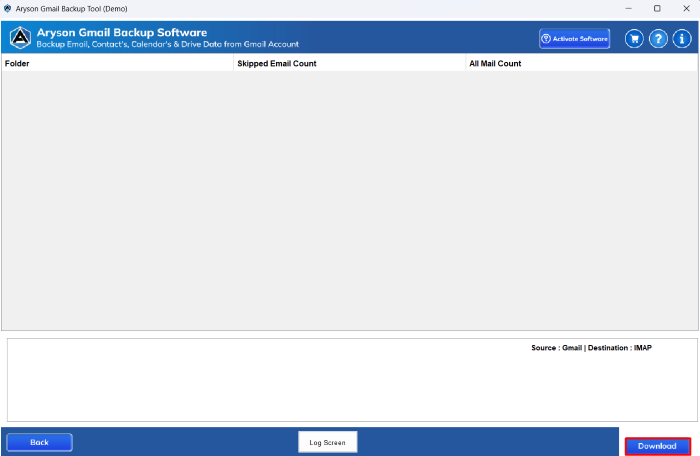
- Lastly, click on the “Download” button to begin the migration process.


Related Read: Want to transfer your emails to an Apple-based ecosystem instead? Here’s a detailed guide on Moving Email from Gmail to an iCloud Account to help you make a smooth transition to iCloud Mail.
Note: If you have the time and some technical knowledge, you can try the manual method to migrate emails from Gmail to ProtonMail. However, keep in mind that manual processes can be slow and repetitive, especially if you’re migrating hundreds or thousands of emails. So, use this method only if you’re dealing with a small number of emails.
Method 02: Import Gmail Emails Using Proton Mail’s Easy Switch
ProtonMail’s Easy Switch feature enables you to import your existing Gmail emails into ProtonMail. Follow this step-by-step Gmail to ProtonMail migration process:
- First, log in to Proton Mail and go to Settings, then click on All Settings.
- Next, select the “Import via Easy Switch” option from the left-hand menu.
- Then, under “Import messages,” select Google as your source for the migration.
- Now, pick the data types you want: emails, contacts, or calendar>> Start Import.
- Next, sign in to your Gmail account and grant the necessary permissions.
- Once confirmed, review your selections and click ‘Start Import’ to begin the data transfer.
- After the process completes, you’ll receive a confirmation message in your Proton Mail inbox.
Another Alternative is Proton Mail’s Built-In Auto-Forwarding Feature
If you prefer not to adjust Gmail settings, Proton Mail offers a built-in option to auto-forward new Gmail emails.
- First, log in to Proton Mail and navigate to Settings > Import via Easy Switch.
- Next, click Set up auto-forwarding from Gmail.
- Then, sign in with your Gmail account when the Google login window appears.
- Next, select your Gmail address and grant the necessary access permissions.
- Finally, a message will confirm: “Forwarding will start soon.
- Additionally, the new messages will appear in your inbox.
Note: This method forwards only new Gmail messages. Your old emails won’t be transferred through this process.
Method 03: Transfer Gmail folders to ProtonMail Via Gmail Account
If you prefer a free method to migrate Gmail to ProtonMail, you can enable auto-forwarding in Gmail. This method doesn’t transfer old messages, but it ensures that all new Gmail emails reach your Proton Mail inbox automatically.
- First, log in to Gmail and click the Settings icon in the top-right corner.
- Next, select “See All Settings” from the dropdown to access the full Gmail settings.
- Then, go to the Forwarding and POP/IMAP tab from the menu options.
- After that, click “Add a forwarding address” and enter your ProtonMail ID.
- Now, click ‘Proceed‘ on the prompt to send a verification link to your ProtonMail.
- Once received, open Proton Mail, click the verification link, and confirm the address.
- Go back to Gmail, enable “Forward a copy of incoming mail to” (your Proton Mail).
- Next, choose how Gmail handles forwarded emails: keep, archive, or delete them.
- Finally, click Save Changes to activate forwarding from Gmail to Proton Mail.
Drawbacks You Should Know Before Using the Manual Method
Although manual methods are free and relatively simple, they do have some limitations that could affect your email migration experience:
- The manual method doesn’t automatically transfer old Gmail emails.
- Also, Gmail labels don’t convert into folders in Proton Mail.
- Next, only new emails get forwarded, not older ones.
- Moreover, there’s no end-to-end encryption during manual transfer.
- Additionally, large attachments might not transfer properly.
- Additionally, the process is time-consuming and requires extra technical steps.
If you’re handling large volumes of data or need to move everything at once, a professional utility is the appropriate solution.
Conclusion
In this blog, we discuss both manual and automated methods for migrating Gmail to ProtonMail. While options like Gmail forwarding and Easy Switch help with basic transfers, they have apparent limitations. For a smooth and more reliable process, the Aryson Gmail Backup Tool lets you migrate Gmail data to Proton Mail via IMAP with complete control and accuracy. Whether you’re moving for privacy or better organisation, this guide provides everything you need for a seamless transition.
Frequently Asked Questions:-
Q1. How to export Gmail Contacts to ProtonMail directly?
Ans: Yes, Aryson Gmail Backup Tool supports direct export of Gmail Contacts to Proton Mail.
Follow the given steps:
✅ Download & install the Aryson Gmail Backup Tool on your system.
✅ Log in with your Gmail account using an App Password>>Sign In.
✅ Select Contacts as the item to migrate from your Gmail data.
✅ Enter Proton Mail’s IMAP details, then click Sign In.
✅ Apply filters as needed, then click Next to proceed.
✅ Click Download to export Gmail Contacts to your Proton Mail.
Q2. Can I migrate specific folders or emails from a certain date range?
Ans: Absolutely. The Aryson software includes advanced filters that let you migrate only selected folders, labels, or emails based on a specific date range or subject.
Q3. Will my email attachments and formatting be preserved during the migration?
Ans: Yes, this tool preserves email formatting, folder hierarchy, and attachments while transferring your data to Proton Mail.
Q4. Can I use the tool if I have two-factor authentication (2FA) enabled in my Gmail account?
Ans: Yes, but you’ll need to generate and use an App Password from your Google account instead of your main Gmail password.
Q5. Is there a free version of the Aryson Gmail Backup Tool?
Ans: Yes, the tool offers a demo version that allows you to migrate up to 50 emails for free. You can then test the process and evaluate its functionality.
About The Author:

Rohan Wiese is a Technical Writer at Aryson Technologies. He is an expert Email Forensic, Cloud Computing, and a passionate nerd with over 10 years of experience in technical content writing. He writes about Cloud Migration, Database Recovery, Email Backup, Windows, Mac, and Tech.
Related Post