-

Written By Mithilesh Tata
-
Updated on October 27th, 2025
How to Import Outlook Email to Gmail: A Complete Guide
Many users today prefer using Gmail because it’s fast, secure, and accessible from anywhere. However, if you’ve been using Microsoft Outlook and now want to switch to Gmail, you’ll need a way to transfer your existing emails safely. Importing Outlook emails to Gmail allows you to keep all your important messages, contacts, and attachments in one place.
This guide will explain how to import Outlook emails to Gmail in simple steps. We’ll cover both the manual method through Outlook settings and an easier, automated solution using the Aryson PST Converter Tool. By the end, you’ll be able to move your Outlook mailbox to Gmail effortlessly without losing any data.
This guide will explain how to import Outlook emails to Gmail in simple steps. We’ll cover both the manual method through Outlook settings and an easier, automated solution using the Aryson PST Converter Tool. By the end, you’ll be able to move your Outlook mailbox to Gmail effortlessly without losing any data.
Why Import Outlook Emails to Gmail?
There are several reasons why users prefer importing Outlook emails into Gmail:
- Cloud Accessibility: Gmail allows you to access your emails from anywhere, anytime, without depending on desktop software.
- Ample Storage Space: Gmail offers generous storage, reducing the chances of mailbox overload issues.
- Better Synchronization: It syncs effortlessly with smartphones, tablets, and browsers, keeping your emails updated across all devices.
- Reduced Maintenance: Gmail runs on cloud servers, eliminating local system errors, crashes, or corruption problems commonly faced in Outlook.
- Integration with Google Services: Once your emails are in Gmail, they integrate smoothly with tools like Google Drive, Calendar, and Meet.
These benefits make Gmail an ideal platform for users who value convenience and reliability.
Methods to Import Outlook Emails to Gmail
There are two main approaches to migrate your Outlook mailbox to Gmail:
- Manual Method – Suitable for users with basic technical skills and smaller mailboxes.
- Automated Method – Recommended for users who want a quick, secure, and effortless process using the Aryson PST Converter Tool.
Method 1: Import Outlook Emails to Gmail Manually
The manual process involves enabling IMAP access in Gmail and configuring it within Outlook. Follow these detailed steps to migrate Outlook to Gmail:
Step 1: Enable IMAP in Gmail
- Open your Gmail account and click on the Gear icon (Settings).
- Choose See all settings.
- Go to the Forwarding and POP/IMAP tab.
- Under IMAP Access, select Enable IMAP.
- Click Save Changes at the bottom.
This ensures that Gmail allows synchronization with Outlook.
Step 2: Configure Gmail Account in Outlook
- Launch Outlook on your system.
- Navigate to File > Add Account.
- Enter your Gmail address and click Connect.
- Provide your Gmail password (use an app password if two-factor authentication is enabled).
- Once Outlook verifies your credentials, it will sync your Gmail account.
After successful configuration, your Gmail mailbox will appear in Outlook’s sidebar.
Step 3: Move Outlook Emails to Gmail
- Open your Outlook mailbox containing the emails you wish to transfer.
- Select the emails or folders you want to import.
- Drag and drop them into the Gmail folder that appeared during configuration.
- Wait for the process to sync Outlook with Gmail.
Once done, your selected Outlook emails will appear in Gmail.
Drawbacks Associated with the Manual Method
While this method is free, it’s not ideal for everyone. Some major limitations include:
- Complex Configuration: Requires careful setup of IMAP and email credentials.
- Time-Consuming: Large mailboxes can take hours or even days to sync.
- No Bulk Transfer Support: You must manually move folders, which is inefficient for large accounts.
- Data Integrity Risks: Interruptions or sync errors can lead to missing or duplicate emails.
- Technical Knowledge Required: Not suitable for non-technical users or beginners.
Due to these drawbacks, many users prefer a professional, automated solution to save time and ensure data safety.
Automated Way to Import Outlook Emails to Gmail
If you want a fast and safe way to transfer Outlook to Gmail, use the Aryson PST Converter Tool. This utility converts PST files and imports them directly to your Gmail account without any manual configuration. It is the appropriate solution for both individuals and professionals who want a reliable and error-free migration.
Key Features of Aryson PST Converter Tool
- Direct PST to Gmail Import: Uploads Outlook PST files directly to Gmail in a few clicks.
- Preserves Data Integrity: Keeps folder hierarchy, attachments, and metadata intact.
- Bulk Conversion Support: Allows importing multiple PST files at once.
- Date and Folder Filters: Let you choose specific folders or date ranges.
- Maintains Email Formatting: Keeps the original structure and layout of emails.
- Supports All Outlook Versions: Compatible with Outlook 2021, 2019, 2016, 2013, and earlier versions.
- User-Friendly Interface: Simple design suitable for both technical and non-technical users.
Step-by-Step Process to Import Outlook Emails to Gmail
Follow these easy steps to move your Outlook data safely to Gmail:
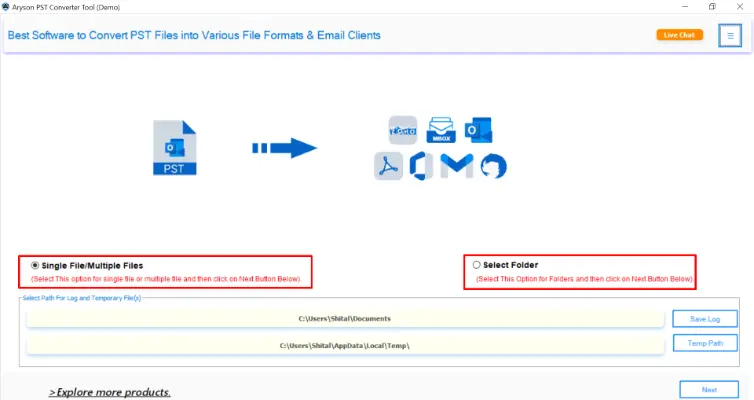
- Download and install the Aryson PST Converter Tool on your system.
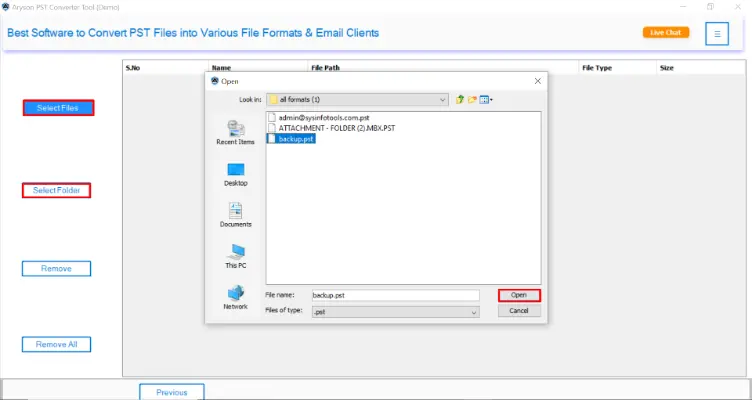
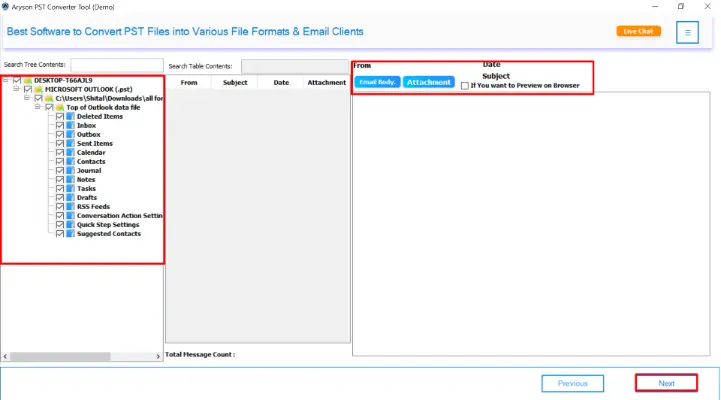
- Open the software and click on Select File(s) to upload your PST file(s).
- After scanning, preview your Outlook mailbox items within the tool.
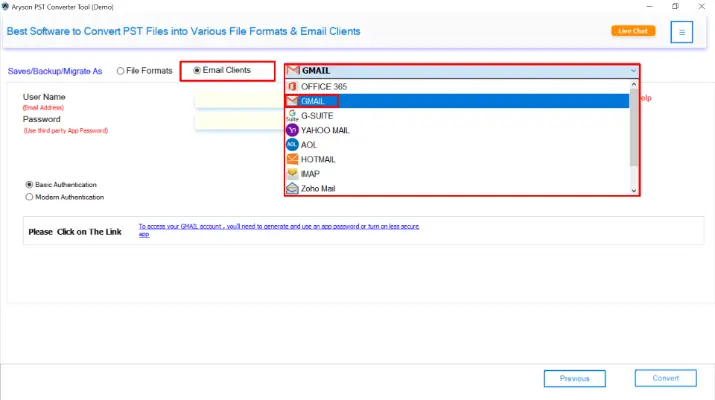
- From the Save/Backup/Migrate As option, choose Gmail.
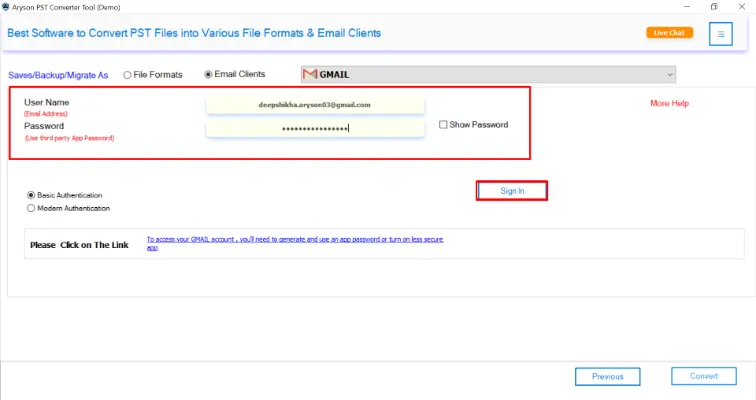
- Enter your Gmail login credentials.
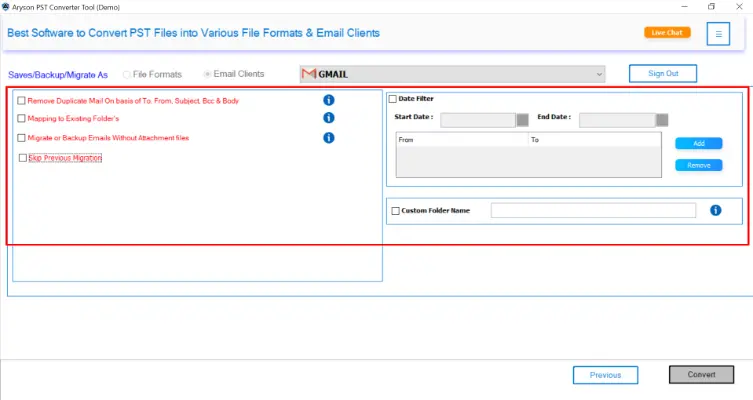
- Use the filter options if you want to migrate specific folders or date ranges.
- Click Convert to begin the import process.
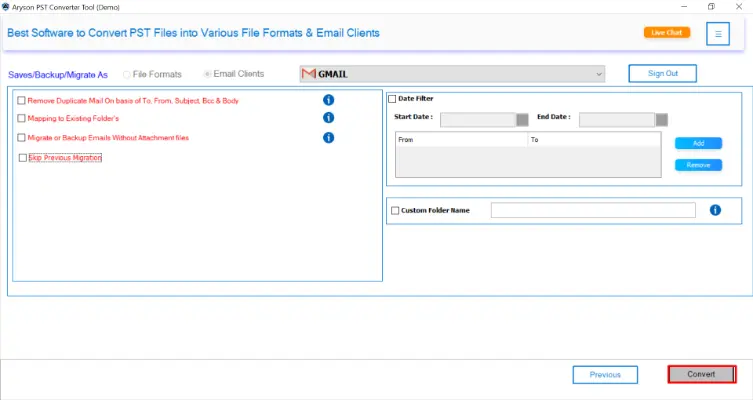
The software will transfer all selected Outlook emails, contacts, and attachments directly into your Gmail account without data loss.
Why Choose Aryson PST Converter Tool?
The Aryson PST Converter Tool provides a comprehensive and reliable solution to export Outlook emails to Gmail. It eliminates manual errors, speeds up the process, and ensures the safety of your data. Moreover, it supports all PST file types—whether created by ANSI or Unicode Outlook versions. Whether you’re a home user, IT professional, or enterprise admin, this utility simplifies migration while maintaining complete data accuracy.
Conclusion
You can import Outlook emails to Gmail either manually using IMAP or automatically with a professional tool. The manual method is suitable for small files and tech-savvy users. However, if you have a large PST file or need a hassle-free process, using Aryson PST Converter ensures a quick, secure, and accurate migration. It helps you move emails with attachments, contacts, and folders in just a few clicks — no technical steps required.
Frequently Asked Questions (FAQs) :-
Q1. Can I import Outlook PST files to Gmail without using Outlook?
Ans: Yes, you can. With the Aryson PST Converter Tool, you can directly import PST files to Gmail without installing Outlook on your system.
Q2. Does the tool maintain email formatting and attachments during import?
Ans: Absolutely. The software preserves the original email structure, attachments, subject lines, and formatting.
Q3. Is it possible to migrate only selected emails or folders?
Ans: Yes. The Aryson PST Converter Tool provides advanced filter options that allow you to import only specific folders or emails within a particular date range.
Q4. How long does it take to import PST files to Gmail?
Ans: The duration depends on the size of your PST file and your internet speed. However, the tool is optimized to perform migrations much faster than manual methods.
Q5. Can I import multiple PST files into Gmail at once?
Ans: Yes. The Aryson PST Converter Tool supports bulk migration, allowing you to upload and transfer multiple PST files simultaneously.
About The Author:

Mithilesh Tata is dedicated to making the lives of his customers as simple as possible. He enjoys learning about new applications and utilities that can help people protect their data. Mithilesh also has a strong grasp on email migration & data recovery. He enjoys validating every component of the software, technical materials, and anything else that has to do with his working life.
Related Post