-

Written By Rohan Wiese
-
Updated on July 4th, 2025
How to Fix Images/Picture Not Showing in Outlook Emails
Summary:- Many users rely on MS Outlook as their primary email communication tool. They send emails, contacts, attachments, and mailbox data on a daily basis. However, some users face the “Outlook emails not showing pictures” error. This issue can occur due to various reasons, like settings or file problems. In this blog, we explain easy manual steps to fix the issue without needing advanced skills. We also suggest using the Aryson PST Viewer Tool. It helps you view PST attachments even if you can’t access Outlook. This tool is helpful when Outlook fails to open or show your email images properly.
What Causes the “Outlook Images Not Loading in Email” Error?
The Outlook error occurs due to several reasons. Here are the most common reasons behind this issue:
- Sometimes, due to security issues, Outlook blocks the images in the mailbox.
- The images are not being loaded because of an inactive internet connection.
- An outdated Outlook application might be unable to render the images.
- Moreover, slow Outlook performance due to large PST files can also make it unable to render the images of the mailbox.
- An outdated Outlook profile also interferes with the images.
- A damaged or corrupted OST and PST data file can prevent email from loading correctly.
How do I Fix the “Outlook Emails Not Showing Pictures” Error?
If you’re unable to view or access inline images in your Outlook profile, it can become both frustrating and time-consuming. In this section, we described various manual troubleshooting techniques that ease your task of viewing inline images.
1. Enable Automatic Image Download
This method allows Outlook to display images within your emails. This automatically downloads the images or attachments without asking you to each time and solves the “embedded images not displaying in Outlook” error.
- Open the Outlook application on your desired system.
- Go to the File menu and access the Info section.
- Scroll to the bottom and click the Options button.
- Open Trust Center > Trust Center Settings > Automatic download.
- Here, uncheck the “Don’t download pictures automatically in HTML e-mail messages” option.
- Finally, click OK to save the changes you’ve made.
2. Check Internet Connection
The role of an active internet to download or access the images is very critical. Without an active internet connection, you can not access the embedded images of Outlook.
- Make sure your Ethernet is in an active state.
- If you connected with WiFi, make sure you connected with a stable internet connection.
These are some ways to fix the image not showing error in Outlook. If your PST file is damaged or corrupted, you can use the PST Repair Tool to recover and restore it easily.
Limitations of Manual Method
Several reasons are associated with the manual method to fix Outlook email images missing issue.
- It can be complicated and require time to complete.
- Manual fixes may not always resolve the image loading issue.
- Incorrect settings can lead to data loss.
- Manual methods may not address deeper corruption.
- You cannot preview results before applying fixes manually.
- It also requires technical know-how.
3. Resolve Outlook Emails Not Showing Pictures Issue– Professional Way
If you can’t view images or attachments in Outlook or don’t have it installed, use the professional Aryson PST Viewer Tool instead. It lets you easily open and view all images and attachments from your PST files. This way, you can access and download your pictures without any hassle. The tool easily accesses your embedded attachments and shows you the list.
After successful access, with the help of this tool, you can also save it in a universal file format to avoid compatibility issues. It analyzes multiple PST files at the same time to save time and effort for bulk data.
Steps to Solve “Outlook Won’t Display Email Pictures”
- Install and launch the PST Viewer Tool on your system.
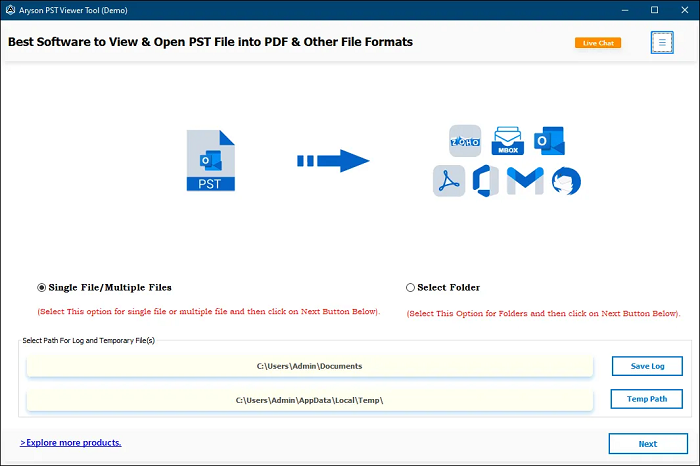
- Next, choose either the Single/Multiple File or Select Folder option and click Next.
- Browse and select the desired PST file from which you want to access the data.
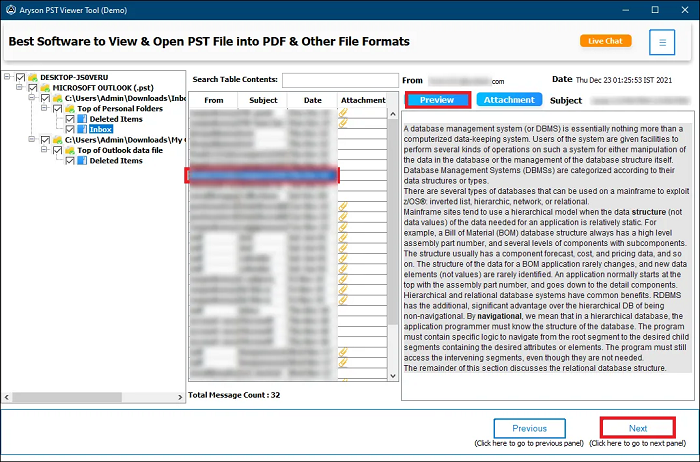
- Under the Preview option, you can check the data separately and access it.
- Select the desired saving format to store the PST file in a universal format.
- After that, apply the additional features and filters as needed.
- Finally, choose the saving location and click the Convert button to complete the process.

Conclusion
When Outlook emails not showing pictures, it can be very frustrating. This issue can happen for several reasons. By following the steps here, you can fix the problem yourself. For a simple and reliable solution, use the Aryson PST Viewer Tool. It offers a user-friendly interface along with powerful features. This tool works with all PST file sizes and versions, making it a dependable choice for any Outlook user facing image display problems.
Frequently Asked Questions:-
Q: How do I know if the images are being blocked by Outlook’s security settings?
Ans: If images in your emails are not displaying and you see a message like “Click here to download pictures” or “Some pictures have been blocked to help prevent the sender from identifying your computer.” Outlook’s security settings are likely blocking them.
Q: What’s the quickest way to see images for a specific email?
Ans: Open the email and click the “Download Pictures” link at the top of the message. This will immediately load the blocked images for that specific email without changing global settings.
Q: Why are images not showing in my Outlook emails?
Ans: Images may not show in Outlook emails due to security settings, poor internet connection, corrupted profiles, or blocked external content. Sometimes, email format issues or antivirus software can also prevent images from loading properly.
About The Author:

Rohan Wiese is a Technical Writer at Aryson Technologies. He is an expert Email Forensic, Cloud Computing, and a passionate nerd with over 10 years of experience in technical content writing. He writes about Cloud Migration, Database Recovery, Email Backup, Windows, Mac, and Tech.
Related Post