-

Written By Rohan Wiese
-
Updated on November 25th, 2025
How to Back Up Outlook Emails from Web Browser Easily
Summary: Outlook Web holds important emails that users want to protect from loss, corruption, or accidental deletion. Mostly users depend on Outlook for work, business, and personal communication. So all you need a proper backup method. Since manual steps on Outlook Web are time-consuming, users often look for a simple and secure way to backup Outlook Emails from Web Browser. This is where a professional solution like the Aryson Hotmail Backup Tool naturally fits in, as it helps users create complete email backups without facing technical issues.
Why Users Back Up Outlook Emails from Web Browser
Users depend on Outlook Web for daily communication, so the mailbox stores vital information. Therefore, a backup becomes essential. Here are the main reasons to backup your Outlook webmail:
- Probably, important conversations may get deleted by mistake. As a result, users want a safe copy.
- Companies follow compliance rules, which require stored records.
- Legal investigations and audits depend on verified email histories.
- Users want offline access when internet connectivity drops.
- Emails contain project details, personal notes, and attachments that cannot be replaced.
Each point shows that backup is not just optional but necessary in many situations.
Methods to Backup Outlook Emails from Web Browser
Two simple ways help users secure their Outlook Web mailbox:
- Manual download using Outlook Web browser options
- Automated backup through Aryson Hotmail Backup Tool
The manual method works for basic needs, but the automated method handles complete backups without limitations. Both are explained in detail below to save Outlook emails online.
Manual Method to Back Up Outlook Emails from Outlook Web
Outlook Web offers a simple option to save individual emails. Follow the steps below to backup Outlook emails manually:
- To start the process, open your browser>> sign in to the Outlook Web account.
- Thereafter, navigate to your mailbox and pick the email you want to save.
- Next, tap on the three-dot menu above the email to view more options.
- From the upcoming panel, select Print from the list to open a preview window.
- Select Save as PDF in the destination column.
- Click Save and choose the folder where you want to backup Outlook webmail.
You should remember that the manual method is good only when you need to save a few messages. However, it becomes slow and repetitive if your mailbox has hundreds or thousands of emails.
Limitations of the Manual Method
Although Outlook Web includes a basic download option, it has several restrictions when you perform Outlook.com email backup:
- It does not support complete folder backup, such as the Inbox, Sent, or Archive.
- Moreover, it only saves one email at a time, which makes the process slow.
- This method does not extract attachments separately.
- Also, you will get lackness of export formats like PST, EML, MBOX, or MSG.
- It offers no filters to save selected emails based on date or category.
Because of these issues, most users prefer the automated approach. So that, they do not need to repeat the same steps again and again.
Best Automated Solution to Backup Outlook Emails from Web Browser
Aryson Hotmail Backup Tool is the best way to back up Outlook web emails. It works with all Outlook.com accounts and offers a complete backup solution that users can trust. This software provides a safe way to save emails in multiple formats. Also, it keeps the original formatting, folder structure, and attachments secure. Moreover, users get complete accessibility over what they want to back up and how they want to save it. With these benefits, this software becomes an appropriate option for personal, business, and professional needs.
Follow these Steps to Export Outlook Emails from Browser
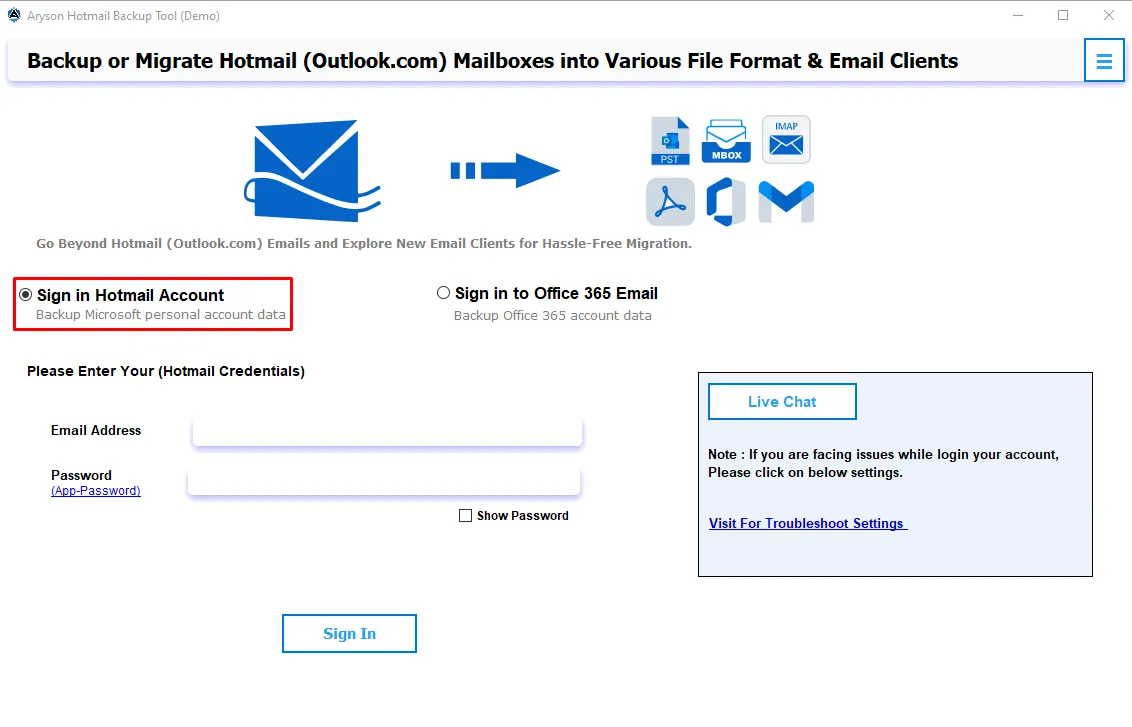
- Simply, open the Aryson Hotmail Backup Tool after installing it on your computer.
- Now, input your Outlook.com, Hotmail, or Live email credentials to log in safely.
- Then, select from the tree format the Hotmail mailbox you want to back up.
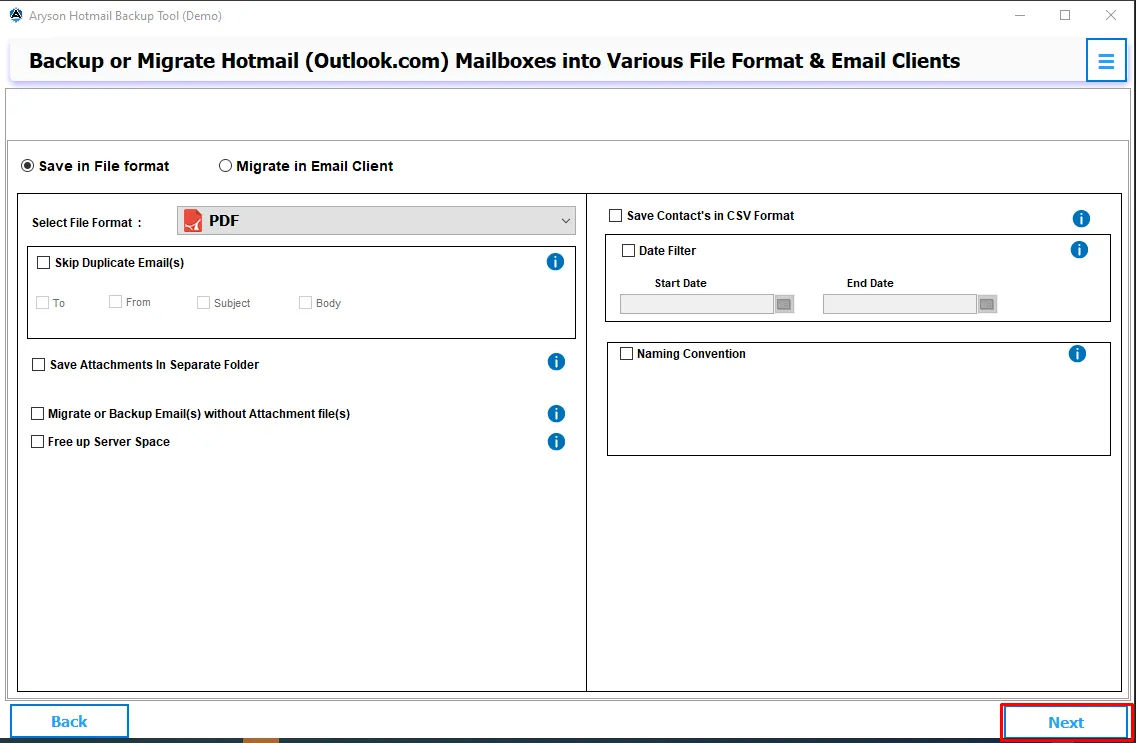
- Choose your desired export format, such as PST, PDF, MBOX, EML, MSG, or DOC.
- If you want to save only selected emails, then apply the date filter >> Next.
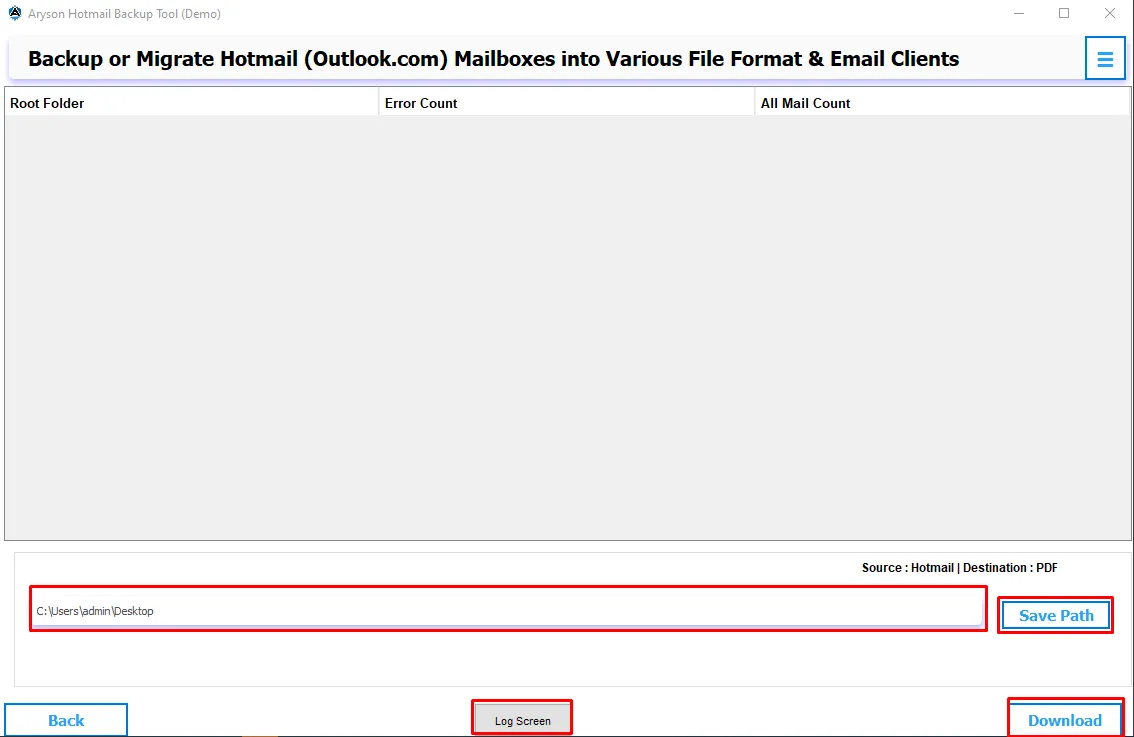
- Now, set the location on your computer where you want to store the backup file.
- At last, hit the Download button to backup Outlook Emails from Web Browser.


Conclusion
A proper backup keeps Outlook Web emails safe from unexpected errors, accidental deletion, or account issues. Users get peace of mind when they keep an offline copy of their important messages. A simple method always ensures that vital emails remain accessible whenever needed, even without the internet. You can backup Outlook emails from Web Browser. An automated and secure strategy also supports personal and professional needs without adding complexity.
Frequently Asked Questions (FAQs):-
Q1. Can I back up Outlook Web emails without installing any software?
Ans: Yes, you can manually save emails as PDF using the Print option.
Q2. Can I download multiple emails at once?
Ans: Not with the manual method. Only the Aryson Hotmail Tool supports bulk backup.
Q3. Does the backup include attachments?
Ans: Manual download does not. A professional tool stores attachments along with emails.
Q4. In which formats can I save my Outlook Web emails?
Ans: You can export them in PST, PDF, EML, MSG, MBOX, and other formats using Aryson Hotmail Tool.
Q5. Is the process safe?
Ans: Yes, both methods are safe. Aryson Hotmail Tool uses secure login and does not harm your mailbox.
About The Author:

Rohan Wiese is a Technical Writer at Aryson Technologies. He is an expert Email Forensic, Cloud Computing, and a passionate nerd with over 10 years of experience in technical content writing. He writes about Cloud Migration, Database Recovery, Email Backup, Windows, Mac, and Tech.
Related Post