-

Written By Rohan Wiese
-
Updated on December 23rd, 2025
How to Transfer File Ownership in OneDrive: Complete Tutorial
OneDrive is widely used to store and share files securely. However, many users face confusion when they need to move files from one account to another. In such cases, understanding how to transfer file ownership in OneDrive Personal and Business becomes very important.
Whether you manage personal data or Microsoft 365 business accounts, file ownership ensures easy access and continuity. Therefore, this guide explains admin-level options to transfer your file Ownership in OneDrive Personal and Business in a hassle-free way.
Questions Asked by Users on reddit Community: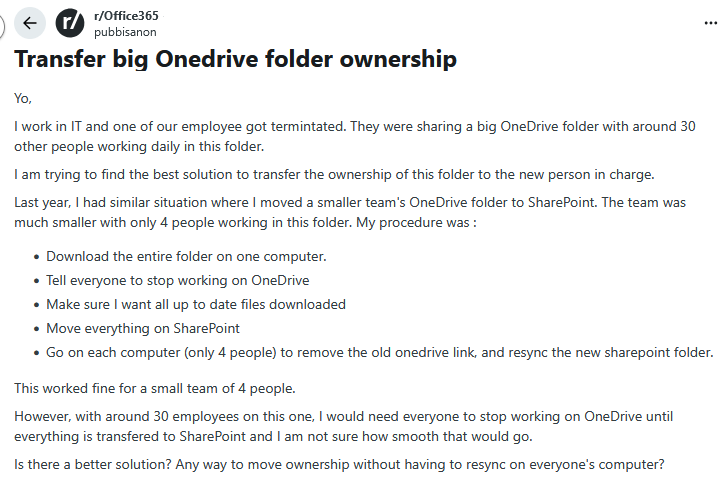
Why Do Users Need to Transfer OneDrive Files to Another User?
First of all, file ownership decides who controls the data. Without proper ownership transfer, important files may become inaccessible. Moreover, there are many everyday situations where transferring file ownership becomes necessary, such as:
- When an employee leaves the company, their OneDrive files must stay accessible.
- An organization moves data from one Microsoft 365 tenant to another.
- Also, when a user changes their role or shifts to a different department.
- The old or unused account reaches its end and needs decommissioning.
- IT teams clean up inactive or legacy OneDrive accounts.
- Businesses aim to reduce storage usage and manage space with ease.
As a result, when the OneDrive move files to new owner helps keep daily operations smooth and also protects important business data.
Understanding OneDrive Account Types
At the beginning, it is useful to know which OneDrive account applies to your situation.
OneDrive Personal
- Linked to a personal Microsoft account
- No admin control available
- Ownership cannot change directly
OneDrive for Business (Microsoft 365)
- Managed by organization admins
- Supports access reassignment
- Ownership handling is possible during user offboarding
Because of these differences, the ownership transfer process also changes.
Approaches to Transfer File Ownership in OneDrive Personal and Business
With the account types explained, it becomes easier to understand the methods you can use to transfer file ownership in OneDrive. Just keep in mind that giving someone access to OneDrive files does not make them the owner. The files remain under the original account, and deletion of that account will remove the data.
Aryson OneDrive Migration Tool – Automated Ownership Transfer Solution
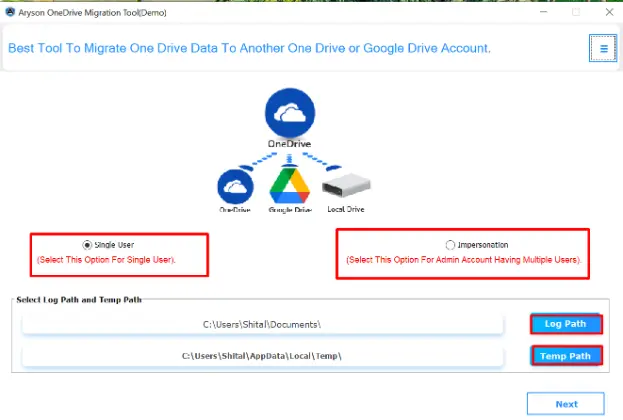
For both OneDrive Personal and OneDrive Business, Aryson OneDrive Migration Tool can help you transfer file ownership without losing data or file permissions. It can transfer file ownership in OneDrive without manual effort. It allows users to migrate files between OneDrive accounts while keeping folder structure, permissions, and access rights intact. This makes it especially useful for Microsoft 365 tenant-to-tenant migration. In addition to that, it handles large data volumes smoothly, which helps IT teams save time and avoid errors. As a result, it provides a secure and reliable approach for managing OneDrive ownership transfer at both individual and enterprise levels. Next, follow the given steps to migrate OneDrive files between accounts:
Steps to Transfer File Ownership in OneDrive Personal and Business
- Step 01: First, download and install the Aryson OneDrive Migration Tool on your system.
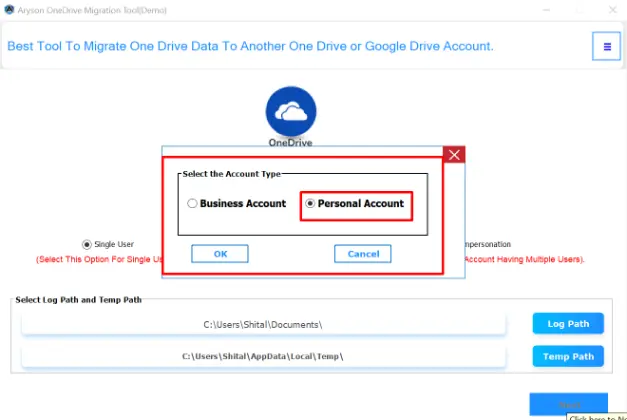
- Step 02: Now, select the account type as the Personal Account of your Onedrive>>Ok.
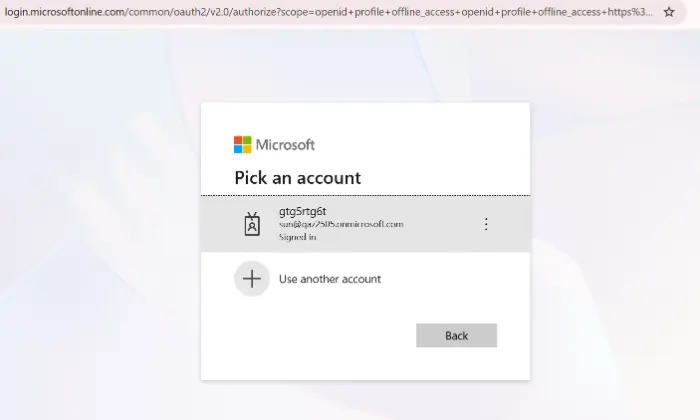
- Step 03: Pick an account, sign in using Microsoft 365 personal user credentials.
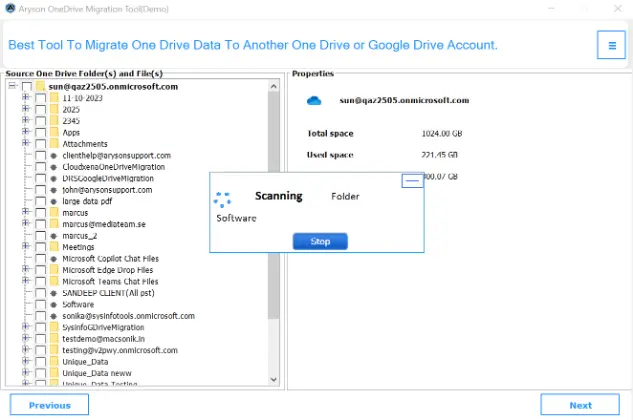
- Step 04: It will fetch all your data associated with the added OneDrive account>> Next.
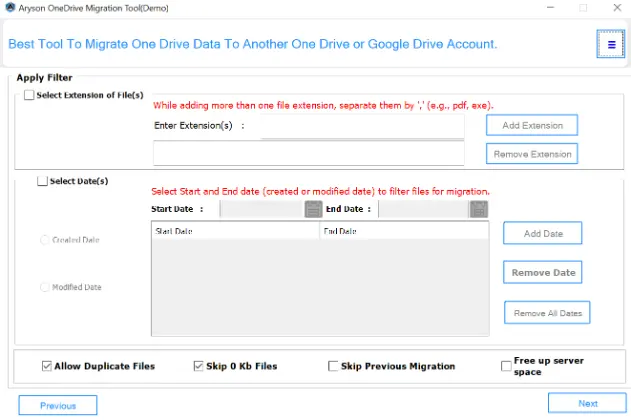
- Step 05: From the next panel, you can apply the advanced filter of the software>>Next.
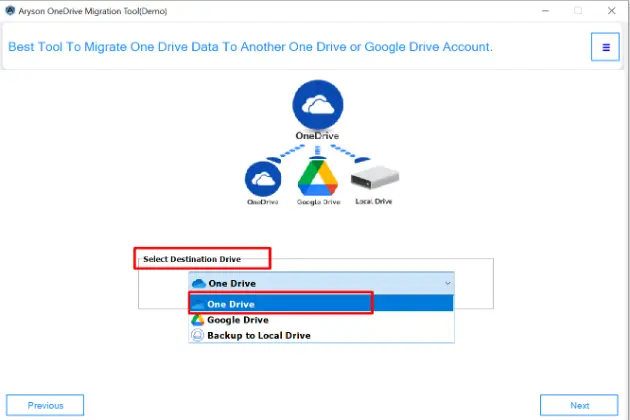
- Step 06: From the given drop-down of the destination drive, choose One Drive.
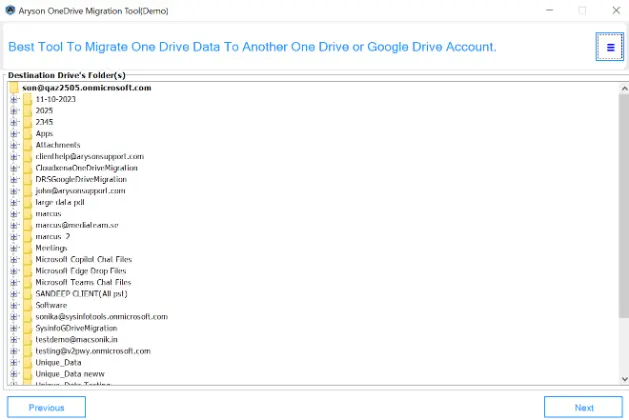
- Step 07: Select the target OneDrive account where files and ownership should move.
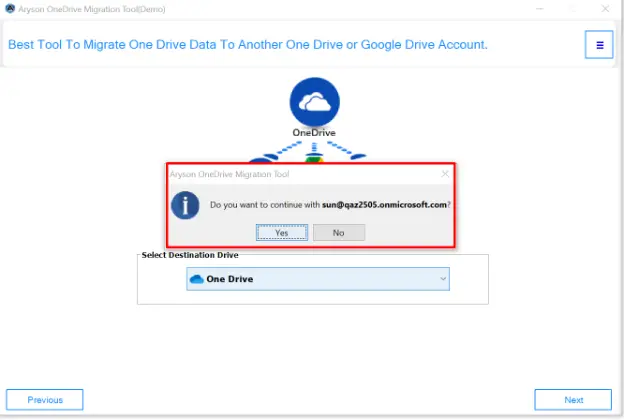
- Step 08: A prompt will apper to ask with the continuous business account. Click Yes.
- Step 09: Finally, wait for the process to complete and download the detailed migration report.

Also Read: How to Delete a File in Office 365 OneDrive?
How this Solution Can be helpful for Enterprises Users?
- Ensures seamless transfer of file ownership across multiple OneDrive accounts.
- This automated solution supports bulk migration, saving time for IT teams.
- Maintains folder structure and preserves permissions during transfer.
- Along with that, it reduces the risk of data loss and manual errors.
- Simplifies tenant-to-tenant migrations in Microsoft 365 environments.
- Apart from that, it helps manage employee offboarding efficiently.
- Enables cleanthe up of inactive or legacy OneDrive accounts.
- Improves overall data governance and compliance for enterprises.
Manual Methods For OneDrive Transfer Ownership Business
Although OneDrive does not offer a direct “change owner” button, users can still manage file control through a few manual approaches. These methods work best for small data and limited users.
Method 01: Transfer Ownership OneDrive Personal Using Sharing
In OneDrive Personal, ownership cannot be changed directly. However, full access can still be shared.
- Sign in to your OneDrive Personal account to access your files and folders.
- Select the file or folder you want the recipient to access.
- Right-click and choose Share to start the sharing process.
- Enter the email address of the user you want to share with.
- Set the permission to Can edit so they can copy or move the files.
- Click Send to share the file or folder with the recipient.
- The recipient can now copy or move the shared items to their own OneDrive account.
Important Note: The original owner remains the same even after transfer file ownership in OneDrive.
Method 02: Move Files After Sharing (Personal & Business)
- Share the files or folders with Can edit permission to allow access.
- Ask the recipient to open the shared files in their OneDrive.
- Select the files and click Add shortcut to My files or Move to.
- Move the files or folders into the recipient’s own OneDrive account.
- Once moved, the new user becomes the owner of the copied files.
Method 04: Admin Access Method in OneDrive for Business
- Sign in to the Microsoft 365 Admin Center with admin credentials.
- Navigate to Users>>Active users to locate the departing user.
- Select the user whose OneDrive files you want to reassign.
- Open the OneDrive tab to manage the account data.
- Click Create link to files to generate access for the new owner.
- Share the link with the recipient to allow ownership transfer.
- Admins can also maintain OneDrive access even after the original account is deleted.
Method 05: Download and Upload Files
- Download the required files from the source OneDrive account to your local system.
- Sign in to the target OneDrive account where files need to be moved.
- Upload the downloaded files manually into the target account.
- This method should only be used if no other sharing or migration options are available.
Limitations of Manual OneDrive Ownership Transfer
- Manual methods are time-consuming, especially when handling large volumes of files.
- They do not support bulk transfer, making them inefficient for multiple users or accounts.
- There is a higher risk of missing or misplacing files during the transfer process.
- Permissions and access levels must be managed manually, which increases complexity.
- Manual approaches are not suitable for tenant-to-tenant migrations or enterprise-scale operations.
- They rely heavily on user cooperation, such as recipients moving shared files themselves.
- Repeated manual steps can increase the chance of human error, impacting data integrity.
Conclusion
After reading this blog, you now have a clear understanding of how to transfer file ownership in OneDrive, whether it’s a Personal account or a Business account. You’ve seen the manual ways to share and move files, and you also know how an automated solution can make the process safe and efficient. Now, with this knowledge, you can confidently choose the method that fits your needs.
Frequently Asked Questions
Q1. Can I directly change file ownership in OneDrive Personal?
Ans: Yes, the Aryson OneDrive Migration Tool can transfer files with proper ownership and permissions without manual effort.
Q2. Does it support both Personal and Business OneDrive accounts?
Ans: Yes, the Aryson OneDrive Migration Tool works with OneDrive Personal and OneDrive for Business accounts efficiently.
Q3. Is it safe to use an automated tool for large-scale transfers?
Ans: Yes, automated tools are designed to handle large volumes of files securely while ensuring permissions and ownership remain intact.
Q4. Can I transfer ownership during Microsoft 365 tenant-to-tenant migration?
Ans: Manual methods are limited, but an automated solution like Aryson OneDrive Migration Tool supports smooth ownership transfer during tenant-to-tenant migration.
About The Author:

Rohan Wiese is a Technical Writer at Aryson Technologies. He is an expert Email Forensic, Cloud Computing, and a passionate nerd with over 10 years of experience in technical content writing. He writes about Cloud Migration, Database Recovery, Email Backup, Windows, Mac, and Tech.
Related Post