-

Written By Rohan Wiese
-
Updated on October 5th, 2026
How to Fix Outlook Error “Your Organization’s Policies are Preventing”
Microsoft Outlook is one of the most trusted email applications. It is used by professionals and businesses all across the world. From emails and contacts to calendars and tasks, you can manage everything in one place with Outlook. However, like any another software, Outlook is not free from errors. One of the common problems faced by users is the error message mentioned below:
“Your organization’s policies are preventing this action in Outlook.”
This issue usually pops up when you try to open hyperlinks or perform certain tasks within Outlook. This error is quite frustrating when you need quick access to important resources. The best part is that there are some ways, including the Aryson Outlook PST Repair Tool to fix Outlook Error “Your Organization’s Policies are Preventing”.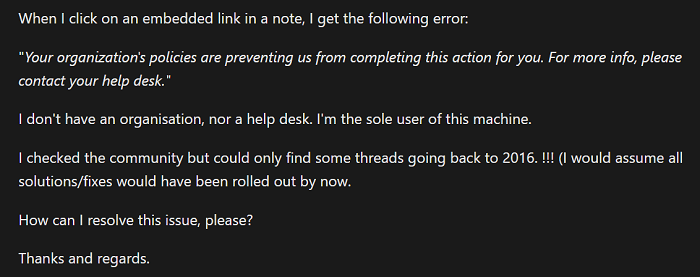
Do you know what exactly this Outlook Error means?
This error means Outlook is not allowed to complete an action because of certain restrictions on your computer or in the app. Most of the time, it happens when you click a link in an email, but Outlook cannot open it in your web browser. Also, it can occur if your registry settings are damaged. Other than that, your default browser is not set up correctly then you came close to this issue. In some cases, rules set by your organization’s policy or issues with Outlook add-ins can also cause the problem.
Why Does the Outlook 365 Policies Error Occur?
To solve the problem of the Outlook error, first, it is important to understand the possible causes of this error. Here are some of the most common reasons behind the “Your organization’s policies are preventing this action” error in Outlook:
- The first cause can be corrupted registry entries that interfere with link handling.
- Incorrect default browser settings cause issues in Windows.
- Faulty or incomplete installation of Microsoft Office or Outlook creates errors.
- System administrators apply restrictions through Group Policy settings.
- In case, is a conflict is between Outlook add-ins, it can block normal operations.
Now, you know that the causes, let’s move on to the actual solutions to resolve the error of “Your organization’s policies” when opening links from emails in Outlook.
How to Fix Outlook Error: “Your Organization’s Policies are Preventing This Action”
There are several methods to fix this error. You don’t have to try them all. Simply, you can start from the top and move down to the methods one by one separately, until the issue is resolved.
Explore Some of the Manual Fixes to Resolve “Your Organization’s Policies are Preventing” Error
To solve this Outlook error, you can try a few manual fixes that address common issues like browser settings, registry entries, or add-ins. Let’s go through the most effective step-by-step guide to fixing “Your organization’s policies” error in Outlook 365:
Fix 01: Configure the Default Web Browser Correctly
Outlook depends on your system’s default browser to open hyperlinks. If the default browser is not set correctly, you may see this error.
- Open Settings on your computer.
- After that, go to the Apps and tap on the Default Apps.
- Scroll down and set your preferred browser (such as Chrome, Edge, or Firefox) as the default.
Fix 02: Reset Registry Settings for Outlook Links
Many times, registry keys get corrupted or incorrectly configured. As a result, it prevents Outlook from handling links.
- Press Windows + R, type regedit, and press Enter.
- Navigate to the following paths one by one:
- Here are the following paths:
|
HKEY_CLASSES_ROOT\.html HKEY_CLASSES_ROOT\.htm HKEY_CLASSES_ROOT\HTTP\shell\open\command |
- Make sure the values here point to your default browser.
- Close the Registry Editor and restart your PC.
Point to Remember: You have to be very careful when you edit the registry. A wrong change may cause system instability.
Fix 03: Repair Your Microsoft Office Installation
Sometimes, the problem lies in a damaged or incomplete installation of Microsoft Office. When you run a repair can solve the issue with ease.
- Open the Control Panel and go to Programs and Features.
- Find Microsoft Office in the list.
- Right-click and select Change.
- Choose Quick Repair first. If that doesn’t work, try Online Repair.
- Restart Outlook after the repair is completed.
Fix 04: Modify the Group Policy Settings
If your organization’s administrator has applied certain restrictions through Group Policy, you may encounter this error. However, if you have admin rights, you can change these settings and get Outlook back.
- Simply, press Windows + R and type gpedit.msc>> press Enter.
- Then, click User Configuration>>Administrative Templates>>Microsoft Outlook
- Also, check for any restrictions related to hyperlink handling.
- Now, set them to the Not Configured or Disabled panel.
- Lastly, restart Outlook to apply the changes.
Fix 05: Disable the Faulty Add-ins in Outlook
Outlook add-ins are useful. But sometimes they conflict with normal functions and trigger the Outlook Error “Your Organization’s Policies are Preventing” errors.
- Firstly, open your Outlook application>>Click File >>Options>>Add-ins.
- At the bottom, select COM Add-ins and click Go.
- Now, uncheck suspicious or unnecessary add-ins.
- Next, restart Outlook and check if the error is gone.
Let’s see the Limitations of Manual Fixes
However, the above methods can solve the error in many cases. Keep in mind that they do come with certain limitations. Here are some of them:
- All manual steps require good technical expertise.
- When you edit the registry or group policy, it can be risky.
- Troubleshooting is often time-consuming.
- These fixes may not work if the error is caused by corrupt Outlook data files.
If the error is linked to file corruption, you need a more reliable solution.
Advanced Solution: Use the Professional Aryson Outlook Repair Tool
When Outlook shows errors like “Your organization’s policies are preventing this action”, sometimes the real problem is a corrupted PST file. Manual fixes are helpful if the issue is with settings. But they cannot repair a damaged PST. In such cases, the Aryson Outlook PST Repair Tool is the best solution to proceed with. This professional utility can scan, repair, and restore corrupted or inaccessible PST files of any size. Also, it makes sure that you do not lose important emails, contacts, calendars, or attachments while fixing errors. Also, it supports all Outlook versions. So, you can recover your Outlook data with ease. Download Now Purchase Now
Additional Pointers Associated with this Software
- Repairs corrupted or damaged PST files safely.
- Recovers emails, contacts, calendars, notes, and attachments.
- Saves recovered data into PST, EML, MSG, MBOX, DBX, and other formats.
- Moreover, it maintains the original folder hierarchy during the recovery process.
- Also, it provides a preview option to check mailbox items before saving.
- Along with that, it works with all versions of MS Outlook 2019, 2016, 2013, 2010, and earlier.
- This software comes with easy-to-use interface which is quite suitable for beginners and professionals.
- With this utility, you can not only repair PST corruption but also resolve Outlook errors that occur due to damaged files.
With this utility, you can not only repair PST corruption but also resolve Outlook errors that occur due to damaged files.
Related Posts: Outlook Error 0x800CCC13 “Cannot Connect to Network”, Recover and Restore Deleted Items in Outlook, Fix Unknown Error 0x80070002 in Outlook.
Conclusion
The error “Your organization’s policies are preventing this action in Outlook” is usually linked to system misconfigurations or restrictions. You can try several manual methods, which are mentioned above. However, in case your root cause is Outlook file corruption, use the Outlook Repair Tool to fix the issue and recover all your important data without hassle. With the right approach to resolve this error, you can get Outlook again and avoid future interruptions.
Frequently Asked Questions (FAQs):-
Q1. How do I fix the “Your organization’s policies are preventing this action” error in Outlook?
Ans: You can fix it when you set the correct default browser, repair registry settings, run an Office repair, modify group policy, or disable faulty add-ins.
Q2. Can Group Policy cause this Outlook error?
Ans: Yes. If system administrators apply restrictions through Group Policy, Outlook may block certain actions and display this error.
Q3. Does repairing Microsoft Office fix this error?
Ans: Yes, if the problem is due to a faulty or incomplete Office installation, running a Quick Repair or Online Repair can often resolve the issue.
Q4. Can corrupted PST files trigger this error?
Ans: Yes. If your Outlook PST file is corrupted, it may cause unexpected errors, including this one. In such cases, using a PST Repair Tool is recommended.
About The Author:

Rohan Wiese is a Technical Writer at Aryson Technologies. He is an expert Email Forensic, Cloud Computing, and a passionate nerd with over 10 years of experience in technical content writing. He writes about Cloud Migration, Database Recovery, Email Backup, Windows, Mac, and Tech.
Related Post