-

Written By Harshita Sachdeva
-
Approved By
Shivam Rathore -
Updated on June 17th, 2026
Repair Corrupt MS SQL Server Database: Enterprise Guide
Query: Hi, I have a SQL Server 2000 installed, one day it stopped starting so I decided to reinstall it. I tried to copy my database before reinstalling, but I got some error during copying the MDF file. I tried to copy the file in the safe mode but it didn’t work as well. So then Goggle recommended me to run chkdsk to solve the problem (I guess it was a big mistake). It helped me to copy the mdf file, but when I reattached the mdf file I got an error again, I managed to reattach the file only without the .ldf file (it created a new one). Unfortunately it seems the mdf file is corrupted now, I can’t even see the tables in the sql manager – it says “Error 823: I/O error (torn page) detected during read at offset.”
Summary: Generally, IT admins and database professionals often face corrupt MS SQL Server databases. This issue is caused by hardware failures, sudden shutdowns, or malware attacks. In case it is not resolved within a specific time frame, it will be left unresolved. Corruption leads to inaccessibility, data loss, and failed queries. Therefore, this article covers the common causes, warning signs, and manual methods to repair corrupt SQL database, including the Aryson SQL Database Recovery Software for MDF file recovery.
Symptoms of a Corrupt MS SQL Server Database
In case you are noticing any of the following signs, your MS SQL Server database might be corrupted.
- Error messages such as Error 823, 824, or 825 appear during database access.
- The database mode changes to Suspect, Recovery Pending, or Emergency mode.
- Users might face issues when they execute SQL queries.
- Moreover, the indexes, stored procedures, or views become inaccessible.
- Transaction logs scale suddenly abnormally large or stop functioning correctly.
- Database records get missed without any intentional deletion or modification.
Common Causes of Corruption in MS SQL Server Databases
Once you know the root cause of the corruption in MS SQL Server databases, it becomes easier to choose the correct recovery path.
- The hardware failures include disk crashes, bad sectors, or faulty memory.
- Users may face sudden system shutdowns or power outages.
- Transactions might be left incomplete due to improper SQL Server shutdowns.
- Your data might get deleted accidentally or modified, leading to logical corruption.
- Disk I/O errors during read or write operations introduce torn pages in database files.
Proven Fixes to Repair Corrupt MS SQL Server Database
In this section of the blog, we will mainly focus on some of the most straightforward yet effective methods to recover corrupt SQL database. Review each method and apply the one that best matches the severity of the issue.
Method 1: Restore the Database from Backup
The simplest method to restore a database is to have a recent backup. Organizations can schedule a regular backup, and later on restore it from a clean backup to avoid any risk of data loss. This brings the database back to a stable state instantly.
Simplified Steps to Restore from Backup are as Follows:
- Open SQL Server Management Studio (SSMS) and connect to the server instance.
- Expand the Databases folder in Object Explorer.
- Right-click the target database >> select Tasks >> Restore >> Database.
- After that, choose From Device >> click Browse to locate the backup (.bak) file.
- Select the required backup file >> click OK.
- Now, review the restore settings >> click OK to begin the restore process.
- At last, restart the SQL Server service after restoring it completely.
Method 2: Repair the Database Using DBCC CHECKDB
In case you do not have any backup available, opt for the DBCC CHECKDB. This is basically a Microsoft-built-in database integrity tool that can help users identify & repair corruption within a SQL Server database.
Critical First Step: Create a Physical Copy of the Database Files
Before you run any repair operation, stop the SQL Server service and make a manual copy of the .mdf (Primary Data File) and .ldf (Transaction Log File). Store these copies in a secure location. Now, these repair commands may alter or permanently remove corrupted records. Therefore, it is important to have an untouched copy of the original files, which eventually keeps the recovery process secure.
Step 1: Set the Database to EMERGENCY and SINGLE_USER Mode
This removes all active user sessions and grants the IT professional read-only administrative access to the damaged database.
| ALTER DATABASE [YourDatabaseName] SET EMERGENCY;
ALTER DATABASE [YourDatabaseName] SET SINGLE_USER WITH ROLLBACK IMMEDIATE |
Step 2: Run the Diagnostic Check
Execute the integrity scanner to identify the exact location and severity of structural faults in the database.
| DBCC CHECKDB ([YourDatabaseName]); |
Check the output carefully. DBCC CHECKDB will explicitly recommend the minimum repair level that will be required: either REPAIR_REBUILD or REPAIR_ALLOW_DATA_LOSS.
Step 3: Execute the Recommended Repair Command
Based on the diagnostic output, choose the appropriate repair option:
Option A: Safe Repair (REPAIR_REBUILD)
Rebuilds missing indexes and fixes structural errors without risking actual data row deletion. IT professionals should always attempt this option first.
| DBCC CHECKDB ([YourDatabaseName], REPAIR_REBUILD); |
Option B: Data-Loss Repair (REPAIR_ALLOW_DATA_LOSS)
Use this only as a last option. It deallocates and removes corrupted pages to restore the basic database structure, which results in permanently lost data records.
| DBCC CHECKDB ([YourDatabaseName], REPAIR_ALLOW_DATA_LOSS); |
Step 4: Restore Back to MULTI_USER Mode
Once the repair completes successfully, bring the database back online for normal user access.
| ALTER DATABASE [YourDatabaseName] SET MULTI_USER; |
Run DBCC CHECKDB one more time to confirm all errors are resolved before resuming operations.
Method 3: Expert Solution to Repair Corrupt MS SQL Server Database
When manual methods fail, the actual issue might reside within the MDF or NDF files. Therefore, organizations prefer to use Aryson SQL Database Recovery Software to repair corrupted MDF and NDF files. With the help of this utility, IT admins can efficiently recover tables, views, indexes, triggers, and stored procedures with high accuracy. Even IT professionals can restore table data in SQL Server without causing any kind of data loss.
Simplified Steps to Repair Damaged or Corrupted SQL Database File
- Download, install & launch Aryson SQL Database Recovery software.
- After that, click on the Browse button to locate & select the corrupted MDF file.
- Pick a required scanning mode based on the level of corruption.
- Modify the scan settings as required >> click OK to begin the scan.
- Next, check the details of the recovered database objects after the scan completes.
- Select the required items >> save the recovered data in SQL, CSV, or directly to a live SQL Server.
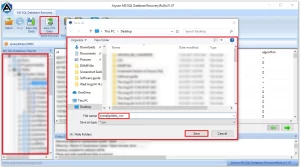
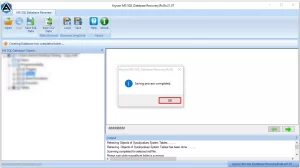
- Click OK to complete the recovery >> save the database to the target location.

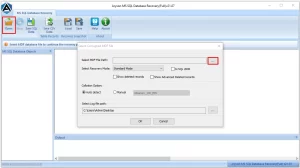
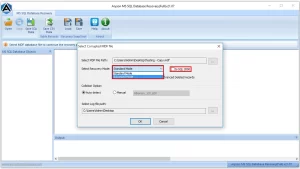
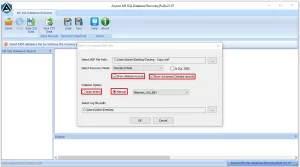

Note: IT admins can efficiently fix recovery pending state in SQL Server database, using the same utility. Moreover, there is no chance of data loss or coruption during the recovery process.
Catalan’s Success Story
Our enterprise SQL Server MDF file was severely corrupted after a sudden power failure. Aryson SQL Database Recovery Software recovered all tables, indexes, and stored procedures within minutes—completely without data loss. Highly recommended for IT professionals.
Database Administrator, Financial Services Enterprise
Conclusion
This article covered the key causes and warning signs of MS SQL Server database corruption, along with practical manual methods for IT professionals and organizations to repair corrupt MS SQL Server databases. From restoring backups to running DBCC CHECKDB and replacing MSDB files, each method targets a specific corruption scenario. For deep MDF or NDF file damage, the Aryson SQL Database Recovery Software provides a reliable, accurate recovery path. For further assistance, reach out to the tech support team directly.
Frequently Asked Questions
Q.1 How to repair a corrupt MS SQL Server database without losing data?
Answer: Aryson SQL Database Recovery repairs corrupt MDF and NDF files while preserving original database integrity. It recovers maximum data without modifying source files during the recovery process.
Q.2 What database objects can be recovered from a corrupt SQL Server database?
Answer: The software recovers tables, views, triggers, indexes, keys, stored procedures, and functions. It restores both schema and data from damaged SQL databases.
Q.3 Can I preview recovered SQL database data before saving it?
Answer: Yes, Aryson provides a detailed preview of recoverable database objects before saving. Users can verify data accuracy and select required items.
Q.4 Is SQL Server database recovery software compatible with all Windows versions?
Answer: Aryson SQL Recovery supports all major Windows operating systems. It works efficiently on Windows 11, 10, 8.1, 8, 7, and earlier versions.
Q.5 What is the difference between Standard and Advanced Recovery modes?
Answer: Standard Recovery handles minor database corruption issues effectively. Advanced Recovery is designed for severely damaged MDF and NDF files requiring deeper scanning.
Q.6 Can I recover data from severely corrupted MDF and NDF files?
Answer: Yes, the software supports recovery from highly corrupted MDF and NDF files. Advanced scanning algorithms extract the maximum possible data successfully.
Q.7 How does software licensing work for SQL Server recovery tools?
Answer: Aryson offers flexible licensing options for personal, business, and enterprise requirements. Users receive licensed access according to the selected edition.
Q.8 Is 24/7 chat support available during the SQL database recovery process?
Answer: Yes, Aryson provides 24/7 technical assistance through chat and support channels. Users can get help whenever recovery-related issues arise.
Q.9 Why should I use a dedicated SQL Server recovery tool instead of manual methods?
Answer: The Aryson SQL Database Recovery Software delivers faster and more accurate results than manual techniques. It minimizes risks of data loss and recovery failures.
Q.10 Does the software verify data consistency before exporting recovered SQL databases?
Answer: Yes, Aryson validates recovered database objects before export operations. This helps maintain data consistency and reliability in recovered databases.
Q.11 Can enterprise users receive priority support for critical SQL database recovery cases?
Answer: Yes, enterprise customers can access priority technical assistance for urgent recovery needs. Aryson ensures faster response times for critical situations.
About The Author:

Harshita Sachdeva, a professional technical writer at Aryson Technologies, specialize in delivering clear, hands-on documentation for data management, migration, and recovery solutions. With a meticulous, reader-first approach, I break down complex technical processes into simple, actionable content - helping IT professionals and decision-makers tackle challenges efficiently.
Related Post